deepseek-harness-avatar
zoyluoblue/deepseek-harness-avatar
DeepSeek Harness (dsh) plugin for wallpaper theming — upload images from the Settings page, pick one, and the whole dsh web UI renders over it with an adjustable readability mask and blur.
Installation
dsh plugin --profile web add github:zoyluoblue/deepseek-harness-avatarREADME
@zoytown/dsh-avatar
English | 中文
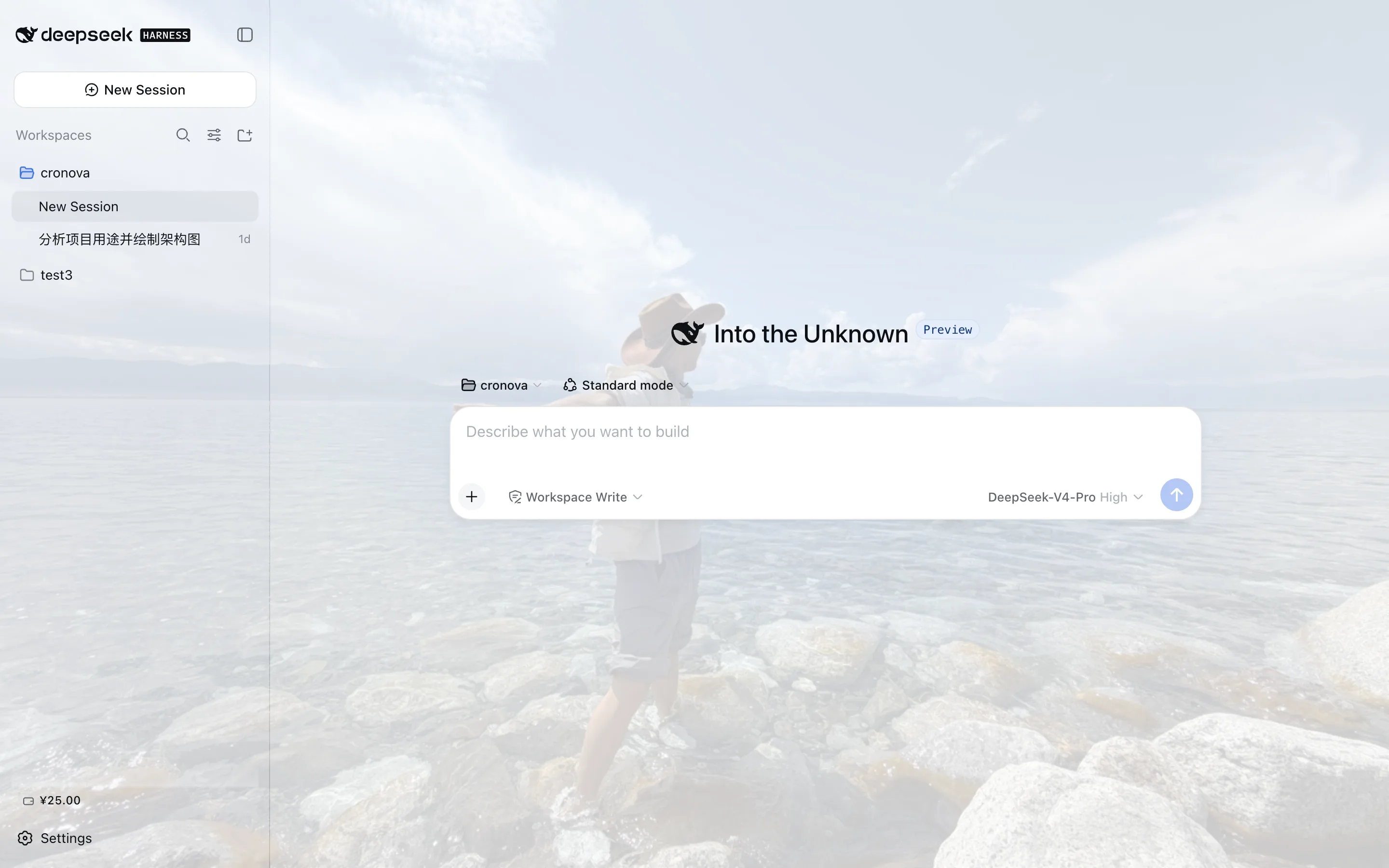
Wallpaper theming plugin for DeepSeek Harness (dsh): upload images from the Settings page, pick one, and the whole dsh web UI renders over it — with an adjustable readability veil, background blur, and fill mode.
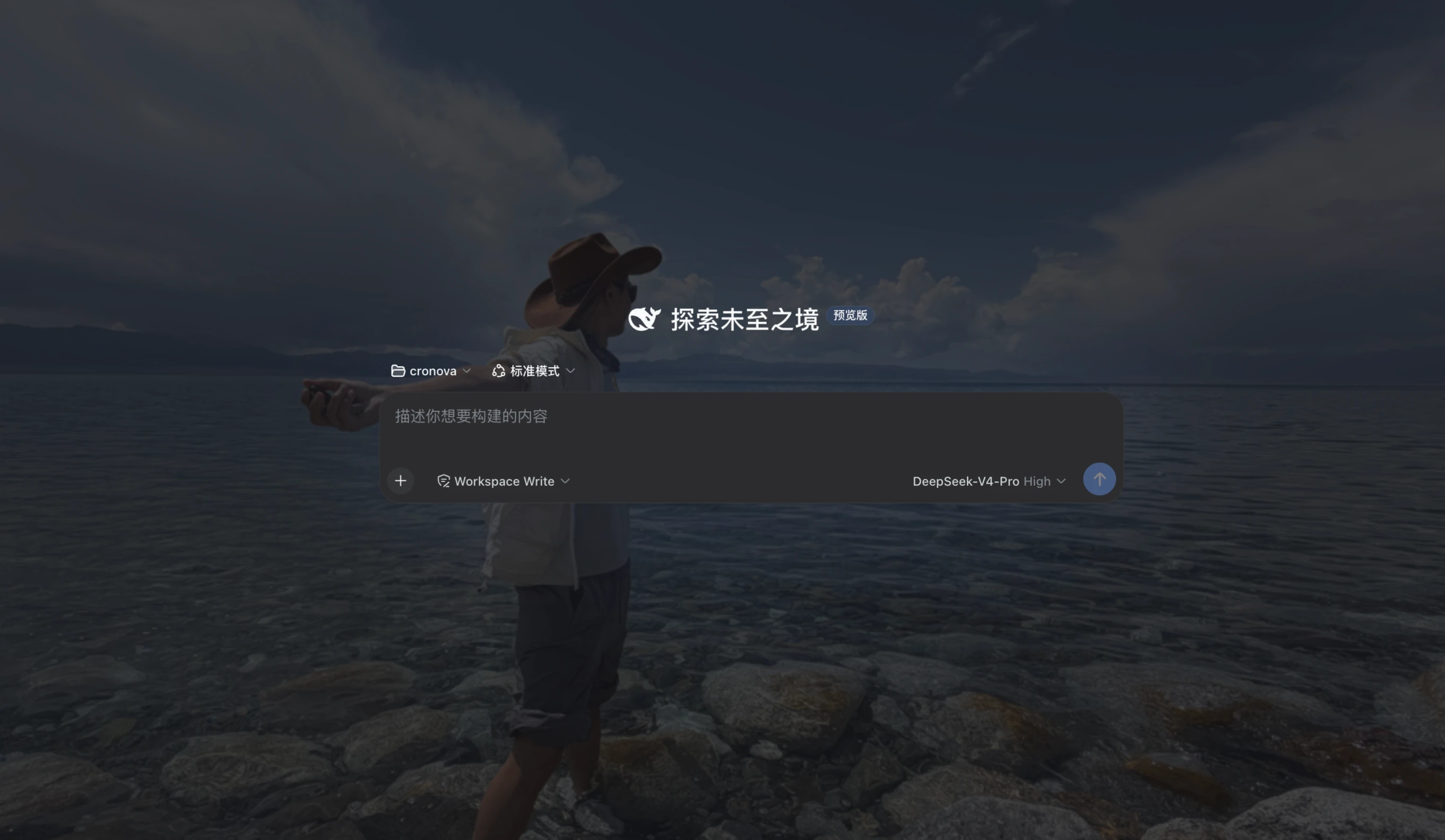
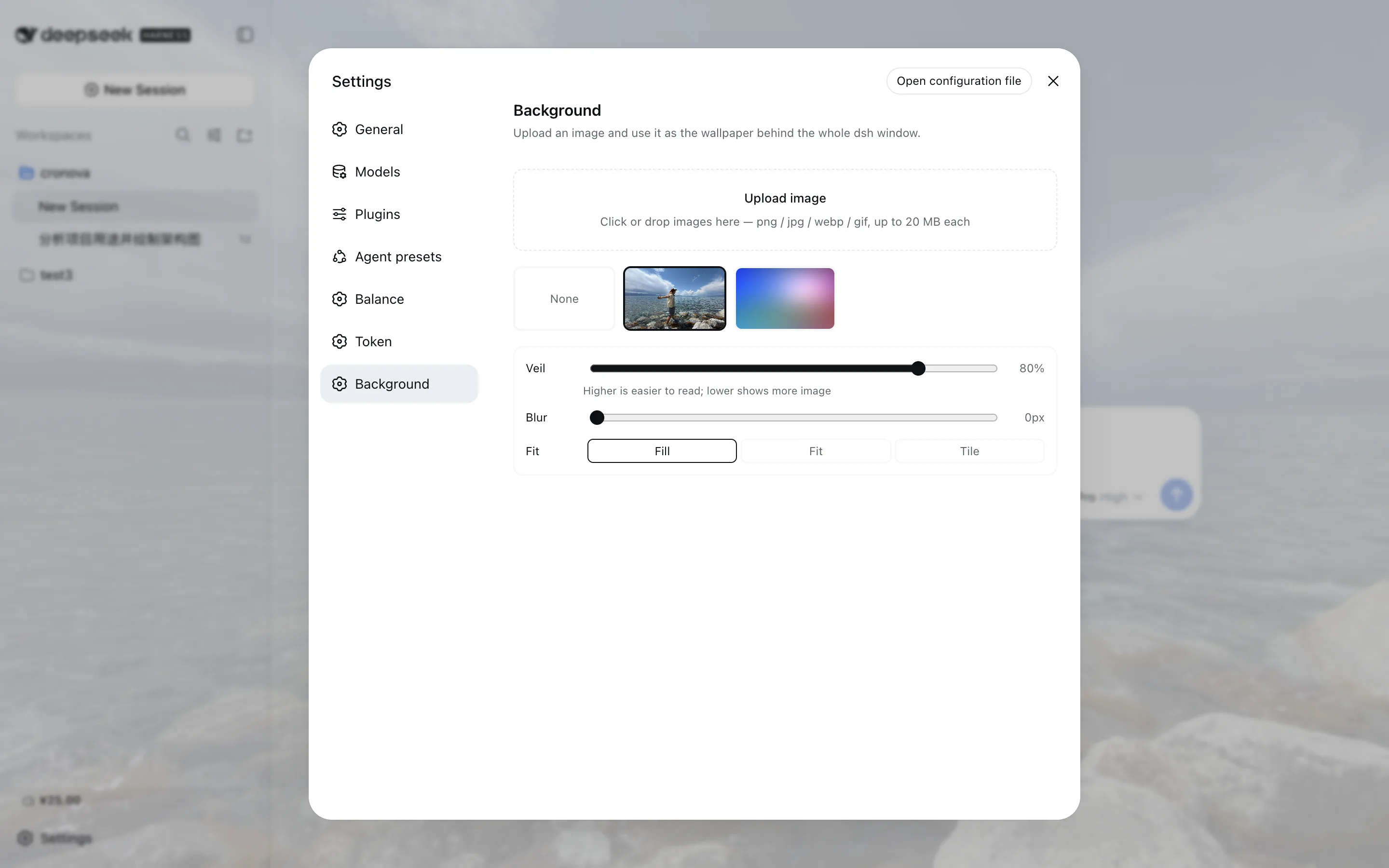
- Upload in the UI — click or drag & drop (png / jpg / webp / gif, 20 MB per image by default);
files land in
~/.dsh/avatar/v1/under content-addressed names - Gallery — thumbnails of everything you uploaded; click to apply, hover to delete, pick None to go back to the plain theme
- Readability controls — a veil slider (the UI surfaces stay translucent over the image), a blur slider, and fill / fit / tile modes; changes preview live and persist automatically
- Scheme-aware — the veil re-tints itself from the active light/dark palette; one image serves both
Screenshots
Install
dsh plugin --profile web add @zoytown/dsh-avatar
Then open Settings → Background in the dsh web UI. Remove with
dsh plugin --profile web remove @zoytown/dsh-avatar — the UI reverts fully; uploaded images stay
in ~/.dsh/avatar/ until you delete that directory.
Configuration
Row config (override by id dsh-avatar in your cordis.patch.yml; restate every field):
| Field | Default | Meaning |
|---|---|---|
maxImageBytes | 20971520 | Per-image upload cap in bytes |
trustedHosts | [] | Non-loopback authorities allowed to fetch image bytes (host or host:port). Uploads and preferences stay loopback-only regardless, because the harness pins its settings API to loopback. |
dshHome | (unset) | Override the dsh home the wallpaper directory lives under |
User preferences (active wallpaper, veil opacity, blur, fill) live in the avatar section of
~/.dsh/settings.yaml.
Scope and limitations
- dsh web only. The Electron form has no HTTP server, so the image route this plugin relies on does not exist there.
- Remote (non-loopback) browsers are read-only. The harness rejects settings reads/writes from non-loopback origins, so the Background page disables itself with a note, and the wallpaper is not applied there.
- No data leaves your machine. This plugin makes no external requests and reports nothing.
- Sticky headers and small chips become slightly translucent while a wallpaper is active — that is the veil working; raise the veil slider if anything is hard to read.
Every behavioral claim in this README was verified on 2026-08-18 against dsh
@deepseek-ai/dsh-*@0.1.0-rc.6 with this plugin at 0.1.0.
FAQ
How do I set a custom background / wallpaper in DeepSeek Harness (dsh)?
Install this plugin, open Settings → Background, upload an image, and click its thumbnail —
the wallpaper applies immediately and persists. Installation is one command:
dsh plugin --profile web add @zoytown/dsh-avatar.
Which image formats and sizes are supported?
png, jpg, webp, and gif, up to 20 MB per image by default. The cap is the maxImageBytes row
config; the format is detected from the file bytes, so a renamed non-image is rejected regardless
of its extension.
I uploaded an image but the background did not change — why?
Most often the plugin is not actually active in your profile — run
dsh --profile web --dump-config and look for the # == @zoytown/dsh-avatar layer; if it is
missing, re-run the install command. Two by-design cases: a remote (non-loopback) browser is
read-only and never shows the wallpaper, and the Electron desktop app is not supported at all.
Where are my images stored? Do they leave my machine?
They stay on your machine and nothing is uploaded anywhere: image bytes live in
~/.dsh/avatar/v1/ under content-addressed names (<sha256>.<ext>), and preferences live in the
avatar section of ~/.dsh/settings.yaml. The plugin makes no external requests.
How do I go back to the default look?
Pick None in the gallery — it restores the plain theme background and keeps your uploads.
Removing the plugin (dsh plugin --profile web remove @zoytown/dsh-avatar) also reverts the UI
completely.
The text is hard to read over my image — what should I do?
Raise the Veil slider (higher = more readable), or add some Blur. Busy photographs usually read well from veil ≈ 80% upward, or with blur ≥ 8 px.
Does it work in the Electron desktop app or over remote access?
No for Electron: that form has no HTTP server, so the image route this plugin relies on does not exist there. Remote (non-loopback) browsers get a read-only Background page and no wallpaper, because the harness pins its settings API to loopback.
Development
pnpm install   # use pnpm — npm currently crashes on this dependency graph
pnpm run typecheck && pnpm run build
License
MIT
Ähnliche Plugins
dsh-deep-whale (maid-atelier)
small-tailqwq/dsh-deep-whale
dsh-deep-whale
small-tailqwq/dsh-deep-whale
dsh-wallpaper-engine
elysia395/dsh-wallpaper-engine
open-sea-skin
d-dev0101/open-sea-skin