Baisbt-dsh-service-manager
baisbt/baisbt-dsh-service-manager
MCP and skill manager as a full sidebar page: add, edit, enable, disable and delete MCP servers, expand a server to its tools and open one for its parameter list, translate skill and tool summaries with a model you pick, and count tool and skill invocations. Also registers an mcp_service tool so the agent can install MCP servers in conversation after an approval prompt.
Instalar
dsh plugin --profile web add github:baisbt/baisbt-dsh-service-managerREADME
DSH Service Manager
One page for every MCP server and skill in DeepSeek Harness.
Add, edit, enable, disable and delete MCP servers without touching YAML · browse your skills · translate their English summaries with your own model · see what actually gets called.




English · 简体中文
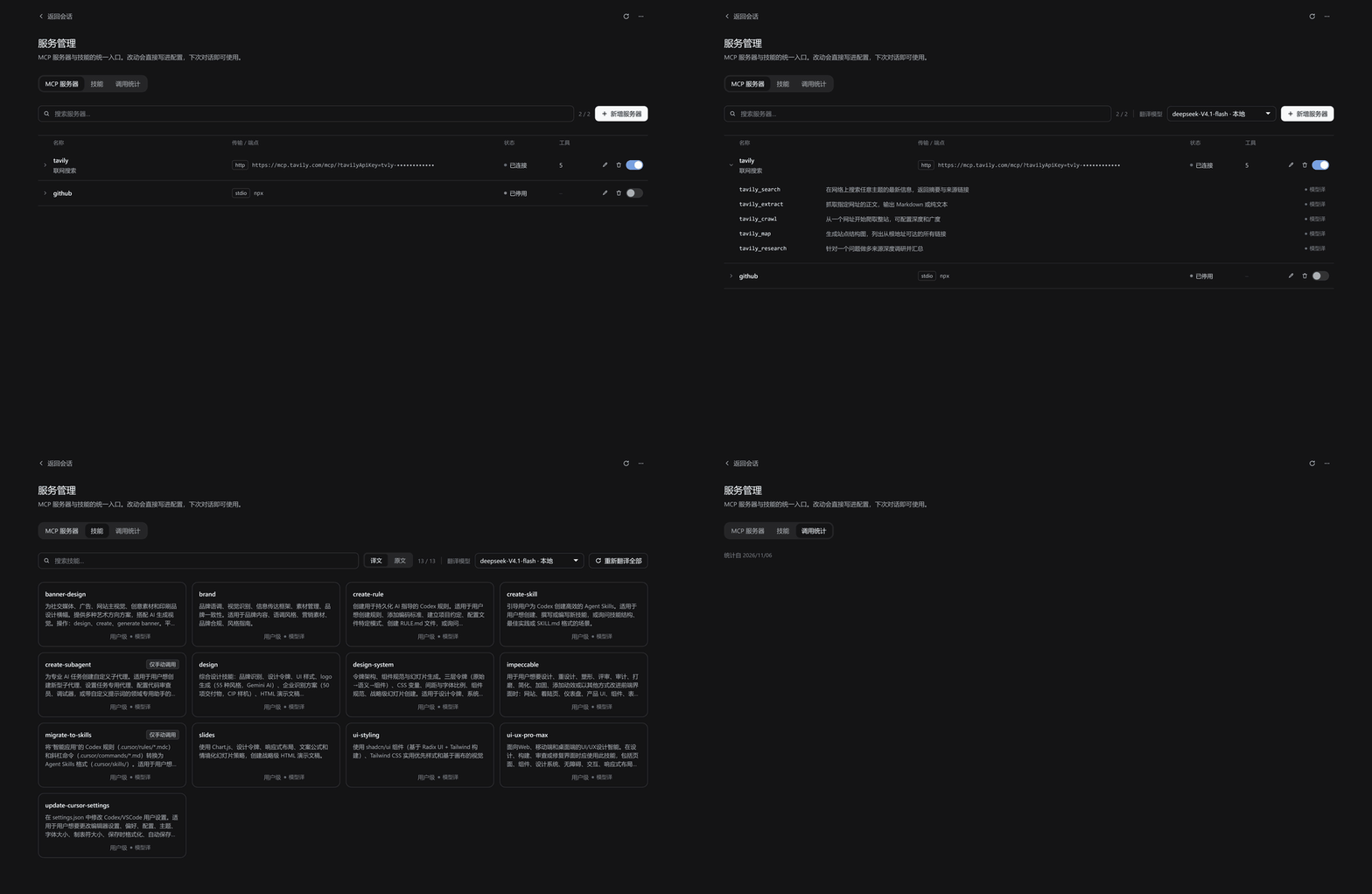
Why
DeepSeek Harness ships no MCP management UI. Adding a server means hand-writing YAML; finding out whether it connected means going back to a session and trying. Skills live as files on disk with English summaries you read once and forget.
This plugin adds the missing page. It never edits your DSH configuration files — it loads its own file through the official cordis:include mechanism, so cordis.patch.yml stays exactly as you wrote it.
Contents
- Features · Screenshots · Requirements · Install
- Usage · What it writes · Security boundaries
- How it works · Compatibility · FAQ
- Development · Contributing · License
Features
MCP servers
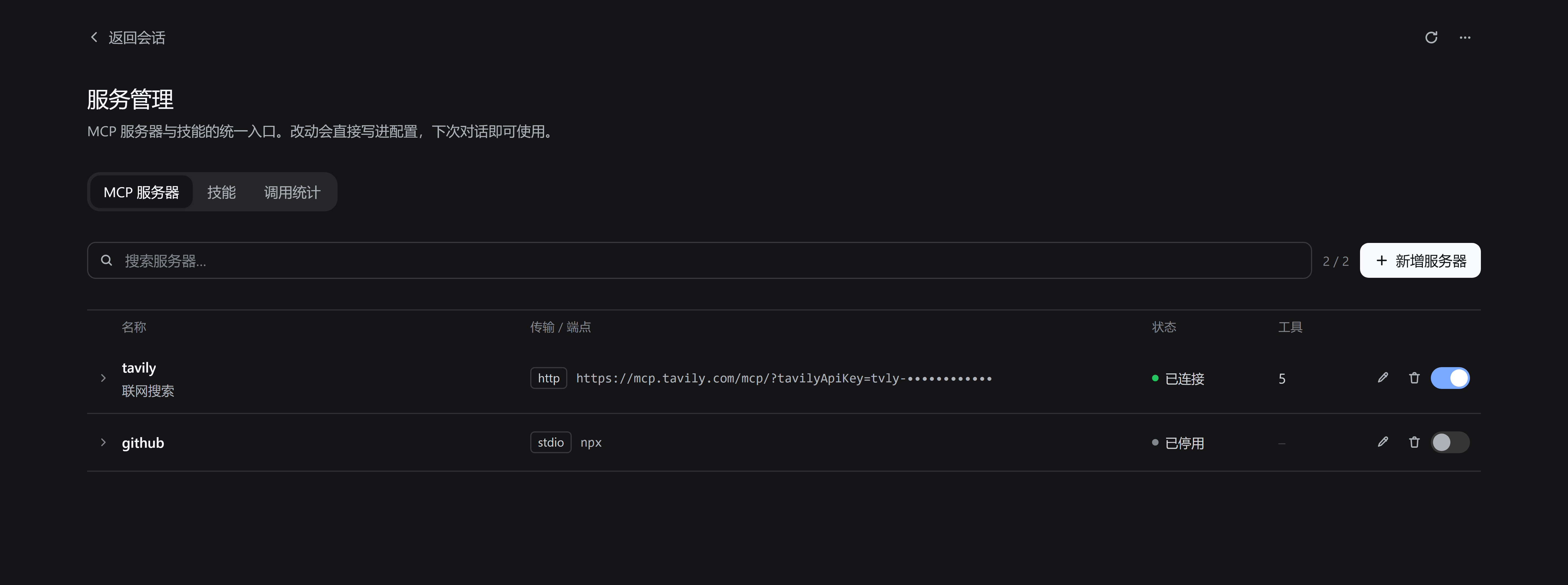
- Full CRUD without YAML — add, edit, delete, and toggle servers from a table
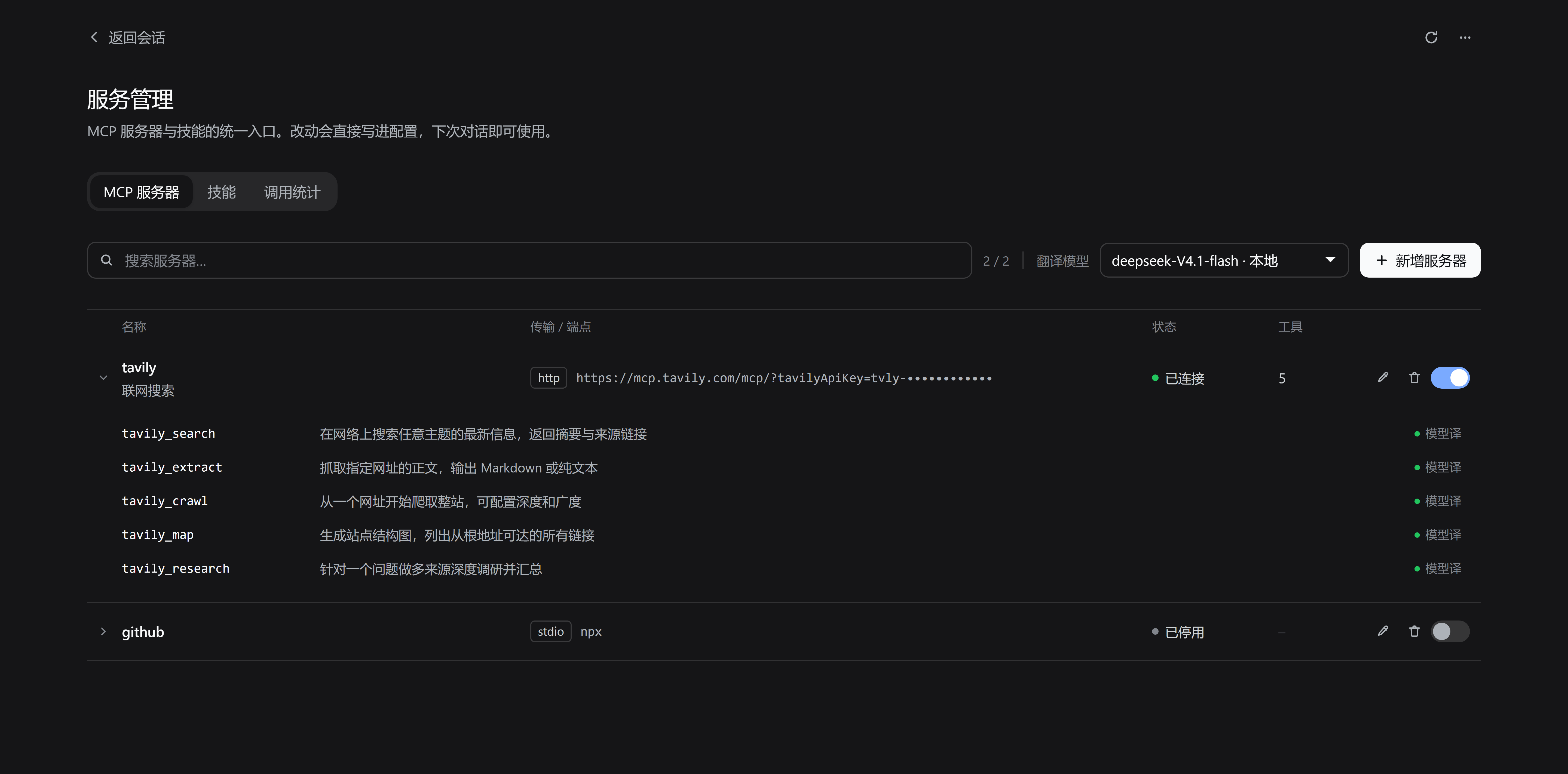
- Expand to the tool list — every tool a server registers, one line each, with the full description on hover
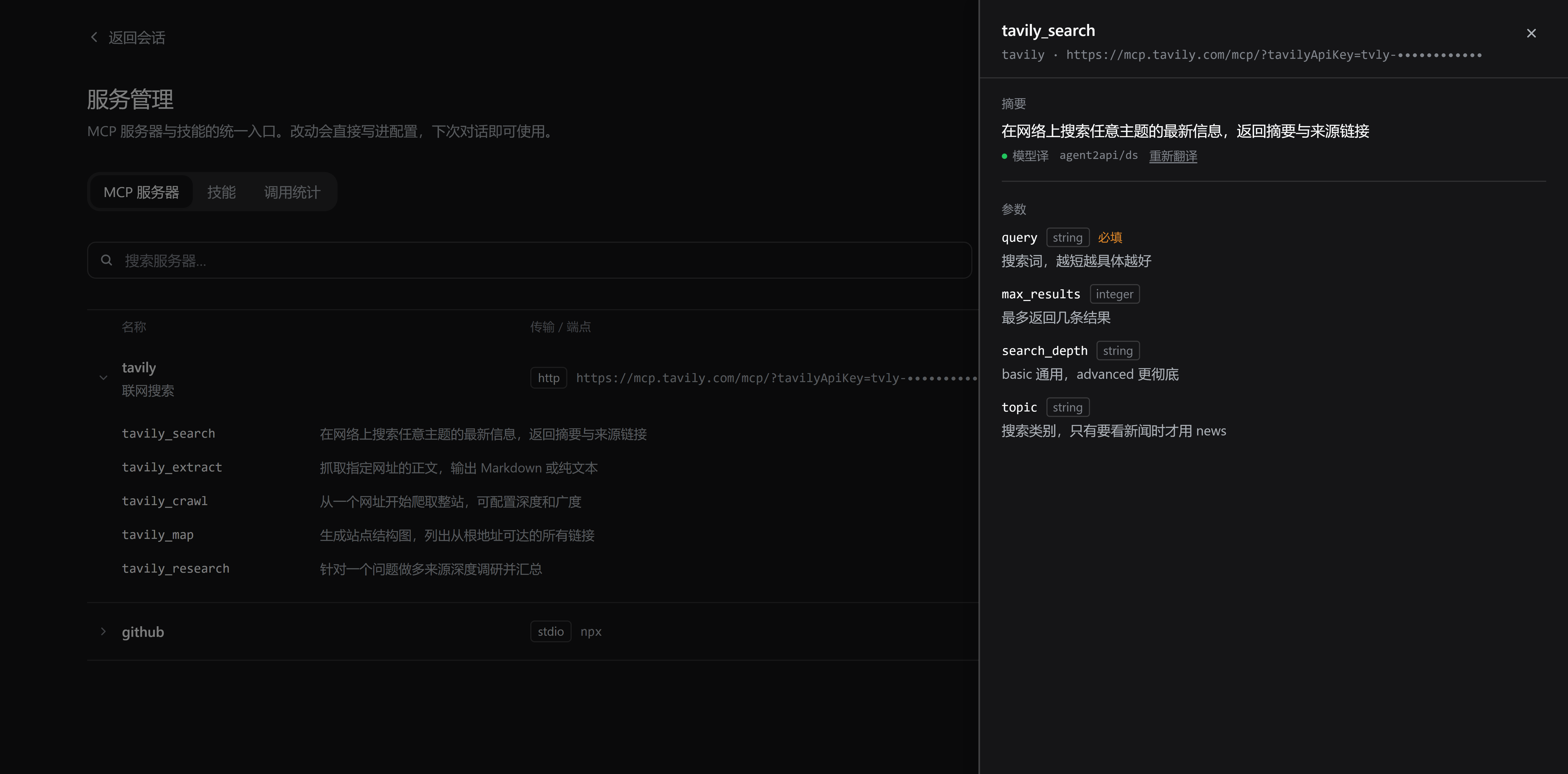
- Tool drawer — summary on top, parameter table below; parameter descriptions are translated, parameter names stay English because they are the identifiers you actually type
- Reconnect is visible — saving triggers a background include refresh; the page polls the reconnect state instead of leaving you staring at a spinner
${ENV_VAR}references — keep secrets in the environment, not in the config file
Skills
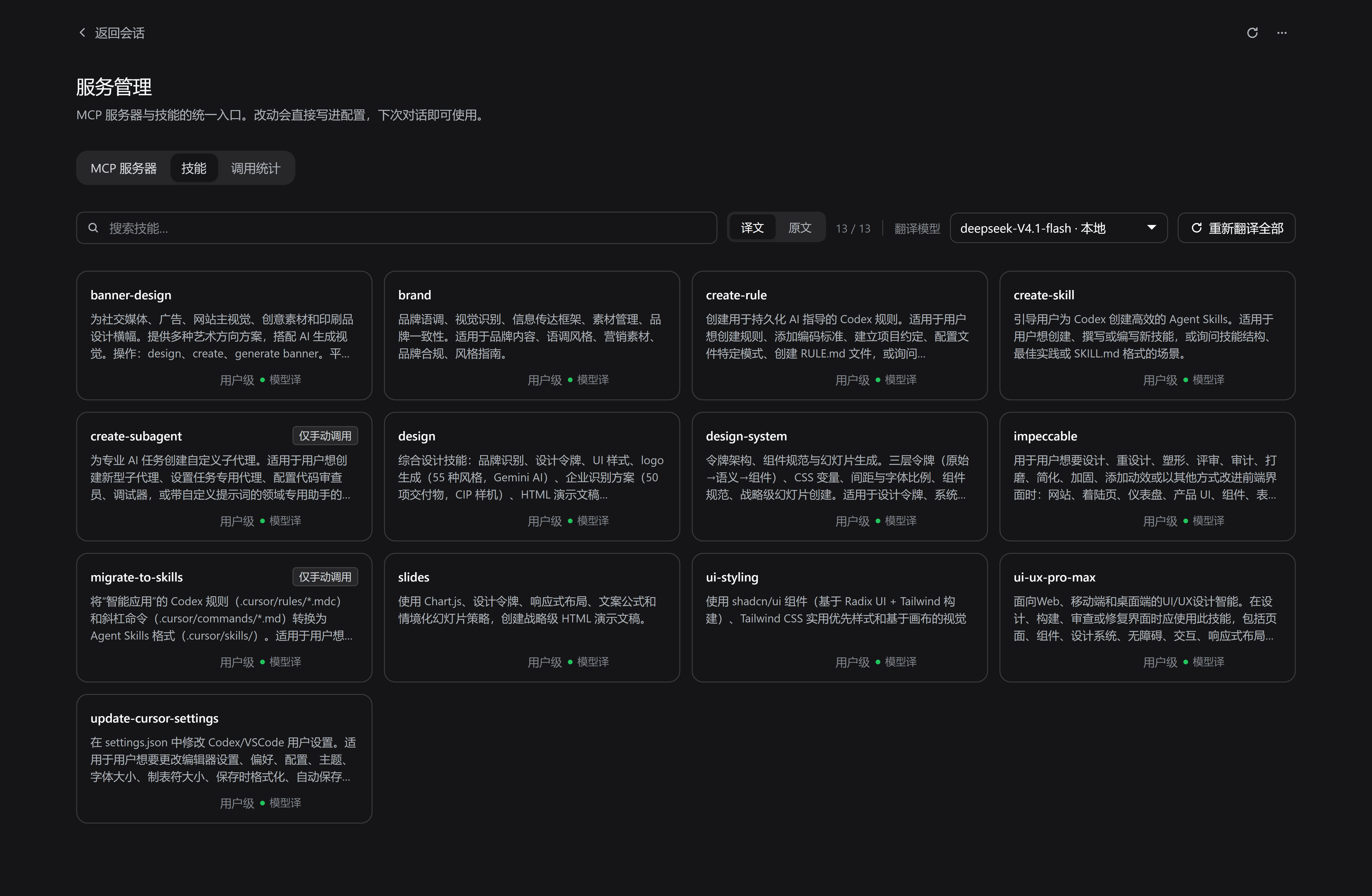
- Browse everything DSH can see, with each skill's summary and body kept as two layers
- Translate summaries with your own model — the picker lists every provider × model configured in DSH, defaults to your default model, and remembers the choice
译文 / 原文toggle for the whole list, ↻ to re-translate a single card, and a batch re-translate in the toolbar- Cached on disk — the second visit is zero requests
- Failure is visible — when the model cannot deliver, the card says
机翻(machine translation) rather than pretending it worked - Delete a skill from the page
Translations only change what you read.
SKILL.mdis never modified — the model still receives the original English prompt.
Invocation stats
Per-server and per-skill call counts, accumulated from the day you install. Answers "is this server earning its context?" without digging through session logs.
MCP failures are counted and classified too — network/timeout, authentication, bad parameters, server error, cancelled, unknown. Select a server and the chart switches from "errors by server" to "errors by category", each with a one-line explanation plus the raw code and a sanitized sample.
A 14-day column chart sits above the tables, and every row carries its own sparkline plus a red segment showing the share that failed.
Agent tool
The plugin also registers an mcp_service tool, so you can say "install the filesystem MCP" in a conversation instead of switching pages.
| Action | What it does | Needs approval |
|---|---|---|
list | Servers, transport, status, tool count | No |
install | Add or update a server | Yes |
remove | Delete a server | Yes |
enable / disable | Toggle a server | No |
Approval goes through DSH's one-shot authorization interface. A rejection, a cancellation, or no available answerer leaves the configuration untouched — it fails closed. Malformed arguments are rejected before the prompt, so an unusable request never interrupts you.
Both themes
Everything is built on DSH's design tokens, so light and dark follow the app automatically.
Screenshots
|
MCP servers
Edit, delete and toggle are always visible on each row. |
Expand to tools
One line per tool, ellipsised; hover for the English original. |
|
Tool drawer
Translated summary above, parameter table below. |
Skills
|
Invocation stats

Requirements
- DeepSeek Harness
>= 0.2.0-rc.1 < 0.3.0 pnpmonPATH(the plugin manager uses it)- Desktop app on Windows, macOS or Linux
Install
Open Settings → Plugins and paste either of these into the install box:
github:Baisbt/Baisbt-dsh-service-manager
https://github.com/Baisbt/Baisbt-dsh-service-manager
Then refresh the page (Ctrl+R). A 服务管理 entry appears in the sidebar.
Installing from npm by package name will work once the package is published.
⚠️ Before reinstalling the same package from a different source (say, a local directory you installed earlier), remove the leftover under
node_modulesfirst — otherwise you getERR_PNPM_EPERM. See FAQ.
Usage
MCP servers — click a row to expand its tools. The toolbar's model picker appears once a server with tools is open; pick a model and the tool summaries are translated.
Skills — summaries are English by default. Choose a model, hit 重新翻译全部, and the cards fill in. The toggle switches the whole list between translation and original; ↻ on a card re-translates just that one.
Stats — read-only counters, one row per server and per skill.
Opening the config directory — the page has an entry that opens the profile folder in your file manager (explorer.exe / open / xdg-open). It opens the folder; the plugin does not edit files you own.
What it writes
Everything the plugin owns lives in your profile directory. Nothing else is touched.
| Path | What it is |
|---|---|
<profile>/mcp-servers.yml | Generated MCP rows — the cordis:include target |
<profile>/.dsh-service-manager/servers.json | Source of truth for the server list |
<profile>/.dsh-service-manager/translations.json | Translation cache, keyed by a hash of the source text |
<profile>/.dsh-service-manager/stats.json | Invocation counters |
<profile>/.dsh-service-manager/settings.json | Your model choice |
<profile>/.dsh-service-manager/diagnostics.json | Health of the agent tool and the load-time probe |
<profile> is ~/.dsh/profiles/<name> — on Windows, %USERPROFILE%\.dsh\profiles\desktop.
Security boundaries
- Writes only the files listed above
- Never modifies
cordis.patch.yml,cordis.ymlor.credentials.yaml - Secrets are best written as
${ENV_NAME}and read from the environment at load time, so the config file holds no plaintext - The Host half runs inside the DSH process, outside the workspace sandbox — check the source before installing anything from a stranger
How it works
cordis.patch.yml (shipped by this plugin)
  └─ service-manager            ← Host half: routes, agent tool, translation
  └─ service-manager-mcp
       cordis:include → ./mcp-servers.yml    ← the MCP rows this plugin owns
The page reads and writes through routes registered with ctx.connection.fetch.register under /api/service-manager/*. After a write, the plugin refreshes the include subtree so the MCP bridge reconnects; the client polls that state rather than blocking.
Translation goes through ctx.get("llm").stream(...) with the model you picked, and is written back to translations.json so it survives restarts.
Compatibility
- DSH
>= 0.2.0-rc.1 < 0.3.0 - Windows / macOS / Linux desktop
- Both themes, automatically
- No build step, no runtime dependencies
FAQ
ERR_PNPM_EPERM: operation not permitted, rename ...
Happens when you reinstall the same package name from a different source. DSH's uninstall only edits package.json — it does not delete the directory under node_modules. pnpm then cannot rename over the existing directory, and Windows refuses.
[ERR_PNPM_EPERM] [importPackage ...\node_modules\dsh-service-manager]
EPERM: operation not permitted, rename '...dsh-service-manager_tmp_1234_2' -> '...\dsh-service-manager'
This has nothing to do with whether the plugin is running — restarting will not help. Remove the leftover first:
:: a Junction left by a local `link:` install — removes the link only, your source is safe
cmd /c rmdir "<profile>\node_modules\dsh-service-manager"

:: a real directory — check the path before running this, it really deletes
cmd /c rmdir /s /q "<profile>\node_modules\dsh-service-manager"
Not sure which one you have? dir "<profile>\node_modules" | findstr dsh-service-manager — the one marked <JUNCTION> is a link.
The sidebar entry does not appear
Refresh the page (Ctrl+R). The Host half applies as soon as it installs; the browser bundle needs one reload.
I updated the plugin and nothing changed
Look at the yellow notice at the top of the page. It states three readings: which version is on disk, which version the Host process loaded, and whether the JavaScript in the page is an older build.
- "Plugin updated — restart DSH to apply" →
client.jsis re-read from disk on every page load, butindex.jsis loaded once per process, so the app has to restart. - "This page renders an older build" → reload the page.
- No notice → all three agree; nothing to do.
They come from GET /api/service-manager/version, which is read-only and idempotent. Diagnosing this used to mean guessing from process start times and file mtimes; it no longer does.
Installing from GitHub takes forever
HEAD https://github.com/... ETIMEDOUT in the log is network flakiness — pnpm retries by itself. A first install takes one to two minutes.
Translation sits on "翻译中" forever
One request times out at 45 s and the whole batch has a 75 s budget. Check that the model in Settings → Models actually works, then hit ↻ on the card. Switching the picker to another model also helps.
I uninstalled it — did I lose my data?
No. Uninstalling removes the dependency entry, the bundle entry and the node_modules copy. mcp-servers.yml and .dsh-service-manager/ stay where they are. Note that the MCP servers themselves go away with the plugin, because they are loaded by its cordis:include row — reinstall and they come back, config intact.
Development
No build step: index.js and client.js are plain ESM that runs directly.
# Offline render smoke test — renders all three views and both drawers,
# in Chinese and English, against a minimal React stand-in
node test/render-smoke.mjs
# Host smoke test — runs apply() against a minimal ctx and replays
# "disk was updated after the process started"
node test/host-smoke.mjs
# Pure-function assertions for error classification
node test/stats-classify.mjs
Before releasing, stamp the build so both halves describe themselves:
node scripts/stamp.mjs          # write version + commit + build time into BUILD, then commit
node scripts/stamp.mjs --check  # verify the version matches package.json
This is what lets the page tell whether it is rendering a stale bundle, instead of comparing file timestamps by hand.
Screenshots in this README were not taken by hand. They were rendered in a headless browser from the real components, the real CSS and the real design tokens, with /api/* stubbed and fixture data in docs/preview/fixtures.json:
node docs/preview/serve.mjs # then open http://127.0.0.1:4173/docs/preview/
The version notice has four states to look at: ?version=ok (default, no notice), ?version=stale (restart required), ?version=page (stale page build), ?version=unknown (package.json unreadable).
That preview environment is also the fastest way to iterate on the UI without installing anything.
Contributing
Issues and pull requests are welcome. Two things that make a change easy to accept:
- Keep the Host half free of new runtime dependencies — it is plain ESM on purpose
- Run
node test/render-smoke.mjsbefore opening a PR; it catches render breakage without a browser
License
MIT © 2026 Baisbt
Plugins relacionados
archify (deepseek-harness)
tt-a1i/archify
WeKnora (dsh-weknora)
tencent/weknora
next-ai-draw-io (dsh-plugin)
dayuanjiang/next-ai-draw-io
weknora
tencent/weknora