dsh-shell-command
chplus0/dsh-shell-command
Claude Code-style shell integration: /! for single-command analysis and /terminal for interactive PTY sessions with on-demand history reference.
Install
dsh plugin --profile web add github:chplus0/dsh-shell-commandREADME
dsh-shell-command
English | 中文
A DeepSeek Harness plugin that brings Claude Code's ! gesture to DSH, split into two modes:
| Command | Behavior |
|---|---|
/! <command> | Run a shell command, analyze its output. Inspired by Claude Code's ! prefix — runs the command in the session workspace and delivers the output to the model for immediate analysis. |
/terminal | Open an interactive terminal popup. Closing never sends anything to the model — if the session received input, the transcript persists and the panel jumps to a history tab (new entry pre-selected) where you can reference it into the model on demand. |
Note: DSH's input trigger system only supports / and @ as trigger characters, so we use /! instead of a bare ! prefix.
Install
Requires the dsh CLI and Node >= 22.
# from a registry / npm
dsh plugin --profile web add dsh-shell-command

# from a local checkout (live link for development)
dsh plugin --profile web add "link:/path/to/dsh-shell-command"
Restart the web surface once (dsh web) so the host-side command loads. It appears in the input / menu automatically.
Quick Start
Your first /! command
Type in the input box:
/! df -h
The command runs immediately, and the output is delivered to the model for analysis. You'll see a message like:
Shell Command Output
Command:df -h
[output here]
The model then analyzes the disk usage and may suggest actions if issues are found.
Your first /terminal session
- Type
/terminalin the input box - A floating terminal panel opens with two tabs: 会话 (Session) and 历史 (History)
- In the Session tab, try some commands:
pwd ls -la git status - Click 退出 (Exit) in the header to close the terminal
- The panel stays open and automatically jumps to the History tab
- Your just-closed session is pre-selected and expanded
- Choose what to do:
- Click 引用并分析 to send it to the model for analysis
- Click 直接退出,本次不分析 to skip and close the panel
Command Details
/! <command> — Single-command analysis
Runs the command in your session workspace and immediately delivers the output to the model for analysis. This is the DSH equivalent of Claude Code's ! prefix.
When to use:
- Quick status checks:
/! git status,/! npm test - System diagnostics:
/! df -h,/! free -h,/! top -bn1 | head -20 - File searches:
/! find . -name "*.log" -mtime -1 - One-off operations where you want immediate AI insight
Examples:
/! git log --oneline -10
# → Model summarizes recent commits and may spot patterns

/! npm run build
# → Model analyzes build output, flags warnings or errors

/! ps aux | grep node
# → Model explains running Node processes
Technical details:
- Output is bounded (
maxOutputBytes, tail retained) and formatted for analysis - The command text and lifecycle are logged to the trajectory (
command/run/command/done) - Requires an active model conversation (won't work on the first message before any model request)
/terminal — Interactive terminal
An interactive PTY popup (persistent shell, live WebSocket stream). Best for:
- Exploratory debugging: run multiple commands, observe behavior
- Iterative testing: modify → test → modify cycles
- Multi-step operations: setup → execute → verify workflows
How it works:
Closing the terminal never sends anything to the model automatically:
- If the session never received input → no trace left (no file, no history entry)
- If the session received input → transcript persists to
<workspace>/.dsh-shell-transcripts/, panel jumps to History tab with the new entry pre-selected
You decide later whether to reference it for analysis (see History Tab workflow below).
Session Tab Features
- Line-oriented terminal: monospace scrollback + input line
- Control keys: Ctrl+C/D/Z send raw control bytes to the shell
- Command history: ArrowUp/ArrowDown recall previously-submitted lines (client-side, max 500 entries)
- Limitations: Tab-completion not supported; full VT100/xterm (vim, htop) planned for future release
History Tab Workflow
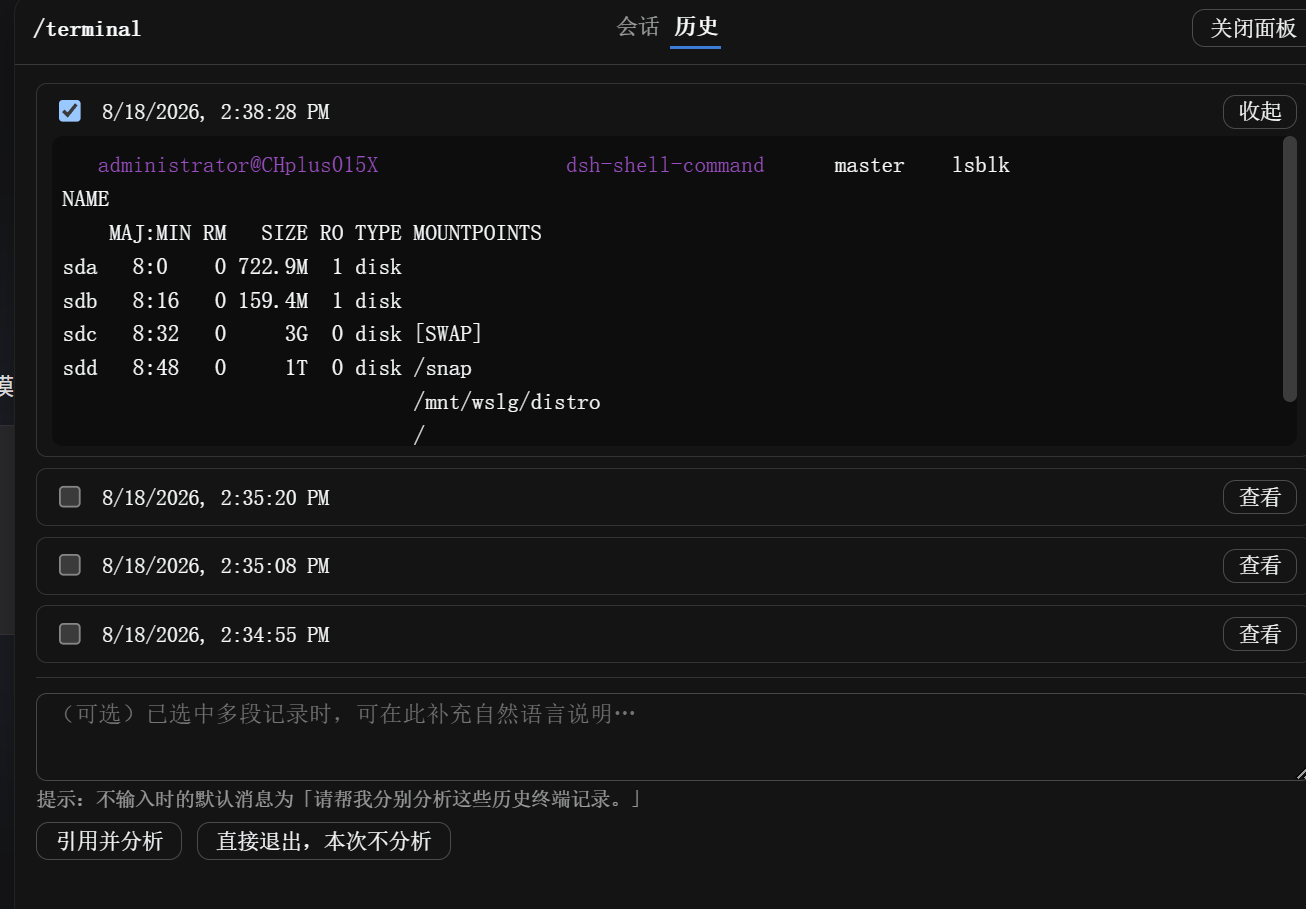
When you close a terminal session that received input, the panel automatically switches to the History tab:
UI Elements:
- Checkbox (left): Select one or more history entries for analysis
- Timestamp: When each session was closed
- View/Collapse button (right): Expand to preview the transcript
- Notes textarea (bottom): Optional natural-language context for the model
- Default message hint: Shows what the model receives if you leave notes empty: "请帮我分别分析这些历史终端记录。"
- Two action buttons:
- 引用并分析 ("Reference & Analyze"): Send selected entries to the model for immediate analysis
- 直接退出,本次不分析 ("Exit without analyzing"): Close the panel without sending anything
Typical workflow:
1. Close a terminal session (click "退出")
2. Panel stays open, jumps to History tab
3. Just-closed entry is pre-selected and auto-expanded
4. Review the transcript preview
5. (Optional) Select additional historical entries for comparison
6. (Optional) Add context in the notes field: "Why did the second run fail?"
7. Click "引用并分析" → Model analyzes selected transcripts
   OR click "直接退出,本次不分析" → Panel closes, nothing sent to model
Advanced usage:
- Compare across runs: Select 2-3 related sessions (e.g., before/after a fix) and ask: "What changed between these attempts?"
- Guided analysis: Use the notes field to direct the model's attention: "Focus on memory usage patterns"
- Selective sharing: Not every terminal session needs analysis — only reference what's relevant
Storage:
- Transcripts persist to
<workspace>/.dsh-shell-transcripts/ - Each session gets:
<sessionId>-<timestamp>-<counter>.log+.meta.jsonsidecar - Retention: keeps last 10 sessions per session ID (configurable via
terminalTranscriptKeep) - Add
.dsh-shell-transcripts/to your.gitignore
Usage Scenarios
Scenario 1: Quick diagnostic with /!
You: The build is failing. Let me check...
You: /! npm run build

[Output shows a TypeScript error]

Model: The error indicates a missing type import in auth.ts line 42...
Scenario 2: Interactive debugging with /terminal
You: /terminal
Terminal: $ npm test
[tests fail]
Terminal: $ cat test/integration.spec.js | grep -A5 "failing test"
Terminal: $ ls -la test/fixtures/
Terminal: $ echo $NODE_ENV
[Found the issue: missing fixture file]
Terminal: [Click "退出"]

[Panel jumps to History tab, entry auto-selected]

You: [Add note: "Why did this test fail?"]
You: [Click "引用并分析"]

Model: Based on the transcript, the test failed because test/fixtures/user-data.json is missing...
Scenario 3: Comparing multiple runs
[Run 1: /terminal → install dependencies → check build time → exit]
[Run 2: /terminal → same steps with cache enabled → exit]
[Run 3: /terminal → same steps with different Node version → exit]

[In History tab]
You: [Select all 3 entries]
You: [Add note: "Which configuration is fastest and why?"]
You: [Click "引用并分析"]

Model: Comparing the three build runs: Run 2 was 3x faster due to npm cache...
Tips & Best Practices
- Choose the right tool: Use
/!for single commands where you want immediate feedback; use/terminalfor exploratory workflows - Empty sessions don't persist: If you open
/terminalbut don't type anything, it won't create a history entry (by design) - Arrow keys are your friend: In the terminal input line, ↑/↓ recalls your last 500 commands (client-side, session-scoped)
- Notes add context: A good note ("Compare error messages" or "Focus on performance metrics") helps the model analyze more effectively
- Selective analysis: You don't have to analyze every terminal session — only reference what's relevant to your current question
- History is per-session: Each DSH conversation has its own terminal history; they don't mix
Configuration
Configure through the profile's cordis.patch.yml (the web settings UI does not expose third-party plugin settings):
- insert:
    - id: shell-command
      name: dsh-shell-command
      config:
        shell: ''            # '' → /bin/bash (POSIX) or cmd.exe (Windows)
        shellArgs: []        # [] → -lc (POSIX) or /d /s /c (Windows)
        timeoutMs: 60000     # hard deadline; process tree is terminated on expiry
        maxOutputBytes: 32768  # output tail retention for /! command
        graceMs: 3000
        analysisPrompt: ''   # '' → built-in prompt; supports {command} {cwd} {output}
        terminalEnabled: true
        terminalMaxTranscriptBytes: 1048576   # in-memory transcript cap (tail)
        terminalTranscriptDir: '.dsh-shell-transcripts'
        terminalTranscriptKeep: 10
Safety
- Runs in the session's workspace directory (
agent.session.header.cwd) - Uses the harness
ctx.subprocessseam when present: scrubbed environment (noDEEPSEEK_API_KEY/DSH_*leak), tree-scopedSIGTERM → grace → SIGKILLtermination. Falls back tonode:child_processwith a scrubbed environment otherwise - Output is bounded per stream (
maxOutputBytes, tail retained) for the/!command - Human-driven by design: command text is recorded in the trajectory (
command/run), and there is no sandbox approval step — it runs with the host's own privileges, exactly like typing in your own terminal
Tests
node test/unit.mjs           # pure parse/format tests, no dependencies
node test/smoke.mjs          # full apply() + handler against a mock context
node test/smoke-terminal.mjs # terminal registry + hasInput tracking + history-reference RPC (mock)
The smoke test imports the real @deepseek-ai/* peers; outside a profile, link them once:
mkdir -p node_modules/@deepseek-ai
ln -s "$HOME/.dsh/profiles/node_modules/@deepseek-ai/"* node_modules/@deepseek-ai/
FAQ
Q: When should I use /! vs /terminal?
A: Use /! for single commands where you want immediate AI analysis (status checks, quick diagnostics). Use /terminal for interactive workflows where you need to run multiple commands and decide later what (if anything) to analyze.
Q: Why didn't my terminal session appear in History?
A: Empty sessions (no input received) don't persist. If you opened /terminal but didn't type any commands, it won't create a history entry. This is by design to avoid clutter.
Q: Where are the history transcripts stored?
A: In <workspace>/.dsh-shell-transcripts/, one .log file per session plus a .meta.json sidecar. Add this directory to your .gitignore. Old entries are automatically pruned (default: keep last 10 per session).
Q: Can I delete history entries manually?
A: Yes, just delete the .log and .meta.json files from .dsh-shell-transcripts/. The History tab reads from disk on each open.
Q: Why doesn't vim/htop/ncurses work in /terminal?
A: The current terminal is line-oriented (scrollback + input line), not a full VT100/xterm emulator. Full terminal emulation (using xterm.js) is planned for a future release — it requires introducing a build pipeline.
Q: Do the arrow-key command recalls persist across sessions?
A: The ↑/↓ history is client-side and resets when you close the browser tab or the panel. It's scoped to the current terminal window, not saved to disk.
Q: What's the difference between "引用并分析" and just asking about the commands in chat?
A: "引用并分析" sends the actual command transcripts (output, timestamps, exit codes) to the model as structured data. Asking in chat relies on your description, which may miss details. Use reference-and-analyze when you want the model to see the raw output.
Q: Can I reference transcripts from a previous DSH conversation?
A: No. Terminal history is session-scoped. Each DSH conversation has its own .dsh-shell-transcripts/ namespace, and the History tab only shows entries from the current session ID.
Q: What happens if output is very long?
A: Both /! and /terminal bound output size (maxOutputBytes / terminalMaxTranscriptBytes). When exceeded, the tail is retained (not the head). This ensures recent output is always visible.
Q: Why does /! say "No model request exists yet"?
A: /! requires an active model conversation. Send at least one message to the model first (starting the conversation), then /! will work. This prevents a UI rendering timing issue.
Limitations
- The
/!output is delivered as a plugin-sourced message (visible in the conversation) - Terminal mode: line-oriented display only (vim/htop require full xterm emulation, planned for a future release)
- API surface targets
@deepseek-ai/dsh0.1.0-rc.x; pin peers and re-verify on DSH upgrades
Future Roadmap
We're planning several enhancements for future releases:
Full terminal emulation (xterm.js migration)
- Current: Line-oriented terminal (scrollback + input line)
- Goal: Full VT100/xterm emulation supporting vim, htop, ncurses apps, oh-my-posh, and other rich terminal UIs
- Requires: Introducing a build pipeline (webpack/vite) to bundle xterm.js and its addons
Internationalization (i18n)
- Multi-language UI support (English, Chinese, etc.)
- Language detection from user preferences
- Configurable UI labels
Additional improvements
- Syntax highlighting for command output
- Session export/import
- Search within terminal history
- Customizable keyboard shortcuts
Contributing
Contributions are welcome! Feel free to:
- 🐛 Report bugs or request features
- 🔧 Submit pull requests
- 📖 Improve documentation
- 💡 Share your use cases and feedback
License
MIT
Related plugins
archify (deepseek-harness)
tt-a1i/archify
WeKnora (dsh-weknora)
tencent/weknora
weknora
tencent/weknora
BrowserSkill (dsh-plugin-browserskill)
tencent/browserskill