dsh-intermi
lysander-9/dsh-intermi
View and interact with the persistent terminal used by each DSH Agent.
Instalar
dsh plugin --profile web add github:lysander-9/dsh-intermiREADME
dsh-intermi
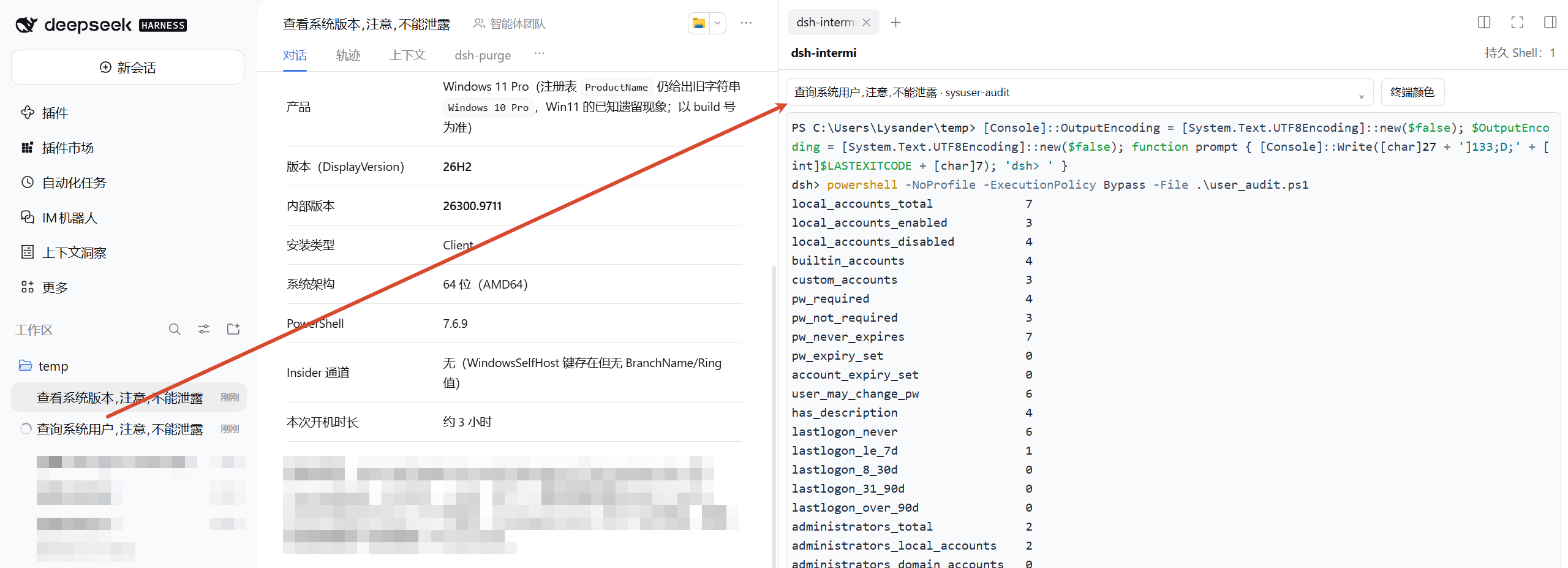
See and use the exact terminal your DSH Agent is using. dsh-intermi puts the Agent's existing persistent shell in DSH NEXT's right sidebar, so you can follow its work and step in when needed.
简体中文 · English
Screenshots
View an Agent's live persistent terminal beside its conversation:
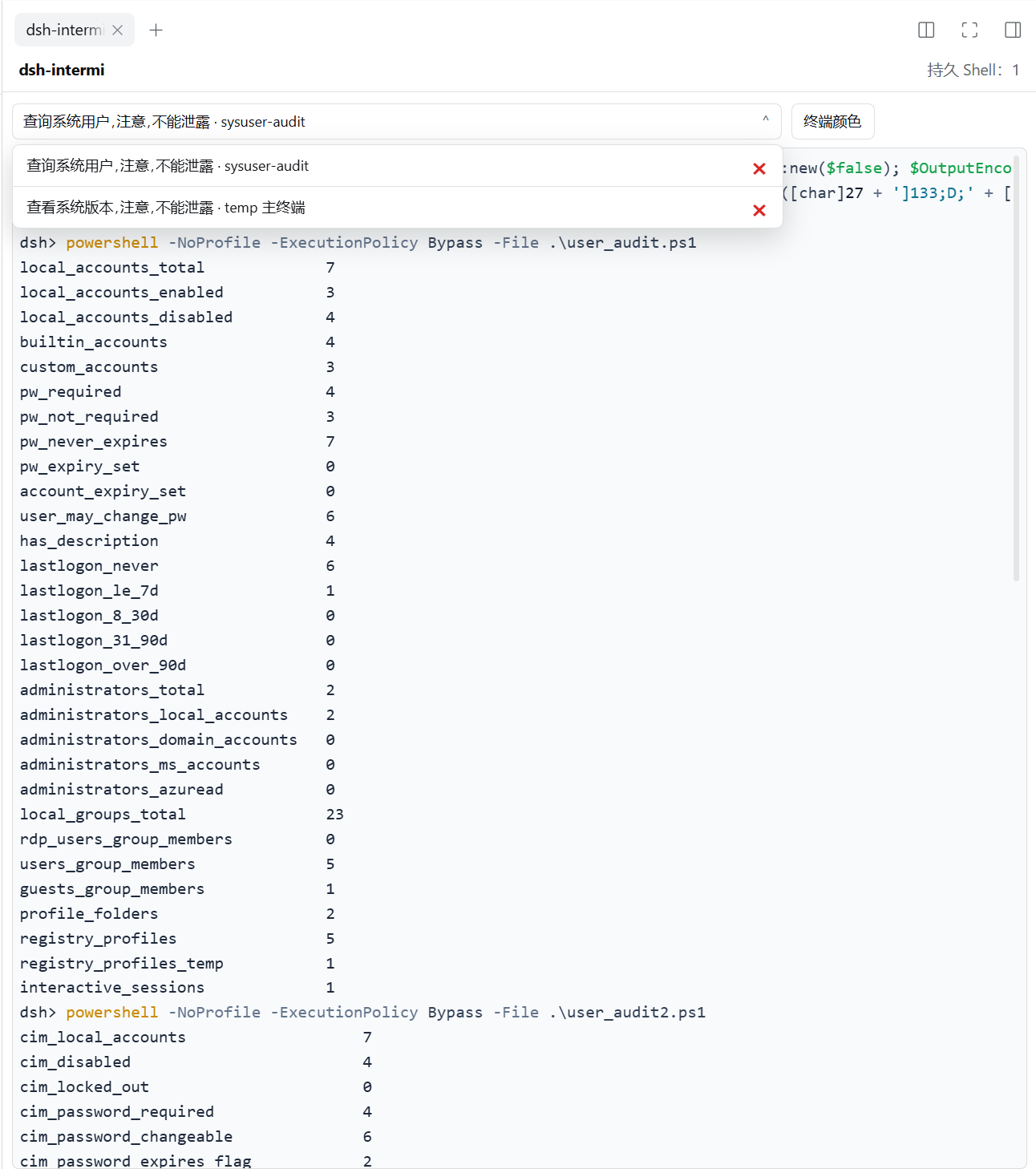
The terminal selector uses concise names. Open it to switch shells or delete one from its row:
Why dsh-intermi?
Most terminal views show a separate shell. dsh-intermi attaches to the PTY already owned by the Agent: one session, one live stream, shared between you and the Agent.
- Watch live work — follow terminal input and output as the Agent works.
- Switch between Agents — choose a session by its DSH conversation title without closing other shells.
- Take over when needed — focus the terminal and type into the same shell. Press
Ctrl+Cto interrupt the foreground command; the Agent can continue in that shell. - Keep the full output — PTY output is saved locally without a rolling disk limit. The visible scrollback has a memory-conscious default of 50,000 lines, adjustable from 5,000 to 100,000 in Terminal display settings.
- Clean up in one step — use Clear all terminals to end all remaining PTYs and remove their saved output. The confirmation shows how many terminals will be affected; command audit events remain stored locally.
- Keep Agent results scoped to the command — the DSH tool response contains only the result of its current
terminal_send; full terminal history stays in the ITMN view for the user. If DSH returns no output, dsh-intermi recovers only a provable current-command delta or reports uncertainty. It never callsterminal_readfor the Agent or resends the command. This is a tool-response boundary, not OS-level isolation: an Agent shell runs as the same user and may be able to read local files if explicitly instructed to do so. - Make it readable — choose a light or dark theme, or set custom foreground and background colors.
Install
In DSH NEXT's Plugin Market, install dsh-intermi from GitHub:
If the market asks for a repository URL, use:
https://github.com/Lysander-9/dsh-intermi.git
Restart DSH NEXT if the market prompts you to do so, then open dsh-intermi in the right sidebar.
Get started
- Start or select an Agent conversation.
- Let the Agent run a terminal task. dsh-intermi directs its shell work to that Agent's persistent DSH terminal.
- Select the conversation from the terminal selector. The terminal displays that Agent's live PTY.
- Click inside the terminal to type. Use
Ctrl+Cto stop a foreground command without closing the shell.
A terminal appears after the Agent opens its persistent shell. Switching the selector only changes which shell you are viewing; other shells keep running.
Shells and saved output
- Each Agent conversation has its own persistent shell. dsh-intermi does not create a second, look-alike terminal.
- Closing or switching the sidebar view disconnects the view; it does not close the shell.
- Deleting a shell closes its PTY and running processes, and removes that shell's saved terminal output. Command audit events—including recorded tool input and result—remain stored locally in
events.jsonl. - Clear all terminals applies the same cleanup to every live and archived terminal shown by the selector.
- dsh-intermi appends observed PTY output to a local per-shell log and replays it when you reopen the view. Logs have no rolling disk cap and use local disk space until the shell is deleted. The in-memory scrollback defaults to 50,000 lines; change it from Terminal display settings (5,000–100,000 lines). Exiting DSH NEXT ends running PTY processes; the saved output remains available for read-only review, but the process itself does not resume after restart.
- Terminal history and command events are stored locally in DSH home, under
itatmn/(events.jsonlcontains command events). - To keep shell work attached to the audited PTY, standalone
pwsh,bash, andops_bashshell tools are blocked while dsh-intermi is active.
Requirements
- DSH NEXT
>= 0.2.1-rc.2and< 0.3.0 - A DSH Agent with access to the native persistent terminal tools
Development and acknowledgements
The Host entry is lib/index.js; the right-sidebar client is lib/client.js. The browser terminal uses vendored xterm.js assets. See THIRD_PARTY_NOTICES.md for attribution and license details.
License
The package currently declares UNLICENSED in its manifest.
Plugins relacionados
deepseek-harness
deepseek-ai/deepseek-harness
dsh-market
dsh-market/dsh-market
dsh-web (dsh-plugin-manager)
zhu1090093659/dsh-web
dsh-web
zhu1090093659/dsh-web