dsh-plugin-open-editor
civitasv/dsh-plugin-open-editor
Ouvrez l'espace de travail actuel dans votre éditeur local (VS Code, Cursor, JetBrains, Vim, ...) depuis l'en-tête de session.
Installer
dsh plugin --profile web add github:civitasv/dsh-plugin-open-editorREADME
dsh-plugin-open-editor
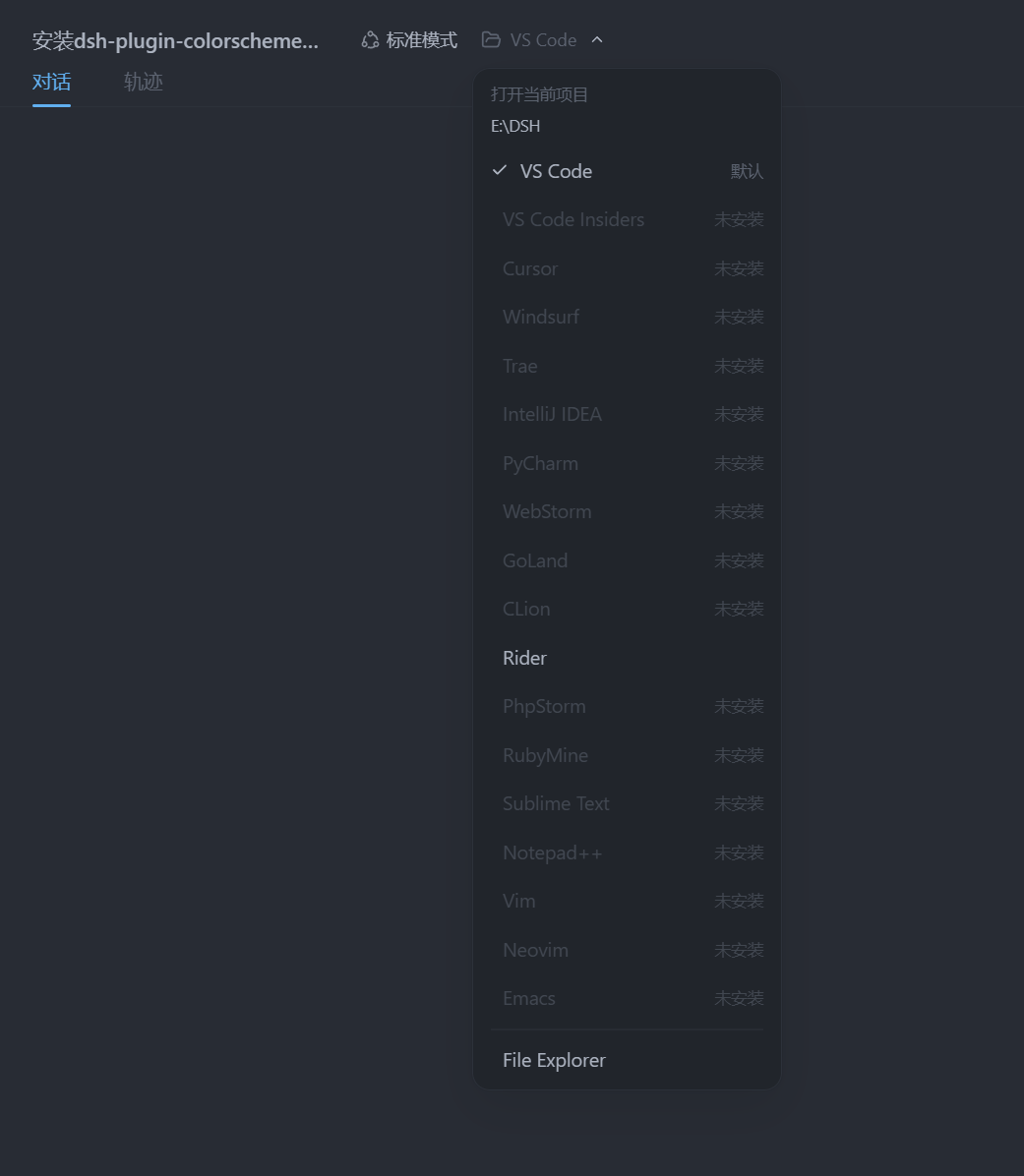
一键把 当前项目 用你喜欢的编辑器打开。插件在 DSH 会话页头的 操作区添加一个入口:
- 点击主体按钮 → 立即用默认编辑器(默认 VS Code)打开当前会话的工作目录;
- 点击箭头 → 弹出编辑器选择器:VS Code / Cursor / Windsurf / Trae / JetBrains 系列 / Sublime Text / 系统文件管理器等;
- 未安装的编辑器会置灰显示「未安装」;
- 打开动作发生在 DSH 宿主机(浏览器所在机器)上,无需浏览器具备任何 shell 权限。
打开文件与定位行(供其它插件复用)
POST {routePath} 除打开目录外,也支持打开文件并定位到行:
{ "editor": "vscode", "path": "/abs/path/to/file.ts", "line": 42 }
path可以是目录或文件;带line时按编辑器的行定位方式打开:- VS Code / Insiders / Cursor / Windsurf / Trae:
code --goto 文件:行 - Sublime Text:
文件:行 - 其它编辑器(JetBrains 系、Notepad++ 等):打开文件,忽略行
- VS Code / Insiders / Cursor / Windsurf / Trae:
- 自定义编辑器模板支持
{line}占位符(如["my-editor", "--line", "{line}", "{path}"]), 模板里没有{line}时忽略行参数。
diff-review 插件的「在编辑器中打开」/「打开该行」即复用此能力。
安装
本仓库已包含构建产物(dist/index.js 与 client.js),可直接使用;修改过源码才需要
先执行 npm install && npm run build。
一键安装(推荐)
# macOS / Linux
bash install.sh

# Windows(PowerShell)
powershell -ExecutionPolicy Bypass -File install.ps1
脚本会:安装依赖(含 devDependencies,便于本地开发)→ 链接进
~/.dsh/profiles/node_modules → 注册 cordis.patch.yml → 提示重启与验证。
手动安装
用链接而不是拷贝:
Copy-Item复制一份后改源码不会同步,重复安装还会 冲突;用下面的链接(Junction / 符号链接)指向本仓库,改源码即时生效。
# 1. 链接进 profile 依赖目录
#    macOS / Linux:
ln -sfn "$PWD" ~/.dsh/profiles/node_modules/dsh-plugin-open-editor
#    Windows(PowerShell,Junction 无需管理员权限):
#    New-Item -ItemType Junction -Path "$HOME\.dsh\profiles\node_modules\dsh-plugin-open-editor" -Target "$PWD"

# 2. 注册到 ~/.dsh/profiles/web/cordis.patch.yml
#    - insert:
#        - id: open-editor
#          name: dsh-plugin-open-editor

# 3. 重启 dsh web
装了 pnpm 的话,也可以用
dsh plugin --profile web add <本插件绝对路径>代替 第 1 步(等价于链接)。pnpm 未安装时先npm install -g pnpm(或corepack enable)。
验证
dsh --profile web --dump-config | grep dsh-plugin-open-editor
# 输出应包含:- id: open-editor / name: dsh-plugin-open-editor
重启后打开任意会话,页头标题旁会出现「在编辑器中打开」按钮。
开发
插件以链接方式接入 profile,改源码后:
npm run build # 重新生成 dist/ 与 client.js
server 端改动需重启 dsh web;纯 client 端改动刷新页面即可。
使用
| 操作 | 效果 |
|---|---|
| 点击「在编辑器中打开」 | 用默认编辑器(默认 VS Code)打开当前会话的项目目录 |
| 点击右侧箭头 | 展开编辑器选择器,选择任意已安装的编辑器 / 文件管理器 |
| 菜单底部 | 显示打开结果(成功 / 失败原因) |
当前项目 = 当前会话的工作目录(cwd)。没有工作目录的会话不显示该按钮。
支持的编辑器
| 编辑器 | 探测命令 |
|---|---|
| VS Code | code |
| VS Code Insiders | code-insiders |
| Cursor | cursor |
| Windsurf | windsurf |
| Trae | trae |
| IntelliJ IDEA | idea / idea64 |
| PyCharm | pycharm / charm |
| WebStorm | webstorm |
| GoLand | goland |
| CLion | clion |
| Rider | rider |
| PhpStorm | phpstorm |
| RubyMine | rubymine |
| Sublime Text | subl |
| Notepad++ | notepad++ |
| 系统文件管理器 | explorer / open / xdg-open |
探测依据是命令是否在
PATH中。VS Code 安装后通常会自动把code加入 PATH; 如果提示「未找到」,请手动执行一次 命令面板 → Shell 命令:在 PATH 中安装 'code' 命令,或改用下面的自定义编辑器配置填写绝对路径。
配置
编辑 ~/.dsh/profiles/web/cordis.patch.yml 中该插件的 config:
- insert:
    - id: open-editor
      name: dsh-plugin-open-editor
      config:
        defaultEditor: vscode        # 点击主体按钮使用的编辑器(id)
        routePath: /open-editor/open   # 打开请求路由(一般无需改动)
        statusPath: /open-editor/editors  # 编辑器目录路由(一般无需改动)
        extraArgs: []                # 追加到每个内置编辑器命令后的参数
        allowedRoots: []             # 非空时,仅允许打开这些目录下的项目
        customEditors:               # 自定义编辑器(追加到内置列表)
          - id: my-editor
            label: My Editor
            command: ["C:\\Program Files\\My Editor\\editor.exe", "--folder", "{path}"]
defaultEditor:主体按钮使用的编辑器 id(内置 id 见上表,也可以填自定义 id)。customEditors:command[0]是可执行文件(PATH 名或绝对路径);后面的元素按原样 作为参数,字面量{path}会被替换为目标目录;没有{path}时自动把目录追加到最后。allowedRoots:安全开关。默认允许打开任意存在的目录(本机工具);填写后,只有 这些目录(及子目录)能被打开,适合把 DSH 暴露到局域网时收紧权限。extraArgs:给所有内置编辑器追加参数,例如["--new-window"]让 VS Code 总是 新开窗口。
工作原理
- 浏览器端从会话列表拿到当前会话的
cwd(工作目录)。 - 点击后
POST {routePath},携带{ editor, path }。 - 服务器端(DSH 宿主进程,与浏览器同机)校验 path(绝对路径、目录存在、可选
allowedRoots),探测编辑器可执行文件,然后 detached 启动:- Windows:
cmd /c start "" <editor> "<path>"(支持code.cmd等 shim, GUI 应用不弹控制台); - macOS/Linux:
spawn(editor, [path], { detached, stdio: 'ignore' })。
- Windows:
- 编辑器进程与宿主解耦,宿主退出不影响已打开的编辑器。
卸载
- 从
cordis.patch.yml删除open-editor条目; - 删除
~/.dsh/profiles/node_modules/dsh-plugin-open-editor目录; - 重启
dsh web。
常见问题
- 提示「未找到 X,请检查是否安装并加入 PATH」:该编辑器不在
PATH中。 用customEditors配置绝对路径,或在系统里把编辑器命令行工具加入 PATH。 - 点击没有反应 / 编辑器没有出现:确认已重启
dsh web,并检查设置里open-editor插件已加载(设置 → 插件清单)。 - 我只想用 VS Code,不需要其它编辑器:保持默认即可,箭头菜单里其它项置灰不影响使用。
License
MIT
Plugins associés
dsh-web (dsh-ssh)
zhu1090093659/dsh-web
dsh-web (dsh-remote-web-ui)
zhu1090093659/dsh-web
dsh-web-ui (dsh-ssh)
zhu1090093659/dsh-web-ui
dsh-web-ui (dsh-remote-web-ui)
zhu1090093659/dsh-web-ui