dsh-browser-annotation
cloudsen/dsh-browser-annotation
Annotates elements or dragged regions in the built-in Browser with a compact comment field beside the selection; live attribute edits are recorded in the comment, and numbered hoverable tags are inserted into the composer without screenshots or provider replacement.
Installer
dsh plugin --profile web add github:cloudsen/dsh-browser-annotationREADME
dsh-browser-annotation
English | 简体中文
Native, lightweight element comments inside the built-in Browser — with live attribute edits and numbered hoverable tags, no screenshots or provider replacement.
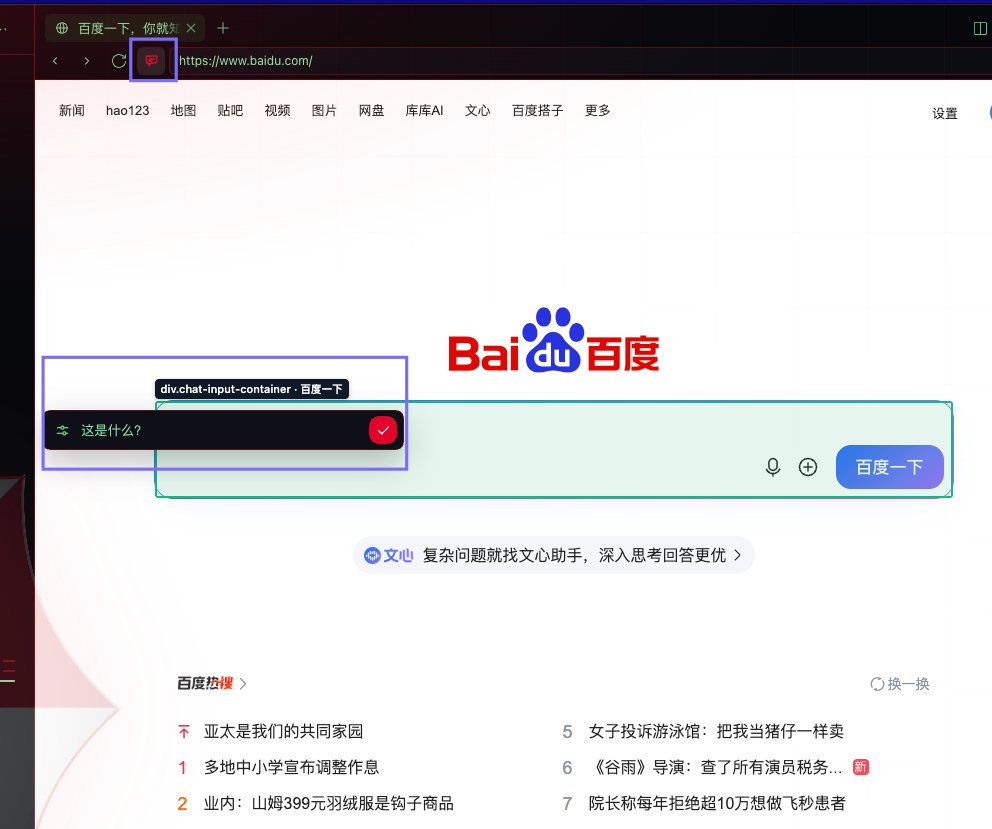
Click an element in a DSH Browser tab, write a comment in the compact field that appears beside it, and confirm. The comment becomes a numbered tag in the current Session's message input. Open the settings to adjust the element's attributes or styles on the live page; applied changes are included in the comment sent to the agent.
Screenshots
Use
- Open a page in a Browser tab of the right Sidebar.
- Click the annotate button in the Browser toolbar, immediately right of Reload.
- Click an element on the page, or press and drag to select a rectangular region. A compact comment field appears next to the click or the region.
- Type the comment and press Enter or the check button. The comment is added to the current Session's message input as a numbered tag (
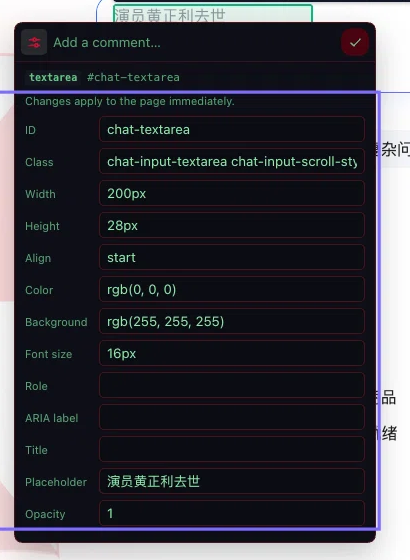
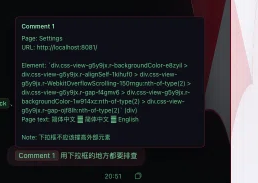
Comment 1,Comment 2;评论1,评论2in Chinese); the page element gets a numbered pin. Hover the tag to preview the full comment and element details. Keep clicking elements to add more comments — each one becomes another numbered tag in the input. After the message is sent, the next comment starts again at 1, and the previous pins are cleared. The toolbar control itself shows no count badge. - Use the sliders button on the left of the comment field to expand the element's attributes (element selections only). ID, class, width, height, align, color, background, font size, opacity, text, role, ARIA label, title and placeholder are shown as editable fields; changes apply to the page immediately. Href and src are shown read-only. Numeric width, height and font-size values get
pxappended. Every applied change is listed in the inserted comment under Changes, so the agent sees both the comment and the adjusted attributes.
The toolbar annotate button stays active while annotating; click it again (or press Esc while picking) to stop and remove the pins. Reloading or navigating the page leaves annotation mode, so a refresh never drops you back into picking. Press Esc in the comment field to cancel that element and keep picking.
Compared with other annotation plugins
DSH has no built-in element-annotation feature, but the community market has several plugins in this space. These are the closest matches, and where this plugin differs:
| Plugin | What it does | Where this plugin differs |
|---|---|---|
| dsh-web-annotation | Annotate elements, blank places or regions in the native Browser; batch screenshots and a report into the next message; does not replace official providers. | This plugin supports elements and dragged regions but does not take screenshots or write report files. It puts one tag per comment in the composer and records attribute edits in the comment. |
| dsh-web-pick | Element and region picker in the Desktop Browser; a small note box opens beside each pick; the batch is inserted into the draft with cropped screenshots. | This plugin also supports drag-to-select regions, but takes no screenshots. It adds live attribute/style editing and numbered tags instead. |
| dsh-webannotate | Comment on elements in the built-in Browser; send the batch with one cropped screenshot per note. | This plugin keeps everything in the composer tags and sends the structured comment without attachments. |
| dsh-web-annotator | Comments or questions after clicking or dragging in the existing Browser; sends marked screenshots or DOM location details. Replaces the official Browser, Chat and Layout providers while enabled. | This plugin keeps the official Browser/Chat/Layout providers and adds one toolbar button. It does not replace the surface it lives in. |
| dsh-redline | Visual review in the harness browser: comments, live style changes with rollback, a free-form annotation canvas, and a screenshot per pin. | This plugin records attribute edits as part of the comment and has no canvas, rollback or screenshots. |
| dsh-annotate | Pick browser elements and send structured visual feedback to the agent. | This plugin is specifically the native Browser toolbar flow with numbered composer tags and live attribute editing. |
| dsh-element-lens | Insert an element's selector, computed styles and HTML as removable chips in the draft. | This plugin adds a comment and editable attributes; it does not insert the element's HTML. |
| dsh-annotator | Pick elements on a real Chrome, Edge or ego lite page, comment and screenshot them, then insert a reference chip. | This plugin works inside the built-in Browser webview, with no external Chrome or debugging port. |
Choose another plugin if you need screenshots or cropped attachments, frame capture, source/component mapping, a free-form canvas, or style rollback. This plugin is deliberately narrow: one native toolbar control, a comment per element, optional live attribute edits, and numbered tags.
How it works
- The control is a real toolbar button inserted before the Browser's address field, so it never sits over page content. If the toolbar cannot be located, a floating button at the page's bottom-right is used instead.
- Desktop Browser tabs render pages in an Electron
<webview>. The plugin finds that frame and, only while annotating, runs a self-contained picker/marker script through the webview'sexecuteJavaScript. The script has no access to Electron, Node, or DSH objects, and it removes its overlay and listeners when you stop. - The comment field and its settings are ordinary React UI in the app frame, positioned at the click point on the page. They use the host theme tokens.
- A confirmed comment is inserted into the conversation input as a numbered tag through the Session composer. Sent messages render the same tag and show the full comment in a hover card. Comments live in that input, not in a plugin-owned list; the plugin only keeps page pins, which clear when the message is sent or annotation mode closes.
- Notes stay in this plugin's memory for the tab; navigation clears the pins. The plugin makes no network requests and does not write to the Session log on its own.
Limits
- Web build: pages load in a cross-origin iframe, whose DOM the app cannot read. The control appears but explains that element comments are unavailable there. Use the Desktop app.
- Picking is pointer-driven; the keyboard path reaches focusable elements only (Tab then Enter). The comment field and settings are keyboard accessible.
- Element pins resolve by a CSS selector generated from the element; region pins use page coordinates. Content that re-renders or changes classes can make an element pin miss; the comment already sits in the message input.
- Elements inside a page's own shadow root cannot be addressed by that selector, so they get a comment without a pin.
- Attribute edits apply directly to the visited page and are not undone by this plugin. Changing text replaces the element's content.
- Removing a tag from the message input does not remove its pin; closing annotation mode or sending the message clears the pins.
- The plugin depends on the Browser frame markers
data-sidebar-browser-frameand on the Sidebar tab markersdata-sidebar-right-tab/data-sidebar-right-session. It reads them and inserts one button before the Browser address field; it does not change any other toolbar node. A DSH toolbar change can make the toolbar insertion fail, in which case the floating fallback appears until the plugin is updated.
Install
Published as dsh-browser-annotation on npm:
dsh plugin --profile desktop add dsh-browser-annotation
Local bundle
Install this directory as a local bundle from Plugins → Add plugin, or with the plugin_manager install_bundle action. Disable or remove the bundle to remove the control; the Browser itself is unchanged.
License
MIT © CloudSen
Plugins associés
archify (deepseek-harness)
tt-a1i/archify
WeKnora (dsh-weknora)
tencent/weknora
next-ai-draw-io (dsh-plugin)
dayuanjiang/next-ai-draw-io
weknora
tencent/weknora