dsh-arya-image-gen
konnectsuite/dsh-arya-image-gen
ComfyUI-native image generation for DeepSeek Harness: chat tools, creative canvas, Studio workbench, workflow comparison, and built-in server control.
Installer
dsh plugin --profile web add github:konnectsuite/dsh-arya-image-genREADME
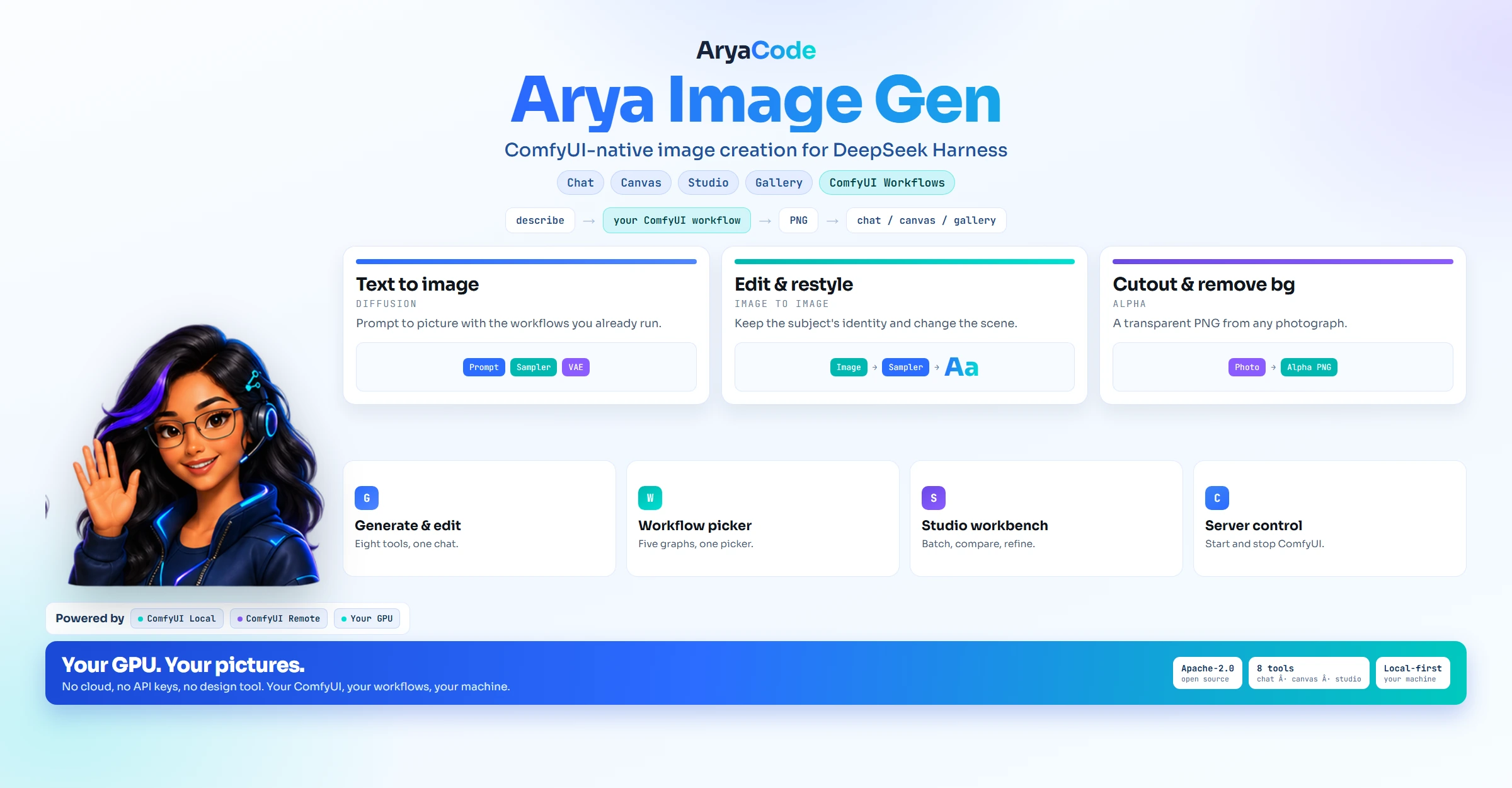
Arya Image Gen
ComfyUI-native image creation for DeepSeek Harness
In-chat generation · AI creative canvas · Studio batch creation · Workflow comparison · Prompt inspiration · Gallery management · Built-in ComfyUI server control


Quick Start · Workflows · Server Control · Features · FAQ
A complete local image workflow for DeepSeek Harness.
dsh-arya-image-gen is an AryaCode fork of dsh-image-gen, reduced to a single provider: your local ComfyUI server. Everything that used cloud APIs, API keys, subscription sign-ins, and multi-provider comparison has been removed. What remains is a tighter plugin that talks only to ComfyUI and can start, stop, and restart the server it uses.
It keeps the full creative loop: generate and edit images in chat, sketch and iterate on the infinite canvas, batch-generate in the Studio workbench, compare workflows side by side, and browse a bundled prompt inspiration library.
Quick Start
-
Run ComfyUI locally (default endpoint
http://127.0.0.1:8188). You can start it from the plugin itself once configured. -
Install the plugin in your DSH profile:
dsh plugin --profile web add dsh-arya-image-gen -
Open Settings → Plugins → Arya Image Gen:
- Set the ComfyUI Endpoint.
- Import one or more API-format workflow JSON files exported from ComfyUI.
- Mark the active workflow.
-
Ask the agent to generate something, or open the Studio tab.
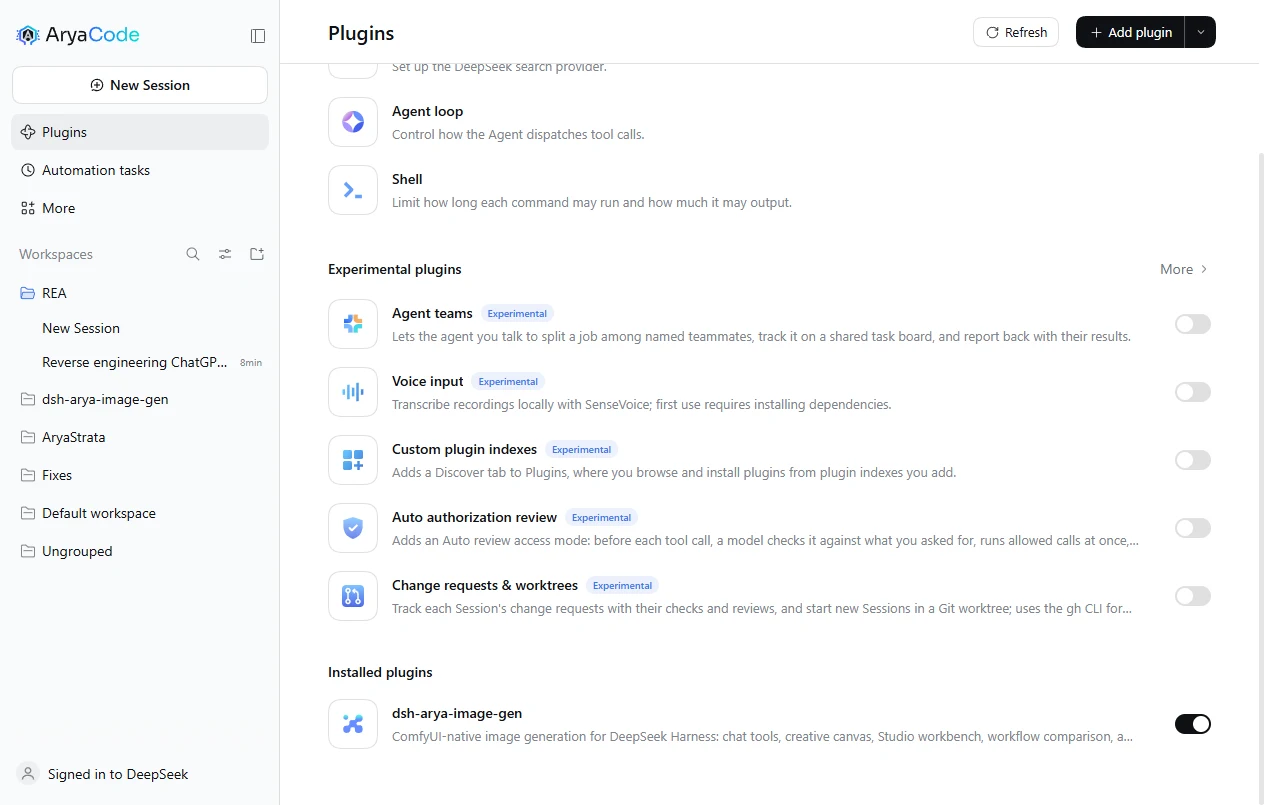
Install from the market
DSH ships no official plugin market, so the AryaCode market is a plugin index you add once:
- Open Plugins and enable Custom plugin indexes under Experimental plugins.
- In Discover, choose Add index source and enter:
https://raw.githubusercontent.com/KonnectSuite/dsh-arya-image-gen/main/docs/market/index.json - Install Arya Image Gen from the listing.
Workflows
ComfyUI workflows are the "models" of this plugin. A fresh install already arrives with the four shipped workflows configured (text-to-image with adjustable size, cutout, edit, background removal), so there is nothing to import before the first image. Each imported JSON becomes a selectable option in the Studio model picker, the comparison view, and the chat tools.
Workflows are grouped by role: Text to image and Image to image, detected from the JSON and overridable per workflow. Each group remembers its own active workflow, so edit_image uses the edit graph without you switching anything.
- Put
{{prompt}}in the prompt input of the workflow. It is required. - Put
{{seed}}where a random seed should be injected. - For image-to-image, put
{{image}}exactly once in the LoadImage image input; that is what makes a workflow edit-capable. - Put
{{width}},{{height}},{{steps}}or{{cfg}}on numeric inputs to let a call adjust them — one templated workflow then covers every size instead of one JSON per size. - A workflow preset prompt is prepended to every user prompt for that workflow, separated by a comma.
Export from ComfyUI with Save (API Format). UI-format workflows are not supported.
Four ready-made API workflows ship with the plugin — Qwen Image 2.1 create (with adjustable size), cutout, edit and background removal — in docs/workflows/ or as arya-qwen-image-pack.zip. Import them as-is.
Check against ComfyUI in the Workflows card pre-flights every configured workflow against the running server and reports missing node packs or model files by name.
Placeholders, roles, size presets, the ready-made pack and the one-workflow-per-size conversion are documented in docs/comfyui-workflows.md.
Server Control
The settings card can start, stop, and restart the local ComfyUI:
- Launch method — Automatic (default) needs no paths: if a Windows scheduled task named
ComfyUIexists, Start runs it and Stop ends it; otherwise the plugin falls back to the Python route. The card says which path it picked and what state the task is in. - Scheduled task — Start is
schtasks /run, Stop isschtasks /endplus a port backstop, so a tray/service install that already knows how to launch ComfyUI keeps owning that knowledge. - Python process (main.py) — Start launches
main.pywith the configured interpreter and extra arguments; this is the only route that asks for paths. - Stop targets only Python processes whose command line runs ComfyUI's
main.pyon the configured port. Other listeners on that port are never touched. - Restart stops and starts in one action; a stale process that holds the port without answering is cleared first, and a task stuck in
Runningis ended before the next run. - Auto-start launches the server when the plugin loads if it is not already up.
The live status chip shows the ComfyUI version, GPU, and available VRAM when the server is running, and the launch hint reads like Auto: using scheduled task "ComfyUI" (Running).
Generation details and live progress
Every finished image reports provenance, for the model and the UI alike:
Qwen_Image_2_1_Turbo_Square_1024 · 1024x1024 · seed 1944480124 · queued 0.0s · ran 5.6s · total 5.6s · ComfyUI 0.37.4
The Studio panel streams progress for a running job:
- Queue position and queue wait, measured from
/queue. - Node label from the workflow (
SamplerCustomAdvanced,TextEncodeQwenImage21, ...) and its step counter (3/8). - Elapsed time, updated about once a second.
- Preview thumbnail when ComfyUI emits latent preview frames. Many installations do not enable them; the panel simply shows progress without a thumbnail.
- Cancel now removes the prompt from ComfyUI's queue instead of leaving it running.
Progress comes from ComfyUI's /ws socket and is advisory: if a proxy blocks the WebSocket upgrade (header-authenticated proxies often do), generation still works and the panel falls back to an indeterminate bar with elapsed time. Inline progress inside the chat transcript is not available: DSH's Chat target renders fixed conversation node kinds, so the live view lives in the Studio panel while the chat card stays a result card.
Remote ComfyUI
A server on another machine works with nothing running locally:
- On the ComfyUI machine, listen beyond loopback and open the port:
Default ComfyUI bindspython main.py --listen 0.0.0.0 --port 8188127.0.0.1only, which is the usual reason a LAN address refuses connections. - In Settings → Arya Image Gen → Connection, set the endpoint:
- LAN:
http://192.168.1.20:8188 - Reverse proxy:
https://comfy.example.com/or a subpath such ashttps://example.com/comfy/(API paths are resolved relative to it)
- LAN:
- If the proxy requires auth, put it in Request headers, for example
{"Authorization": "Bearer <token>"}or{"Authorization": "Basic <base64>"}. Headers are sent on every upload, prompt, history, and image request. - Leave the local Server fields empty: for a remote endpoint the card only probes
/system_stats, and Start / Stop / Restart are hidden because they act on the server's machine.
Security: do not expose ComfyUI to the internet without authentication. Prefer a VPN (Tailscale/WireGuard), an SSH tunnel, or a reverse proxy that enforces auth and TLS. Self-signed certificates are rejected by the DSH host; use a trusted certificate or plain HTTP inside a VPN.
Features
- Chat generation:
generate_image,generate_images, andedit_imagetools with automatic workspace saving. - Reference images from the web: when a request names something real, the agent finds the actual photograph, imports it with
import_reference_image, and edits from it instead of guessing at the details. - HTML to PNG:
render_htmlrenders pixel-exact banners, cards, tables and infographics with the installed browser; six brand templates included. - SVG to PNG:
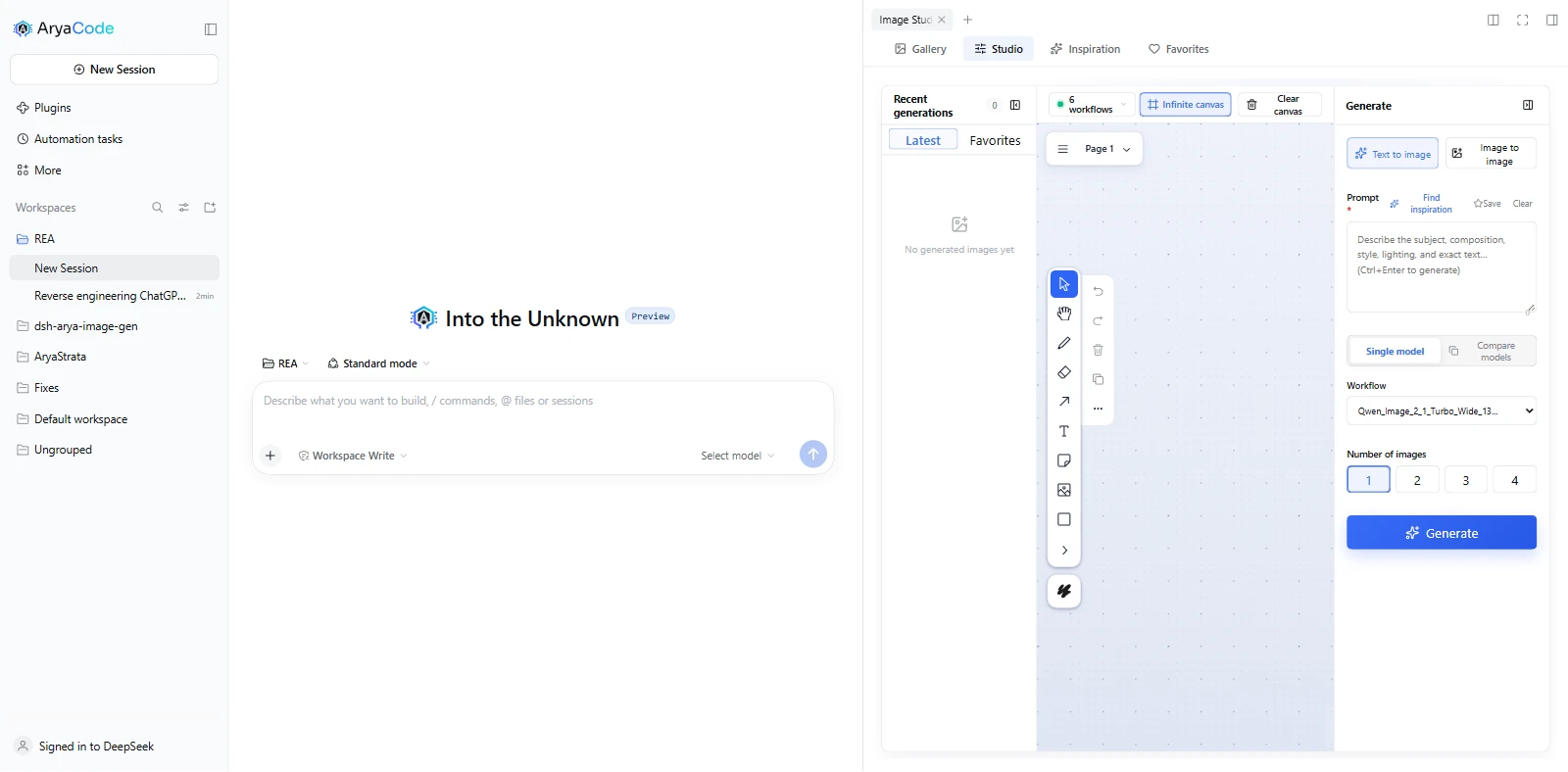
render_svgrasterizes icons, logos, diagrams and charts at any scale. - AI creative canvas: a tldraw infinite canvas where sketches, text, and pasted images become model-readable context; selections can be edited directly.
- Studio workbench: prompt, workflow picker, reference uploads, batch counts, and a recent-generation rail.
- Workflow comparison: run one prompt across two or more imported workflows.
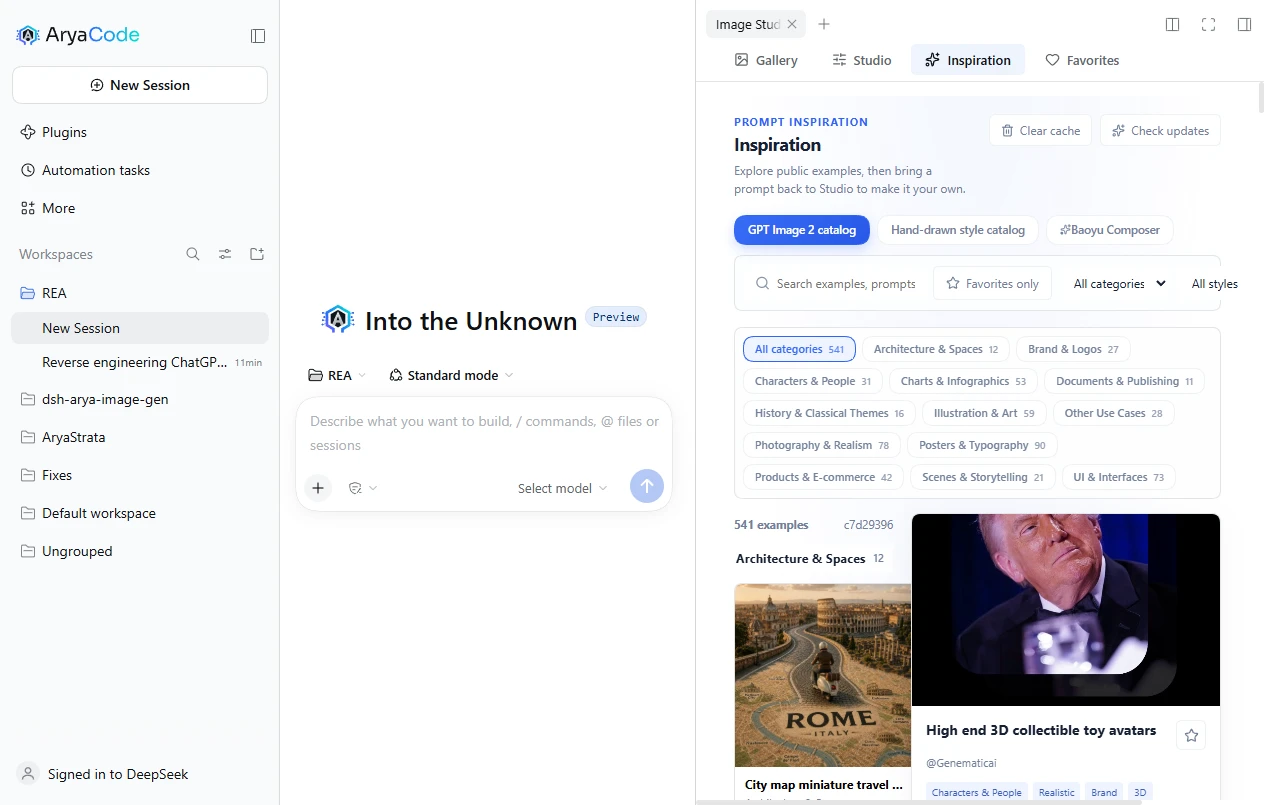
- Prompt inspiration: a bundled library with copy-ready prompts and a composable cover-prompt builder.
- Gallery: local IndexedDB gallery with favorites, saving to workspace, and deletion.
Presets
This bundle also registers an agent preset, Arya Image, for sessions whose only job is making images. Pick it in the preset picker when you start a session.
- Keeps the working set an image session needs: the eleven image tools,
read,write,edit,glob,grep,pwsh(orbash),read_image, the job tools,web_searchandweb_fetch,ask_user_question, andpresent. - Declares those as its own rows, the way the shipped presets do, so the session has exactly this set and nothing from the Engineering bundle, MCP servers, computer use, skills, subagents or goals.
Set agentPreset: false in the plugin configuration to stop the preset from being registered.
Two things worth knowing. A preset is context economy, not a sandbox: masked tools still exist on the host, they are just not offered to that session. And editing a preset in the Web editor replaces its whole row list, so a later plugin update will not merge into an edited copy.
Reference images
A prompt can describe a thing; it cannot reproduce one. When the request names something that already exists — a product, a landmark, a vehicle, a brand mark, a uniform, a public figure — the agent can fetch a photograph of the actual subject and edit from it, which is how the details it cannot know arrive intact.
The loop is web_search → web_fetch (to find the image URL) → import_reference_image → edit_image(source_path=…). import_reference_image is the only new part: it downloads one public image into the session workspace, refuses anything that is not really a PNG, JPEG or WebP, refuses private and loopback addresses, and caps the download at 16 MB.
import_reference_image(url="https://example.org/press/eiffel-tower.jpg", name="eiffel-tower")
→ { path: "…/references/eiffel-tower.png", mediaType: "image/png", width: 2400, height: 1600, … }

edit_image(source_path="…/references/eiffel-tower.png",
           prompt="Keep the tower's proportions, tier spacing and arch shape; dusk, warm interior lights, no people.")
Full workflow, source quality rules, limits and the honesty rules: docs/reference-images.md. The same guidance ships as the arya-image-references skill, and a condensed version sits in the Arya Image preset's persona so it works without the skill tool.
Rendering HTML and SVG
Two more sources beside ComfyUI. Both rasterize with a Chromium-family browser you already have (Chrome, Edge or Chromium) and land in the same attachment, workspace and gallery path as a generated image.
render_html— templates or hand-written HTML. Six brand templates ship in the box: Open Graph card, square post, wide banner, feature grid, stat card, comparison table. Real text, real layout, no design tool.render_svg— icons, logos, diagrams and charts, scalable to any output size.list_render_templates— the template ids and slot names.
Studio → Render gives the same thing a workbench: pick a template or paste markup, fill the slots, render, and keep the results in the rail.


Limits are deliberate: no JavaScript runs, no network is reachable, and the canvas is fixed (there is no auto-height). The renderer also strips scripts, event handlers and remote URLs before anything is loaded. Sora and JetBrains Mono ship with the plugin so rendered text matches the rest of AryaCode.
Full guide, template gallery, examples and troubleshooting: docs/rendering.md.
Set the browser path, default canvas size and background in Settings → Plugins → Arya Image Gen → HTML and SVG rendering; the card also reports whether a browser was found.
Requirements
- DeepSeek Harness with the web profile.
- A running ComfyUI instance reachable from the DSH host (local or remote). No install yet? See docs/install-comfyui.md for the desktop app, portable build, comfy-cli and manual routes.
- Node.js
^22.19.0 || >=24.0.0for development.
Development
pnpm install
pnpm typecheck
pnpm test
pnpm build
Publishing to the Arya market
The AryaCode app reads its catalog from
https://raw.githubusercontent.com/KonnectSuite/dsh-arya-market/catalog/data/arya-plugins.json.
Add a release there and it appears in the market without an app update.
.github/workflows/arya-catalog.yml automates the catalog write:
- runs on a published GitHub release, on manual dispatch, and daily as a safety net;
- downloads the npm tarball, computes its SHA-256, and upserts the entry
(
scripts/upsert-arya-catalog.mjs), keeping older releases for version restore; - refuses to replace an existing version with different bytes.
One-time setup: create a token with contents: write on KonnectSuite/dsh-arya-market
and save it as the ARYA_CATALOG_TOKEN secret in this repository.
Run it locally to preview an entry without writing:
node scripts/upsert-arya-catalog.mjs --market ../dsh-arya-market --version 0.11.1 --dry-run
FAQ
Why does generation fail with a connection error? The ComfyUI server is not running or not reachable. Use the server controls in Settings, or start ComfyUI manually and confirm the endpoint.
Can I add another cloud provider? No. This fork deliberately supports ComfyUI only. Use the upstream project if you need cloud providers.
Does it store API keys? No. ComfyUI needs none, and the credential UI was removed with the cloud providers.
License
Apache License 2.0. This project is a derivative of shanliuling/dsh-image-gen (Apache-2.0); see LICENSE and NOTICE for attribution.
Plugins associés
dsh-web-ui (dsh-tool-describe-image)
zhu1090093659/dsh-web-ui
modlens
liustack/modlens
ipollowork
devin-axis/ipollowork
dsh-vision-router
ysr666/dsh-vision-router