dsh-r-runner
seally-web/dsh-r-runner
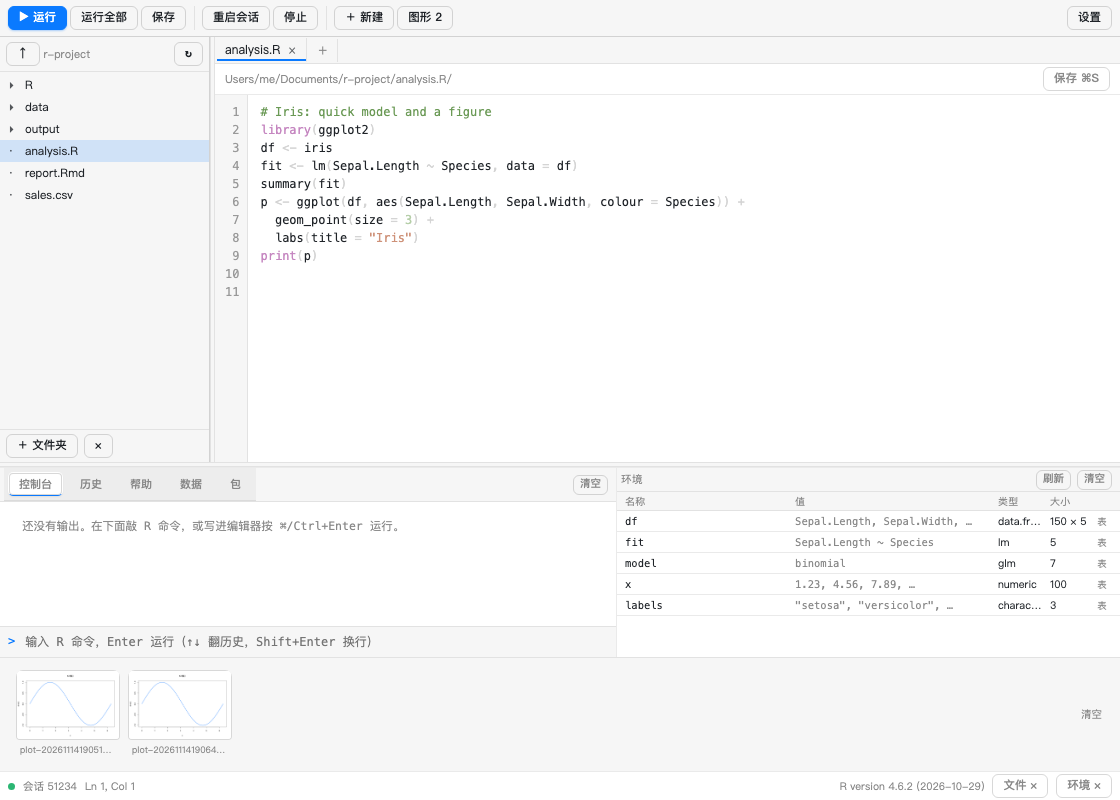
R in the sidebar: an RStudio-shaped workbench backed by a persistent R session over a loopback driver (6-9 s cold boot, then 12-84 ms per run). R syntax highlighting with a multi-buffer editor, file tree with extra folder mounts, environment pane you can edit in place, plot gallery with a floating viewer (zoom, resize, open original), five bottom tabs (console with prompt, persistent history, ?topic help, sortable data viewer, package manager with install.packages), completion / diagnostics / go-to-definition, .Rmd chunk runs, Rmd, Quarto and Shiny previews, and an agent-facing r_run tool. Requires a local R installation. Its HTTP routes have no DSH access check, so a web page open in your browser could call them.
Installer
dsh plugin --profile web add github:seally-web/dsh-r-runnerREADME


dsh-r-runner
Run R inside the DeepSeek Harness sidebar: a persistent R session, a file tree, a syntax-highlighted editor, a console, an environment table, and plot thumbnails — laid out like RStudio, with the keyboard habits of VS Code.
Status: v0.1.1 on npm, macOS + R 4.6 tested. See docs/PLAN.md for the design notes and roadmap.
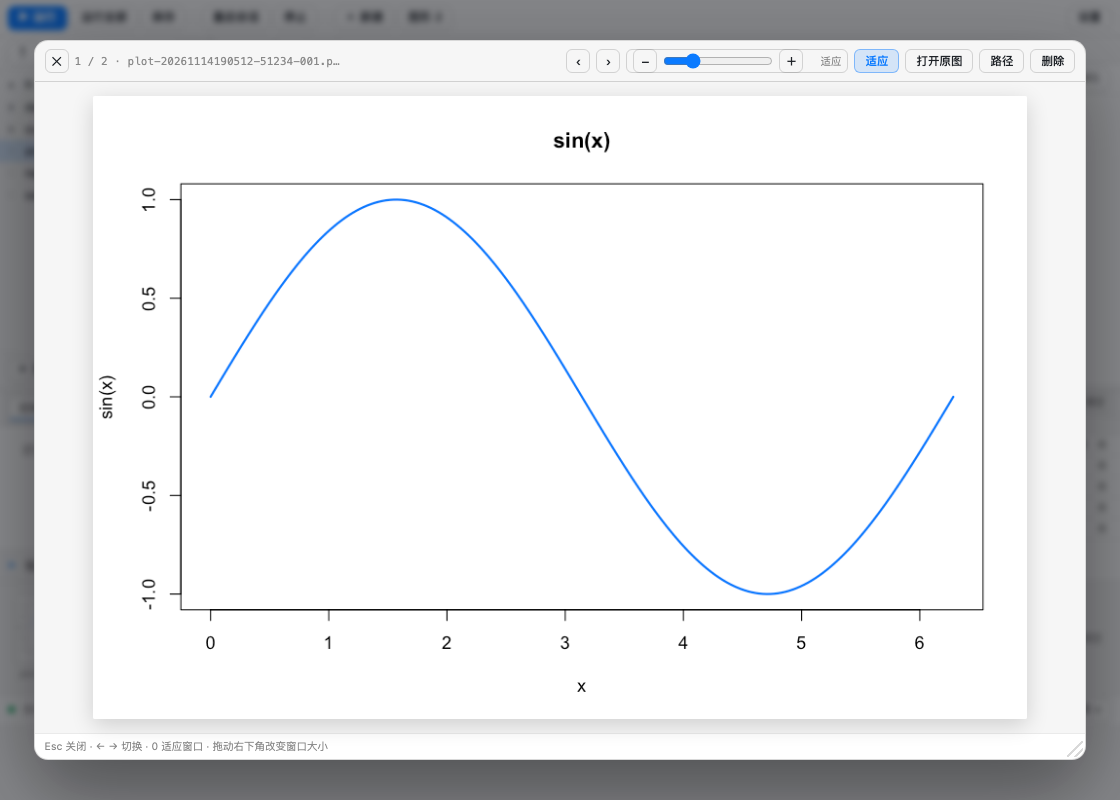
Click any plot thumbnail to open it full-size — fit-to-window or 100 %, flip through the set with ← →, copy the path, or open the PNG in a new tab:
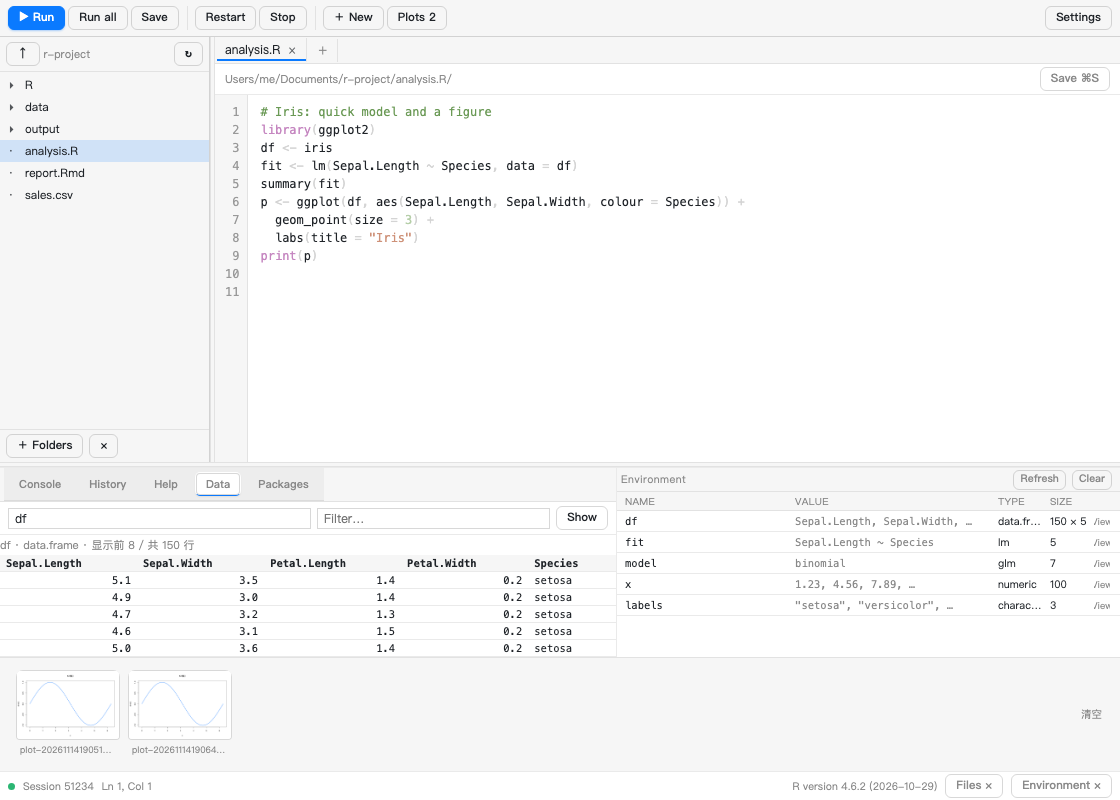
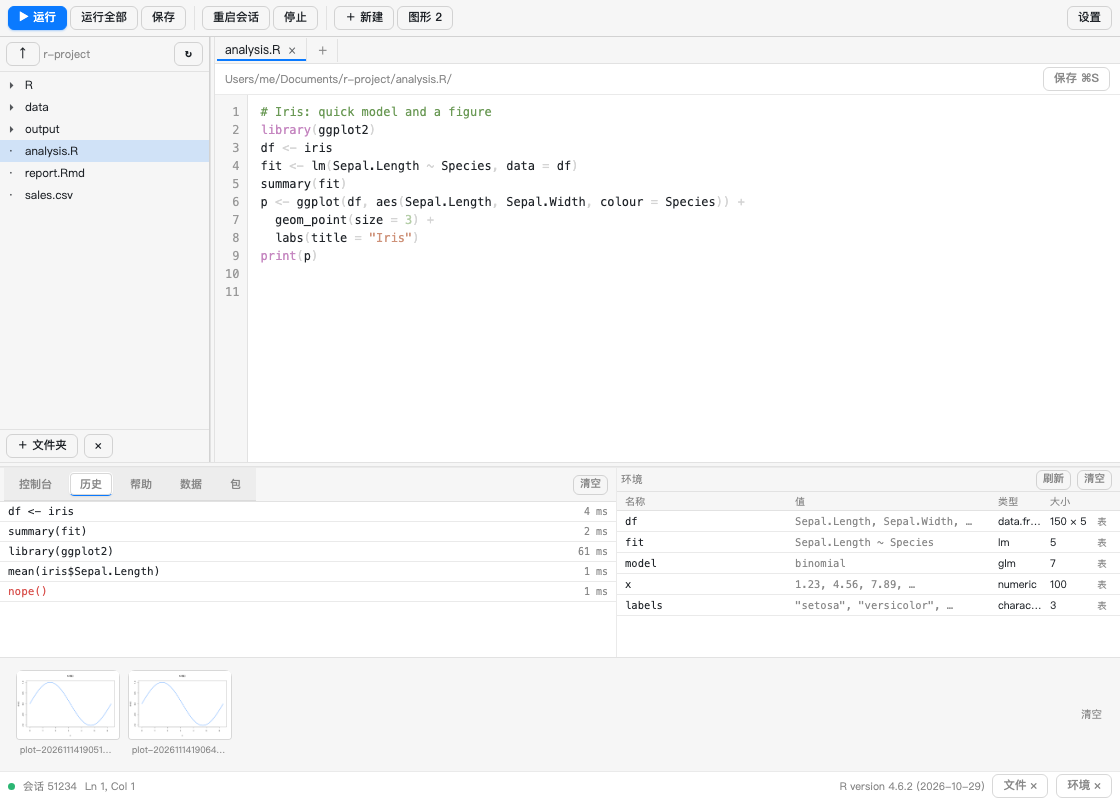
The bottom pane has five tabs — console (with a real prompt), history, help, the data viewer and the package manager:
What you get
- A session, not a script runner. One long-lived
R --slaveprocess: variables, loaded packages and the graphics device survive between runs. A run costs 1–40 ms after the ~1 s boot. - RStudio-shaped layout. File tree on the left, multi-tab editor in the middle, console and environment side by side at the bottom, plot strip above the status bar.
- Editor habits from VS Code.
⌘/Ctrl+Enterruns the selection (or the buffer),⌘/Ctrl+Ssaves, Tab indents two spaces, the breadcrumb shows where you are. - Environment table. Name / value / class / size, double-click a row to assign a
new value with any R expression (
1:10,c("a","b"), …); the 表 button opens the object in the data viewer. - Console prompt. Type R straight into the panel: Enter runs,
Shift+Enteradds a line,↑/↓walk the commands you already sent. Output lands in the same log as editor runs. - History. Every run (editor, console,
r_run) is kept in~/.dsh/r-runner-history.json; the 历史 tab lists them, click a row to put the code back in the prompt. - Help. The 帮助 tab is
?topic: it renders the real R help page (utils:::.getHelpFile+tools::Rd2txt) for anything installed locally. - Data viewer. The 数据 tab previews a
data.frame/matrix/ vector — first 100 rows, numeric columns right-aligned,<NA>marked. - Plots open in a floating window. Every
plot()is written to.dsh-r-runner/plots/plot-<ts>-<pid>-NNN.png. Clicking a thumbnail opens it in a centred window (portalled todocument.body, so the sidebar cannot clip it):‹ ›browse,适应 ⇄ 100%, 原图 opens the PNG in a tab, 路径 copies the file path, 删除 removes that one plot, and the strip has a 清空 button. The files are plain PNGs an agent can read. .Rmdruns one chunk. With the caret inside an{r}fenced chunk,⌘/Ctrl+Enterruns just that chunk (the prompt sayschunk 2/3 · L12-18); outside any chunk it falls back to the first one.- Completion, diagnostics, go-to-definition.
Ctrl+Space(or just typing.,$,::) opens a suggestion list built from your objects, the exports of every loaded package and base R; the gutter marksparse()errors and a few lint rules (setwd(,attach(,=for assignment), andF12/⌘-click jumps to a function's source —source()d files keep theirfile:line. - Package panel. The 包 tab lists what is loaded (with versions) and what is
installed (searchable, 载入 runs
library());install.packages()runs in a separateRscript --vanillaprocess so the session never blocks, and the log stays on screen. If a run failed with there is no package called 'x', the panel offers a one-click install. - Rmd preview. 预览 Rmd calls
rmarkdown::render()into<workdir>/.dsh-r-runner/rmdand shows the HTML in an iframe; a failed render shows the tail of the log, and ifrmarkdownis missing it offers to install it. - All plots grid. The 图形 N button opens every plot as a grid, from which you can zoom one or delete it.
- Sortable data viewer. The 数据 tab fetches up to 2000 rows: click a column header to sort (click again to reverse), type in 筛选 to filter across all cells.
- Plot window you can resize. Drag the bottom-right corner, use the zoom slider (10–400 %), − / +, 适应 ⇄ 100%, or 打开原图 (which falls back to copying the path when the browser blocks the new tab).
- English UI. 设置 → 信息 → 界面语言 switches the shell (toolbar, tabs, headers, status bar, plot window) between 中文 and English; the choice is remembered.
- Folder picker, no blind typing. The desktop shell has no
window.prompt(), so + 文件夹 (tree header and settings) opens an in-panel browser (GET /r/api/browse):⤴up, 主目录, 工作区, click a folder to walk in, double-click or 添加此文件夹 to add it as an extra root. The picker ignores the workdir guard on purpose — it only lists directory names. - Switchable working directory. Settings → 选择目录 → 浏览… picks a folder
(this turns
autoDetectoff so the choice sticks), the 会话工作区 dropdown lists the DSH workspaces, and 跟随当前会话 makes the panel follow the session again. - RStudio projects. The host reports the first
*.Rprojin the working directory (settings → 信息 → 项目), and the defaultscriptDirfollows the project root (<project>/R) instead of the bare working directory. - Shiny / Quarto preview. With
app.R/ui.R/server.Ropen the toolbar shows 运行 Shiny (shiny::runApp()on a free loopback port, embedded in an iframe, 停止 kills it); with a.qmdopen it shows 预览 Quarto (quarto render --output-dir .dsh-r-runner/quarto, then the HTML is embedded). Both degrade to a readable message plus an install button whenshinyor thequartoCLI is missing. - Agent tool.
r_run({ code })/r_run({ file })lets the model run R directly and get back the console output plus plot paths.
Install
Requires R on the machine (R on PATH, or point the
plugin at it in settings). No R packages are required.
From the market
Search for R Runner in the plugin market, install, reload the page (⌘/Ctrl+R), then open the right sidebar → add control → R Runner.
From a checkout
cd plugins/dsh-r-runner
sh bin/install-local.sh          # copies the payload into the desktop profile
# reload the page, then open the R panel

# verify the host half is live (routes registered, R spawns, plots work)
node bin/check.mjs http://127.0.0.1:<gui-port>
bin/install-local.sh writes ~/.dsh/r-runner.json on first run and adds the bundle
to the profile manifest; bin/reload-host.sh forces the host to re-compose.
Use
| Action | Shortcut |
|---|---|
| Run selection / buffer | ⌘/Ctrl+Enter |
| Run everything | toolbar 运行全部 |
| Save (overwrite the real file) | ⌘/Ctrl+S |
| Open the panel | ⌘⇧R (web: ⌥⇧R) |
| Restart the R session | toolbar 重启会话 |
| Edit a variable | double-click its row in the environment table |
| View a data frame | the 表 button on its environment row, or the 数据 tab |
| Run a console command | type in the prompt, Enter |
| Previous / next command | ↑ / ↓ in the prompt |
| Look up help | 帮助 tab, type a topic, Enter |
| Completion | Ctrl+Space, or type after . / $ / :: |
| Jump to definition | F12 or ⌘-click on a name |
| Install a package | 包 tab → type a name → install.packages() |
| Add a folder | + 文件夹 (tree) or 添加文件夹 (settings) → browse |
| Change the working directory | Settings → 选择目录 → 浏览… / 会话工作区 |
| Run a Shiny app | open app.R → toolbar 运行 Shiny |
Preview a .qmd | open it → toolbar 预览 Quarto |
Render the .Rmd | 预览 Rmd in the toolbar |
Run the current .Rmd chunk | ⌘/Ctrl+Enter inside an {r} chunk |
| Enlarge a plot | click its thumbnail (floating window) |
| Close / browse the plot window | Esc / ← → / 0 (fit ⇄ 100 %) |
| Zoom a plot | the slider in the window bar, or − / + |
| Resize the plot window | drag its bottom-right corner |
| All plots | 图形 N in the toolbar |
| Delete a plot | hover a thumbnail → ×, or 删除 in the window |
| Empty the environment | 清空 next to 刷新 in the 环境 header |
Notes:
- Files opened from the tree are edited in place;
+新建creates a draft that is written to<scriptDir>/<name>.Rwhen you save it. - Unsaved edits live in
localStorage, so reloading the page does not lose them. - Running a file switches the working directory to that file's folder
(
runInFileDir), which is whatread.csv("data.csv")usually wants. plot()output is a PNG per plot.par(mfrow = c(2, 2))therefore yields four files.- 清空 in the environment header runs
rm(list = ls(envir = globalenv())), so it empties your objects but keeps the session (and its loaded packages) alive.
Configuration
~/.dsh/r-runner.json (edited from the panel's settings page, or by hand):
{
  "rBinary": "/usr/local/bin/R",
  "rscriptBinary": "/usr/local/bin/Rscript",
  "sessionArgs": "",
  "workdir": "/path/to/your-project",
  "scriptDir": "/path/to/your-project/R",
  "extraRoots": [],
  "runInFileDir": true,
  "autoSave": true,
  "plotWidth": 960,
  "plotHeight": 640,
  "plotRes": 110,
  "timeoutMs": 600000,
  "maxOutputChars": 400000,
  "env": {}
}
- R binary —
Ris resolved from the setting, thenPATH, then the common macOS framework locations. - Working directory — follows the current DSH session workspace unless you pin it
(
autoDetect), so switching projects in DSH switches the tree and the R cwd. - Extra roots — additional folders shown in the tree (read/write allowed).
- Plot size / resolution — the PNG device parameters.
- env — extra environment variables for the R process (JSON object).
Architecture
sidebar (lib/client.js: React via ModuleLoader, no build step)
      │  fetch /r/api/*
host half (lib/index.js: webServer + subprocess + workspaceRegistry)
      │  loopback TCP, newline-delimited JSON
R session (lib/driver.R: ping / run / vars / assign / rm / quit)
lib/driver.R— the in-R server. Everything is wrapped inlocal({ … })so the driver's own objects never land inglobalenv;options(device = …)redirects plots to PNG files;capture.output(type = "output")collects whatprint/catprinted.lib/runner.js— config,RSession(spawn, connect with retries, request queue), and the file helpers (tree, read/write, path policy).lib/index.js— routes, ther_runagent tool, workspace detection.lib/client.js— the panel. Hand-writtenwindow.__ModuleLoader__.load({ factory })bundle; no bundler, so editing it and reloading the page is the whole dev loop.
Development
npm test                     # import / driver / host-unit / client-tokenize / client-smoke
node bin/preview-ui.mjs      # writes /tmp/rr-panel.html + /tmp/rr-settings.html
node bin/check.mjs <gui-url> # live check against a running DSH
test/import.mjs enforces the rule that keeps this plugin loadable across DSH
releases: the host half may only import Node built-ins (see Troubleshooting).
Troubleshooting
The panel is missing from the sidebar, and r_run is not in the tool list.
The host half did not load. Check the route first:
curl -s -o /dev/null -w '%{http_code}\n' http://127.0.0.1:<gui-port>/r/api/state
200 means loaded; 404 means it is not. On DSH ≥ 0.2.2 the usual cause is an import
that the profile can no longer resolve (@deepseek-ai/dsh-tools and friends). The
plugin then disappears silently — the plugin manager shows enabled: true with
fiberPhase: null (not failed, so there is no diagnostic). test/import.mjs exists
to catch exactly this; keep the host half on Node built-ins only.
"R 不可用" in the settings page. Point rBinary at the real binary
(which R, e.g. /usr/local/bin/R), then press 重启会话.
Run does nothing / hangs. Open the toolbar 重启会话, then run
1 + 1. If the session keeps dying, check sessionArgs (a bad flag kills R at
boot) and the console's error line.
No plot thumbnail. Plots come from the graphics device, so plot() must actually
be called; ggplot2 objects need print(p). Output lands in
.dsh-r-runner/plots/ of the workdir — check the directory exists and is writable.
First run feels slow. The session boots R (~1 s) the first time; later runs reuse
it. 重启会话 pays that cost again.
Warning: the R process can touch anything your user can. It is not sandboxed;
extraRoots is a UI convenience, not a security boundary.
License
MIT
Plugins associés
deepseek-harness
deepseek-ai/deepseek-harness
dsh-market
dsh-market/dsh-market
dsh-web (dsh-plugin-manager)
zhu1090093659/dsh-web
dsh-web
zhu1090093659/dsh-web