dsh-sidebar-enhancement
xmwengxing/dsh-sidebar-enhancement
Enhanced right-sidebar files panel: rename, create, upload, download (a directory is zipped on the fly), copy the full path and delete from the tree; an editable document renderer for 128 text extensions with Ctrl/Cmd+S save and conflict detection; plus an independent bottom terminal panel with tabs and a quick-command library persisted under the DSH home.
Installer
dsh plugin --profile web add github:xmwengxing/dsh-sidebar-enhancementREADME
dsh-sidebar-enhancement


DeepSeek Harness (DSH) 侧边栏增强插件:给文件树补上完整的文件管理操作,并把文档预览升级为可编辑、可保存的文本编辑器。
An enhanced sidebar plugin for DeepSeek Harness: full file-management operations on the files tree, plus an editable, savable document preview.
截图 / Screenshots
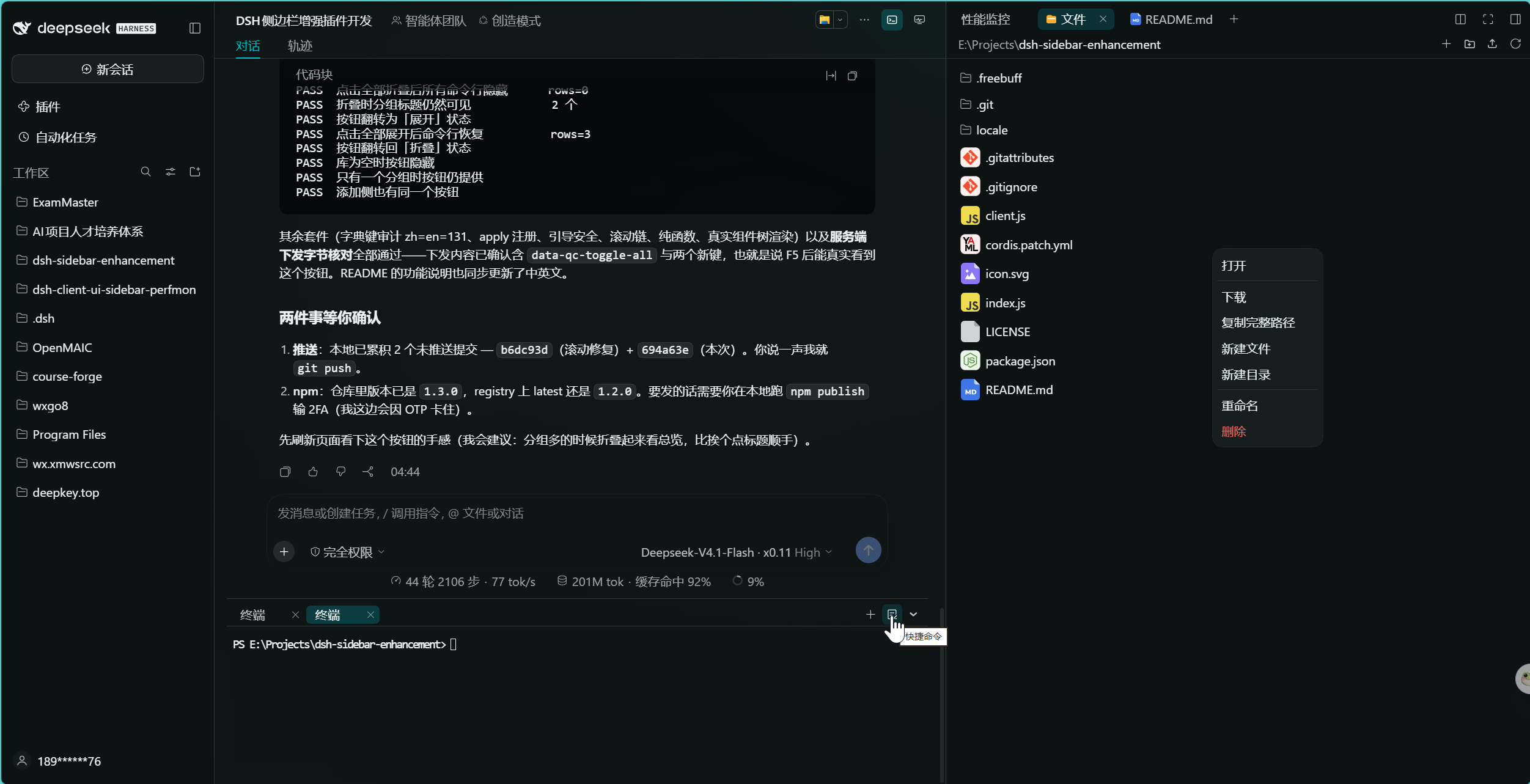
文件树与下侧终端面板 / Files tree and the bottom terminal panel — 右键菜单提供打开、下载、复制完整路径、新建、重命名、删除;输入框下方是带标签页的独立终端面板
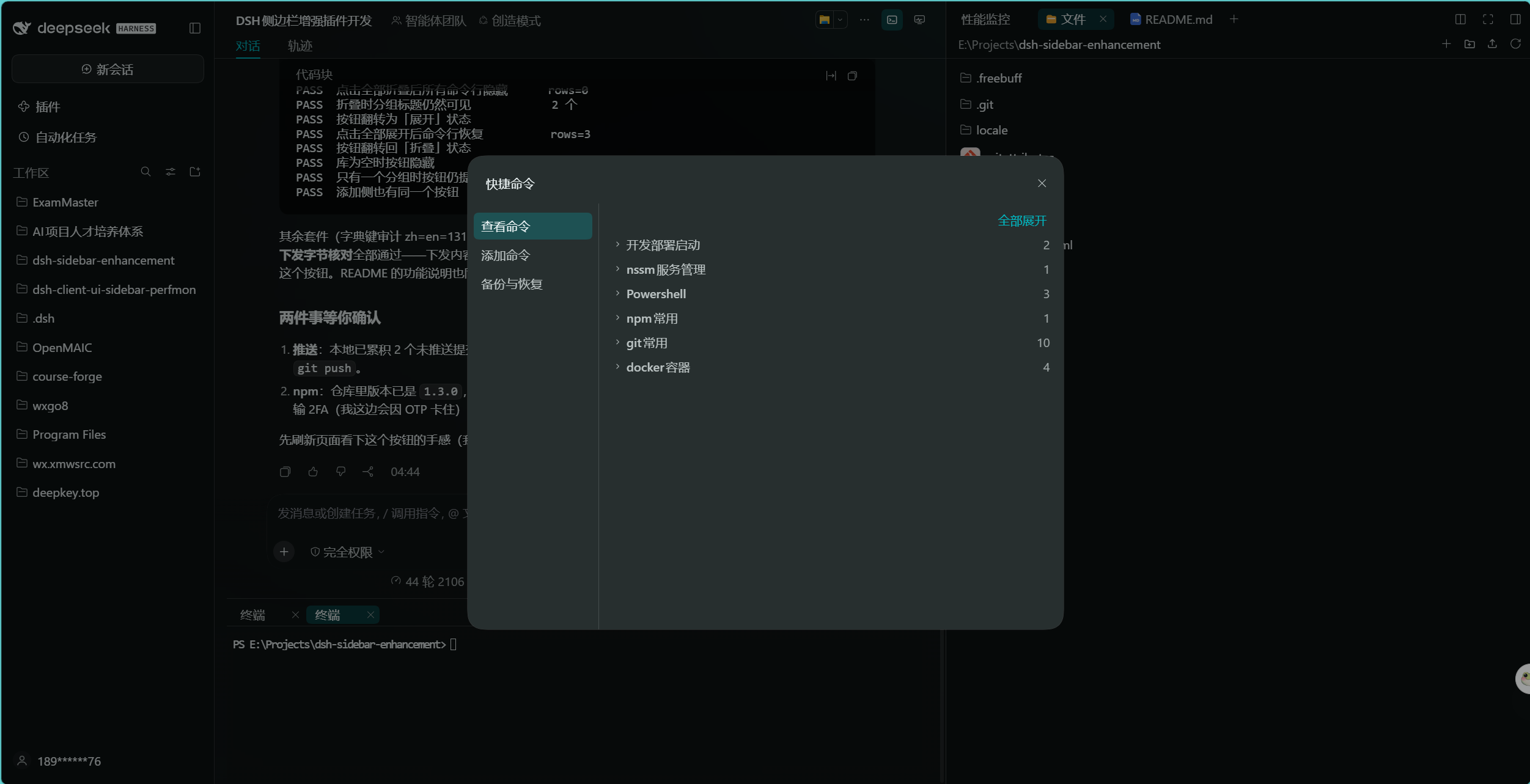
命令库 / Quick-command library — 按分组折叠的命令列表,每条可运行(送入当前终端)或复制;左侧导航另有「添加命令」与「备份与恢复」
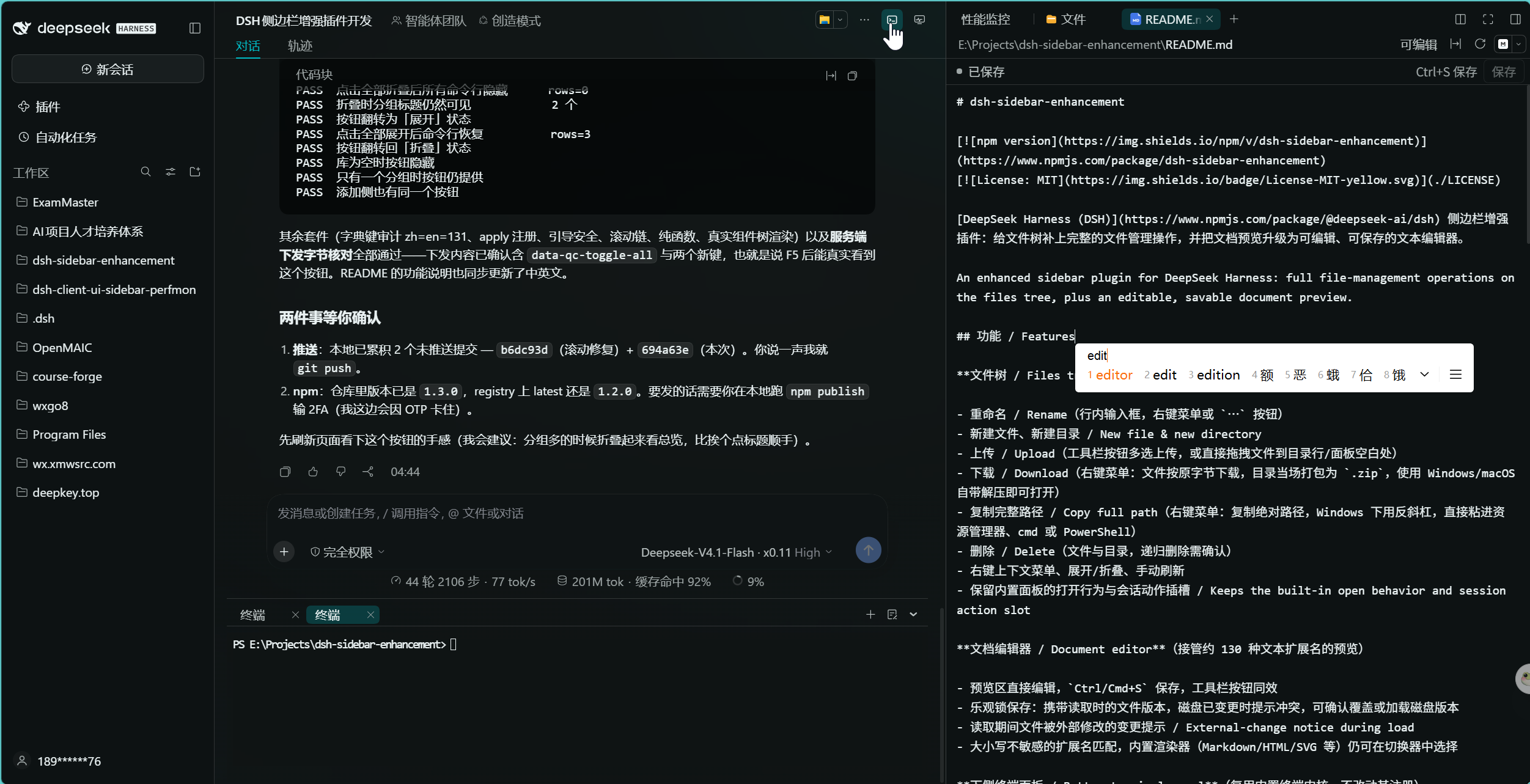
文档编辑器 / Document editor — 预览区直接编辑、Ctrl/Cmd+S 保存,右上角可切换回内置渲染器
功能 / Features
文件树 / Files tree(影子替换内置文件面板)
- 重命名 / Rename(行内输入框,右键菜单或
⋯按钮) - 新建文件、新建目录 / New file & new directory
- 上传 / Upload(工具栏按钮多选上传,或直接拖拽文件到目录行/面板空白处)
- 下载 / Download(右键菜单:文件按原字节下载,目录当场打包为
.zip,使用 Windows/macOS 自带解压即可打开) - 复制完整路径 / Copy full path(右键菜单:复制绝对路径,Windows 下用反斜杠,直接粘进资源管理器、cmd 或 PowerShell)
- 删除 / Delete(文件与目录,递归删除需确认)
- 右键上下文菜单、展开/折叠、手动刷新
- 保留内置面板的打开行为与会话动作插槽 / Keeps the built-in open behavior and session action slot
文档编辑器 / Document editor(接管约 130 种文本扩展名的预览)
- 预览区直接编辑,
Ctrl/Cmd+S保存,工具栏按钮同效 - 乐观锁保存:携带读取时的文件版本,磁盘已变更时提示冲突,可确认覆盖或加载磁盘版本
- 读取期间文件被外部修改的变更提示 / External-change notice during load
- 大小写不敏感的扩展名匹配,内置渲染器(Markdown/HTML/SVG 等)仍可在切换器中选择
下侧终端面板 / Bottom terminal panel(复用内置终端内核,不改动其注册)
- 会话头部新增终端按钮,点击在输入框下方弹出独立面板,再点收起 / A terminal button in the session header shows/hides an independent panel below the composer
- 面板支持多标签,完全独立于右侧边栏:底部开的终端不会出现在侧边栏,反之亦然 / Multi-tab panel, fully independent of the right sidebar — neither side sees the other's terminals
- 面板内 + 新建终端、× 关闭标签(进程一并结束)、顶缘拖拽调高(160px – 70% 视口),显隐与高度持久化 / + opens a terminal, × closes a tab and its process, drag the top edge to resize; all state persists
- 快捷命令:+ 号旁的按钮打开命令库弹窗,左侧导航「查看命令 / 添加命令 / 备份与恢复」。查看侧按分组折叠展示,列表上方有一枚「全部折叠 / 全部展开」开关(文案随状态取反,只在库非空时出现);每条命令后跟运行与复制两个按钮(运行=把命令送入底部面板当前终端并回车,复制=命令文本进剪贴板,成功时变对勾),再右侧是删除命令按钮;每个分组标题右侧有删除分组按钮,二者都要二次确认后才动手;添加/保存成功后的提示会一直挂着,直到点「取消编辑」才消失;添加侧上半部分同样是分组列表,点命令名即把它的名称、分组、备注、命令载入下半部分的表单,可随时改完点「保存」,空表单点「添加」则新增一条 / Quick commands: a button beside + opens the library — view pane lists commands grouped and collapsible, with a collapse all / expand all toggle above the list (its label names the action it performs, and it is hidden only when the library is empty); each command carries a run button and a copy button; each group header carries a delete group button and each row a delete command button, both behind a confirmation; the "added"/"saved" acknowledgement stays until "Cancel editing" is pressed; add pane lists the same groups and loads a clicked command into the four fields, with Add and Save
- 命令库持久化:存到 DSH 主目录(
~/.dsh/sidebar-enhancement/quick-commands.json,原子改写),浏览器localStorage只作首屏镜像——重启 DSH、换端口或换浏览器都不会再丢 / The library persists in the DSH home directory (atomic rewrite); localStorage is only a first-paint mirror, so restarts, port changes and other browsers keep it - 备份与恢复:整库导出为一份 JSON 文件,恢复时选择该文件即整体覆盖(覆盖前二次确认);备份文件格式就是上面那个文件本身 / Backup & restore: export the whole library as one JSON file, restore by picking that file (confirmed first); the backup format is that same file
安装 / Install
前提:DSH Web(@deepseek-ai/dsh)。
方式一:CLI 从 npm 安装(推荐 / Recommended)
dsh plugin --profile web add dsh-sidebar-enhancement
安装后重启 dsh web 并刷新页面即可生效(包内自带 dsh.bundle.patch,Loader 自动注册,无需改 profile 配置)。
方式二:从源码本地安装(开发模式 / Dev mode)
git clone https://github.com/xmwengxing/dsh-sidebar-enhancement.git
# 在 DSH 插件安装入口选择本地目录 dsh-sidebar-enhancement/
本地目录安装采用 pnpm link:改动源码后刷新页面即生效,无需重装,适合迭代开发。
卸载 / Uninstall:
dsh plugin --profile web remove dsh-sidebar-enhancement
工作原理 / How it works
- Host 半部(
index.js)向 DSH 内置 web 服务器注册 9 条路由:6 条变更路由(/sidebar-enhancer/{save,create,mkdir,rename,remove,upload})、1 条读取路由(/sidebar-enhancer/download,GET)与 2 条命令库路由(/sidebar-enhancer/quick/{load,save})。全部经过连接信任围栏、typert会话工作区根解析与路径包含检查;变更路由另有有界请求体,文件读写经由ctx.fs(乐观锁writeText),目录操作走node:fs/promises。命令库路由按用户级状态处理:不需要 Session,校验文档形状后用「临时文件 + rename」原子改写。 - 下载:
download路由只读,文件按原字节回传(Content-Disposition带 UTF-8 文件名,非 ASCII 文件名不乱码);目录在内存中打包为 ZIP——自实现最小 ZIP 写出器(node:zlib压缩 + 自建 CRC-32 表),不进依赖。上限:单文件 256 MB、单次打包 4000 个条目 / 256 MB 未压缩总量,超出即报错而不偷偷截断;打包时跳过符号链接,链接无法把工作区外的文件带进压缩包。 - 复制完整路径:纯客户端实现(
navigator.clipboard,非安全上下文回退execCommand),路径按平台风格归一(Windows 反斜杠),结果以提示条回显。 - Client 半部(
client.js)以priority: -1影子替换内置文件面板 Slot,并向documentPreviews注册priority: 'extension'的渲染器定义与对应文档 Slot。读取走内置workspaceFilesRemote(分页 1 基行号),写入走上述 Host 路由。 - 预览渲染遵循
DocumentContent契约:加载完成后上报content.loaded(version),外部变更通过content.revision感知。 - 快捷命令:弹窗直接复用宿主
Modal原语(标题栏、遮罩、Esc 关闭、焦点归还都是宿主的),插件只负责卡片尺寸与内部三栏页;命令库是一个模块级 store(useSyncExternalStore订阅,panelStore同款),两个面板读写同一份数据,所以改完切页立即一致。库的权威副本在 Host 文件里:首次打开弹窗时经/sidebar-enhancer/quick/load拉取(文件为空时把浏览器里的旧数据反向播种进去;文件已有内容时把本机独有的命令并入,两边都不丢),此后每次增改在 400ms 防抖后整体写回;localStorage仍同步写入,用于第一帧就显示出来。运行按钮把命令交给面板当前标签的TerminalView.write()(带结尾换行),只在该终端connected且可写时发送,否则在弹窗右侧说明原因。备份=把同一份文档另存为 JSON 文件,恢复=读入文件后走 store 的replaceAll(先确认,再立即写回 Host)。 - 下侧终端面板:向
conversation.composer.dock注册多标签面板条目,并向conversation.session.header.utilities注册头部按钮。面板拥有自己的终端 seat 台账(panelSeats):每个 seat 合成唯一 content identity,直接向ctx.webTerminals.view()取视图并refresh()分配新终端;关闭走控制器自己的ctx.webTerminals.close(sessionId, key, contentId, terminalId)(记录关闭意图、清掉绑定与视图、后台结束进程且失败可重试)。不直接调view.close():它只杀进程,控制器账本仍占着会话终端名额,连续开关后会撞上「终端数量已达上限」。不读取、不写入侧边栏标签清单(openTabs/openTabIn/closeIn),因此与右侧边栏终端完全互不干扰。终端渲染复用内置懒加载分块(client.terminal.js,含 xterm)中的TerminalBody组件与webTerminals视图模型,不重复实现终端。
兼容性 / Compatibility
- 仅支持会话工作区内的文件(session workspace scope),跨会话与绝对地址不受影响。下载同样受此限制:工作区外的路径返回 403。
- 下载的目录压缩包不含符号链接(跳过,不跟随);空目录会保留在包内。
- 二进制文件、超大文本(读取上限 6M 字符)不进入编辑器,回落内置行为。
- 目录监视(watch)暂未实现:变更通过手动刷新与操作后自动重列感知。
- 下侧终端面板依赖内置终端面板包与会话面板(随插件引导注入),若宿主缺失相关服务则自动跳过该功能。
- 命令库的权威副本是 DSH 主目录下的
sidebar-enhancement/quick-commands.json($DSH_HOME优先,否则~/.dsh),因此跨浏览器、跨端口都在;localStorage(键dsh-sidebar-enhancement.quickCommands)只是首屏镜像。打开弹窗时会把主目录文件与本机镜像合并(先文件后本机,名称+分组+备注+命令四项全同才算同一条),所以两个设备各自加过的命令不会被对方覆盖;文件为空时就是反向播种,文件已有内容而本机没有新命令时则什么都不写。分组不单独存:由每条命令自己的group字段推导(首次出现的顺序),因此不会出现分组与命令对不上的情况。若主目录不可写,弹窗会显式提示「当前命令只存在浏览器缓存中」并建议导出备份,不会静默丢数据。 - 复制优先用宿主原语的剪贴板方法,其次
navigator.clipboard,最后回退execCommand;非 https/localhost 的地址(例如局域网 IP 访问)也能复制。
License
Plugins associés
dsh-web (dsh-task-board)
zhu1090093659/dsh-web
dsh-web (dsh-web-all)
zhu1090093659/dsh-web
dsh-web-ui (dsh-task-board)
zhu1090093659/dsh-web-ui
dsh-web-ui (dsh-web-ui-all)
zhu1090093659/dsh-web-ui