dsh-file
chengzhi43/dsh-file
Gestore file in stile VS Code: sfoglia l'area di lavoro della conversazione in un albero nella barra laterale e modifica i file nella colonna centrale con Monaco, con import/export di temi e anteprima Markdown.
Installazione
dsh plugin --profile web add github:chengzhi43/dsh-fileREADME

GitHub · 安装 · 主题导入导出 · FAQ · 反馈 Issues · Releases






English · 简体中文
dsh-file
DeepSeek Harness 的 VS Code 风格文件管理器插件:在 Web 侧边栏浏览当前对话工作区的文件,在中间主区域编辑。
A VS Code-style file manager plugin for DeepSeek Harness Web: browse the current conversation's workspace from the sidebar and edit files in the center column.
截图
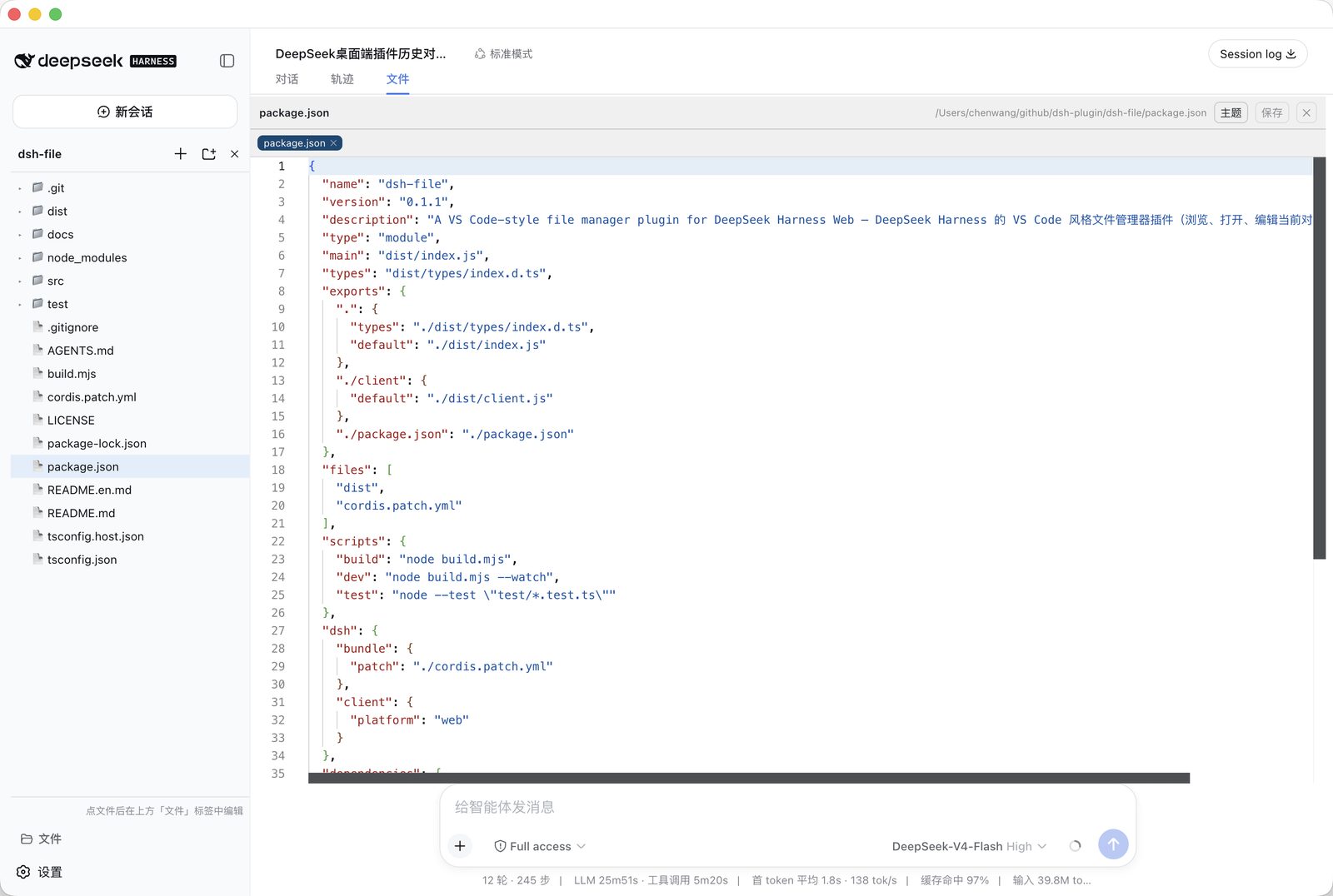
侧边栏文件树浏览工作区,点击文件后在中间列「文件」视图中编辑(Monaco 编辑器,语法高亮)。
安装
# 在 clone 下来的 dsh-file 目录内执行(不是父目录)
cd /path/to/dsh-file
dsh plugin --profile web add .
dsh plugin add 会把包 pnpm-link 进 profile 并追加到 dsh.profile.bundles。重启 dsh web 生效(client 插件元数据按名缓存,重启后重新扫描)。
桌面端(DSH Desktop)安装
桌面端是 deepseek-harness-desktop 项目(包名 dsh-plugin-desktop)。它与 dsh web 使用互相独立的 profile(桌面端用 desktop,dsh web 用 web),插件不会自动共享——只装进 web profile 的插件在桌面端不会出现,设置 → 插件列表里也不会显示:
# 同样在 dsh-file 目录内执行
cd /path/to/dsh-file
dsh plugin --profile desktop add .
安装后完全退出并重启桌面端(退出应用,不是关窗口),dsh-file 才会出现在侧边栏底部"文件"按钮和设置 → 插件列表中。
注意:不要往
~/.dsh/profiles/desktop/cordis.yml里添加插件——桌面端每次启动都会把它重写为空列表[]。插件的正确入口是 profilepackage.json的dsh.profile.bundles+dependencies(dsh plugin add做的正是这件事)。
从 npm 安装
dsh plugin --profile web add @rose43/dsh-file
或从 Releases 页面下载 tarball 后本地安装(桌面端把 --profile web 换成 --profile desktop):
dsh plugin --profile web add ./rose43-dsh-file-0.2.1.tgz
配置
cordis.patch.yml 中的 root 只是无会话时的兜底根目录(默认 process.cwd())。文件管理器打开时,浏览器会解析当前对话的工作区目录并通过 setRoot 重新固定根目录,因此一般无需改动:
- insert:
    - id: '@rose43/dsh-file'
      name: '@rose43/dsh-file'
      config:
        root: !!js process.cwd()   # 仅作为打开文件管理器前的兜底根目录
功能
- 侧边栏底部"文件"按钮:点击后侧边栏主体切换为文件管理器(文件树),再点切回工作区/会话列表
- 工作区跟随当前对话:文件管理器打开时自动解析当前会话的工作区目录(
SessionHeader.cwd),通过setRoot重新固定网关根目录——不再是启动dsh web的目录 - 中间列编辑器(视图标签):编辑器注册为中间栏
conversation.view视图("文件"标签,与"对话/轨迹"并列)。点击文件后在页面内的会话滚动区(非弹窗)显示并编辑:Monaco Editor(VS Code 同款内核,从 CDN 加载)按扩展名自动语法高亮;CDN 不可达时降级为纯文本 textarea - Markdown 预览:打开
.md文件默认渲染为只读预览(marked + GFM:标题/列表/表格/任务列表/代码块),工具栏"主题"按钮旁有 VS Code 风格的预览/源码切换按钮(仅 Markdown 文件显示);模式选择自动记住(localStorage),下次打开沿用 - 主题设置(VS Code 风格):编辑器工具栏"主题"按钮打开设置面板——默认浅色,预设主题用下拉框选择(浅色/深色/One Dark/GitHub),可自定义背景色/文字色/字号(10–28px),实时应用到 Monaco 与编辑器面板(工具条/状态条/标签随背景联动),自动持久化到 localStorage
- 主题导入/导出:像 VS Code 一样把主题保存为 JSON 文件、从文件恢复,方便在不同环境间迁移配色(详见主题导入/导出)
- 编辑与保存:Ctrl+S 或编辑器内"保存"按钮,dirty 标记(●);打开多个文件可在顶部标签条切换、每个标签带 ✕ 关闭
- 文件操作:新建文件、新建目录、重命名、删除(删除需确认,非空目录拒绝)
- 工作区边界:所有路径解析相对当前固定的
root,越界路径被 host 拒绝(含 symlink 逃逸防护)
主题导入/导出
主题设置面板(编辑器工具栏"主题"按钮)支持把当前主题导出为 JSON 文件,或从 JSON 文件导入恢复——和 VS Code 的主题文件机制一致,方便换机器、换环境时迁移你的配色。
导出主题
- 打开文件编辑器(中间列"文件"视图)。
- 点击工具栏 主题 按钮,打开主题设置面板。
- 点击 导出主题,浏览器会下载一个
dsh-file-theme-YYYY-MM-DD.json文件。
导出的 JSON 同时包含本插件字段与 VS Code workbench colors 字段:
{
  "name": "dsh-file · One Dark",
  "type": "dsh-file-theme",
  "version": 1,
  "background": "#282c34",
  "foreground": "#abb2bf",
  "fontSize": 13,
  "colors": {
    "editor.background": "#282c34",
    "editor.foreground": "#abb2bf"
  }
}
导入主题
- 打开主题设置面板。
- 点击 导入主题,选择 JSON 文件。
支持的格式:
- 本插件导出的格式(
background/foreground/fontSize); - VS Code 主题 JSON:读取
colors["editor.background"]与colors["editor.foreground"](tokenColors暂不参与,语法高亮沿用 Monaco 内置配色)。
导入成功后配色立即应用并持久化到 localStorage;文件不是有效 JSON 或缺少有效颜色时,面板会给出错误提示。
架构
插件由两半组成,共用包名 @rose43/dsh-file(GitHub 仓库仍为 chengzhi43/dsh-file):
| Host 半(Node 进程) | Client 半(浏览器 React) | |
|---|---|---|
| 源码 | src/index.ts | src/client/ |
| 构建产物 | dist/index.js(tsc,保留标准装饰器) | dist/client.js(esbuild,ModuleLoader bundle) |
| 职责 | 文件系统 RPC | 侧边栏文件树 + 中间列编辑器视图 |
| 关键 API | class FileManagerGateway extends TypertRemoteService + @Remote() | ctx.slots.register()、ctx.remote.$mount() |
Host ↔ Client 通信(Typert Remote)
浏览器不能直接访问文件系统,所以 host 半把文件操作暴露为 RPC 端点(namespace fileManager:listDir / readText / writeText / createFile / createDirectory / rename / delete / stat / resolve / getRoot / setRoot)。客户端通过 ctx.remote.$mount(TYPERT_REMOTE) 挂载调用面,再用 ctx.get('remote.fileManager') 解析服务后调用。setRoot 用于把网关根目录重新固定到当前会话的工作区目录。
关键约束(SRC descriptor 契约):Typert gateway 用 Function.prototype.toString 从方法签名提取 wire 参数名——所以 host 方法必须用扁平参数(listDir(path: string),不是 listDir(input: {...})),参数名即客户端发送的字段名。两半的命名必须一致。
面板切换机制
侧边栏主区域是 sidebar.workspaces 单席位 slot(被工作区浏览器以 priority 0 占用)。插件点击按钮时以 priority: -1 注册自己的 shadow 条目——单席位 slot 渲染 priority 最低的条目,所以文件管理器成为 winner;关闭时注销条目,工作区浏览器自动恢复。文件树点击文件后,编辑器在 conversation.view 注册的"文件"视图里渲染——即中间列会话滚动区(与 chat / trajectory 并列),点会话头部的"文件"标签进入,非弹窗。
依赖解析(重要)
@deepseek-ai/* 包不能在插件自己的 node_modules 里安装副本:@Remote 装饰器标记存在模块级 WeakMap 中,若插件与 api-gateway 各持一份 dsh-typert-protocol 实例,标记互不可见(RPC 会 404)。必须让 Node 解析到 dsh 安装目录的同一实例:
# 本地开发(本机 dsh 通过 npx 安装时):
ln -s ~/.dsh/profiles/node_modules/@deepseek-ai node_modules/@deepseek-ai
dsh 启动时会维护 $DSH_HOME/profiles/node_modules 的扁平 symlink 回退(healProfilesModuleFallback),指向 dsh 安装目录的每个包。生产发布时插件将 @deepseek-ai/* 声明为 peerDependencies,由 profile 提供。
桌面端(deepseek-harness-desktop)注意:
- 桌面端启动时会把
~/.dsh/profiles/node_modules/@deepseek-ai重指向 Desktop.app 打包目录(/Applications/DSH Desktop.app/.../app.asar.unpacked/node_modules),该目录裁剪了.d.ts——保持上面的 symlink 指向profiles即可保证运行时与桌面端 api-gateway 同一实例(RPC 正常)。 - 但 tsc 构建会因缺类型失败。
tsconfig.json用paths把@deepseek-ai/*的编译期类型查找映射到全局 dsh 安装(有完整.d.ts);运行时 Node 解析不受影响(仍走 node_modules symlink → profiles → 桌面端实例)。若全局 dsh 路径不同,按tsconfig.json注释调整。 - 不要在插件目录里跑
npm install:npm 会把node_modules/@deepseek-aisymlink 解引用成真实目录并破坏 profiles 的 symlink 结构,导致dsh启动报 "exists and is not a symlink"。需要装新依赖时,装完重新执行上面的ln -s。
开发
npm install                       # esbuild + typescript + 类型
node build.mjs                    # 构建 host (tsc) + client bundle (esbuild)
node build.mjs --watch            # 只 watch client(host 改动需重跑)
构建产物:
dist/index.js— host 半(Node ESM,tsc 编译以保留标准 stage-3 装饰器;esbuild 会把@Remote降级为 legacy 形式导致运行时崩溃)dist/client.js— client 半(window.__ModuleLoader__.load({id, factory})格式,react 等 seed 词 external)
调试
dsh --profile web --dump-config | grep -A4 dsh-file   # 确认插件层已组合
# 测试 RPC(需 dsh web 运行中)
curl -X POST http://127.0.0.1:3080/api/fileManager/getRoot \
  -H 'Content-Type: application/json' \
  -d '{"type":"client-request","rpcId":"t","method":"fileManager/getRoot","payload":{"args":{}}}'
常见问题
- RPC 返回 not found:几乎总是
@deepseek-ai/dsh-typert-protocol双实例问题——检查插件node_modules/@deepseek-ai是否是 symlink(ls -la node_modules/@deepseek-ai),不是则按上文建立链接后重启。 - 编辑器空白:Monaco 从 jsdelivr CDN 加载,内网环境需配置本地镜像或等待 textarea 降级。
- 打开的是错误的目录:确认当前会话的工作区目录正确(侧边栏标题显示目录名)。文件管理器打开时自动
setRoot到当前会话的cwd;若打开前无会话,则回退到cordis.patch.yml的root。 - 插件改了不生效:host 半改动需重启
dsh web;client 半 bundle 改动后刷新页面即可(rev 变化触发重新加载)。
License
Plugin correlati
dsh-web (dsh-task-board)
zhu1090093659/dsh-web
dsh-web (dsh-web-all)
zhu1090093659/dsh-web
dsh-web-ui (dsh-task-board)
zhu1090093659/dsh-web-ui
dsh-web-ui (dsh-web-ui-all)
zhu1090093659/dsh-web-ui