dsh-ponytail
kb1sln-labs/dsh-ponytail
Unofficial port of Ponytail 5.3.3 (upstream: DietrichGebert/ponytail, MIT; not affiliated) for DeepSeek Harness: minimal-code rules, session modes, native settings, a composer status band, and a reported-usage dashboard. It cannot be installed alongside another DSH Ponytail adapter — remove @mengyuly/dsh-ponytail first.
Installazione
dsh plugin --profile web add github:kb1sln-labs/dsh-ponytailREADME
Ponytail for DeepSeek Harness
An unofficial port of Ponytail 5.3.3 ("lazy senior dev mode") to the DeepSeek Harness (DSH). It keeps the upstream minimal-code rules exactly as written and adds native DSH surfaces: a settings tab, a mode picker, a status band in the composer, and a usage dashboard.
Upstream source: DietrichGebert/ponytail (MIT). This is an unofficial port, not affiliated with upstream.
Beta. Host adapter and packaged-plugin tests pass on Windows with DSH 0.2.1-rc.3 and rc.5; macOS Desktop UI is not yet verified.
Compatibility peers allow DSH >=0.2.1-rc.3 and <0.3.0. CI checks the current
latest, alpha, and rc.3 daily, and future prereleases can still break APIs.
Install
DSH Desktop — easiest
On a DSH version whose Plugins sidebar offers Add plugin (supported Desktop
versions): open Plugins, choose Add plugin, enter
@kb1slnlabs/dsh-ponytail@5.3.3-dsh.6, then review/install and enable it when
prompted. Fully quit DSH and reopen it, and create a new conversation.
If you want a different default intensity, select ultra in the Ponytail settings;
the package default is full. The exact location of those settings may vary by DSH
version. If another Ponytail adapter is already installed, remove it first — see
Coming from another adapter.
Desktop's UI installs into its own profile, so the terminal commands below are alternatives, not extra steps.
The examples below install into a CLI-managed profile called web. They need the
DSH 0.2.1-rc.3 CLI. If you use the desktop app, use its bundled CLI instead (see
"Desktop app" below). Close any running DSH process after installing, then start it
again.
Pick one of four sources:
Option 1 — Local link (development). From a checkout of this repository:
dsh plugin --profile web add "link:$PWD"
The plugin stays linked to your checkout; edits load on the next start.
Option 2 — GitHub source. Installs from this repository's source tree:
dsh plugin --profile web add github:KB1SLN-Labs/dsh-ponytail
Append #<commit> to pin a version.
Option 3 — Release tarball. Download the packaged file and install it:
# https://github.com/KB1SLN-Labs/dsh-ponytail/releases/download/v5.3.3-dsh.6/kb1slnlabs-dsh-ponytail.tgz
dsh plugin --profile web add file:./kb1slnlabs-dsh-ponytail.tgz
Save the tarball in a stable folder that will not be deleted — you need it again for
reinstall or upgrade. The URL is version-pinned on purpose: this release is a
prerelease, so a "latest" download link would not resolve to it. To build the same
tarball from a checkout instead, see Development; the package is plain
JavaScript, so npm pack needs no npm install first.
Option 4 — npm (recommended). Installs the published package:
dsh plugin --profile web add @kb1slnlabs/dsh-ponytail@5.3.3-dsh.6
The example pins the release so an install does not pick up stale cached latest metadata.
Desktop app
The desktop app ships its own CLI. An older globally installed CLI refuses the
reserved desktop profile; the bundled one works. Use the bundled CLI with the
desktop profile and the ordinary install:
$dshDesktop = Join-Path $env:LOCALAPPDATA 'Programs\DeepSeek Harness\resources\runtime\cli\bin\dsh.cmd'
& $dshDesktop plugin --profile desktop add @kb1slnlabs/dsh-ponytail@5.3.3-dsh.6
On macOS the Desktop app's bundled CLI lives inside the application bundle:
"/Applications/DeepSeek Harness.app/Contents/Resources/runtime/cli/bin/dsh" plugin --profile desktop add @kb1slnlabs/dsh-ponytail@5.3.3-dsh.6
The bundled CLI supports the same alternate sources shown above — github:, a
file: tarball path, or a local link: checkout.
Restart DSH, then open Settings → Plugins → Ponytail. Choose a default mode (for
example, ultra) and save. The package default is full. For details on profile
configuration and migration, see the adapter reference.
Everyday use
| Command | What it does |
|---|---|
/ponytail | Opens the mode picker (when the UI is available) |
/ponytail lite / full / ultra / off | Sets the mode for this session |
/ponytail status | Shows the current mode and where it comes from |
/ponytail reset | Drops this session's override |
Modes: lite, full (upstream default), ultra, and off.
There are also one-shot commands: /ponytail-review, /ponytail-audit,
/ponytail-debt, /ponytail-gain, /ponytail-help. The review, audit, and other
skill commands start model work. Mode and subcommands like status or help do
not.
Profile settings survive a restart. Session overrides set with /ponytail <mode> reset
when the process restarts. See the default precedence
reference for environment and global
defaults.
Screenshots
Both images show demonstration data rendered through the actual plugin components.
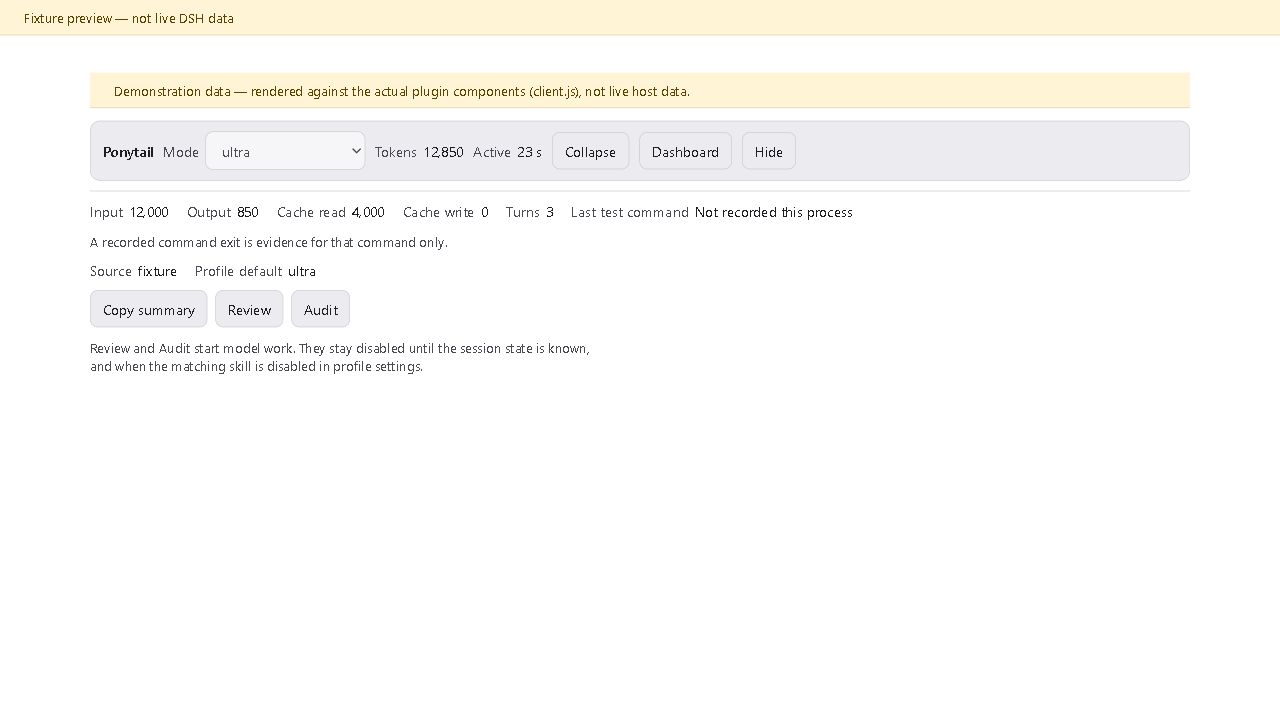
Status band (expanded): Demonstration data.
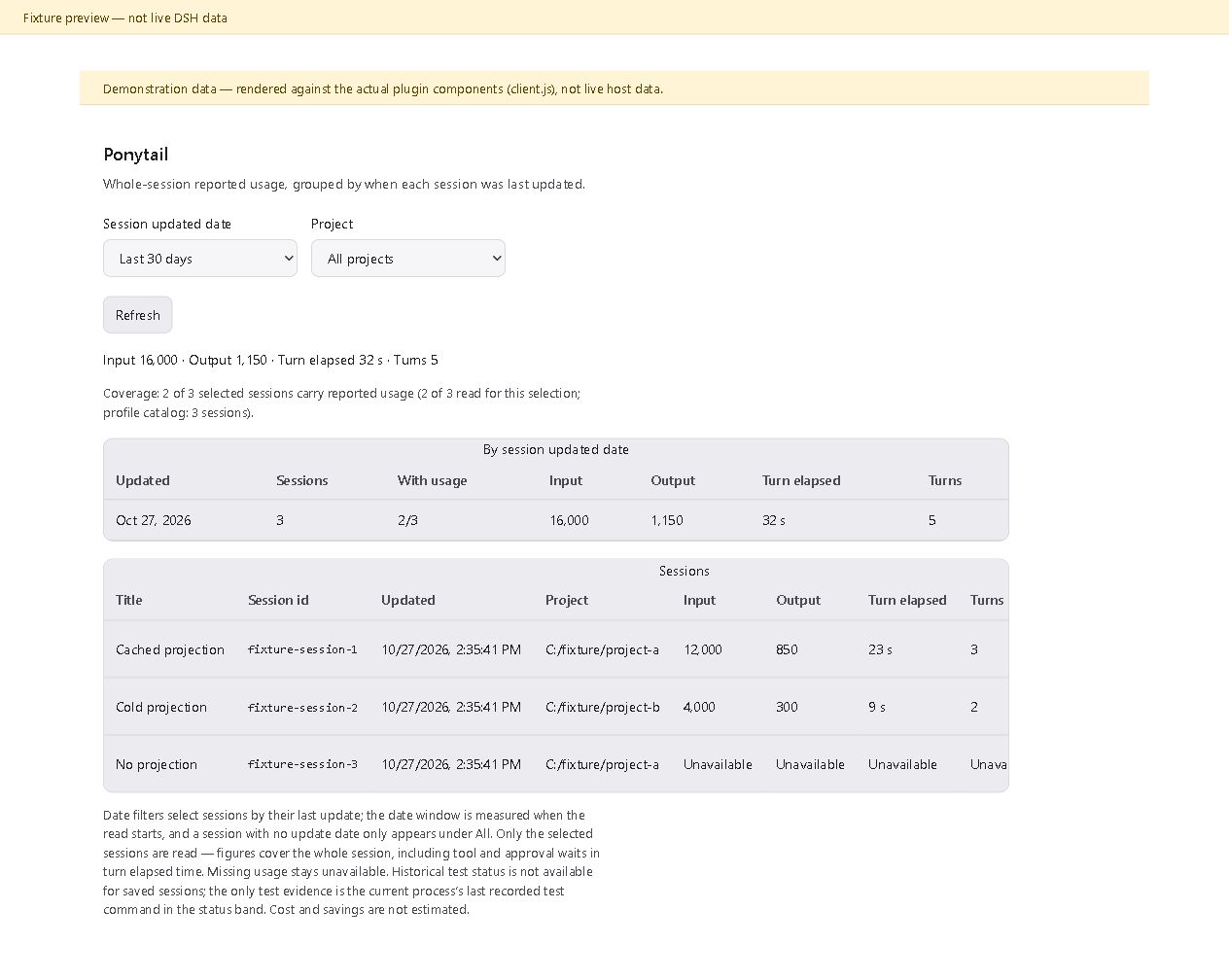
Dashboard: Demonstration data.
What the numbers mean
- The dashboard shows whole-session usage as reported by the provider, grouped by the date each session was last updated. Filters decide which sessions get read; sessions with no update date appear only under All.
- Sessions without usable usage are listed as unavailable, and coverage counts say how many of the selected sessions carry usage.
- Active time is completed-turn elapsed time and includes waiting on approvals and tools.
- The test command shown in the status band is the current process's last recorded simple foreground test command. Its exit code is evidence for that command only, not proof about a whole suite.
- No cost or savings estimates are made for your sessions.
/ponytail-gainshows the upstream benchmark reference.
Details on history semantics, contracts, and limitations: adapter reference, DESIGN.md, PRODUCT.md.
Coming from another adapter
If @mengyuly/dsh-ponytail is installed, remove that plugin first, then follow the
migration section of the reference
to replace its override row and keep your settings.
Development
To run the tests, point DSH_ROOT at the directory of an external rc3 host DSH
package install:
$env:DSH_ROOT = '<abs path to the @deepseek-ai/dsh package dir>'
npm test        # node --test "test/*.test.mjs" — 64 checks, no model calls
See validation scope for what has and has not been verified.
License
MIT. This port vendors upstream Ponytail (MIT) at a pinned commit; see LICENSE
and the adapter reference for exact provenance.
Plugin correlati
dsh-web (dsh-ssh)
zhu1090093659/dsh-web
dsh-web (dsh-remote-web-ui)
zhu1090093659/dsh-web
dsh-web-ui (dsh-ssh)
zhu1090093659/dsh-web-ui
dsh-web-ui (dsh-remote-web-ui)
zhu1090093659/dsh-web-ui