dsh-computer
kevinwu901113/dsh-computer
Give DeepSeek Harness its own persistent computer: a bundled microVM with shell, browser, live view and approval gates
Installazione
dsh plugin --profile web add github:kevinwu901113/dsh-computerREADME
dsh-computer
English | 中文
Give DeepSeek Harness (dsh) its own computer: a persistent Linux microVM with a browser, a live desktop view, and approval gates. No Docker required.
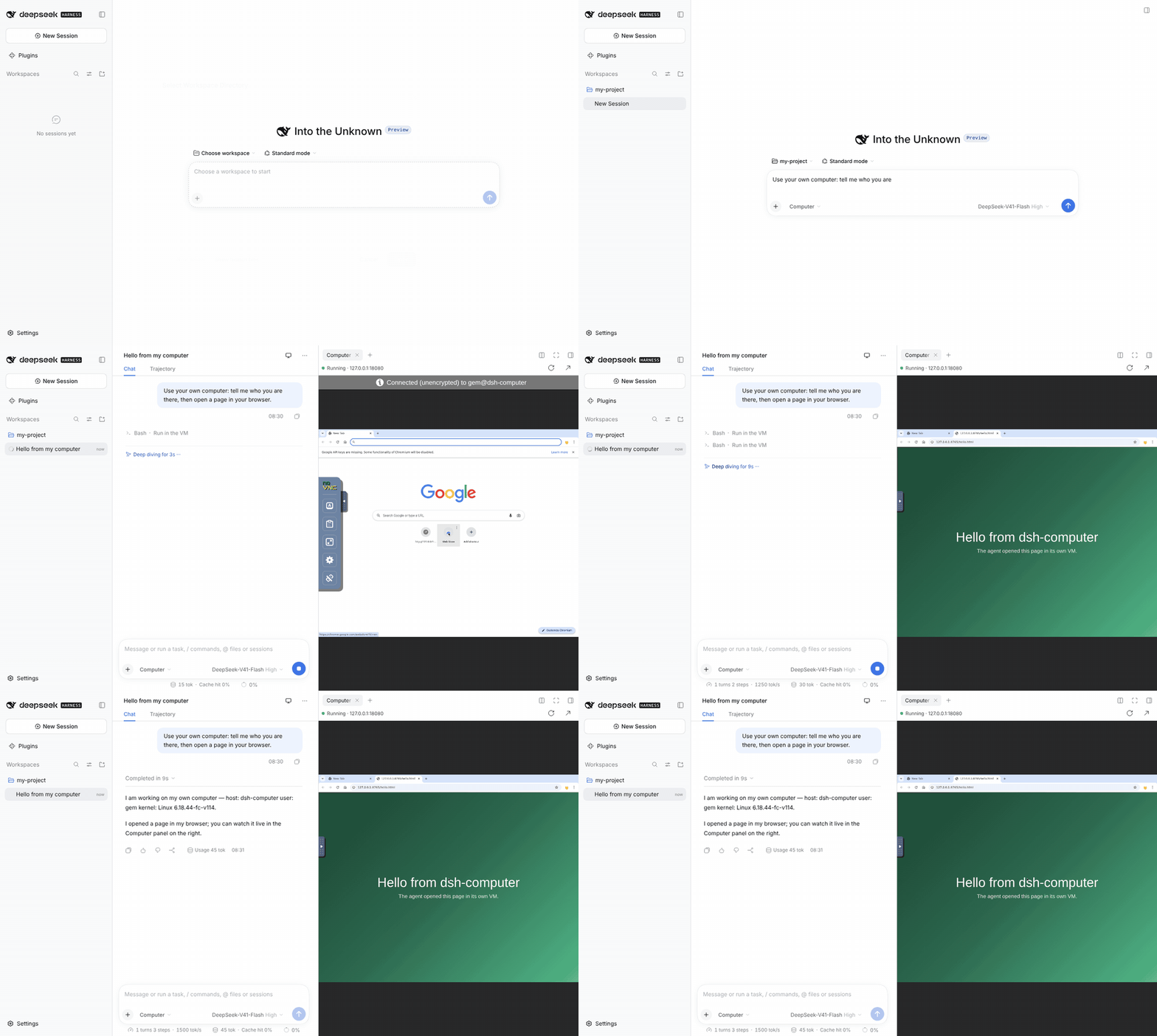
The agent runs commands and opens a page inside its own VM; the Computer panel in dsh shows its desktop live. (Recorded with a scripted model.)
- Every agent command runs in the VM, never on your machine. The session's workspace folder is shared into the VM at the same path.
- Its own browser (
mcp__vm__browser_*tools), with logins that persist across restarts. - Live view inside dsh: a monitor button in the session header opens a Computer tab in the right sidebar. Watch, click, type, or take over for a QR login or CAPTCHA.
- Audit log: every command, VM tool call, approval and folder change is appended to
~/.dsh/dsh-computer-audit.jsonl. - Phone-friendly live view: set
publicUrl(e.g. viatailscale serve) and approval messages — including IM approval cards — link to it. - Approval gates for risky actions (
sudo,rm -rf,curl | sh,git push, payment/login/delete clicks), with a link to the live view. - Always there: the VM keeps running after dsh quits and dsh reconnects to the same machine on next start.
- Lightweight: a bundled microsandbox microVM (Hypervisor.framework on Apple silicon, WHP on Windows, KVM on Linux); Intel Macs fall back to Docker.
Install (dsh desktop, macOS)
osascript -e 'quit app "DeepSeek Harness"'
"/Applications/DeepSeek Harness.app/Contents/Resources/runtime/cli/bin/dsh" \
  plugin --profile desktop add github:Kevinwu901113/dsh-computer
open -a "DeepSeek Harness"
The first start pulls the VM image (a few GB); agent commands queue until it is ready. Choose the Computer permission preset under the input box.
Status: v0.5.0, verified on dsh desktop 0.2.0-rc.2 (macOS, Apple silicon). Want a Dots-style always-on agent on top of this (IM, schedules, budget caps)? See dsh-dot. Design notes and roadmap: docs/DESIGN.md (Chinese). MIT licensed.
中文说明
给 DeepSeek Harness(dsh)一台自己的电脑:一台常驻的 Linux 微型虚拟机,带浏览器、实时桌面画面和审批闸门。不需要装 Docker。
- agent 的 bash 命令在虚拟机里执行,不碰你的系统。
- agent 的浏览器(
mcp__vm__browser_*工具)在虚拟机里,登录态长期保留。 - 你随时可以打开实时画面观看或接手操作(扫码、验证码)。
- 危险操作(
sudo、rm -rf、curl | sh、git push,以及涉及支付、登录、删除的浏览器动作)先弹审批,审批信息附实时画面链接。 - 会话所在的工作区文件夹自动共享进虚拟机,路径不变。
- dsh 退出后虚拟机继续运行;下次启动自动连回同一台。
当前版本 0.5.0,在 dsh 桌面版 0.2.0-rc.2(macOS,Apple 芯片)上验证通过。
一、要求
| 项目 | 要求 |
|---|---|
| 系统 | macOS(Apple 芯片)、Linux(有 /dev/kvm)、Windows(开启 Hypervisor Platform)。Intel Mac 自动改用 Docker |
| 内存 | 虚拟机默认 4GB 上限,空闲约 0.5GB |
| 磁盘 | 约 10GB 空闲(虚拟机镜像) |
| 网络 | 首次启动要从 ghcr.io 下载镜像;插件会自动使用系统代理 |
虚拟机由 microsandbox 运行(libkrun 微型虚拟机,macOS 用 Hypervisor.framework)。它随插件的 npm 依赖一起安装,不需要单独安装。
二、安装
dsh 桌面版(macOS)
桌面版使用名为 desktop 的配置,要用 App 自带的 dsh 命令安装:
osascript -e 'quit app "DeepSeek Harness"'      # 先退出桌面版
"/Applications/DeepSeek Harness.app/Contents/Resources/runtime/cli/bin/dsh" \
  plugin --profile desktop add github:Kevinwu901113/dsh-computer
open -a "DeepSeek Harness"
重新打开后,在输入框下方的权限选择里会出现 Computer 预设。
命令行版
npm i -g @deepseek-ai/dsh@0.2.0-rc.2
dsh plugin --profile web add github:Kevinwu901113/dsh-computer
cd ~/某个项目 && dsh web
第一次启动
插件会自动下载镜像(几 GB)并创建虚拟机,这期间 agent 的命令排队等待,不会报错。完成后日志出现:
computer ready — live view: http://127.0.0.1:18080/vnc/index.html?autoconnect=true&resize=scale
三、共享文件夹
- 在某个工作区新建会话并执行命令时,插件自动把这个工作区共享进虚拟机,路径和本机一致。比如
/Users/你/Documents/项目在虚拟机里也是这个路径。 - 共享新文件夹需要重建虚拟机:停机 → 磁盘快照 → 带新文件夹恢复,大约 20 秒。期间的命令自动排队,虚拟机里的文件、安装的软件和浏览器登录态都保留。
- 不会自动共享:家目录本身、隐藏目录(如
~/.dsh、~/.ssh)、~/Library、~/Applications,以及家目录以外的位置。在这些位置启动时,命令在虚拟机的/home/gem里执行,并共享~/dsh-computer/workspace。 - 想固定共享某些文件夹,在设置里写
mounts(见第五节)。显式写出的文件夹不受上面的限制。
四、观看与接管
在 dsh 界面里:会话顶部右侧有一个显示器按钮,点一下就在右侧栏打开"虚拟机"标签页,可以直接点击和输入;再点一下收起。也可以在右侧栏的"+"引导页里选"虚拟机"。虚拟机还没就绪时,标签页会显示等待状态并自动重试。
在浏览器里:
http://127.0.0.1:18080/vnc/index.html?autoconnect=true&resize=scale
看到的就是 agent 的电脑桌面,可以直接点击、输入。
在手机上(不在电脑旁时):端口只监听本机,不要直接暴露到公网。推荐用 Tailscale 把它安全地转发到你自己的设备:
tailscale serve --bg --https=443 http://127.0.0.1:18080 # 只在你的 tailnet 内可见
然后把得到的地址(如 https://my-mac.tailnet-xxxx.ts.net)写进设置文件的 publicUrl。之后审批消息(包括转发到 IM 的审批卡片)里的实时画面链接会用这个地址,在手机上点开就能看和接管。
风险:虚拟机的 web 服务本身没有鉴权。
tailscale serve只对你 tailnet 里的设备开放;不要用tailscale funnel、端口转发或任何公网隧道直接暴露 18080。
五、配置
桌面版拿不到终端环境变量(只能用 launchctl setenv 设置),推荐写设置文件 ~/.dsh/dsh-computer.json,改完重启 dsh:
{
  "mounts": ["/Users/你/Projects/a", "/Users/你/Projects/b"],
  "memory": "6G",
  "cpus": 4
}
| 设置项 / 环境变量 | 默认值 | 作用 |
|---|---|---|
mounts / DSH_COMPUTER_MOUNTS | 自动(见第三节) | 固定共享的文件夹;环境变量用 : 分隔(Windows 用 ;) |
memory / cpus | 4G / 2 | 虚拟机资源上限 |
publicUrl / DSH_COMPUTER_PUBLIC_URL | 空 | 从别的设备访问虚拟机 web 服务的地址(见第四节),用于审批消息和状态接口 |
DSH_COMPUTER_PORT | 18080 | 虚拟机服务在本机的端口(仅监听 127.0.0.1);只能用环境变量设置 |
image / DSH_COMPUTER_IMAGE | ghcr.io/agent-infra/sandbox:latest | 虚拟机镜像 |
backend / DSH_COMPUTER_BACKEND | auto | microsandbox 或 docker |
DSH_COMPUTER_GATE | risky | off 不拦截;risky 拦危险命令和敏感浏览器动作;browser 每个浏览器动作都审批 |
DSH_COMPUTER_PRESET | computer | computer-auto 关闭审批,只建议在虚拟机里没有重要登录态时用 |
六、维护
插件自带的 msb 命令在 dsh 配置目录里(桌面版如下):
MSB=~/.dsh/profiles/desktop/node_modules/@superradcompany/microsandbox-darwin-arm64/bin/msb
$MSB list                         # 虚拟机状态
$MSB exec -u gem dsh-computer -- bash   # 进入虚拟机
$MSB stop dsh-computer            # 停机(下次 dsh 启动自动唤醒)
$MSB rm -f dsh-computer           # 删除虚拟机;若有快照,下次启动从最近的快照恢复
$MSB snapshot list --group dsh-computer
每次共享新文件夹都会留下一个磁盘快照(~/.microsandbox/snapshots/dsh-computer/)。快照是链式的,后一个依赖前一个,不能单独删除;每次增加约 15–20MB。虚拟机被误删时,插件下次启动会从最新快照恢复。要回收空间只能整体重置:$MSB rm -f dsh-computer 后删除整个快照目录,虚拟机里的状态会一起清空。
七、出问题时
插件把每次虚拟机操作写进 ~/.dsh/dsh-computer.log。把最后 50 行发出来即可:
tail -n 50 ~/.dsh/dsh-computer.log
| 现象 | 处理 |
|---|---|
| 日志里有“本机虚拟化不可用” | Windows:管理员执行 Enable-WindowsOptionalFeature -Online -FeatureName HypervisorPlatform -All 和 bcdedit /set "{current}" hypervisorlaunchtype auto,然后重启 |
| 镜像下载很慢或失败 | 确认系统代理可用,或用 image 换成能访问的镜像源 |
| 浏览器工具报错,bash 正常 | 等一分钟;插件会自动清理浏览器锁文件并重启浏览器 |
| agent 命令长时间无输出 | 看日志是否停在 restore 或 pull |
八、已知限制
- Mac 休眠时虚拟机暂停;真正 7×24 常驻需要一直开着的机器。
- 本机端口没有鉴权:
127.0.0.1:18080只对本机开放,但本机其他程序都能访问。不要在虚拟机里登录高价值账号。 - 浏览器登录后约 30–45 秒才把 cookie 写盘,立刻共享新文件夹或重启可能丢失刚完成的登录。
- 共享文件夹以外的虚拟机文件(如
/home/gem),dsh 的文件读写工具看不到,只能通过命令访问。 - 一个 dsh 配一台虚拟机,还没有“每个会话一台”。
- Docker 后端(Intel Mac)不支持自动共享新文件夹,需要在设置里写
mounts后执行docker rm -f dsh-computer。 - Windows 只验证到虚拟化检测,桌面版完整流程未验证。
九、开发:界面部分
界面代码在 ui/,必须用 dsh 官方仓库的 tsdown 预设编译。把 ui/ 放进官方仓库的 packages/client/dsh-computer-ui/,执行 pnpm install --filter "dsh-computer...",然后在该目录运行 npx tsc -p tsconfig.json --noCheck && npx tsdown,把生成的 lib/client.js 复制到本插件的 lib/。虚拟机端口固定读 18080;改了 DSH_COMPUTER_PORT 时,标签页暂时仍连 18080。
十、审计日志与状态接口
审计日志 ~/.dsh/dsh-computer-audit.jsonl,每行一条 JSON,超过 10MB 轮转为 .1:
kind | 何时记录 | 主要字段 |
|---|---|---|
exec / terminal | 每个在虚拟机里启动的进程 | argv、cwd |
tool | 每次 bash 或虚拟机工具调用结束(被拒绝的审批也在这里,ok: false) | tool、session、args、ok、error |
approval-asked | 审批闸门要求审批 | tool、session、args、reason |
mount | 共享 / 取消共享文件夹 | action、dir、mounts |
status | 虚拟机状态变化 | state、error |
状态接口(给同一 dsh 里的其他插件用,例如 dsh-dot):注入 dshComputer 服务后,
ctx.dshComputer.status()
// { state: 'starting' | 'shell-only' | 'ready' | 'remounting' | 'error',
//   backend, liveViewUrl, publicLiveViewUrl, mounts, error }
const stop = ctx.dshComputer.onStatus((snapshot) => { /* 状态变化时调用 */ })
dshComputer.audit(entry) 也可以被其他插件用来往同一份审计日志里追加记录。
Plugin correlati
dsh-infinite-gen-4
minglink/dsh-infinite-gen-4
cc-safety-net
kenryu42/cc-safety-net
api-relay-audit
toby-bridges/api-relay-audit
dsh-redteam-model
seaof0/dsh-redteam-model