officesdk-plugin-dsh (dsh-adapter)
officesdk/officesdk-plugin-dsh/packages/dsh-adapter
This plugin adds native Office editors to DeepSeek Harness so you and your AI agent can edit Word documents, Excel workbooks, and PowerPoint slide decks together and review changes in place.
Installazione
dsh plugin --profile web add github:officesdk/officesdk-plugin-dshQuesto plugin si trova nella sottodirectory packages/dsh-adapter del repository.
README
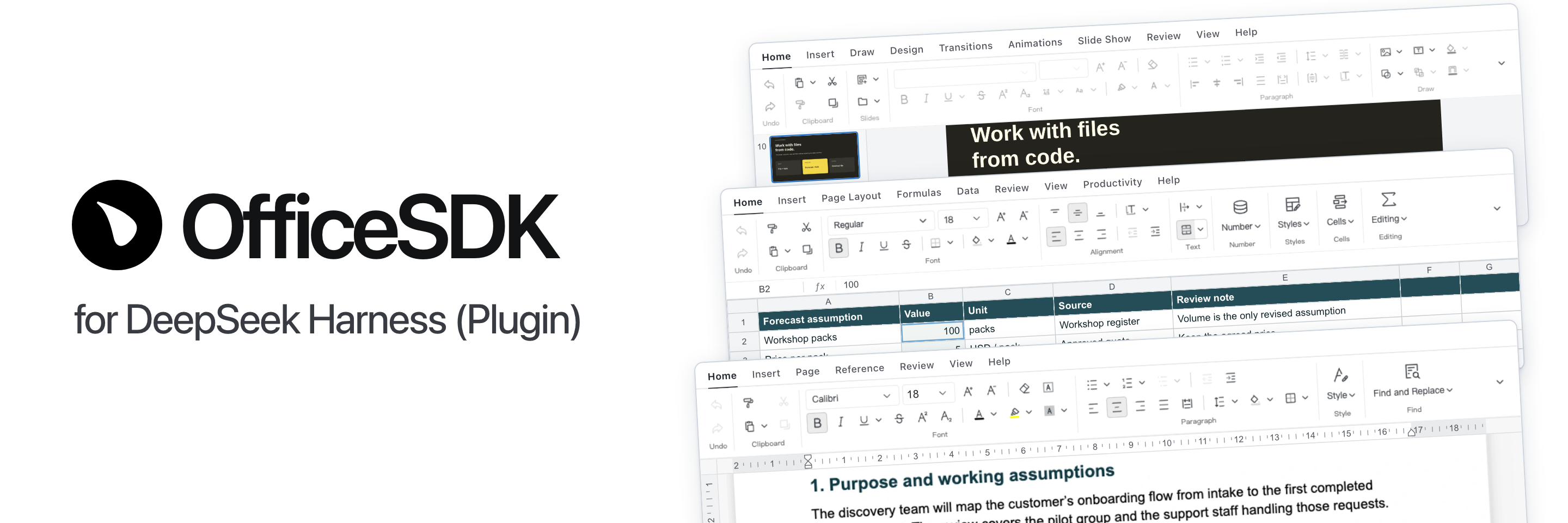
Edit Office files directly in DeepSeek Harness
Install the OfficeSDK plugin, then open a Word document, Excel workbook, or PowerPoint presentation.
🚀 Quick start · ✨ Features · 🌐 Website · 🎮 Demo · 📝 Blog
English · 简体中文


Table of contents
💡 What is OfficeSDK for DeepSeek Harness (Plugin)?
OfficeSDK for DeepSeek Harness (Plugin) adds native editors for Word documents, Excel workbooks, and PowerPoint presentations to DeepSeek Harness. You can change the content and formatting, then save your edits to the original file without opening a separate Office desktop app.
Editor features
Across the plugin’s three editors, you can access 233 features directly from the ribbon.
- Word · 81 features. Format paragraphs, insert footnotes, and review tracked changes.
- Excel · 64 features. Set up data validation, use PivotTables, and freeze the header row so it stays visible as you scroll.
- PowerPoint · 88 features. Change slide layouts, apply transitions, and use Presenter View.
The count for version 0.0.3 covers top-level ribbon controls and excludes individual spreadsheet functions and submenu options. The totals may change as we continue to update the editors.
You and your AI agent can edit the same file. You can ask the agent to revise a paragraph, update a range of cells, or edit a particular text box on a slide. For example, select the concluding paragraph of a Word document and ask the agent to shorten it while you check the figures in an earlier paragraph. You can review each change right where it was made.
| File type | Example request | What to check in the editor |
|---|---|---|
Word (.docx) | Shorten the final paragraph of the monthly report to two sentences. | Read the revised paragraph in context. Check its spacing or review the tracked changes. |
Excel (.xlsx) | In the variance column, subtract budgeted spending from actual spending using a formula. | Select a cell to check its formula, then format the amounts to two decimal places. |
PowerPoint (.pptx) | Rewrite the title of slide 3 so it states the decision we need to make at this meeting. | Check how the title wraps, reposition the text box if needed, and preview the slide. |
Confirming and undoing AI edits
Enable both OfficeSDK and OfficeSDK · model editing tools on the plugin page. The agent asks for confirmation before applying changes to an existing file. Each change appears in the file tab beside your conversation. When the agent creates a new document or presentation, you can watch each section or slide appear and stop the agent at any time.
You can undo the agent’s edits to a PowerPoint presentation. In Word and Excel, stopping the agent or encountering an error does not automatically undo edits it has already applied. Review those edits in the editor before saving to the original file.
Create files with bundled skills
The plugin includes two skills. DeepSeek Harness selects the appropriate one when you ask the agent to create a file.
- Word (
shimo-docx). The agent drafts the document section by section using a template for official documents in Chinese, such as notices and letters. It uses an offline script when the document needs tables or when you request several documents at once. - PowerPoint (
shimo-pptx). The agent builds the presentation a few slides at a time in the editor. It uses an offline script if you need tables or charts, request several presentations at once, or work in a session without the editor. It looks first for images you provide or suitable images in your workspace. If it uses images under an open license, it credits them in the speaker notes or in its final response.
For Excel, open an existing workbook and ask the agent to enter data or write formulas. The plugin does not currently include a skill or template for creating new workbooks in the editor.
Upgrading from older skills
If you installed dsh-docx-style or dsh-pptx-style manually, the old skills will appear alongside the bundled ones after you upgrade. You can remove the manually installed copies. If you previously disabled the skills component, it stays disabled after the upgrade.
Plugin demo
Watch the English demo on YouTube

🚀 Get started in DeepSeek Harness
After installation, Office files open in a tab beside your conversation.
Platform support. The document engine is stable on Mac computers with Apple silicon. The x64 build for Windows is still being tested.
Install from the desktop app
| Step | Action | Screenshot |
|---|---|---|
| 1 |
Open the plugin manager In the sidebar, open Plugins. On the Installed tab, click Add plugin in the upper right. |
 |
| 2 |
Install OfficeSDK Paste the package name into the Add plugin dialog, then click Install. |
 |
| 3 |
Enable the plugin When the dialog says Installed, check the package name and version, then click Enable now. |
 |
Install from the terminal
In the DeepSeek Harness desktop app, select Manage dsh Command… to enable the dsh command. Quit the app, run the command below in your terminal, then reopen the app.
The command uses the runtime bundled with the desktop app. The plugin requires Node.js 22.19.0 or later. The npm package metadata lists the supported versions of DeepSeek Harness.
dsh plugin --profile desktop add @officesdk/officesdk-plugin-dsh
First use and updates
The first time you open an Office file from your workspace, the plugin downloads the office-kit document engine and editor resources for your platform. Documents render on your machine, so there is no document server to set up.
Install OfficeSDK updates from the Plugins panel in DeepSeek Harness.
🌐 OfficeSDK ecosystem

- OfficeSDK Desktop lets you edit documents offline.
- OfficeAPI provides a hosted API for converting and previewing documents.
📚 Plugin developer guides
| Resource | Use it to |
|---|---|
| Edit your first Word document | Edit a paragraph in DeepSeek Harness, save the file, and reopen it to check the result. |
| Troubleshoot the plugin | Resolve problems opening a file or finding a saved copy. |
| Plugin architecture and repository layout | See how the DeepSeek Harness adapter, model editing tools, and local document engine work together. |
| PowerPoint style template | Customize the default colors and fonts and slide layouts. |
| Build and test the plugin | Build the plugin from source, run the tests, and install it in DeepSeek Harness. |
| Release, update, and roll back | Publish to npm, create a GitHub release, or roll back to an earlier version. |
💬 Community and feedback
- GitHub Issues — Report a plugin bug or request a feature.
- officesdk@shimo.im — Email us with questions or feedback.
- YouTube — Watch OfficeSDK editing walkthroughs.
- X · @officesdk — Follow product updates.
📄 License

The source code for the DeepSeek Harness plugin is licensed under the MIT License. Separate license terms apply to the document engine and editor resources. Plugin license · Component notices
OfficeSDK Core is commercial software. Evaluation and production use require a license file or key. Core license notice · OfficeSDK EULA
Plugin correlati
archify (deepseek-harness)
tt-a1i/archify
WeKnora (dsh-weknora)
tencent/weknora
next-ai-draw-io (dsh-plugin)
dayuanjiang/next-ai-draw-io
weknora
tencent/weknora