dsh-launchpad
polar-zhang/dsh-launchpad
Un plugin DeepSeek Harness che ospita un'elegante pagina splash/loading e un endpoint di readiness, più script di launcher desktop Windows (doppio clic per avviare, chiudi il browser per fermare).
Installazione
dsh plugin --profile web add github:polar-zhang/dsh-launchpadREADME
dsh-launchpad
English | 简体中文
A DeepSeek Harness plugin that adds an elegant splash / loading page and a readiness endpoint to the web UI, plus Windows desktop launcher scripts — double-click to start DSH, close the browser tab and DSH stops by itself.
✨ A splash page that matches your theme
The startup page follows your system theme automatically — dark or light, with the official DeepSeek whale:
| 🌙 Dark | ☀️ Light |
|---|---|
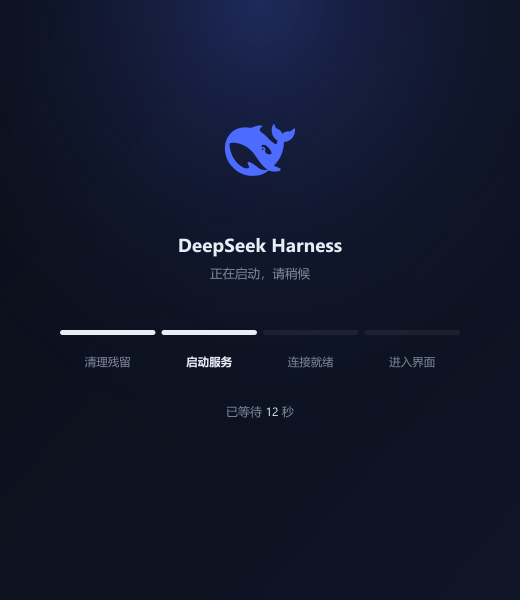 | 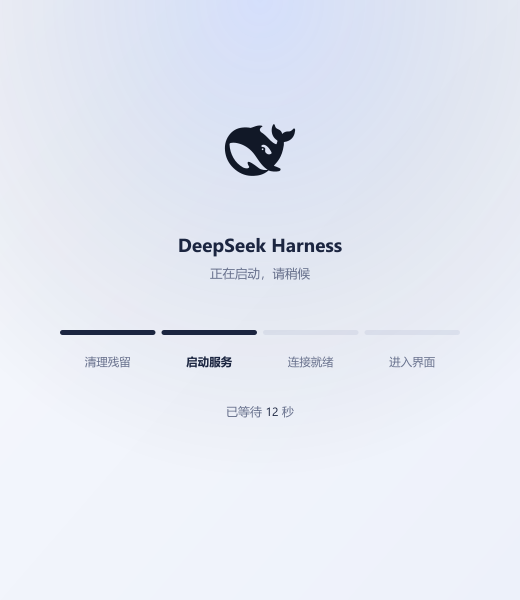 |
- Official DeepSeek whale logo — auto dark/light via
prefers-color-scheme, gently floating while you wait - 4-stage progress bar mapped to the real startup stages: cleanup → boot → ready → enter
- Instant browser open, zero windows — double-click the shortcut, the splash page appears immediately and redirects into DSH the moment the server is ready
- Your icon, your choice — the desktop shortcut can wear the official whale tile included in this repo, or any icon you like:

What you get
| Piece | What it does |
|---|---|
GET /launchpad | The splash page: official DeepSeek whale logo (auto dark/light via prefers-color-scheme), 4-stage progress bar (cleanup → boot → ready → enter), waiting timer. |
GET /launchpad/status | JSON readiness probe the splash page polls; redirects into the app the moment the server is up. |
scripts/start-dsh.cmd | Silent Windows launcher: kills port-3080 zombies, starts dsh web hidden, opens the splash page in the browser. |
scripts/watch-dsh-idle.cmd | Hidden watcher: when the browser disconnects from port 3080 for ~10 s, it kills dsh. Close the tab → dsh stops. |
scripts/hide-run.vbs | 3-line helper that runs a command with zero visible windows (Windows has no pure-cmd way to fully hide a background process). |
scripts/stop-dsh.cmd | Emergency stop: kills whatever is listening on port 3080. |
Install
Quick — plugin
dsh plugin --profile web add dsh-launchpad
With launcher scripts & desktop shortcut
Deploy the launcher scripts and splash page to ~/.dsh:
:: from the package directory
scripts\install.cmd
Or copy assets/loading.html + scripts/* manually to %USERPROFILE%\.dsh\.
Create a desktop shortcut for a true double-click experience:
wscript.exe "%USERPROFILE%\.dsh\hide-run.vbs" "cmd /c %USERPROFILE%\.dsh\start-dsh.cmd"
Set the shortcut icon to the official whale tile (included in this repo): right-click the shortcut → Properties → Change icon → pick the image above (or %USERPROFILE%\.dsh\icons\whale-girl.ico if you have the whale-girl pack).
🤖 Or let an AI assistant install it
Paste the block below to your AI assistant (a DSH agent session, Claude, etc.). It is self-contained — the assistant can fetch this repo and install everything correctly.
Install the dsh-launchpad plugin for DeepSeek Harness from
https://github.com/Polar-Zhang/dsh-launchpad (Windows).

1. Fetch the repo: `git clone https://github.com/Polar-Zhang/dsh-launchpad.git`
   to a temp dir, OR install straight from GitHub with
   `dsh plugin --profile web add github:Polar-Zhang/dsh-launchpad`.
2. Verify the bundle list: read `<DSH_HOME>/profiles/web/package.json`
   (DSH_HOME defaults to `%USERPROFILE%\.dsh`). The `dsh.profile.bundles`
   array MUST contain `dsh-launchpad` (the package declares
   `dsh.bundle.patch`). `dsh plugin add` does not always append to bundles —
   if it is missing, add it manually as a string in that array, next to the
   other bundle names. pnpm peer-dependency warnings are expected and
   harmless (the dsh runtime provides those peers).
3. Deploy the launcher scripts by running `scripts/install.cmd` from the
   repo (or, after an npm/GitHub install:
   `call "%USERPROFILE%\.dsh\profiles\web\node_modules\dsh-launchpad\scripts\install.cmd"`).
   It copies `loading.html`, `start-dsh.cmd`, `watch-dsh-idle.cmd`,
   `hide-run.vbs`, `stop-dsh.cmd` into `%USERPROFILE%\.dsh\`.
4. Create a desktop shortcut (double-click = launch, no console windows):
   `wscript.exe "%USERPROFILE%\.dsh\hide-run.vbs" "cmd /c %USERPROFILE%\.dsh\start-dsh.cmd"`
   (optional: set the shortcut icon to any .ico the user picks).
5. Restart the dsh web profile so the bundle loads — if dsh is currently
   running, stop it first with `%USERPROFILE%\.dsh\stop-dsh.cmd`, then start
   it again (e.g. via the new shortcut).
6. Verify: `GET http://127.0.0.1:3080/launchpad/status` returns JSON with
   `"ok":true`, and `GET http://127.0.0.1:3080/launchpad` serves the splash
   page. Then open `http://127.0.0.1:3080/` to confirm the app works.
Usage
- Start: double-click the shortcut (or run
start-dsh.cmd). No windows appear — the browser opens the splash page instantly, the 4-stage bar fills, and you land in the DSH UI when it's ready. - Stop: just close the browser tab. ~10 s later dsh exits by itself.
- Emergency:
stop-dsh.cmd.
Splash page preview
start "" "%USERPROFILE%\.dsh\loading.html?p"
?p = preview mode (no polling, no redirect). Toggle Windows light/dark mode to see the theme switch.
Endpoints
GET /launchpad           → splash page (text/html)
GET /launchpad/status    → {"ok":true,"service":"dsh","pid":...,"uptime":...,"time":...}
Customize
The splash page is a single self-contained HTML file — edit assets/loading.html (logo, colors, stage labels, timeout) and redeploy. Everything is inline: no CDN, works offline.
Why a plugin + scripts
- The plugin part runs inside DSH (Cordis bundle): it hosts the splash page and readiness endpoint through the DSH web server, so the page works over the same origin with zero CORS friction.
- The scripts part is inherently OS-level: a process cannot start itself, so starting/stopping dsh needs Windows shell bits. They ship in the same package for a one-stop install.
License
MIT
Plugin correlati
deepseek-harness
deepseek-ai/deepseek-harness
dsh-web (dsh-plugin-manager)
zhu1090093659/dsh-web
dsh-web
zhu1090093659/dsh-web
dsh-web-ui (dsh-plugin-manager)
zhu1090093659/dsh-web-ui