dsh-dailyboard
ginoxiang/dsh-dailyboard
DailyBoard — a daily work task board for the DSH Web GUI with a one-month calendar of colored timeline bars and day tasks, a daily checklist, a seven-day week view with completion checkboxes and drag-to-reschedule, a draggable 24-hour day timeline, ordered per-day subtasks, weekly and every-N-days recurring tasks with per-occurrence result records, a long-term progress view opened from the calendar header, per-day completion for long-term tasks, a collapsible daily email reminder for any mailbox, and AI extraction of tasks from natural language.
インストール
dsh plugin --profile web add github:ginoxiang/dsh-dailyboardREADME
DailyBoard · 日常工作任务板
DailyBoard 是 DSH Web GUI 的日常工作任务板:单月日历(完整自然月)、日常清单、每天工作视图与可拖拽的 24 小时时间轴,支持周期任务、长期任务进展、可推到微信的每日邮件提醒(也能提醒家人吃药、量血压等),并可用自然语言让 AI 提取任务。
功能
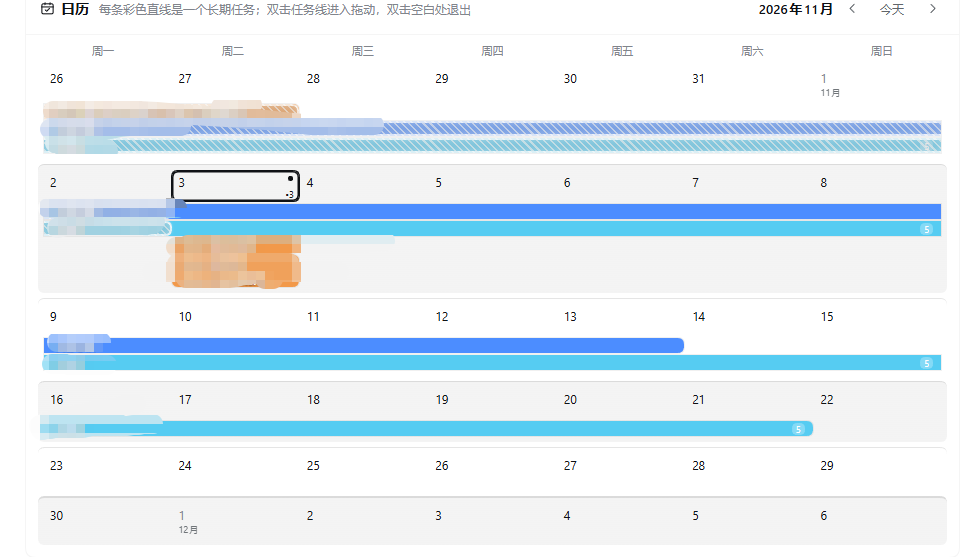
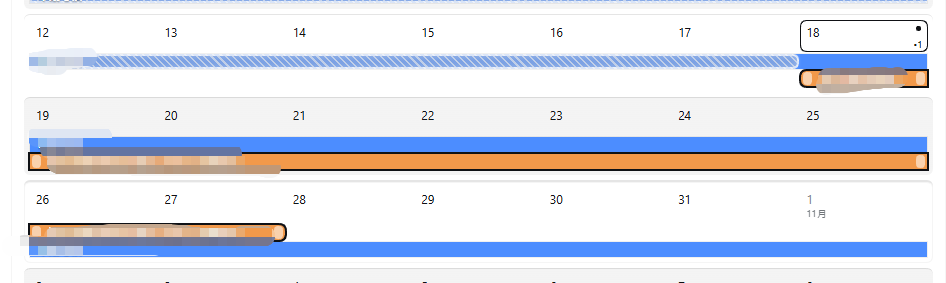
- 单月日历:完整自然月网格(含月初/月末补齐的周,左右按钮切换上/下月);每个长期任务按起止日期画成一条彩色时间条,当天的定时任务也会作为单日条画在对应日期上(长期任务优先排布,每周最多显示 5 行,点「还有 N 项」可展开显示全部;日常任务不显示在日历上)。跨周自动分段;双击长期任务线条进入拖动模式(拖线身移动日期、拖两端改长度);已度过的日期段用浅灰雾面 + 细斜纹 + 白色毛玻璃描边标出;单击任一条线可查看该任务的子任务。
- 日常任务:每天重复的习惯清单,圆角方块勾选框(完成时绿色实心 + 白色对勾);可增删改。
- 每天工作:按钮切换两种视图。
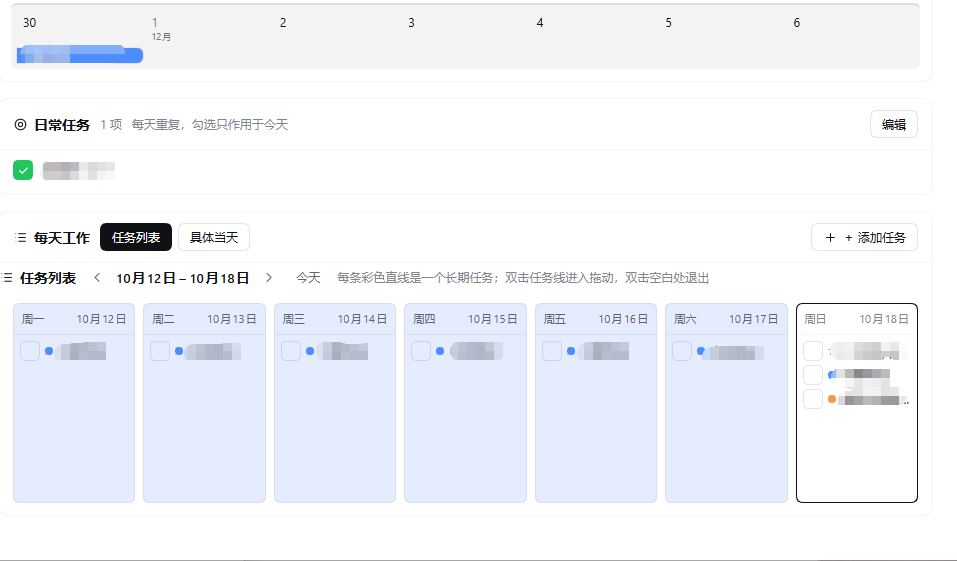
- 任务列表:周一至周日 7 个竖列,左右翻页切换周;已过去日期背景为
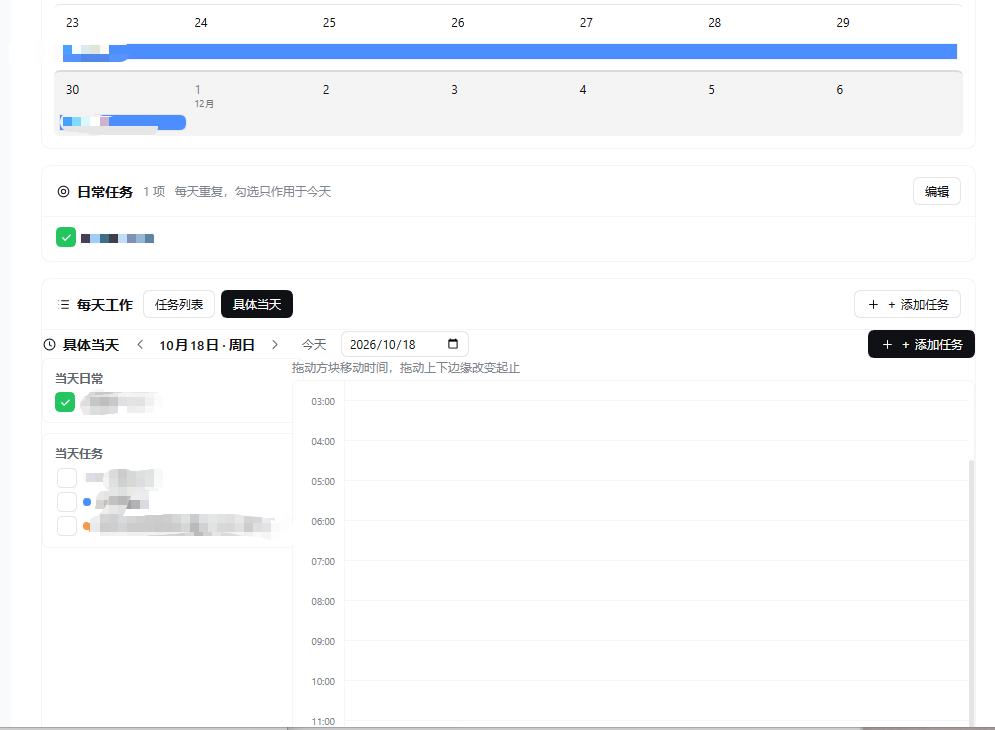
#E5ECFD;只列非日常任务(定时任务与跨天长期任务),每行带完成勾选框;按住任务行可拖到本周其他日期改期(当天定时任务和单日任务可拖,多日长期任务请在日历里拖动调整范围);点击带子任务的任务行可展开/收起子任务(只读,编辑仍在「具体当天」页);每列底部有「+ 添加任务」,点开即可给该天新建当天任务。 - 具体当天:左侧「当天日常」与「当天任务」两个清单,右侧 24 小时纵向时间轴;方块可拖动移动、拖上下边缘改起止(15 分钟吸附),双击时间轴空白处快速新建;点方块可编辑;两个清单底部都有「+ 添加任务」按钮(日常清单加日常任务,当天任务清单加当天的定时任务)。
- 任务列表:周一至周日 7 个竖列,左右翻页切换周;已过去日期背景为
- AI 提取:页面顶部输入一段中文安排(例如「下周一至周五完成季度报告;每天锻炼 30 分钟;今天 14:00-15:30 开例会」),点击提取后调用当前默认模型解析为可编辑的任务草案,确认后写入日历 / 日常清单 / 当天安排。模型不可用、超时或返回格式异常时自动降级为本地规则解析,并给出提示。
- 长期任务按天完成:长期任务出现在任务列表 / 具体当天时,勾选只表示「这一天做了这个任务的相关工作」,只影响当天(记录在
doneDates),不会把整个项目标记为完成;取消勾选也只影响当天。 - 子任务:长期任务和当天定时任务都可以带有序子任务。长期任务的子任务按天记录:在「具体当天」某天添加的子任务只显示在那一天,不会出现在该任务覆盖的其它日期(数据结构里每个子任务带
date);当天定时任务的子任务属于该定时任务本身。AI 提取时缩进行会自动归到上一行任务名下(归到任务首日)。选中日历上的任务可查看子任务,周视图点任务行可展开/收起当天子任务;子任务只能在「具体当天」页增删改,顺序固定、不支持拖动重排。 - 周期任务:添加任务里新增「周期任务」,支持两种模式:
- 按周几:选择开始日期、每周几(可多选,例如周一 + 周三)、持续几周(1–52);
- 每几天:选择开始日期、每隔几天(1–365)、持续几周(1–52)。 出现时会在任务列表和「具体当天」里自动显示,可逐次勾选完成;点击任务可编辑整组(模式、星期/间隔、周数、开始日期)或整组删除。每次出现都可以添加结果(子任务),比如血压 120/80、体重 65.2kg,记录只属于当天。
- 长期任务进展(日历内入口):在「日历」标题栏右侧点「长期任务进展」即可查看周期任务与长期任务的历史:左侧列任务,右侧按日期倒序汇总每一项的完成标记和当天记录的结果(如血压/体重),用来回看长期变化;只读展示,点「← 返回任务」回到日历,不需要单独的面板或页面。
- 邮件提醒(可推到微信、可提醒家人):每天定时把「今日任务摘要」发送到指定邮箱(QQ / 163 / 126 / Gmail / Outlook 预设,也可自定义 SMTP 服务器、端口与 SSL/STARTTLS;密码用邮箱授权码/应用专用密码)。
- 推到微信:在 QQ 邮箱设置里开启并绑定「微信提醒」后,邮件到达时会直接出现在微信里,相当于每天用微信收任务提醒。
- 提醒家人:把「收件邮箱」填成家人的邮箱(家人也可以绑定微信提醒),再建一个「吃药」「量血压」这类每天或每几天的周期任务,到点就会自动把当天摘要发过去,用来提醒家人按时吃药、测血压等事项。
- 设置里带「发送测试」按钮,授权码只存在本地。
- 持久化:改动自动保存到
<DSH_HOME>/task-board/data.json;写入前做字段校验与原子重命名,读取失败时暂停自动保存以免覆盖原文件。
场景示例:用邮件提醒家人吃药
- 在「每天工作」里添加「吃药」任务:每天一次,或「每周几 / 每隔 N 天」按疗程设置(比如吃 5 天停 2 天)。
- 打开页面底部「邮件提醒」卡片:服务商选 QQ 邮箱,填自己的发件邮箱和授权码;收件邮箱填家人的邮箱(留空则发给自己)。
- 发送时间设为每天 07:30,勾选「启用每日提醒」→ 保存 → 点「发送测试」确认家人能收到。
- 家人微信:让家人用自己的 QQ 邮箱开启并绑定「微信提醒」;之后每天到点,摘要里就会出现「吃药」任务,提醒家人按时吃药、量血压、称体重等。
邮件本身就是提醒渠道,微信只是多一种接收方式;家人不用微信也能收到邮件。QQ 邮箱的「微信提醒」在网页版 QQ 邮箱 → 设置 → 提醒服务里绑定。
安装
插件需要 DSH >= 0.2.1-rc.2。任选一种:
# 从 npm 安装(发布后可用)
dsh plugin --profile web add dsh-dailyboard

# 或直接从 GitHub 安装
dsh plugin --profile web add github:GinoXiang/dsh-dailyboard
安装后重启 DSH 或刷新 Web GUI,侧边栏会出现「DailyBoard」图标,点开即进入任务面板。
数据与权限
- 只读写
<DSH_HOME>/task-board/data.json一个 JSON 文件(默认~/.dsh/task-board/data.json);卸载插件不会删除该文件。 - AI 提取只在点击「AI 提取」时调用一次当前配置的默认模型,不会后台自动请求;不发送文件内容,只发送输入框里的文本。
- Host 端提供三个本地 HTTP 接口(
/task-board/load、/task-board/save、/task-board/extract),仅接受回环地址与同源请求,只支持 POST,请求体上限 2 MB。 - 无第三方运行时依赖;客户端使用 DSH Web GUI 自带的 React 与主题 token。
开发
index.js           Host 半:三个本地接口、JSON 存储、LLM 提取 + 本地降级解析
client.js          Client 半:侧边栏图标与整页 UI(plain JS,无需构建)
cordis.patch.yml   插件插入补丁
locale/en.json     插件显示名与描述(英文)
locale/zh.json     插件显示名与描述(中文)
icon.svg           插件图标
修改 client.js 或 index.js 后,在插件管理中禁用再启用该 bundle 即可让客户端半重新加载。
License
MIT
DailyBoard · English
DailyBoard — a daily work task board for the DSH Web GUI: a calendar showing one complete month, a daily checklist, week and day work views with a draggable 24-hour timeline, recurring and long-term task progress, a daily email reminder that can be pushed to WeChat and used to remind family members to take medicine, and AI extraction of tasks from natural language.
Features
- Calendar (one month) — a complete calendar month (with the padding days of the first and last weeks; prev/next buttons switch months). Every long-term task is drawn as a colored timeline bar across its date range, and a timed day task is drawn as a single-day bar on its date (long-term tasks pack first, five lanes per week row with an expand button to show every task; recurring daily tasks are not drawn on the calendar). Bars are split per week, double-clicking a long-term bar enters drag mode (move the body, drag either end to resize), and days before today are rendered as a hazy gray band with fine diagonal hatching and a white glass-like outline. Selecting any bar shows that task's subtasks.
- Daily tasks — recurring daily habits in a rounded-square checkbox list (green filled with a white check when done); add, rename and delete.
- Daily work, two views — a seven-column week list (Monday to Sunday, page between weeks, past days tinted
#E5ECFD, completion checkboxes for timed tasks and long-term projects; drag a task row onto another day of the week to reschedule it — timed day tasks and single-day tasks move, multi-day projects keep their range and are dragged on the calendar; click a task row that has subtasks to expand or collapse them inline, read-only, editing stays on the specific-day page; each day column has an Add task button at its bottom that opens the day-task editor preset to that date) and a specific-day view with the day's daily tasks, the day's tasks, and a 24-hour timeline whose blocks move by dragging and resize by dragging their edges (15-minute snapping, double-click empty space to add). Both left panels also have an Add task button at the bottom: the daily list adds a daily habit, the day-task list adds a timed task for that date. - AI extraction — paste a Chinese schedule into the top bar, click extract, review the editable task drafts, then confirm to write them into the calendar, the daily checklist or a day plan. When the default model is unavailable, times out, or returns malformed output, a local rule-based parser takes over with a notice.
- Per-day completion for long-term tasks — when a long-term task appears in the week list or the day view, checking it only means “I worked on this task that day”: it records that single date in
doneDatesand never marks the whole project or its other dates complete, and unchecking only removes that date. - Subtasks — long-term tasks and timed day tasks can carry ordered subtasks. Long-term task subtasks are per-day: a subtask added on a given day in the specific-day view appears only on that day, never on the other days of the project range (each subtask carries a
datein the store); timed day task subtasks belong to their slot. Indented lines in an extracted outline become subtasks of the task above them (attached to the task's first day). Selecting a task on the calendar shows its subtasks and clicking a week-list task row expands or collapses that day's subtasks; subtasks are added, renamed, checked and deleted only on the specific-day page, in their stored order (no drag reordering). - Weekly recurring tasks — the add-task menu has a new “Weekly task” entry with two modes: by weekday (start date, one or more weekdays such as Monday + Wednesday, and how many weeks 1–52) and every N days (start date, interval in days 1–365, and how many weeks 1–52). Occurrences show up in the week list and the specific-day view, can be checked off occurrence by occurrence, and clicking one lets you edit the whole series (mode, weekdays/interval, weeks, start date) or delete it. Each occurrence can also carry results as subtasks (e.g. a blood-pressure reading 120/80 or weight 65.2 kg), scoped to that day.
- Long-term progress (entry inside the calendar) — click “Long-term progress” in the calendar card header to review recurring and long-term tasks: the left side lists tasks and the right side shows a date-descending history of completion marks and recorded results (blood pressure, weight, …); it is read-only and “← Back to tasks” returns to the calendar, with no separate panel or page.
- Email reminder (WeChat & family friendly) — sends a daily summary of today's tasks to a mailbox of your choice (QQ / 163 / 126 / Gmail / Outlook presets, or a custom SMTP host, port and SSL/STARTTLS; use the mailbox authorization code / app password, never the web password).
- To WeChat: bind QQ Mail's “WeChat reminder” and each email shows up in WeChat, so you get the daily reminder right inside WeChat.
- For family care: set the recipient to a family member's mailbox (they can bind WeChat too) and add recurring tasks such as “take medicine” or “measure blood pressure” (daily or every N days); the daily digest is then sent at the scheduled time to remind them to take medicine, check blood pressure, and so on.
- A “Send test” button is included and the authorization code stays only on the local machine.
- Persistence — autosave to
<DSH_HOME>/task-board/data.jsonwith validation and atomic writes; autosave pauses if the file cannot be read, so a corrupt file is never overwritten.
Example: remind a family member to take medicine
- Add a “take medicine” task in the work list: daily, or weekly / every N days for a course of treatment.
- Open the email reminder card at the bottom: pick QQ Mail as the provider, fill in your sender mailbox and authorization code, and put the family member's address in the recipient field (leave it empty to mail yourself).
- Set the send time (e.g. 07:30), enable the daily reminder, save, and click “Send test” to confirm they receive it.
- On the family member's side: have them bind QQ Mail's “WeChat reminder”; from then on the daily digest arrives with the “take medicine” task, reminding them to take medicine, measure blood pressure or weight, and so on.
Email itself is the reminder channel; WeChat is just an extra way to receive it, and the family member does not need WeChat to get the mail. QQ Mail's WeChat reminder is bound at QQ Mail web → Settings → Reminder service.
Install
dsh plugin --profile web add dsh-dailyboard
# or
dsh plugin --profile web add github:GinoXiang/dsh-dailyboard
Requires DSH >= 0.2.1-rc.2. Restart DSH or refresh the Web GUI after installing; a "DailyBoard" icon appears in the sidebar.
Data and permissions
- Reads and writes only
<DSH_HOME>/task-board/data.json(default~/.dsh/task-board/data.json). - The default model is called once per explicit AI-extract click; nothing is fetched in the background and no file content is sent.
- Three local HTTP endpoints (
/task-board/load,/task-board/save,/task-board/extract) accept loopback, same-origin POST requests only, with a 2 MB body cap. - No third-party runtime dependencies; the client uses the React instance and theme tokens provided by the DSH Web GUI.
License
MIT
吉祥物 / Mascot


仅供图一乐,与插件功能无关。/ Just for fun; not related to the plugin itself.