dsh-session-revenant
lingliqeye/dsh-session-revenant
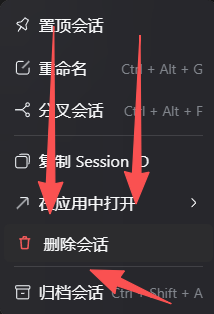
Adds a Delete session row to the sidebar session menu: the confirmation dialog shows how much space the session and its backup copy take, and the backup, when enabled, can be restored or deleted from the plugin page afterwards. Also adds sidebar buttons for reloading the page and restarting the app. Its HTTP routes have no DSH access check, so a web page open in your browser could call them.
インストール
dsh plugin --profile web add github:lingliqeye/dsh-session-revenantREADME
dsh-session-revenant

Three small conveniences for the DeepSeek Harness Web UI: deleting a session, reloading or restarting the app from the sidebar, and getting a deleted session back from the backup directory.
1. Delete session
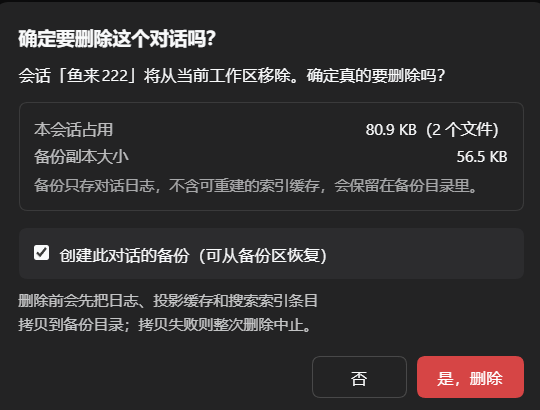
A Delete session row in the sidebar session menu. Clicking it opens a confirmation dialog:
- This session / Backup copy — live size readout: how much space the session occupies (bytes and file count) and how large the backup copy would be. The backup row follows the checkbox: a size when checked, "no backup" when unchecked.
- Yes, delete / No — the two actions.
- Create a backup of this conversation — a checkbox, checked by default. Checked: the session is copied to the backup directory, then removed. Unchecked: the session is purged for real, with no copy left behind.
The dialog reads the sizes before anything is touched:
2. Reload page and restart app
Two controls at the sidebar foot, one above the other.
Reload page re-renders the interface in about a second: it drops every stale derived view (session list, search index, projections) without touching a single process. Most "the sidebar is out of date" cases are this one.
Restart app closes and relaunches the desktop application. The desktop build
keeps its own restart entry in a native 应用 menu that the Web UI cannot reach
and that only exists in development builds, so this one relaunches the
application from the inside:
- confirmation dialog first, then
POST /dsh-session-revenant/restart; - the Host writes a detached Node helper and answers immediately (a Node
helper, not a PowerShell one: on machines where a security product blocks
script hosts,
powershell.exe -Fileexits without running anything); - the helper parks a watchdog, stops the main process by pid, stops the Host if it outlived it, and starts the application again; the watchdog relaunches it if the helper does not survive.
Running turns are interrupted. Session history is already on disk and comes back when the app reopens. Every step happens after the initial delay, so a helper that dies early leaves the application running instead of half-closed.
Either control can be switched off on the plugin's own page (Show the "Reload page" button, Show the "Restart app" button), so they only appear for people who want them.
3. Backups
The plugin page lists every copy in the backup directory, newest first, with its date and size, and a Restore and a Delete button per row:
- A copy holds the session log and a
meta.jsonmanifest recording where it came from, which workspace it belonged to, and whether it was archived or pinned. The projection cache and the workspace registry are both left out: the cache is rebuilt on the first open, and the registry is never read back on restore, so a backup stays close to the size of the conversation itself. - The copy also carries
context.json: the single line the sidebar reads a session title from. Without it a restored session comes back as unnamed until it is opened once, so it travels with the backup (a few hundred bytes). - A restored conversation goes back to the state it was deleted in: same
workspace, and archived or pinned again when it was. The restore response
carries
flags(what came back) andproblems(anything the registry refused). - Session logs are never overwritten: if the session or its log directory is
already on disk, the restore answers
409and changes nothing. The projection cache (storages/session_projcache) is a rebuildable derivative, so a stale copy there is replaced instead of blocking the restore. - A directory without
meta.json(an old copy, or a folder made by hand) is listed but marked no manifest and cannot be restored from the page — copy it back by hand instead. - Delete asks first, naming the bytes it is about to free, then removes the backup directory for good. The conversation itself is not affected: only the copy goes away, which is why this is the one action here that cannot be undone.
Reload the page after a restore to see the session in the sidebar again.
Keeping the folder small
The plugin page has one switch for this: Delete backups older than 7 days.
- Off (the default) — nothing is ever removed automatically. A backup lives until you delete it.
- On — a sweep runs every few hours and removes copies older than seven days from the active backup directory.
Backups in the older default folder are never swept; they age out only if you delete them yourself, so an upgrade cannot quietly eat a copy you kept on purpose.
Where the backups go
| Setting | Path |
|---|---|
| Default | <DSH_HOME>/dsh-session-backups |
DSH_SESSION_DELETE_BACKUP in the environment | that path |
| Backup directory on the plugin page | that path (wins over the variable) |
Nothing is written inside the application installation directory, so updating
DeepSeek Harness never touches the backups. Set the field to an absolute path to
keep them on another drive; leave it empty for the default. Backups written by
versions before 1.1 lived in <DSH_HOME>/../备份/session-delete; they are still
listed, restored and deleted, and the row says from the older folder.
API
POST /dsh-session-revenant/deletewith{ "sessionId": "…", "backup": true }(backupdefaults totrue).POST /dsh-session-revenant/sizewith{ "sessionId": "…" }→{ sessionBytes, files, backupBytes }.POST /dsh-session-revenant/restartwith{}→{ appPid, executable, helper, watchdogMs, delayMs }.GET /dsh-session-revenant/backups→{ root, roots, backups: [{ id, sessionId, createdAt, workspacePath, restorable, legacy, bytes, files }] }.POST /dsh-session-revenant/restorewith{ "backup": "<id>" }→{ sessionId, restored, attachedTo, flags, problems, contextRow };409when the session or its log directory already exists.POST /dsh-session-revenant/discardwith{ "backup": "<id>" }→{ backupId, bytes, files };404when the directory is already gone.POST /dsh-session-revenant/cleanupwith{}(or{ "days": 30 }) →{ root, days, removed: [{ id, bytes }], freed }; sweeps the active root only.GET|POST /dsh-session-revenant/config→{ restartAction, reloadAction, backupDir, autoClean }plusbackupRootanddefaultBackupRoot; the preferences are stored insettings.jsonunder the DSH home directory ($DSH_HOME/.session_reaper, or~/.dsh/.session_reaperwhen unset).
Every failure answers { ok: false, error, code }. error is an English
developer message, code is a stable identifier the Client half translates, so
the interface speaks the language DSH is running in.
Client halves: one row in sidebar.workspaces.session.menu.item, two actions in
sidebar.footer.action (reload above restart), and one settings card in
plugins.bundle.config (the backup list sits at the top of that card).
See docs/DETAIL.md for behaviour, backup location and limitations.
Install
In DeepSeek Harness: Plugins → Add plugin → enter dsh-session-revenant.
While developing locally, point install_bundle at this directory instead and
the profile keeps a live link to the sources.
Author
伶俐籡 — same name on Bilibili, 抖音, 小红书 and 快手; Lingliqeye on GitHub. Issues, ideas and pull requests are welcome in the issue tracker.
Licence
MIT. Built for DeepSeek Harness; the sidebar menu, footer and plugin page are ordinary DSH client slots, so nothing in the application itself is patched.