dsh-avatar-frame
vioeveann/dsh-avatar-frame
Shows a character avatar and an editable ID beside every assistant reply, and reads the reply aloud with the system voice or a local TTS service you point it at; includes presets, a playback bar with pause and sentence skipping, tone and speed controls, and one-click launching of that service.
インストール
dsh plugin --profile web add github:vioeveann/dsh-avatar-frameREADME
角色头像框 · dsh-avatar-frame
DeepSeek Harness 的界面插件:在每轮 AI 回复左侧显示角色头像和可编辑的 ID,并可以把回复朗读出来——用系统语音,或者调用你自己跑的本地 TTS 服务;也可以在设置里一键启动、停止那个服务进程。
插件不附带任何语音模型、参考音频或服务;音色由你自己运行的服务提供,接口见 docs/tts-contract.md。

中文
功能
形象
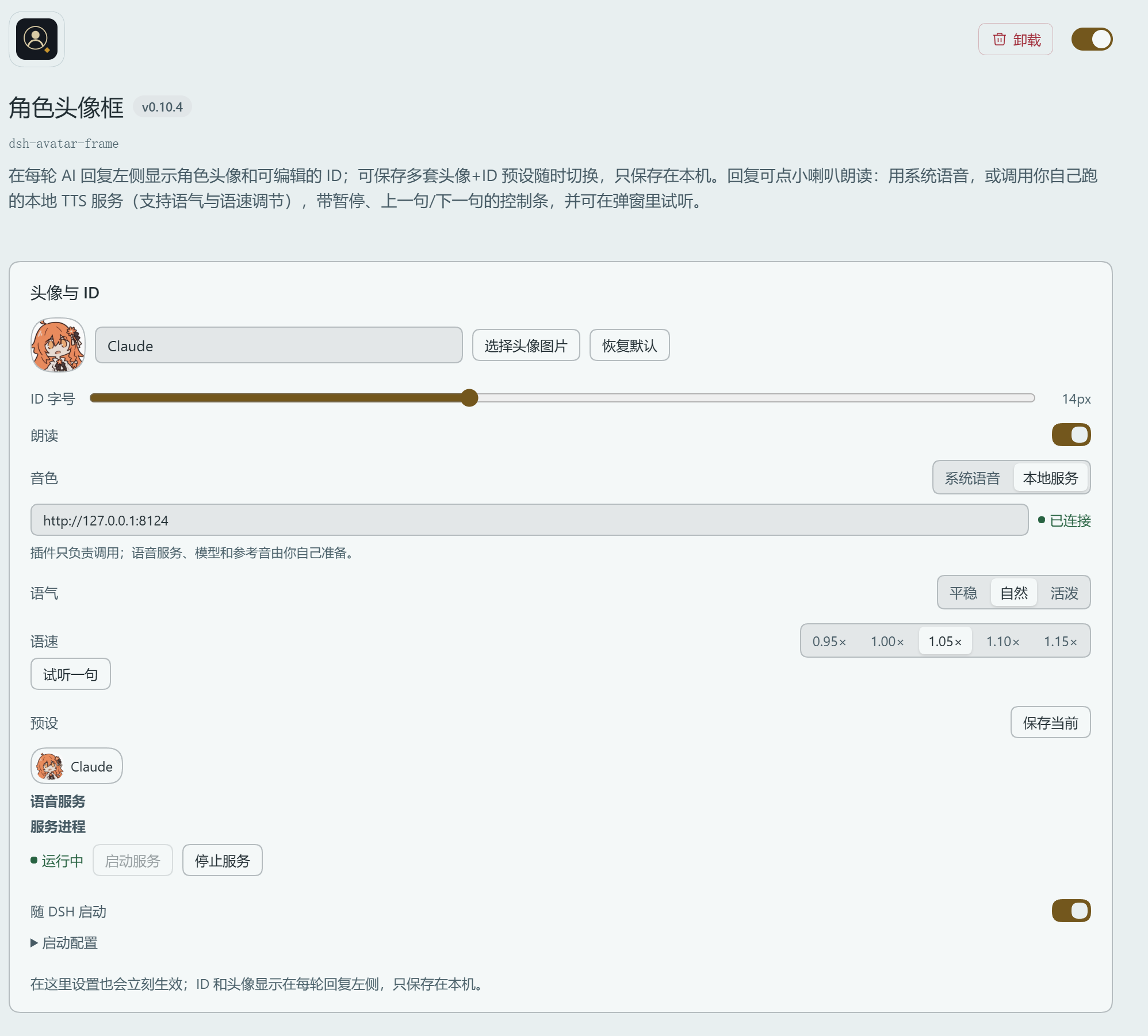
- 每轮 AI 回复左侧显示圆形头像,右边是可点击编辑的 ID,与「已完成,用时 …」那一行对齐;
- 上传图片 → 拖动/缩放裁切 → 应用到所有轮次;
- ID 字号可调(10–20px);
- 预设:最多 8 套「头像 + ID + 字号」,一键切换;预设图压缩成 JPEG,不占空间。
朗读
- 点 ID 右侧的小喇叭,朗读这一条回复的正文(只读最终回答,不读思考过程和折叠的工具步骤);
- 两种引擎:系统语音(开箱即用)或你自己的本地服务;
- 播放控制条:朗读时接在小喇叭右侧,可暂停/继续、上一句/下一句、五档语速(0.95× / 1.00× / 1.05× / 1.10× / 1.15×)、停止;
- 语气三档:平稳 / 自然 / 活泼,随请求发给你的服务;
- 试听:不用回到聊天,在设置里直接试一句;
- 失败提示:某句合成失败时,小喇叭旁出现红点,悬停可看原因;
- 长回复按句切分、提前两段预生成,句间不卡顿。

其他
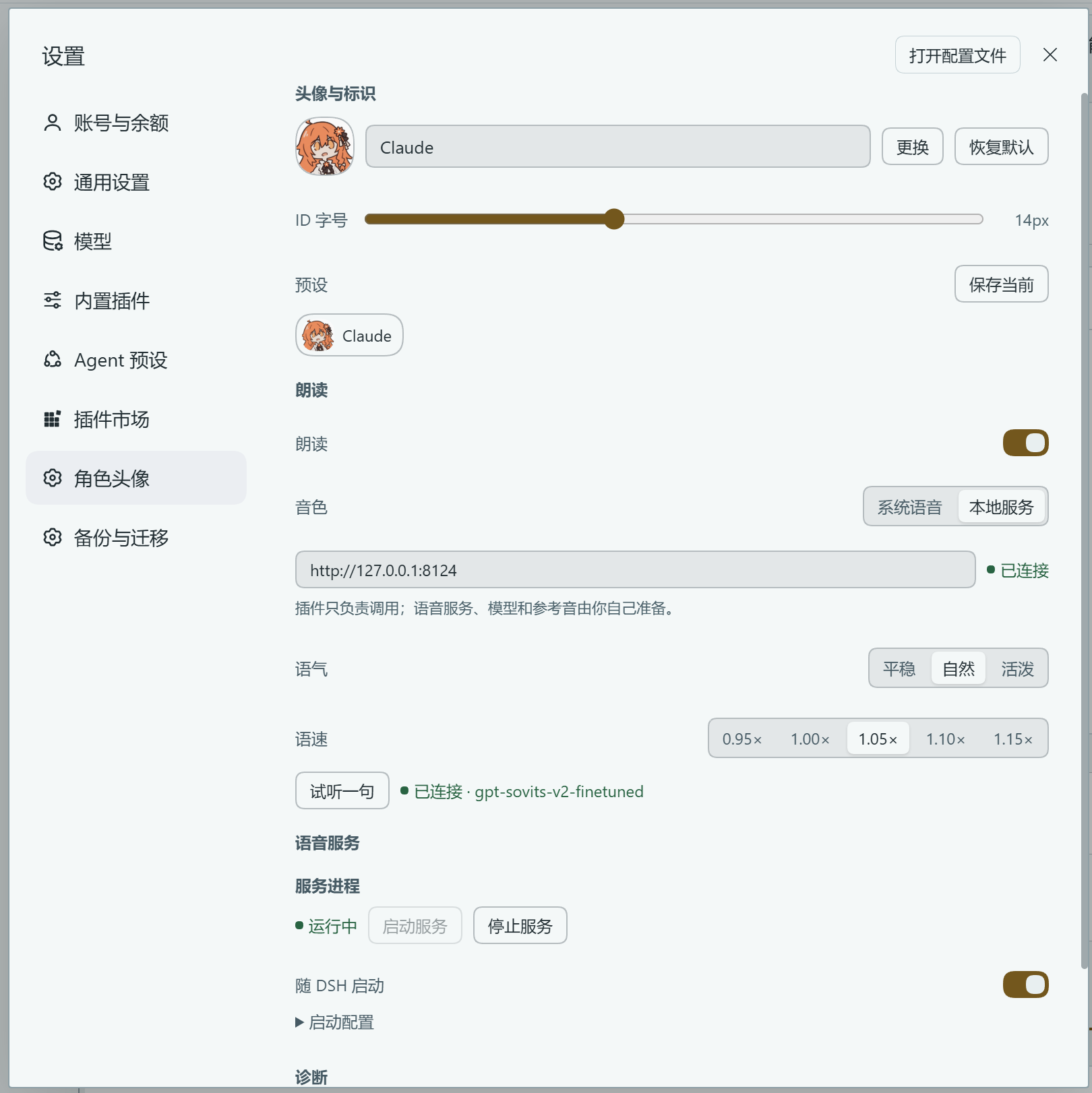
- 设置 → 角色头像:头像、ID、字号、预设、朗读、引擎、语气、语速、服务地址、试听、诊断都在这页;
- 语音服务进程:一键启动/停止你自己配置的服务进程,可勾选「随 DSH 启动」(设置页与插件详情页都能操作);
- 诊断信息:服务状态与模型名、上一句合成耗时、播放进度、最近一次错误;
- 界面语言可切换:中文 / English 两个按钮,放在插件详情页、设置 → 角色头像、点头像弹出的面板三处;选择只记在本机,刷新/重启后保持;
- 所有数据只在本机
localStorage,不上传、不联网(除非你把服务地址指向远程)。
安装
- 打开 DeepSeek Harness → 插件 → 添加插件 → 输入本插件的 包名(
dsh-avatar-frame,从 npm 拉取,最省事)、GitHub 仓库地址(https://github.com/vioeveann/dsh-avatar-frame)或本地目录路径; - 重启一次 DSH(必须)。安装、升级后都算:插件的前端模块和服务启动都在 DSH 启动时加载,只刷新页面往往不够,会出现「装上了、显示运行中,但聊天区没变化」。
包名已发布到 npm:dsh-avatar-frame(国内可走 registry.npmmirror.com 镜像)。
装不上怎么办
- 用 GitHub 地址安装走的是
git,机器连不上 github.com 就会报ERR_PNPM_GIT_RESOLVE_FAILED。先验证:git ls-remote https://github.com/vioeveann/dsh-avatar-frame;不通就配代理,或在hosts里给github.com指定一个可用 IP; - 完全绕开
git和 npm:直接下载 v0.11.5 源码 zip → 解压 → 添加插件时填解压后的本地目录(也可以走Code→ Download ZIP); - 用包名安装若提示找不到,先
npm config get registry确认走的是官方源。
使用
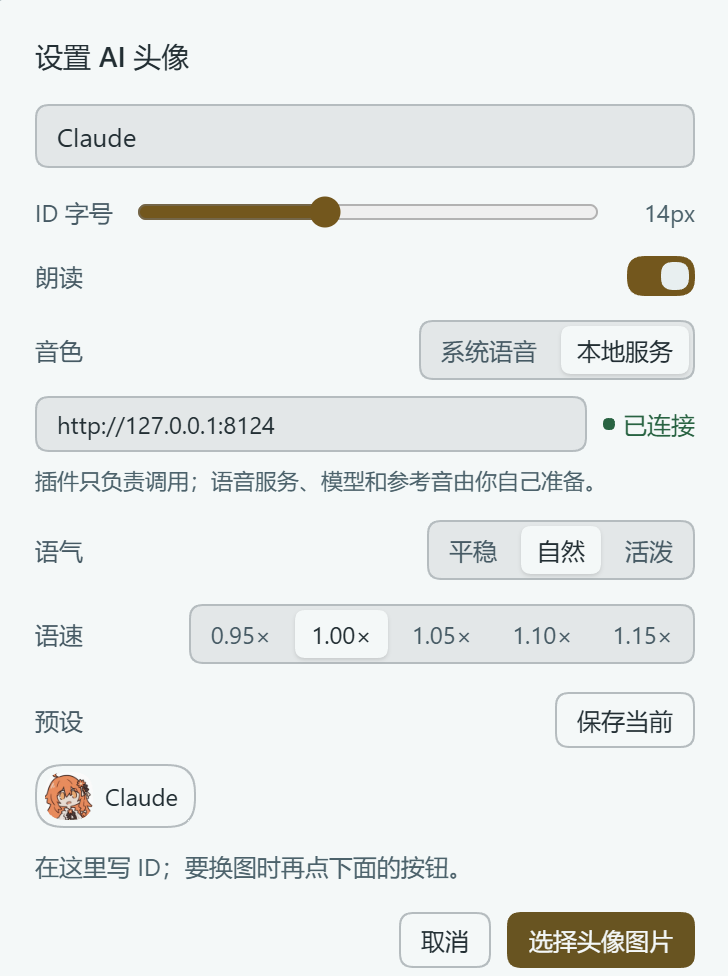
- 点任意一轮回复左侧的头像,或「已完成」那一行的 ID,打开设置面板;
- 点「选择头像图片」上传图片,在裁切框里拖动、滚轮缩放,确定;
- 在面板顶部的输入框里写 ID(角色名、代号都行),字号按需调;
- 想留一套搭配就点「保存预设」,最多 8 套;
- 需要朗读就把「朗读」打开,然后点回复旁边的小喇叭。
语音
插件本身不下载模型、不附带参考音频、不启动任何服务。它只做两件事:用系统语音读,或者调用你给的 HTTP 服务。
默认地址 http://127.0.0.1:8123,可在面板、插件详情页或设置页修改,旁边会显示「已连接 / 未连接」的实时状态。服务不可用时会自动退回系统语音,状态点每 8 秒自动重试一次,起好服务后不用刷新。
先用一个示例跑通:仓库里带了一个最小实现,用微软 Edge 的在线语音:
pip install edge-tts
python examples/simple_tts.py          # 监听 127.0.0.1:8123
然后把服务地址填成 http://127.0.0.1:8123,点小喇叭。想要自己的音色,把示例里的 synthesize() 换成你的引擎即可。
一键启动服务(可选):插件的宿主端可以替你启动那个进程,入口两处——设置 → 角色头像 → 语音服务,以及插件详情页的同名区块。
- 「启动服务 / 停止服务」:执行你填的那条命令;
- 「随 DSH 启动」:DSH 启动时自动把它拉起来(不是开机自启);
- 「启动配置」里填:启动命令、工作目录、环境变量(每行
KEY=VALUE)。
启动命令   "F:\tts\python.exe" server.py
工作目录   F:\tts
环境变量   HF_HOME=F:\tts\hf-cache
想直接用仓库里的示例服务试这个功能:启动命令 = python examples/simple_tts.py,工作目录 = 本仓库所在目录。
几点要说清楚:
- 命令是你自己填的,插件不附带任何服务;它只是替你执行、托管这个子进程;
- 进程生命周期跟随 DSH:DSH 退出时它会被一起收掉;「随 DSH 启动」只在 DSH 启动时执行一次;
- 端口上已经有服务在跑时(比如你手动开的),插件会显示「端口上已有服务(非本插件启动)」,不会重复启动;
- 宿主端代码在 DSH 启动时加载,安装或升级插件后要重启一次 DSH,这一块才可用;界面会提示「宿主端未加载」。
接口契约:完整说明见 docs/tts-contract.md。
GET  /health
  -> 200 {"ok": true, "model": "任意字符串"}

POST /tts
  {"text": 要读的文本, "speed": 1.05, "tone": "normal"}
  -> 200,Content-Type 为音频(audio/wav、audio/mpeg 均可)
需要允许 CORS(Access-Control-Allow-Origin: * 并响应 OPTIONS 预检)。tone 是建议值,不认识就忽略;speed 范围 0.7–1.3。
启动失败时先看这一条:设置页「启动配置」下面会显示进程退出前的输出。如果看到
PermissionError: [WinError 10013] 以一种访问权限不允许的方式做了一个访问套接字的尝试
说明端口被 Windows 的保留端口段占住了(Hyper-V / WinNAT 会在重启后划走若干段,用 netsh interface ipv4 show excludedportrange protocol=tcp 查看)。换一个不在保留段里的端口(例如 18124),服务端和插件地址一起改即可。
设置与数据
入口:设置 → 角色头像。所有设置都存在本机浏览器的 localStorage:
| 键 | 内容 |
|---|---|
dsh-avatar-frame/image/v1 | 头像图片(data URL) |
dsh-avatar-frame/id/v1 | ID 文本 |
dsh-avatar-frame/size/v1 | ID 字号 |
dsh-avatar-frame/presets/v1 | 预设列表 |
dsh-avatar-frame/speech/v1 | 朗读开关 |
dsh-avatar-frame/engine/v1 | 引擎(system / clone) |
dsh-avatar-frame/endpoint/v1 | 服务地址 |
dsh-avatar-frame/rate/v1 / tone/v1 | 语速 / 语气 |
dsh-avatar-frame/lang/v1 | 界面语言(zh / en,不写则跟随 DSH) |
同一个浏览器的多个窗口之间会同步。换电脑、清缓存会丢,插件没有云同步。
已知限制
- 只支持 Web 平台的 DeepSeek Harness;
- 插件接管了「已完成,用时 …」这一行的渲染。停用或卸载插件后请刷新一次界面,否则这一行会显示「未知 surface 事件:turn-process」;
- 头像只在一轮结束后出现,流式输出过程中没有——那需要接管整个回答渲染器,代价太大;
- 与同样接管
turn-process的其他插件会冲突; - 朗读按句切分,某一句失败会跳过继续读;
- 插件的前端模块与「一键启动服务」的宿主端代码都在 DSH 启动时加载:安装或升级后必须重启 DSH,只刷新页面可能没反应;
- 该功能会按你填写的命令执行本机程序,请只填你自己的服务;路由走本机同源请求,没有额外鉴权,别把 DSH 暴露到公网;
- 英文界面下「试听一句」会读英文例句,中文音色念英文可能带口音——那是模型的能力边界。
目录结构
.
├── package.json          # bundle 元信息与前端入口声明
├── cordis.patch.yml      # 插件装配
├── index.js              # 宿主端:语音服务的启动/停止与配置(同源路由)
├── client.js             # 前端:界面、播放、设置页(单文件、无构建)
├── locale/               # zh / en 文案与插件描述
├── icon.svg
├── README.md
├── CHANGELOG.md
├── LICENSE
├── docs/                 # 接口契约、截图、发布步骤
└── examples/simple_tts.py
client.js 无构建、无依赖(React 由宿主提供),改完刷新即可;index.js 只在 DSH 启动时加载。发布流程见 docs/releasing.md。
许可
代码以 MIT 发布。插件不包含任何语音模型、参考音频或音色文件;你用到的模型、参考音频、第三方语音服务的许可与版权需自行确认,请勿把他人声音素材随本插件分发。
English
An avatar frame and read-aloud plugin for DeepSeek Harness: a character portrait and an editable ID beside every assistant reply, with read-aloud through the system voice or your own local TTS service — the plugin can also start and stop that process for you.
It ships no voice model, no reference audio and no service. Your voice comes from a service you run; the contract is in docs/tts-contract.md.
Features
The frame
- A round avatar in the gutter of every settled reply, with an editable ID aligned to the "Completed in …" row;
- Upload an image, drag/zoom to crop, apply it to every turn;
- ID text size adjustable (10–20px);
- Up to 8 saved presets of "avatar + ID + size"; preset images are stored as compressed JPEG.
Read aloud
- Click the speaker next to the ID to read the reply's final answer only (not the thinking or collapsed tool steps);
- Two engines: the system voice, or your own local service;
- Playback bar beside the speaker: pause/resume, previous/next sentence, five speeds (0.95×–1.15×), stop;
- Three tone presets (calm / natural / lively) sent to your service;
- Preview the voice from the settings page without touching the chat;
- Failure dot next to the speaker with the reason on hover;
- Long replies are split by sentence and pre-generated two chunks ahead, so playback stays continuous.
The rest
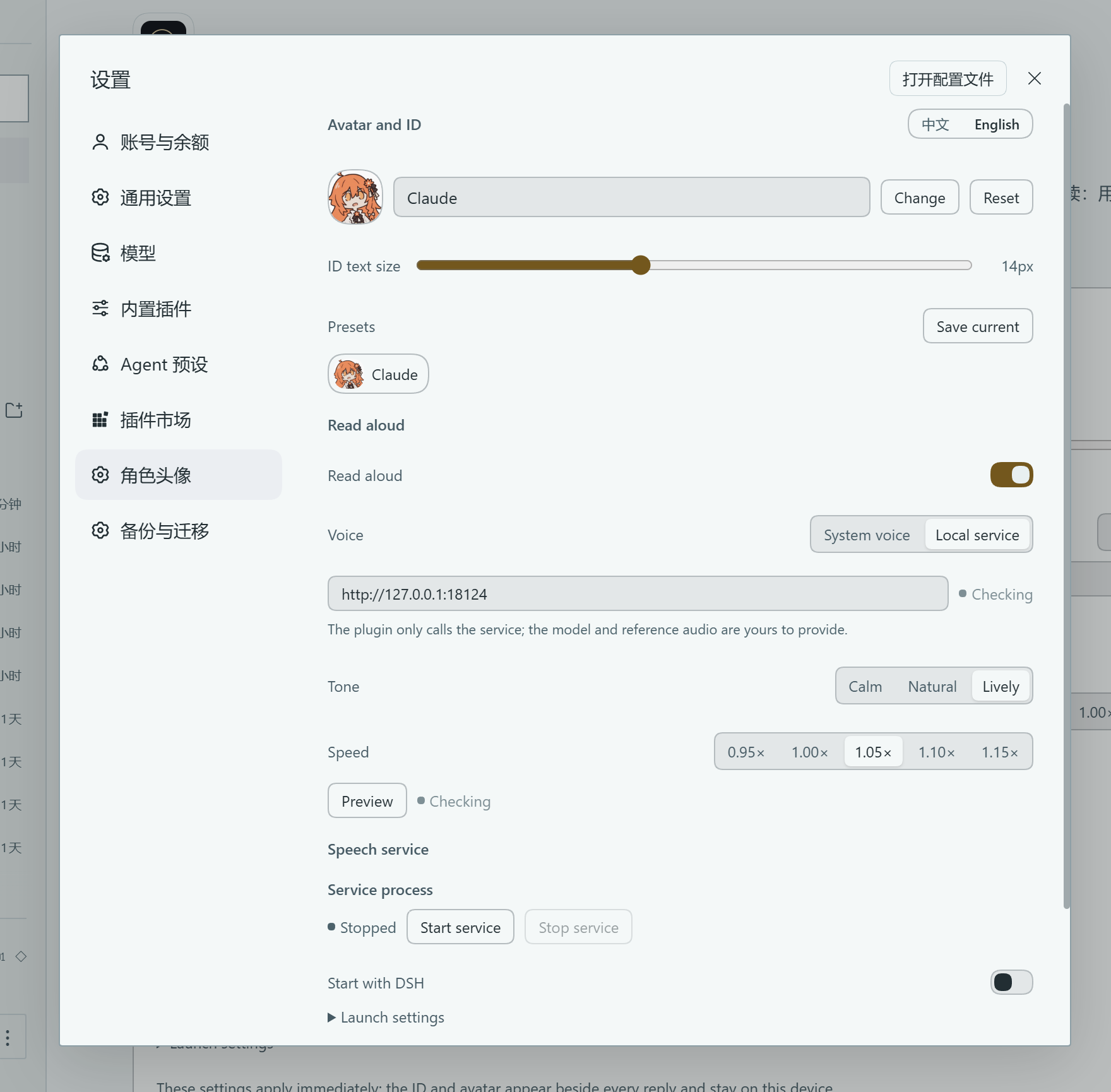
- Settings → Character avatar holds everything: avatar, ID, size, presets, read-aloud, engine, tone, speed, endpoint, preview, diagnostics;
- Service process: start/stop your own TTS process and optionally start it with DSH (available on both the settings page and the plugin page);
- Diagnostics: service state and model name, last synthesis time, playback progress, last error;
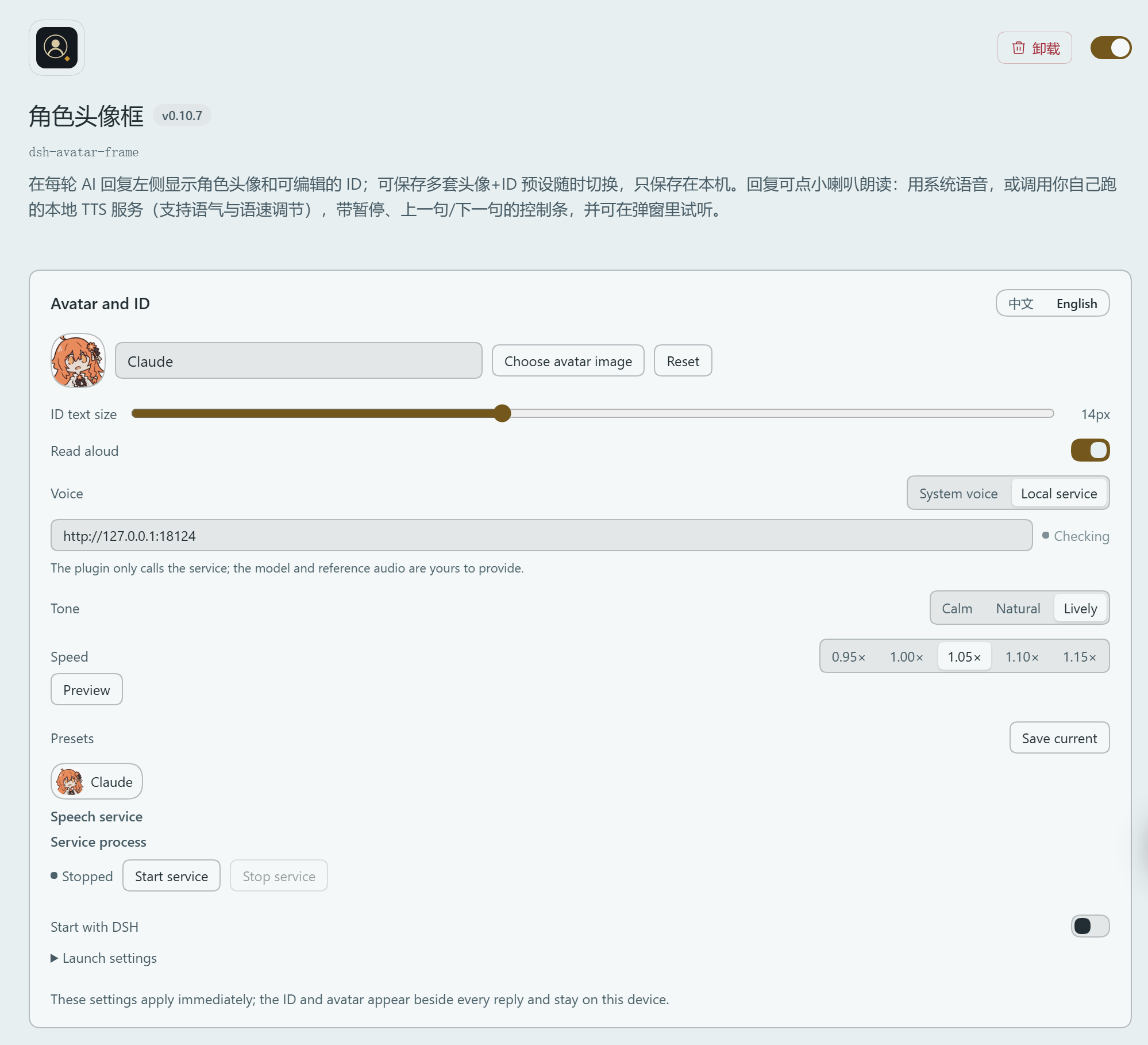
- Chinese / English UI switch on the plugin page, the settings page and the avatar popup; the choice is stored locally;
- Everything is kept in this browser's
localStorage; nothing is uploaded unless you point the endpoint at a remote host.
Install
- Open DeepSeek Harness → Plugins → Add plugin → enter this plugin's package name (
dsh-avatar-frame), its GitHub URL (https://github.com/vioeveann/dsh-avatar-frame), or a local directory path; - Restart DSH (required). This applies to installs and upgrades alike: both the client module and the service launcher load at DSH startup, and a page refresh alone is usually not enough — otherwise you get "installed and running, but the chat row looks unchanged".
The package is published on npm as dsh-avatar-frame — installing by that name is the simplest route.
If installation fails
- Installing from a GitHub URL goes through
git; if your machine can't reach github.com it fails withERR_PNPM_GIT_RESOLVE_FAILED. Check withgit ls-remote https://github.com/vioeveann/dsh-avatar-frame, then use a proxy or pointgithub.comat a reachable IP in your hosts file; - To bypass
gitand npm entirely: download the source zip from the latest release, unzip it, and point "Add plugin" at the unzipped local directory (theCode→ Download ZIP route works too); - If the package name isn't found, check
npm config get registry— it must be the official registry.
Usage
- Click the avatar left of any reply, or the ID in the "Completed in …" row, to open the panel;
- Choose an image, then drag and zoom in the crop stage;
- Type the ID and pick a text size;
- Optionally save the combination as a preset (up to 8);
- Turn on "Read aloud" and click the speaker next to a reply.
Speech service
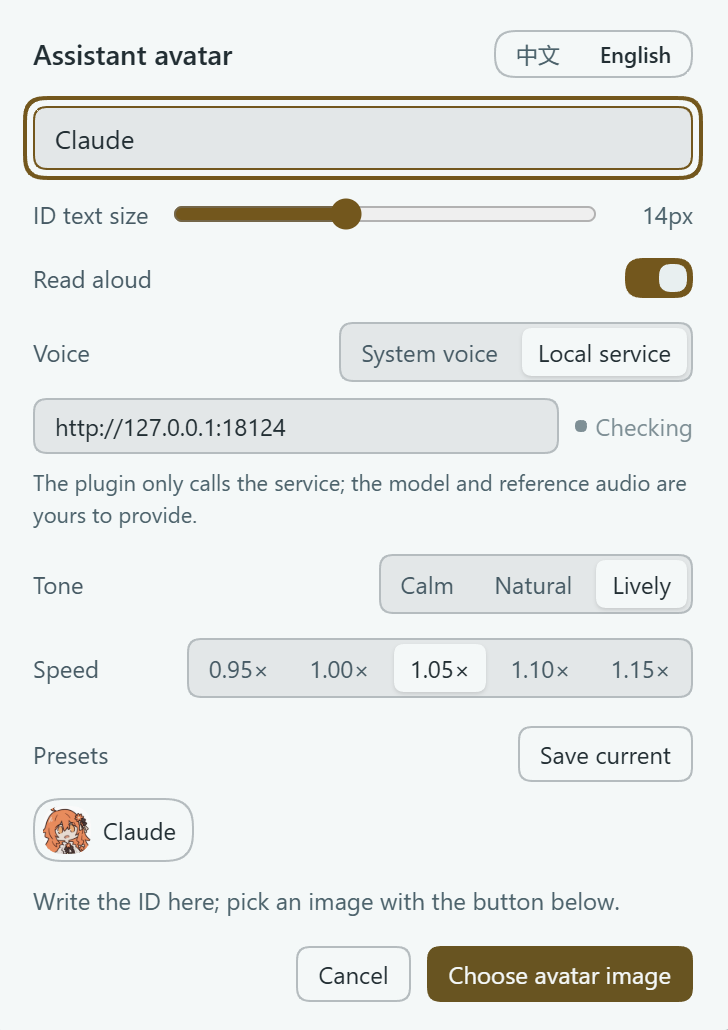
The plugin never downloads a model or bundles a voice. It either uses the system voice or calls an HTTP service you provide. The default address is http://127.0.0.1:8123 and can be changed in the panel, the plugin page or the settings page; a status dot shows connected / not connected and retries every 8 seconds, so start the service and watch it turn green — no refresh needed.
Try it with the bundled example (Microsoft Edge online voices):
pip install edge-tts
python examples/simple_tts.py          # listens on 127.0.0.1:8123
Point the plugin at http://127.0.0.1:8123 and click the speaker. To use your own voice, replace synthesize() in that file with your engine.
One-click service start (optional). The host half can launch the process for you; the same block exists in Settings → Character avatar → Speech service and on the plugin page:
- Start / Stop service — runs the command you configure;
- Start with DSH — launches it once at DSH startup (not an OS autostart);
- Launch settings — the command, the working directory, and
KEY=VALUEenvironment lines.
The command is yours: the plugin does not ship a service, it only executes and supervises that child process. Its lifetime follows DSH, and if something is already listening the plugin says so instead of starting a second copy.
Contract: GET /health → {"ok": true, "model": "..."}; POST /tts with {"text", "speed", "tone"} → audio (audio/wav or audio/mpeg). CORS with an OPTIONS preflight is required. Full details: docs/tts-contract.md.
Settings and data
Settings → Character avatar. Every key lives in this browser's localStorage: image, id, size, presets, speech, engine, endpoint, rate, tone, lang — all under the dsh-avatar-frame/…/v1 prefix. Windows of the same browser stay in sync; clearing site data resets it, and there is no cloud sync.
Known limitations
- Web platform only;
- The plugin replaces the renderer for the "Completed in …" row, which is how the avatar fits in the left gutter — refresh once after disabling or uninstalling it, otherwise that row shows "unknown surface event: turn-process";
- The avatar appears only after a turn finishes; streaming turns have none (that would require replacing the whole answer renderer);
- Conflicts with other plugins that also replace
turn-process; - Read-aloud is split by sentence; a failed sentence is skipped;
- The service launcher's host code loads at DSH startup, so restart DSH after upgrading the plugin;
- That feature runs local programs with the command you type — only point it at your own service; the route is same-origin on your machine and has no extra auth, so don't expose DSH to the internet;
- In the English UI the preview reads an English sentence; a Chinese-trained voice will carry an accent — that is the model, not the plugin.
License
MIT. The repository contains no voice model, reference audio or voice data; licenses for the models, audio and services you use are your responsibility.