dsh-macos-menu-bar
amoswzw/dsh-macos-menu-bar
Adds macOS menu bar access to the existing DeepSeek Harness Desktop window, with native approval prompts and optional notch status and approval cards.
설치
dsh plugin --profile web add github:amoswzw/dsh-macos-menu-barREADME
DSH macOS Menu Bar
English | 简体中文

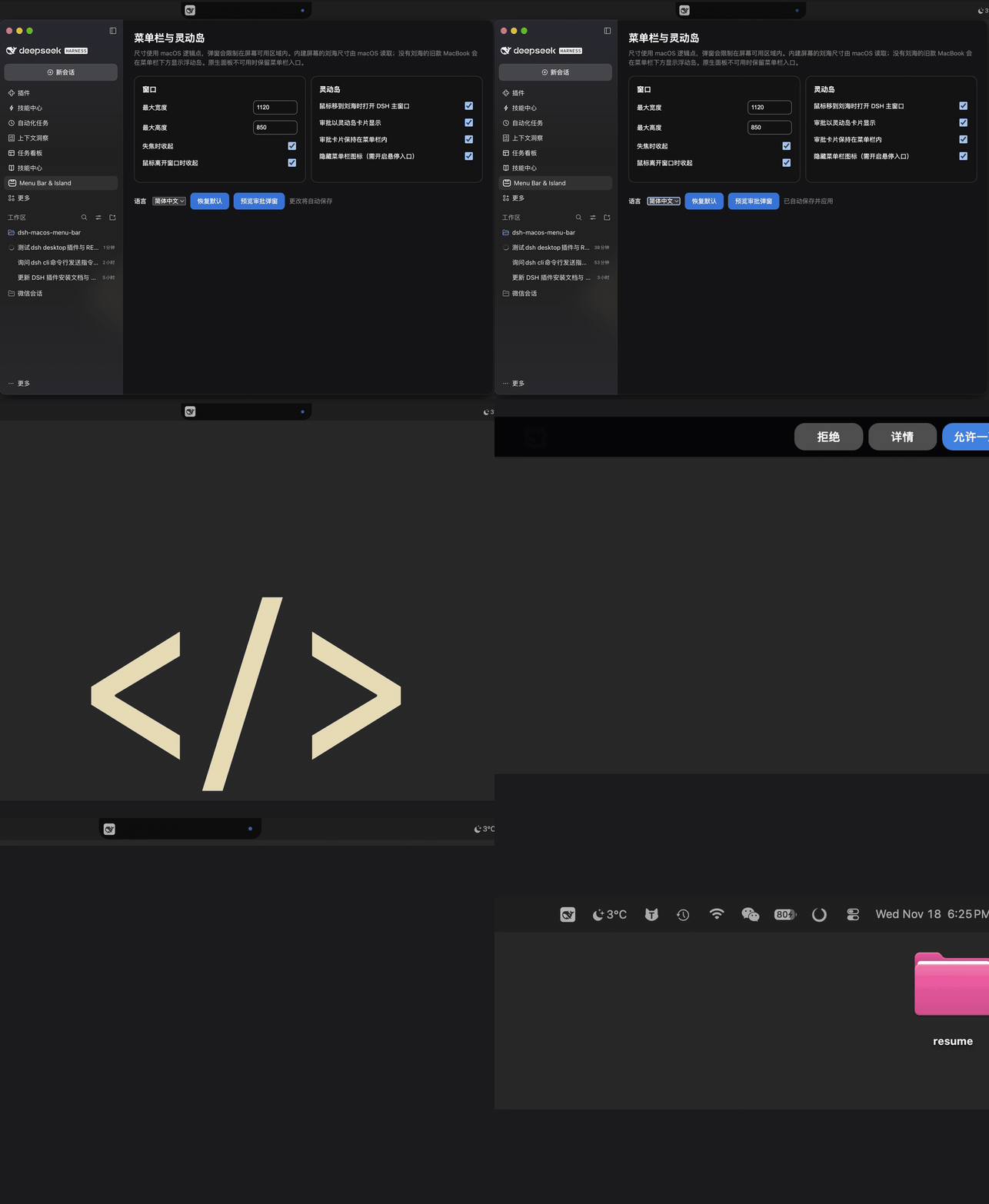
从 macOS 菜单栏一键呼出 / 收起 DeepSeek Harness Desktop,审批时弹出原生提示。复用现有 Desktop 窗口,会话、草稿和滚动位置都不会丢;还支持刘海悬停入口和审批卡片。
安装
需要 macOS、Node.js 22+ 和 DeepSeek Harness Desktop >=0.2.2-rc.3(在 0.2.2-rc.5 上实测通过)。
-
完全退出 DeepSeek Harness Desktop。
-
运行:
"/Applications/DeepSeek Harness.app/Contents/Resources/runtime/cli/bin/dsh" plugin --profile desktop add @amoswzw/dsh-macos-menu-bar -
重新打开 Desktop,菜单栏图标会自动出现。
请保留
--profile desktop(仅支持 Desktop)。若应用不在/Applications,把命令开头的路径改成实际位置。想装 GitHub 最新源码,把包名换成github:amoswzw/dsh-macos-menu-bar即可,无需构建。
更新 / 卸载
# 更新
".../bin/dsh" plugin --profile desktop update @amoswzw/dsh-macos-menu-bar

# 卸载
".../bin/dsh" plugin --profile desktop remove @amoswzw/dsh-macos-menu-bar
操作后完全退出并重开 Desktop。卸载会保留 ~/.dsh/macos-menu-bar.json(设置了 DSH_HOME 则在 $DSH_HOME/ 下)中的个人设置。
使用
- 点击菜单栏图标:显示 / 收起 Desktop 窗口;右键:打开完整窗口或退出。
- 在 Desktop 左侧栏打开 菜单栏与灵动岛,配置窗口大小、悬停入口、审批卡片和语言。
- 状态灯:蓝色执行中、绿色已完成、橙色等待审批(优先显示)。
- 开启自动隐藏后,查看完成结果且无任务或审批时,灵动岛隐藏;新任务开始时重新显示,隐藏时仍支持刘海悬停。
- 刘海原生面板需要 Xcode Command Line Tools;缺失或编译失败时菜单栏入口不受影响。
yabai 兼容
若弹窗被 yabai 自动放大,在 yabai 配置文件(通常为 ~/.config/yabai/yabairc)末尾添加:
yabai -m rule --add label=dsh-macos-menu-bar app="^DeepSeek Harness$" manage=off
yabai -m rule --apply dsh-macos-menu-bar
在终端执行这两条命令可立即生效。DSH 弹窗和完整窗口都会保持浮动,其他应用不受影响。插件不会自动修改 yabai 配置。
开发
运行测试:npm test。插件通过 Desktop 的 Node inspector 注入菜单栏逻辑,不修改应用包或签名。社区维护项目,非 DeepSeek 官方产品。
MIT 许可证 © 2026 Amos W (amoswzw)。