ds-harness-remote
blue-soda/ds-harness-remote
End-to-end encrypted remote access to DeepSeek Harness and experimental Codex workspaces from desktop, web, and Android, with dsh-TUI Host support.
Install
dsh plugin --profile web add github:blue-soda/ds-harness-remoteREADME

English · 中文 · Documentation · Releases · iOS
Self-hosting
·
npm
·
This is a fork. It continues liguobao/ds-harness-remote (MIT) and is published as
@blue-soda/dsh-remote. The original project and its contributors are credited in LICENSE andcontributors.What this fork adds:
- Multi-account self-hosted Server: devices and tokens are isolated per account, with DeepSeek platform sign-in and a WeChat OAuth entry.
- Remote Codex that actually works on Windows: workspace authority compares paths case-insensitively, and the
codex.exebundled with the ChatGPT desktop app is discovered automatically - browsing projects, loading history and chatting all work without running that app.- Real failures fixed: opening a remote Codex workspace no longer makes the native window unusable, session history loads again, call fields the App Server declares are no longer refused, and the momentary Windows
EPERMon state-file writes is retried.- Experience work: sign-out keeps only the navigation-bar entry and also leaves the borrowed DeepSeek account while keeping the device identity (so it costs no account device slot); returning from the background reconnects automatically; the settings card toggles the Codex connection and confirms or overrides the binary path.
- Published to npm as
@blue-soda/dsh-remote, while the plugin instance id, settings namespace and CLI command name stay unchanged, so existing installs, device authorization and settings need no migration.
Connect once. Ready whenever you are.
Continue using your DeepSeek Harness instance from a phone, computer, or browser.
Return to the same Harness session from whichever device is with you. Harness keeps running on your work computer, with the same workspaces, tools, and project setup. Remote is simply another window into that environment.
The DeepSeek Harness desktop edition is supported. When installing manually, use this pinned plugin version through DSH's plugin manager:
@blue-soda/dsh-remote@0.5.4
Features
- Continue active sessions and review their latest progress from another device
- Send new instructions, change direction, and use image prompts with supported Harness versions from
dsh-v0.1.1-rc.2throughdsh-v0.2.0-rc.2 - Answer questions and permission requests from clients with live conversation controls
- Support the DeepSeek Harness desktop edition with pinned Remote plugin releases
- Open workspaces from another authorized computer on the same account
- Reuse the native Harness interface instead of maintaining a separate desktop conversation UI
- Run a terminal-only dsh-TUI profile as a Host and authorize it with a GitHub QR code
- The Harness Host does not need a public listening port. Connect securely from anywhere with internet access over a bidirectional end-to-end encrypted channel
- Native workspace files, read-only previews, terminal access, and authorized local development-service previews are available through the Harness sidebar.
Install
DeepSeek Harness Desktop support
Remote supports the DeepSeek Harness desktop edition. Use this pinned plugin version through the command-line installation below:
@blue-soda/dsh-remote@0.5.4
dsh-TUI Host
For terminal Host setup with dsh-TUI, see the dsh-TUI Remote guide.
Command-line installation
Add the exact package version through DSH's plugin manager for the web profile:
dsh plugin --profile web add -w @blue-soda/dsh-remote@0.5.4
-w targets the profile's own workspace root. It is required on pnpm below 11, which
otherwise refuses the add with ERR_PNPM_ADDING_TO_ROOT.
Restart Harness after installation.
Do not install this package directly with npm. Only dsh plugin updates the selected profile and
adds the bundle's configuration layer.
Android client
This repository's Android app comes from the upstream Remote repository. We maintain our own build as blue-soda/deepseek-harness-android-app: an APK that runs DSH locally on Android and already bundles the Remote plugin.
Tap Prompts beside the composer's + button to open the saved prompt list, then tap a prompt to send it. Edit prompts in the same panel. Files, Terminal, and Trajectory remain under + → Tool access.
Automated installation (background service)
Install Remote Host as a background service. For service management, login, directory settings, and uninstallation, see the installation guide.
macOS / Linux:
curl -fsSL https://raw.githubusercontent.com/blue-soda/ds-harness-remote/main/scripts/install.sh | bash
Windows PowerShell (run as administrator):
$installer = "$env:TEMP\install.ps1"
Invoke-WebRequest -UseBasicParsing https://raw.githubusercontent.com/blue-soda/ds-harness-remote/main/scripts/install.ps1 -OutFile $installer
& $installer
Quick start
- Open Remote from the Harness sidebar.
- Sign in from the Remote card with your DeepSeek account: this fork's plugin offers only that method, and the GitHub/Zhihu QR and account-password entries are gone from the modal (their server-side implementations remain).
- The Host starts with control of the current computer enabled. Remote terminal access is also enabled by default; you can turn it off in the detailed Remote settings.
- On another device, open the DeepSeek Harness desktop edition or the Android client and sign in to the same account.
- Select the online Host, then choose an existing workspace or browse remote directories to open one.
The plugin ships https://sakakibara.ink:8443 as its default Server. To run your own multi-account
Server, see the self-hosted Server; its Web page offers sign-in and device status.
Minimal self-hosted Server
Run the optional single-process, Relay-only Server in apps/server. It supports multiple accounts: devices and tokens are namespaced per account and stay invisible across them. DSH_SERVER_ACCOUNT/DSH_SERVER_PASSWORD configure a seed account; other accounts survive restarts. Account creation is off by default - enable it with DSH_SERVER_REGISTRATION_CODE, or sign in with a DeepSeek platform account (DSH_SERVER_DEEPSEEK_LOGIN=on) or a QR provider (DSH_SERVER_OAUTH_PROVIDER=github|wechat); DSH_SERVER_PASSWORD_LOGIN=off disables password login. The Web page currently offers login and device status only. Point both Host and Client at your Server URL and sign in to the same account; device credentials survive restarts. It is Relay-only: no Remote Web session UI, Admin or WebRTC/TURN. See apps/server/README.md for the full configuration.
Screenshots
Desktop
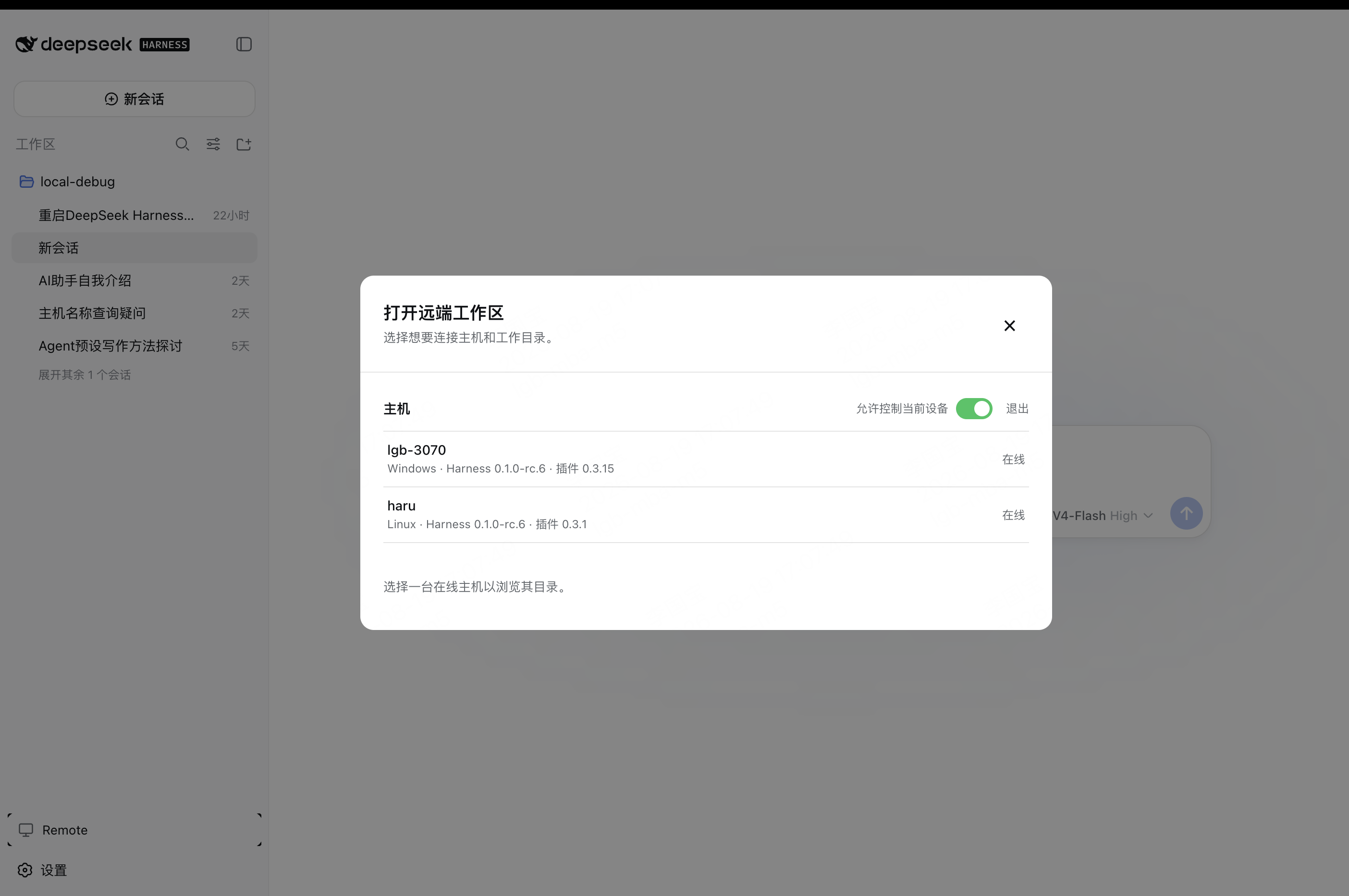
The current computer starts with Allow control of this device enabled and is available as a Host.
On another computer, select an online Host and open one of its workspaces.
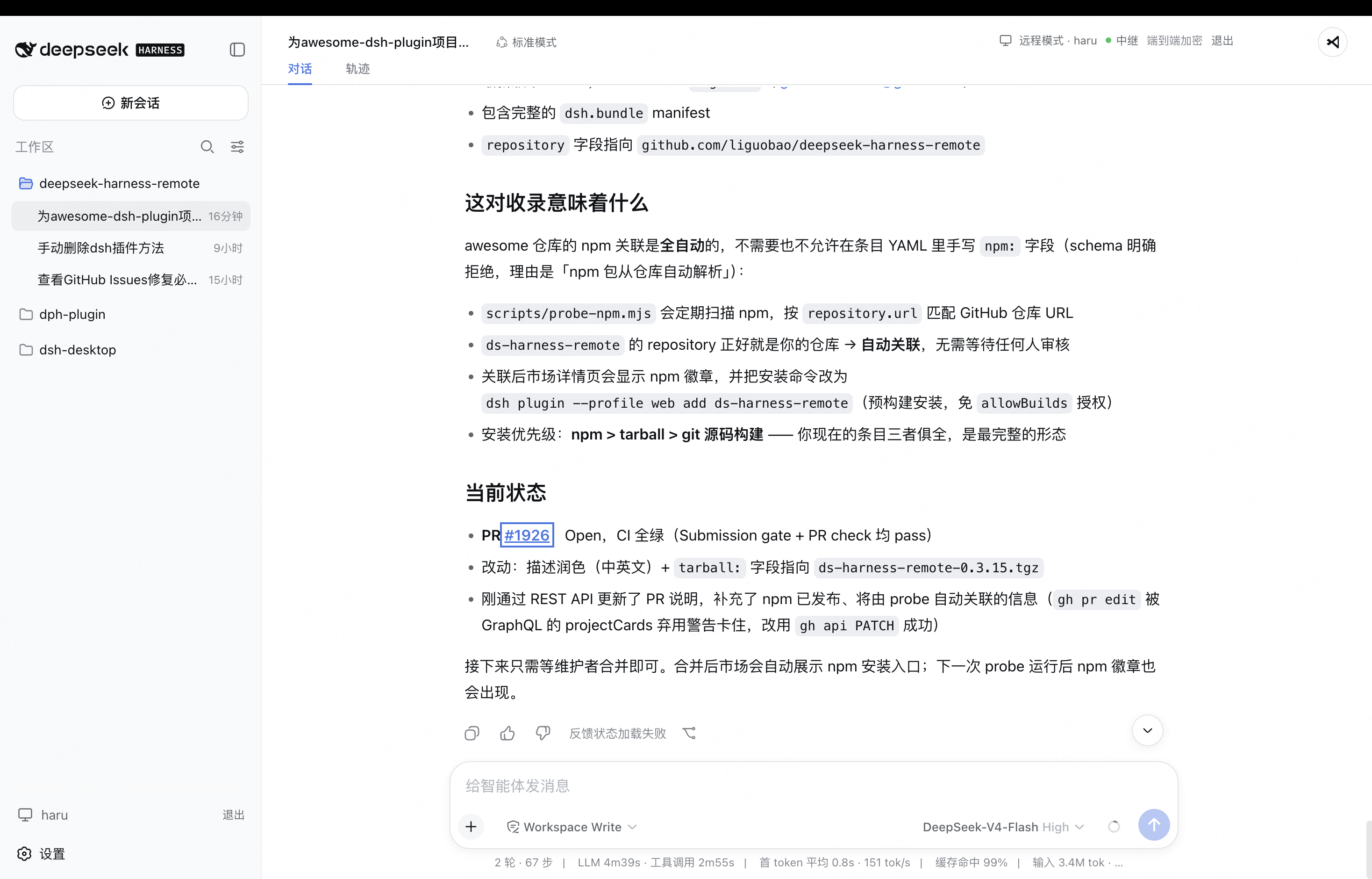
The workspace opens in the native Harness interface, with the active Host and encrypted connection status shown in the header.
How it works
DSH Desktop / Remote Web / Android
  ↔ authenticated, end-to-end encrypted channel
Remote Plugin on the Host
  ↔ supported Harness or optional Codex workspace support
Harness sessions/workspaces or Codex projects
The Harness Host does not need a public listening port. You can connect from anywhere with internet access, and Remote communicates over a bidirectional end-to-end encrypted channel. It switches the client to the selected Host's native Harness API, so the original workspace, tools, and permission flow remain on that computer. Every settings namespace currently registered by the Host can also be configured remotely through the official Harness settings API. Credential values remain write-only, and Host-local document/open actions are never exposed.
Reconnecting, switches, and what stays put
Every way a session can be lost takes the same path: the link is dropped, the Host turns Allow control of this device off, the Host switches Codex off, or the peer stops answering (a frozen machine). Recovery always runs in three stages:
- A ten-second window with at most two attempts, both forced over the Relay path, while the view stays exactly as it is - no workspace switch, no reload. The header shows a reconnecting indicator naming the session it is putting back, and you can cancel it there.
- At the ten-second mark the client falls back to its own local shell, so you are never left staring at a frozen remote view.
- A bounded schedule - 5, 10, 20, then 30 seconds, seven attempts in total - puts the same session back and then stops for good. When it runs out the indicator goes away and you stay local; you can reconnect by hand whenever you like.
Recovery restores the session you were in, identified by device, workspace kind and directory: a Codex session comes back as a Codex workspace, never as that Host's Harness workspace. Your own choice decides: if a recovery lands after you cancelled it or opened another workspace, its result is discarded and you stay where you put yourself.
Browsing a Host's workspaces is not a session - it neither occupies a remote session nor arms a reconnect.
Allow control of this device only decides whether this computer can be controlled: turning it off registers that with the Server, drops the Host link immediately, and makes the Server refuse new Host connections from this device. It does not sign the device out, does not rotate its identity, and does not stop you from controlling other devices from it. A device with control off is still listed, marked offline.
Experimental Codex workspaces
Remote can also show Codex projects from an authorized Host. Pick one from the normal workspace chooser and continue in the existing Harness or Android interface; there is no separate Codex screen to learn. The Desktop chooser and Android workspace page can also add a Host directory to the Codex project catalog without importing it into Harness storage.
Codex Remote is meant as a convenience layer for your own devices. It supports text prompts, image prompts where available, model and permission controls, interrupt, and approvals. It is still published as experimental while compatibility work continues; a lost Codex session recovers along exactly the same path as a Harness session (see Reconnecting, switches, and what stays put).
Web and Desktop approval controls show the Host-confirmed mode for the selected Codex session. If it has not been reported, they indicate that Host settings are inherited. Changing the mode requires Host confirmation; sending a prompt preserves the session's current policy.
Codex is off by default: turn it on in the DeepSeek Remote settings card (the switch applies immediately,
without restarting DSH). When the Host
has the ChatGPT desktop app installed, the Plugin finds the codex.exe it bundles and talks to
codex app-server directly, so the desktop app does not need to be running to browse Codex
projects, load their history and chat. Advanced configuration and implementation notes live in
Codex Remote technical notes.
Turning Codex off on the Host is a capability change, not a link drop: it is announced once as
codex.app.capability, and it never disturbs a Harness session, terminal, or preview on the same
connection. Only an unavailable Codex while you are watching one of that Host's Codex sessions
counts as losing a session; Codex becoming available again never counts as a loss - a session still
waiting to be restored is put back by the retry schedule.
account/read is a gate for the whole domain: if the Host's Codex account cannot be refreshed
(signed out, region-blocked, or the machine's VPN/proxy is off), Codex disappears from the settings
card and its workspaces cannot be opened. A blocked network shows up as CODEX_REQUEST_TIMEOUT or an
upstream error code such as -32603; the domain retries every 60 seconds and returns to ready on its
own once the network is back.
End-to-end encryption
Harness business traffic is encrypted on the Client and decrypted only by the selected Host using
the fixed Noise_IK_25519_ChaChaPoly_SHA256 suite. Account membership and locally pinned device
identity keys must both authorize a connection. The service can route connections and observe
network metadata, but it cannot read session messages, prompts, tool output, workspace paths, or
remote file contents. See End-to-end encryption for the handshake,
key lifecycle, visible metadata, replay protection, and security limits.
Network and transport
The Host opens outbound connections only; it does not listen on a public port or require router
port forwarding. Remote negotiates LAN -> P2P -> TURN -> Relay, falling back to the encrypted
WebSocket Relay when WebRTC is unavailable or cannot connect. Every path carries the same Noise
ciphertext and keeps the same Host/Client identity boundary. See Network and transport
for the topology, control and data planes, NAT behavior, fallback, reconnect semantics, and current
validation status.
Security
- Session traffic is end-to-end encrypted. The service relays ciphertext without storing session plaintext or device private keys.
- Server membership and the Host's locally pinned peer identity must both authorize a connection.
- Interactive terminals use the Host-local
terminal.enabledswitch (on by default). They run as the Host user, independently of Agent approvals. General tool RPC and remote desktop remain unavailable. - The workspace picker lists folders only and returns bounded, read-only directory metadata.
- Remote file preview cannot write, delete, upload, execute, or open a path in an external application.
- Codex Remote is optional, can be disabled, and follows the same encrypted Host permission boundary as the rest of Remote.
- Removing a device revokes its credentials, membership, and active Remote connections.
Documentation
- Plugin guide
- dsh-TUI Remote guide
- Codex Remote technical notes
- Documentation index
- End-to-end encryption
- Network and transport
- Remote Protocol
- Development status and roadmap
- Remote compatibility details are maintained in the compatibility guide.
Links
- Friendly link: dsh-TUI — Remote integration is available; see the dsh-TUI Remote guide.
- Friendly link: LINUX DO
- Friendly link: Cyber Liu Kanshan
Star History
Project status and trademarks
This is an independent community project and is not an official DeepSeek product. DeepSeek and related names and marks belong to their respective owners.
License
Related plugins
archify (deepseek-harness)
tt-a1i/archify
WeKnora (dsh-weknora)
tencent/weknora
weknora
tencent/weknora
BrowserSkill (dsh-plugin-browserskill)
tencent/browserskill