dsh-wsl-workspace
dsh-wsl-workspace-maintainers/dsh-wsl-workspace
WSL workspace support for DeepSeek Harness——无缝的 WSL 工作区使用体验,无需在 WSL 之中再安装一个dsh,安装该插件后在 GUI 里直接添加 WSL 工作区即可。WSL workspace support for DeepSeek Harness — Enjoy a seamless WSL workspace experience without needing to install dsh inside WSL. Once this plugin is installed, you can directly add a WSL workspace right from the GUI.
Install
dsh plugin --profile web add github:dsh-wsl-workspace-maintainers/dsh-wsl-workspaceREADME
dsh-wsl-workspace


English · 中文 · 日本語 · 한국어 · Français · Deutsch · Español · Português · Русский
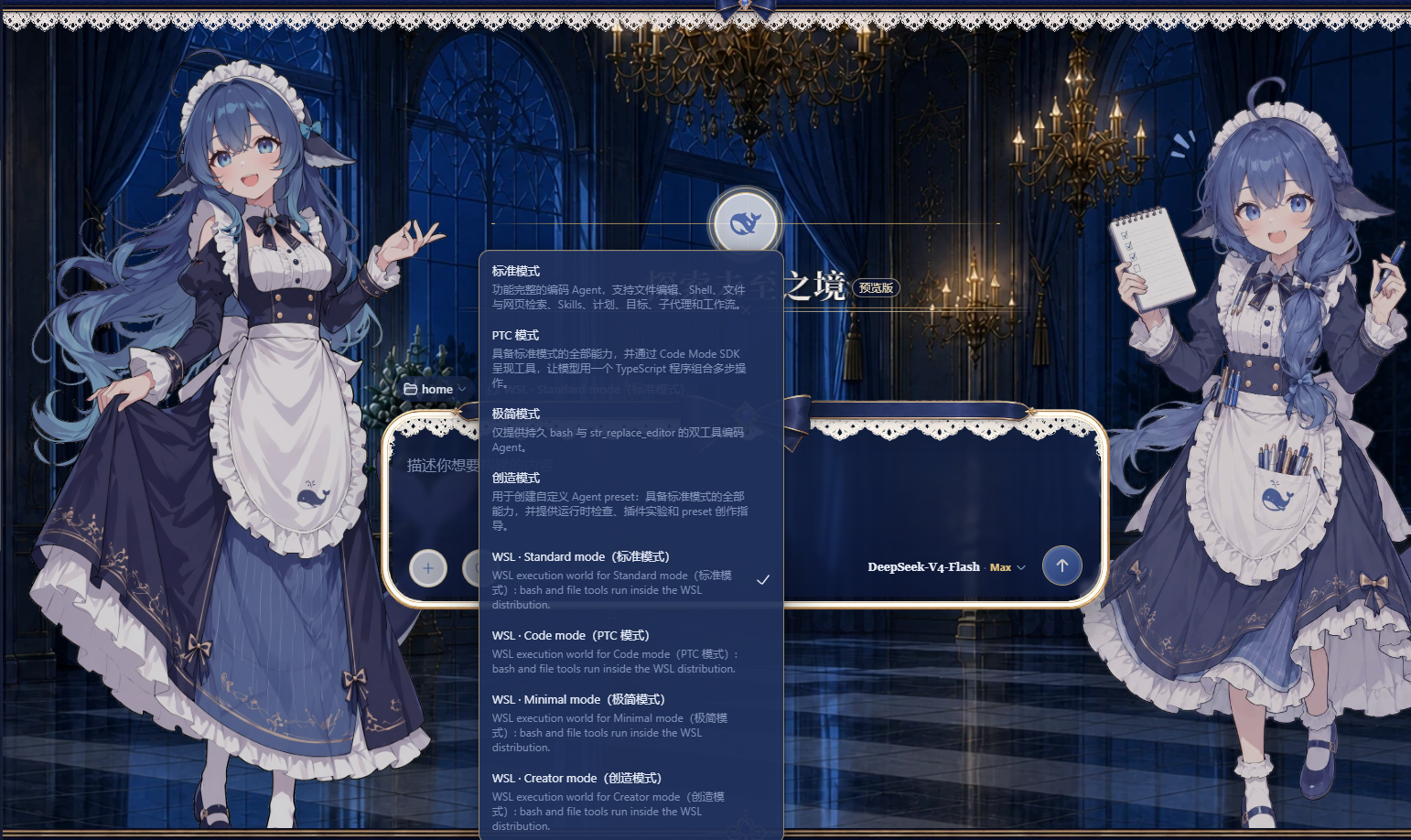 Add a WSL workspace from the DeepSeek Harness web GUI and run the whole agent session — bash commands and file reads/writes — inside a local WSL distribution with Linux paths. Nothing needs to be installed inside WSL. The session can reach both WSL and Windows at the same time: bash commands run inside the WSL distribution, while Windows files stay accessible via
 /mnt/<drive> (for example /mnt/c/Users/...).
Install
Pick one of the three ways below, then restart dsh web:
# 1) npm package
dsh plugin --profile web add dsh-wsl-workspace

# 2) GitHub repository (ships the prebuilt lib/, no local build required)
dsh plugin --profile web add https://github.com/dsh-wsl-workspace-maintainers/dsh-wsl-workspace

# 3) Local directory (development / self-hosted)
dsh plugin --profile web add D:\path\to\dsh-wsl-workspace
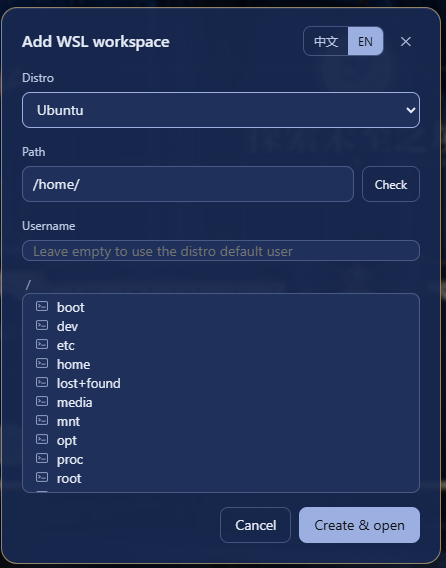
After restarting dsh web, a W button appears beside Settings at the sidebar foot.
Compatibility
This build declares these DSH releases, each verified on an isolated instance (its own
DSH_HOME, dependencies pinned to that release, the full check suite):
0.1.0-rc.7 · 0.1.0-rc.8 · 0.1.1-rc.1 · 0.1.1-rc.2 · 0.1.2-rc.1 · 0.1.3-alpha.2 ·
0.1.5-rc.1 · 0.1.5-rc.2 · 0.1.7-rc.1 · 0.1.7-rc.2 · 0.2.0-rc.2
The list mirrors dsh.compatibility.dshReleases in package.json, and a unit test fails if
the two drift apart. 0.2.0-rc.2 is the DSH release DSH Desktop 0.2.0-rc.2 ships, so the
Desktop is covered by the same declaration; the app's help panel (the dialog's "?" button)
shows the same chips next to the plugin version. The plugin detects the DSH generation at
runtime and picks the matching API, and a release exposing neither fails loudly instead of
leaving an empty workspace. A release outside the list usually still works, but is
unverified.
Usage
Click the W button beside Settings at the sidebar foot to open the "Add WSL workspace" dialog. Pick a distribution from the list, then browse the directory tree or type an absolute Linux path (for example /home/me/proj) — use the Check button to verify the path exists before creating the workspace. The dialog follows the DeepSeek Harness UI language. The username field is optional: leave it empty to run commands as the distribution's default user, or name a Linux user of that distribution to run the session as that user instead (equivalent to wsl.exe -u <username>). The username only changes the bash tool's run identity — the file tools go through the Windows-side WSL share and are unaffected. Each workspace's username is kept in <dshHome>/wsl-workspaces.json; delete the entry (or recreate the workspace from the dialog) to return to the default user.
Click "Create & open" to start a new session in the workspace. In the new session the bash tool executes commands inside the chosen distribution and read/write/edit operate on WSL files, so every path the model sees is a Linux path. The mode picker keeps working as usual: Standard, PTC, Minimal and Creative each land on their WSL variant automatically (the WSL variant entries in the picker are bilingual, e.g. WSL · Standard mode(标准模式)), and Windows files stay reachable from inside the session under /mnt/<drive> (for example /mnt/c/Users/...). The dialog's "?" button opens a panel with the DSH releases this build declares, how the plugin is used, and the limitations it cannot fix.
Behavior notes
- bash tool: runs inside the WSL distribution as the configured username (empty = the distro default user, often
root), so it can read and write anywhere in the distro. The Windows ACL sandbox cannot wrapwsl.exe— its children run on the Linux kernel side — so WSL itself is the isolation boundary and the DSH file policy does not apply to bash. - File tools (
read/write/edit): go through the Windows-side WSL 9P share; the username field does not affect them. Two seams the host's own provider would supply are re-established inside the WSL world, because a variant mounts this plugin'sfsprovider in the preset's isolate realm where the host'sfs-sandboxwrapper is not in the call path. Symlinks: the share lists a Linux link but cannot resolve it, so a link path used to look like a missing file;resolve/lstatnow ask the distribution (wsl.exe … readlink -f) and continue at the real path, and a link is never replaced by a regular file. The access mode:write/editare fenced byctx.sandboxPolicyexactly as the host backend fences them — the samewritableRootsallow-list (plus the distribution's/tmp, the temp area of the world the session runs in), the sameFS_SANDBOX_DENIEDthe tool layer renders as a denial, and the samesandboxModefact it reads for escalation. Because the fence runs after resolution it judges the real path: a link out of the workspace is an outside write and is denied underworkspace-write. A deployment that mounts no policy service fences nothing, as on the host. - File search (
grep/glob): the host's discovery suite spawns a packaged Windows ripgrep, so a WSL variant used to drop the row and leave the model to search through the shell. The world now mounts its own twin (src/host/wsl-search.ts→lib/wsl-search.js), which runs the search inside the distribution: the tool names, parameter schemas, caps, output schema (Line N:grouping, found-count header, capped-result footer), search cards and formatted-result spill all come from@deepseek-ai/dsh-tool-fs-search's own exported pieces, so what the model sees matches the host.grepuses the distribution's GNU grep (-rnIEH -Z; POSIX ERE —\d,\w,\band(?i)work, lookaround and backreferences do not), skips hidden files and directories plusnode_moduleslike ripgrep's defaults do, does not read.gitignore, expands{a,b}into one--includeper alternative, matches aincludecontaining/in this process (ripgrep semantics), and fails loudly on a distribution without GNU grep rather than framing unreadable records.globlists with GNUfind(-printfgives each file's mtime without a stat per file) and matches gitignore-style patterns here (*never crosses a separator,**does,?,[...],{a,b}and a leading!negation), ordering oldest-first exactly asrg --sort=modifieddoes. Both search the Linux tree directly — symlinks, permissions and.gitignore-free traversal included — never the 9P share, both prune VCS metadata directories, and neither follows a symlink found during recursion, which is ripgrep's default too. Modes whose source preset mounts no search suite (Minimal) gain none. - Skill catalog: the session's skill catalog is discovered starting at the session cwd's nearest
.gitancestor (falling back to the cwd itself), then scanning downward for.dsh/skills/.agents/skills— including nested projects — bounded to 4 directory levels, 64 skill directories and 4096 visited directories. Register the workspace at the project root you work in; if the registered workspace itself sits inside a larger git repository, the scan starts at that repository's root (matching the host's own rule) and sibling projects may surface. A Linux symlink the Windows-side share cannot resolve is resolved through the distribution instead (wsl.exe … readlink -f, at most 32 per lookup, four in flight) and the walk continues at the real path, so a project linked in withln -s— and nested projects below it — is discovered and deduplicated by that real path. Skill bodies always load live. The generated preset pinswatch: falseon theskill-filesystemrow because watching a\\wsl.localhost\...path fails, so the plugin polls instead, in two passes. The cheap pass runs every 3 seconds over the skills directories it published and re-stats each skill file: an added, removed or edited skill therefore reaches the model's next turn, and an edit is why the stamp matters — the model's catalog is rebuilt only when the registry's revision moves, and a directory listing cannot tell a rewrittenSKILL.mdfrom an untouched one. The full re-discovery walk runs every 30 seconds, because only a walk can find a skills directory that did not exist before (a new nested project's first.dsh/skills, say). Neither pass re-reads a skill body. - Shell lifetime:
bashis a stateful shell —cd, exported variables, activated virtualenvs and background jobs survive between calls. The world mounts the host's PTY registry and its config-driven backend (@deepseek-ai/dsh-terminal-bash) pointed at this plugin's relay (src/host/wsl-relay.ts→lib/wsl-relay.js, run by the host's own node), which hands the PTY towsl.exe … bash: the distribution comes from the session's UNC cwd (elseDSH_WSL_DISTRO), the optional username fromDSH_WSL_USER, and the relay runsbash -lc 'cd … && exec bash -i'so the login environment is loaded while the session directory survives (a plainbash -lcan be sent to$HOMEby a profile). That tool registers thebashname, so it replaces the one-shotdsh-tool-bashrow a non-WSL preset would use — the world also provides its own no-opsandboxcapability (src/host/wsl-sandbox.ts), because the host's Windows ACL runner cannot read a\\wsl.localhost\…path's security descriptor and the PTY backend confines through it before spawning. Both shells run inside the distribution and are outside the DSH file policy — WSL is their isolation boundary. Two consequences of the host's own wrapping are stated in the tool's description (which this plugin overrides, because the host default mentions neither): the shell is one process for the whole Agent, so acdin one call decides where the next call starts — use absolute paths or an explicitcd; and the host wraps each command aseval -- $'…', so a command ending in&backgrounds the whole wrapped command — the call then returns immediately with exit code 0 and no output while the real output arrives later, possibly inside the next call's. Write background work as( long-job > log 2>&1 ) &on its own line, or use the background-job tool. - Tracked background jobs:
bash_backgroundstarts one command in the background and returns a registry job id immediately; the host'sjob_list,job_output(incremental reads, status transitions, completion notices) andjob_killthen work on it exactly as they do for the host's one-shot tool. The row exists because the persistent shell's schema declares onlycommand: without a producer,job_listalways answered "no background jobs" and arun_in_background: trueargument passed tobashwas silently ignored — the parameter schema does not forbid extra properties, so nothing reported the mistake. A real session found exactly that. The tool is mounted only alongside the persistent shell; a world that keeps the one-shot bash row already hasrun_in_backgroundon that tool. - Older hosts fall back to a one-shot shell: the persistent stack is the host's code, and on Windows it needs a platform process inspector that only exists from
0.1.0-rc.8on — in0.1.0-rc.7spawnTerminalthrowssubprocess-local: terminal inspection is unsupported on platform win32before any process starts, so everybashcall in that release fails outright (grep/glob, which never touch the PTY, keep working). The plugin therefore probes the substrate at startup instead of assuming: it handsspawnTerminala program that cannot exist, which reaches the inspector check and nothing else — no process is created either way, and the rejection says which half failed. When the answer is "no inspector", the generated world keeps the one-shotdsh-tool-bashrow (this plugin's ownctx.shellprovider, no PTY) and the model gets a working, stateless shell instead of an error on every call.0.1.0-rc.7is the only declared release in that state; every later one gets the persistent shell. - The garbled
localhostport-forwarding bannerwsl.exeprints to stderr when the distro was not running yet is harmless.
Changelog
The full release history — every version, newest first — lives in CHANGELOG.md (中文); this README keeps only the current behaviour described above.
Documentation
docs/README.md indexes what lives where and in which language: the design record (zh), the per-release compatibility evidence behind the dsh.compatibility.dshReleases declaration, and the archived notes whose banners name what superseded them. Before a change or a release, follow TESTING.md.
License & attribution
MIT — see LICENSE and NOTICE. The NOTICE precisely lists:
- Adapted/inherited source code: DeepSeek Harness (MIT) —
dsh-bash-local(executor mechanics),dsh-fs-local(WslFileSystemsubclasses it), and the shipped agent presets (read and transformed by the variant generator); - Design references (no source copied): dsh-bash-terminal (MIT, wsl argv / WSLENV approach), dsh-side-panel (BSD-3-Clause, host-route pattern), vpshub (MIT, roadmap reference).
Keep LICENSE and NOTICE when redistributing.
Acknowledgments
Special thanks to dsh-deep-whale (DSH Web 鲸鱼娘 skin series · 深海女仆工坊 maid-atelier, CC BY-NC-SA 4.0): the whale girl skin plugin brings a full set of adorable skins to the DeepSeek Harness Web UI and makes daily use of DSH a warmer experience.
Related plugins
deepseek-harness
deepseek-ai/deepseek-harness
dsh-web (dsh-plugin-manager)
zhu1090093659/dsh-web
dsh-web
zhu1090093659/dsh-web
dsh-web-ui (dsh-plugin-manager)
zhu1090093659/dsh-web-ui