dsh-bots
kadaliao/dsh-bots
Grok-style bots for DeepSeek Harness: create bots with their own avatar, persona, model, skills, apps, scheduled tasks and memory; they message each other, a dispatcher bot hands out the work, and a usage view counts tokens by bot, task and day.
Install
dsh plugin --profile web add github:kadaliao/dsh-botsREADME
Bots
English | 简体中文
Grok-style bots inside DeepSeek Harness: a team of bots that work together. Each bot has its own avatar, persona, model, skills, abilities, apps, scheduled tasks and memory, and its own conversation. Bots message each other, and one of them, the dispatcher, splits the work, hands it out, follows up and reports back. Each piece of work handed out is a task that the bot works on in a conversation of its own, so one bot can work on several at once. The chat with a bot reads like a chat app: the bot on the left, you on the right. To go on about one message, reply to it: your reply quotes it, and the bot answers in a thread, where it sees that message and what came before it, and nothing said in the chat since.
It is built for two situations:
- A one-person company (OPC): you run a business alone and need a whole staff — engineering, growth, customers, finance — plus a chief of staff who briefs you every morning.
- Work that is naturally split between roles: code needs a builder, a tester and a reviewer; content needs a researcher, a writer and a designer; research needs a skeptic.
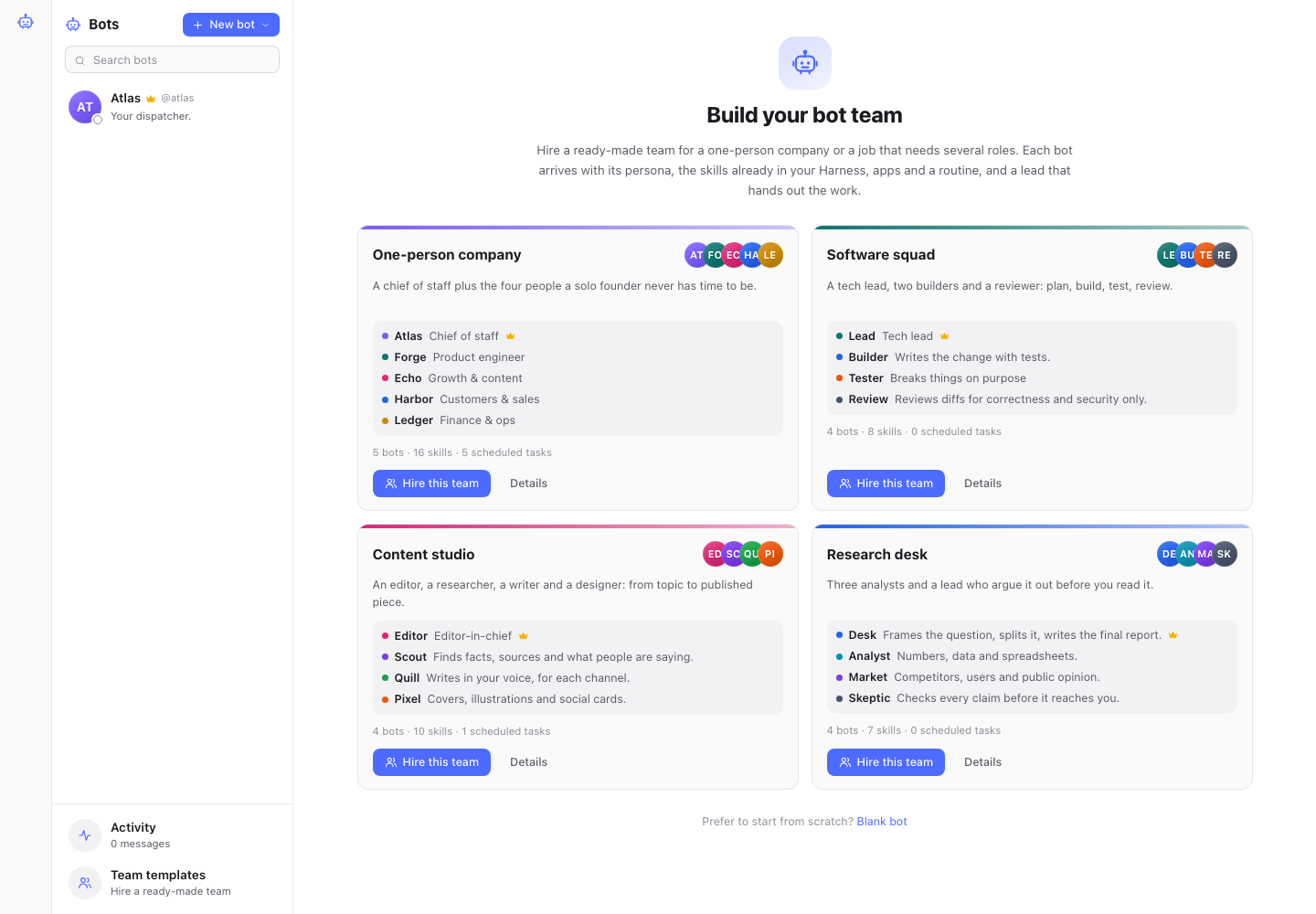
Hire a whole team in one click
Open the Bots panel (sidebar, or /bots), pick a team template and click Hire this team:
| Team | Members | Scheduled tasks it comes with |
|---|---|---|
| One-person company | Atlas (chief of staff, dispatcher), Forge (engineer), Echo (growth), Harbor (customers), Ledger (finance) | Weekday 09:00 morning brief, Friday 17:30 weekly review, Monday market pulse, weekday inbox sweep, Monday numbers |
| Software squad | Lead, Builder, Tester, Review | — |
| Content studio | Editor, Scout (research), Quill (writer), Pixel (design) | Monday topic planning |
| Research desk | Desk (lead), Analyst, Market, Skeptic | — |
Hiring:
- creates the bots with bilingual personas, in your UI language;
- gives each member the skills already installed in your Harness that fit its role (deep-research, last30days, xlsx, high-signal-review, …), skipping and reporting any you don't have;
- imports role skills from anthropics/skills (webapp-testing, frontend-design, brand-guidelines, …) with their scripts;
- adds the apps the role needs (GitHub, Stripe, HubSpot, …), whose keys you fill in later;
- adds the team's scheduled tasks and makes its lead the dispatcher;
- offers to send the lead a kickoff message, so the team starts working right away.
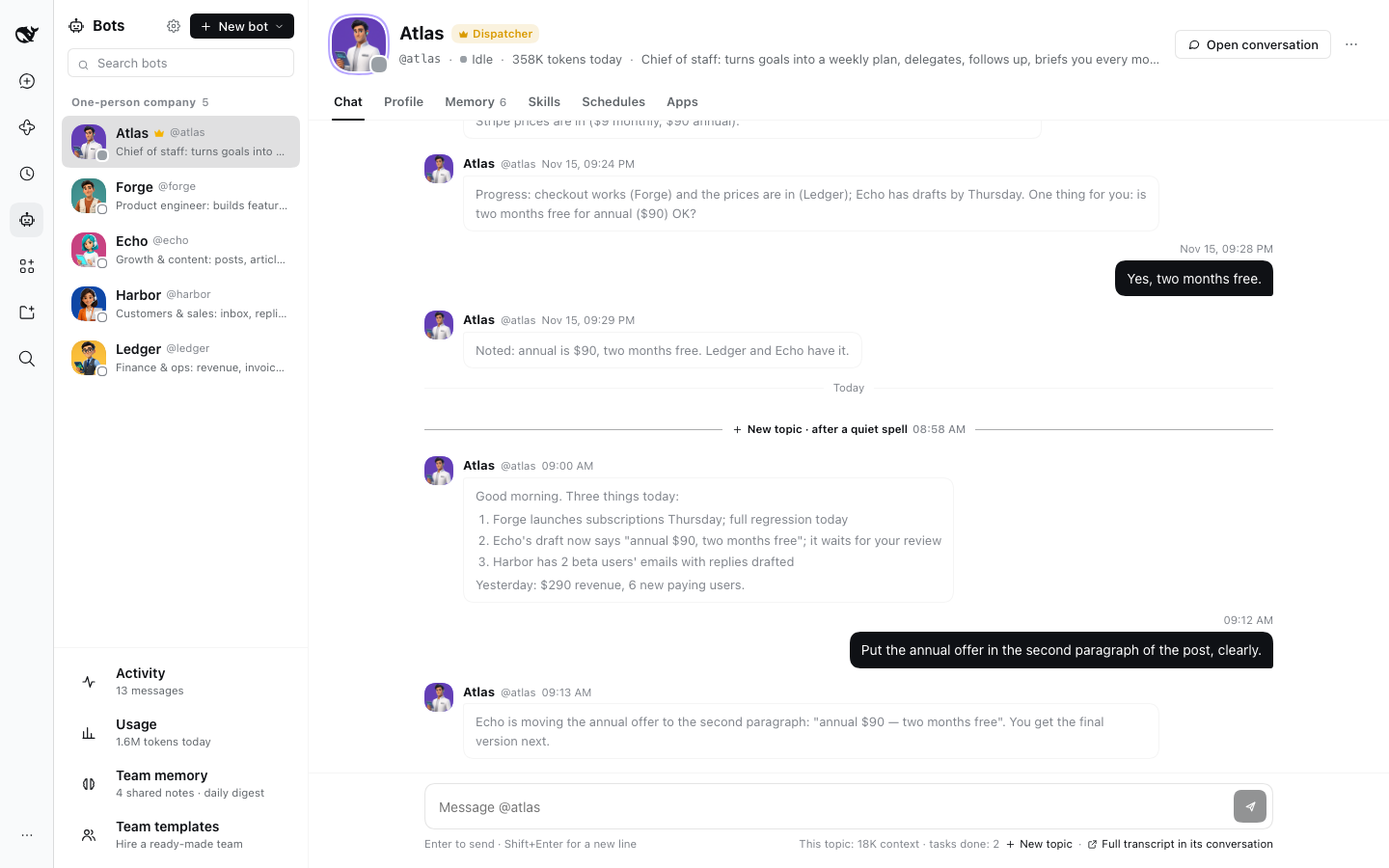
An example (one-person company)
You → Atlas: We release the new version next week. Organise it.
Atlas → Forge: Fix the three P1 bugs before release, review your own diff, merge by Wednesday.
Atlas → Echo: Draft the launch post and three social posts in the founder's voice, by Thursday.
Atlas → Ledger: For a week after release, check new subscriptions and refunds daily; flag anything odd.
Forge → Atlas: The three bugs are fixed, tests pass, PR merged.
Atlas → You: This week: bugs cleared; launch draft for your review tomorrow. Decision needed: do we raise the price?
Bots answer in the language you write in, so the same team works in Chinese and English (中文示例).
Each message from Atlas to a teammate opens a task, the three tasks run at the same time, and Forge's message is the report on its task.
The chat: reply to a message to open a thread
The chat with a bot reads like a chat app such as Feishu: the bot's messages on the left, yours on the right, in the order they were said. Send as many messages as you like, whenever you like. To go on about one message, reply to it, the way a chat app quotes a reply: the reply shows at the end of the chat with that message quoted on top, and the bot answers in that message's thread.
- What you send shows at once, marked Queued until the bot takes it.
- Reply to any message. Hover over a message and click Reply: it is quoted above the box (× or Esc drops it), and what you send answers it. The bot answers in a conversation of its own, forked from its conversation at that message: it sees that message and everything before it, and nothing the main chat said after it. So when you come back to an older message a few turns later, the bot answers about that message instead of taking it as a reply to the last one. When the message you reply to is your own, the answer the bot gave it then is part of what the thread sees.
- Replies show in the chat, quoted. Your reply quotes the message it answers; the bot's answer quotes your reply, unless it is right under it. Click a quote to see the whole thread on its own beside the chat (over it on a narrow screen), where you can go on too. A message with a thread has a small N replies link under it, with Replying… while the bot answers there; the chat also shows the bot at work at its end.
- The main chat hears what was said in threads. Since you read the replies in the chat, your next message there comes to the bot with a short note of what was said in its threads since (who said what, under which message), so it doesn't lose the thread of the conversation. A thread doesn't hear what the main chat said after its message.
- Reply to a message of a thread to go on in that thread (it quotes that message); threads don't nest. A thread
has no new topic:
/newworks in the main chat only. - Replying to a task's message talks to that task. Reply to a result or a question from the bot doing a task and what you write goes straight to that task; the dispatcher only gets a note, which doesn't wake it, and the task's later reports show in that thread. A task that is done but whose conversation isn't archived yet takes it and goes on.
- The dispatcher answers every message within a step or two, because it doesn't do the work in its own conversation: it hands it to the teammate that fits (the closest one when none fits exactly), never to itself, and is free again at once. Two requests sent back to back run side by side, and neither is dropped for the other; a message that continues something already under way is added to that task. In a thread it still only routes: a task it hands out there reports back into the thread, and what you write later in the thread comes to it first, and it decides which task it is for.
- The bot doing the work answers you itself, where the request came from (the main chat or a thread), with the whole result. Only when the dispatcher splits one request between several bots and has to put the results together does it ask for their reports back and answer you itself.
- A thread quiet for a day leaves the Harness sidebar; a new reply brings it back, and the thread goes on where it was.
- 0.9's topics read as the chat they were, with a link to each under its first message.
Requests: everything you asked the team for
A task is a bot's view: one piece of work it took on. A request is yours: one thing you want. A request often takes several tasks (the dispatcher splits research between teammates, then hands the results to one who writes them up), and several messages (you ask, then add "include the UK in the Europe one", then ask how it is going).
- The dispatcher restates it. When it hands out the work, it names the request in one line, in your language, saying what you get rather than who does it ("Q3 competitor pricing table (North America + Europe)", not "@scout researches North American pricing"). Tasks for the same request count toward it, and what you add later joins it. When the dispatcher did not restate one, the title is your own words, and the page says so.
- Its status comes from its tasks: Waiting for you (a task asks you something, or is stuck), In progress (with how many tasks are done and the latest word), Not done, Done and Dropped. A follow-up reopens the task, and the request is in progress again.
- Requests in the sidebar sits above Tasks, in three groups (Waiting for you, In progress, Done), with dropped ones folded away and this week's numbers on top. Open one for your own words (to check the restatement), the question waiting for you (Answer opens its task), what was delivered and the tasks behind it; Rename it, or Drop it (its unfinished tasks stop).
- When you say "forget that one", the dispatcher drops the request; when two turn out to be one, it merges them.
- Only what you ask the dispatcher for is a request: work teammates ask each other for, and work a schedule starts, is not.
Tasks: delegated work in conversations of their own
When a bot hands work to a teammate, the work becomes a task. The teammate works on each task in a conversation of its own, so one bot can take on several tasks at once without mixing them up, and its own conversation stays free for you. You don't open tasks yourself: you ask the dispatcher (or any bot), and it opens them.
- Reports: the bot doing a task reports with a status: done with the result, question when it needs an answer, blocked when it cannot go on, or progress, which is kept on the task without interrupting anyone. Done, question and blocked go to you as they are, where the request came from (the main chat, a thread or a chat app; after you reply to one of them in the panel, in that thread), and the bot that asked gets a note that doesn't wake it. When the bot that asked wants the reports back (to put several results together), they reach it at once instead and it passes them on; so do a sub-task's reports, and those of a task that came from no chat (a scheduled run). A report from a task that has already ended, or from a sub-task whose task has ended, is only kept on the task. Anything else the working bot writes stays in the task's conversation.
- Sub-tasks: a bot working on a task can ask a teammate for help; that opens a sub-task, whose report comes back to the task that asked for it.
- How many at once: 4 tasks are worked on at the same time; more wait in line and start as others finish. A person's message to a task that has already started (a follow-up, an answer) may use one place more, so new work cannot hold it up; a bot's message to it, the dispatcher's too, waits for a free place, and the task shows as Queued until then. A task that waits for an answer, is stuck or has failed gives its place back once its conversation is idle.
- Stages: Working, Queued, Needs your answer (it asked a question), Stuck (see the watchdog below), Failed (an error, or a blocked report nobody has answered yet), Done and Stopped.
- Tasks in the sidebar groups them into Needs you (needs your answer, stuck or failed), In progress (working or queued) and Recently done (done or stopped). A task's page shows the bot doing it, who asked, where the request came from, what was asked, the reports, related tasks and the task's usage, with Open conversation, Retry, Mark done, Stop and a box for a message to the task (to answer its question, for instance); Mark done and Stop both end the task and stop its bot's work on it at once. Each bot's Tasks tab lists what it is working on.
- What bots say to each other stays out of your way: in a bot's chat, hand-offs, reports and messages between bots run together as one quiet group under your conversation with it; those about a task that came from a thread show in that thread. Settings → Chat → Messages between bots sets how much of them shows, the same on every device: One line (the default: who hands what to whom, its stage and time; a click opens the task), Short (and the first two lines of the message) or Full (the whole message, with the task's card). The bot's replies to you read like the main conversation, without a box.
- Live status: while a bot works, its chat says what it is doing right now and for how long ("Running
npm test· 42s", "Thinking · 8s", then the step and the time since it started), and so do the bot's line in the list, its tasks in Tasks and on the task's page, and a hand-off whose task is running ("Searching for “indoor venues” · 12s"). It moves on its own: the panel checks every second or two while something runs. Only the tool and a short, clipped summary of what it works on show (a command's first line, a file's name, the words searched for), with keys and tokens taken out; never what a tool returned. - Removing a bot stops the tasks it was doing, which are archived, and the tasks it asked for, which stay in Tasks, stopped, where you can still retry one.
- Settings → Tasks: how many tasks are worked on at once (4), the minutes before a quiet task counts as stuck (20), and the hours before a finished task's conversation is archived (24).
The dispatcher as a router
The dispatcher understands the request, hands the work out and keeps track of it. It does not run commands, write or edit files, search the web, use sub-agents and workflows, draw images, make Office files or put question cards to you (a card holds every message after it until you answer); it can still read files and use its skills. Work that needs any of those goes to a teammate, never to itself (0.9 handed it to itself when no teammate fit; 0.10 doesn't), while its own conversation stays free for you. When you say "ask me which tone before you write", it hands the work out with that request and the teammate asks you in its task; when it must know something itself before it can hand a request out, it asks in one line of its reply, and your next message is the answer.
To let it do a small job itself (a quick web search, say), turn that ability on in its Abilities section, which
marks what dispatching turns off: switch a whole ability back on, or use Turn back on for the part of one that is
off (writing and editing under Files). Even then it may not sleep, a command must finish within 30 seconds or run in
the background, and with question cards back on it takes no new message until a card is answered.
It never waits for a teammate: it ends its turn and is woken when something needs it, so a new request is not stuck behind work in progress, and messages that arrive while it is busy are taken together at its next step, and each one gets its answer. Since it only routes, a light, fast model is enough for it; its Model section says so, and Bots does not change the model for you. Every bot that hands work to a teammate opens a task, not only the dispatcher; but nobody opens one for the dispatcher: a teammate's message to it goes into its own conversation, and it tells you what you should know and hands out what is work.
It routes once the team has at least one bot besides the dispatcher; a dispatcher on its own does the work itself.
Chats and threads
A task remembers the chat it was asked from: a private chat, a Slack or Discord thread, a Feishu topic or reply chain, a Telegram topic, or the panel.
- Answers go back where the request came from. The bot doing a task answers in that task's chat itself, signed
with its name (
【Forge】) when the chat app belongs to another bot, so two requests from two chats are answered each in its own chat. When one turn of the dispatcher involves more than one chat (the panel and a chat app, say), it answers each withbot_reply, and a task it opens there has to say which one it is for. Plain text left over from such a turn stays in the panel, marked Not sent, unless each chat has its answer already. - A follow-up in a thread goes straight to the task. In a Slack or Discord thread, a Feishu topic or reply chain, or a Telegram topic, what you write later in the same thread goes to the tasks started there; the dispatcher only gets a note, which does not wake it. Until its conversation is archived, a done task also takes such a message and goes on; a stopped task does not. In Slack, Discord and Feishu groups the bot answers under your message, so each request there starts a thread of its own.
- Otherwise a thread gets a conversation of its own, as in the panel. In a thread with no live task, its first message (the one that @mentions the bot in a group, say) goes to the bot's own conversation; once the bot has answered there, what you write later in the same thread goes to a conversation forked from the bot's at that exchange: it doesn't see what the bot talked about elsewhere since, and nothing said in the thread goes back. Replying to one of the bot's own chat messages (a Feishu or Discord reply, a Slack thread) works the same way, forked at that message; this needs the message's id from the chat app, so it works for messages sent since 0.10. In Telegram only forum topics are threads; a reply in a private chat is not.
- A follow-up in a private chat goes to the dispatcher. A private chat (and a group without threads) is one long conversation where new requests arrive too, so a message sent there (not a reply) goes to the dispatcher, unless one task asked a question there and is still waiting for the answer: then that task takes it. With two or more waiting, it goes to the dispatcher, which works out which one it answers.
- A message that starts with
@handlestill goes to that bot's own conversation.
The watchdog
Every 5 minutes Bots checks the tasks in progress by fixed rules; no model judges anything:
- A task whose conversation is idle, with nothing running in the background (commands, sub-agents, sub-tasks), and that has had no news for 20 minutes is asked once for a status report. With still no report 20 minutes later, it is Stuck, and the bot that asked is told.
- After a step fails with a temporary error (HTTP 408, 429 or 5xx, a dropped or refused connection), the task is told to continue 15 seconds later, then 30, then 60. A fourth such failure in a row, or any other error, and it has Failed; the bot that asked is told.
- When every task a bot asked for the reports of has settled (done, failed, stopped or stuck) and that bot has said nothing since (an answer marked Not sent doesn't count), it gets one reminder to tell whoever asked. Tasks that answered the person themselves need no reminder. A task that asked for sub-tasks and has ended since gets none.
- After Harness restarts, a task that was in the middle of its work gets a note: check what was already done (files, commands, messages sent), don't repeat it, then go on. A task whose conversation is gone starts again from its assignment with the same note, and one whose assignment never reached its conversation gets it again. Queued tasks start, and messages waiting for a place are handed over, as places free up; no message is handed over twice.
When a bot asks you a question
A bot can stop and ask you a multiple-choice question (Harness's ask_user_question). The question shows as a card
above the message box, in the bot's Chat and on the task's page, and the bot or task is marked as needing you. Pick an
option or type your own answer; answering in the Harness conversation works too, and whichever answer comes first
counts. If the work came from a chat app, the bot also posts there that it is waiting for your answer in DeepSeek
Harness. The answer itself is given in Harness, not in the chat. Permission prompts and plan reviews are answered in
the conversation; the card links to it. A waiting question does not survive a restart of Harness.
Built on what Harness already does
A bot works in ordinary Harness conversations, so everything Harness can do, a bot can do:
- Abilities: web search, files, running commands and code, Office documents, image generation, sub-agents and workflows, handing over files… switched per bot on its Profile tab (a reviewer bot that cannot run commands, for instance). In a team of more than one bot, the dispatcher has no Harness sub-agents or workflows: work in parallel goes to teammates, so the panel shows it as their tasks (even when a skill says to start sub-agents). The other bots keep them.
- Skills:
- Add from Harness: pick from the skills you already installed (
~/.agents/skills,~/.dsh/skills, …); referenced, not copied, so they stay up to date; - Import from GitHub: browse Anthropic's skills in one click, or paste any
owner/repo/path; the whole skill folder comes along, scripts included; - Add from a folder: pick a skill folder on this machine (or a folder holding several, e.g.
~/.claude/skills); linked, not copied, so editing the folder is enough; - a skill name is used once per bot: adding one that is already there is skipped, and importing again from the same GitHub folder updates it in place;
- up to 50 skills can be on at once (each one on is in the bot's prompt every turn); a bot keeps up to 200 in all, so past 50 new ones come in switched off;
- Let the bot write it: describe what you need in a sentence; the bot writes it with skill-creator and saves it to itself;
- writing one by hand is still possible, as the last resort.
- Add from Harness: pick from the skills you already installed (
- Apps add only the outside systems Harness doesn't reach on its own:
- Import from your other agents: MCP servers you already configured in Codex, Claude Code, Claude Desktop, Cursor, Windsurf, Gemini CLI or opencode are found automatically; tick them, keys included;
- the gallery:
| Category | Apps (🔑 = needs a key) |
|---|---|
| Sales & payments | Stripe 🔑, HubSpot CRM 🔑 |
| Team & office | Feishu / Lark 🔑, Telegram 🔑, Slack 🔑 and Discord 🔑 (chat apps, below), Feishu / Lark Open Platform 🔑, Notion 🔑, Slack workspace 🔑, Memory |
| Build & ship | GitHub 🔑, Git, Supabase 🔑, Sentry 🔑, Context7 Docs |
| Research & content | Exa, Tavily 🔑, Brave 🔑, Firecrawl 🔑 |
| Computer & browser | Open Computer Use (operate macOS apps), Playwright |
| Data | PostgreSQL 🔑, SQLite |
| Maps & local | Amap 🔑, Baidu Maps 🔑 |
| Custom | Any local (stdio) or remote (Streamable HTTP) MCP server |
- Schedules are ordinary Harness scheduled tasks, also on the Automation page. A scheduled task missed while Harness was closed runs when it starts again, once (its latest occurrence): that is Harness's rule, and Bots adds no runs of its own. A team with many schedules can open several tasks at once after a start, and use many tokens.
- AI avatars: with the Images plugin, draw a bot's avatar from its persona. A bot can do it too: ask the dispatcher to give the team new avatars and describe the look, or point it at an image file. A bot's drawing runs in the background, so it goes on answering you: a ring turns around the avatar while the picture is drawn, the new one shows when it is ready, and the bot hears that it is ready (or why it failed) and tells you. A restart of Harness drops a drawing under way.
- Logos: each app in the gallery shows its vendor's own logo (the App Store icon where there is an app, otherwise the logo from the vendor's site or repository). The logos are their owners' trademarks and only identify each service.
Each bot on its own model
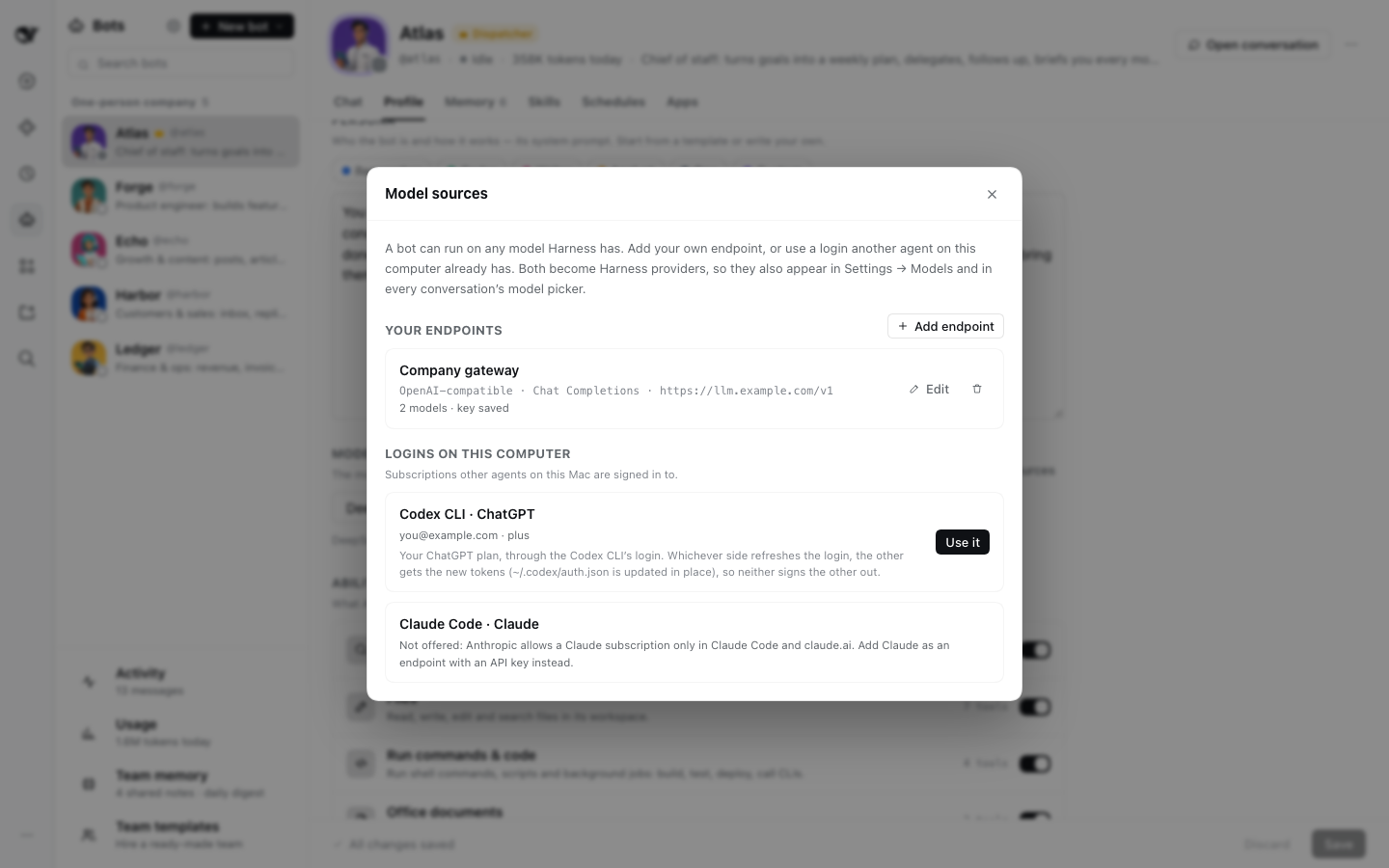
A bot's Profile → Model picks the model its conversations run on (its tasks' too), grouped by provider, with the model's thinking levels when it has them. Besides the models Harness already has, Model sources adds:
- Your own endpoint: any OpenAI-compatible (Chat Completions or Responses), Anthropic-compatible or
Gemini base URL, a key and model ids (or Fetch models to tick them from the endpoint's list). It
becomes a Harness provider
bots-<name>, its key in the Harness credential store, so it also shows up in Settings → Models and in every conversation. - A login another agent on this computer already has: the Codex CLI's ChatGPT login
(
~/.codex/auth.json) becomes Harness'sopenai-codexprovider. OpenAI rotates the login on every refresh, so the two copies are kept in sync both ways — whichever side refreshes, the other gets the new tokens, and neither signs the other out. Claude Code's login is shown but not offered: Anthropic allows a Claude subscription only in Claude Code and claude.ai, so add Claude with an API key instead.
Topics: conversations that don't grow forever
A bot's own conversation is a topic. A new topic is a fresh conversation (the old one is archived, the bot's scheduled tasks move along); what the bot knows carries over in its memory. A new topic starts:
- when you send
/new(or/clear,/新话题) in the panel or from a chat app — text after it goes to the new topic — or click New topic under the composer; - by itself before the next request, after 6 hours of quiet, or once the conversation's prompt reached 128K tokens (Settings; 0 turns either off). A big conversation is never cut while a teammate's answer may still be coming.
Harness still compacts a conversation that nears the model's limit; topics keep every call small and cheap long before that. A task's conversation is not a topic: it ends with its task. A task's report reaches the bot that asked for it even after that bot started a new topic. Threads are not topics either: a new topic leaves the threads as they are, and a message from an earlier topic can still be replied to. The old conversation is archived, and the Bots panel stays where it is (it used to jump to Harness's conversation view).
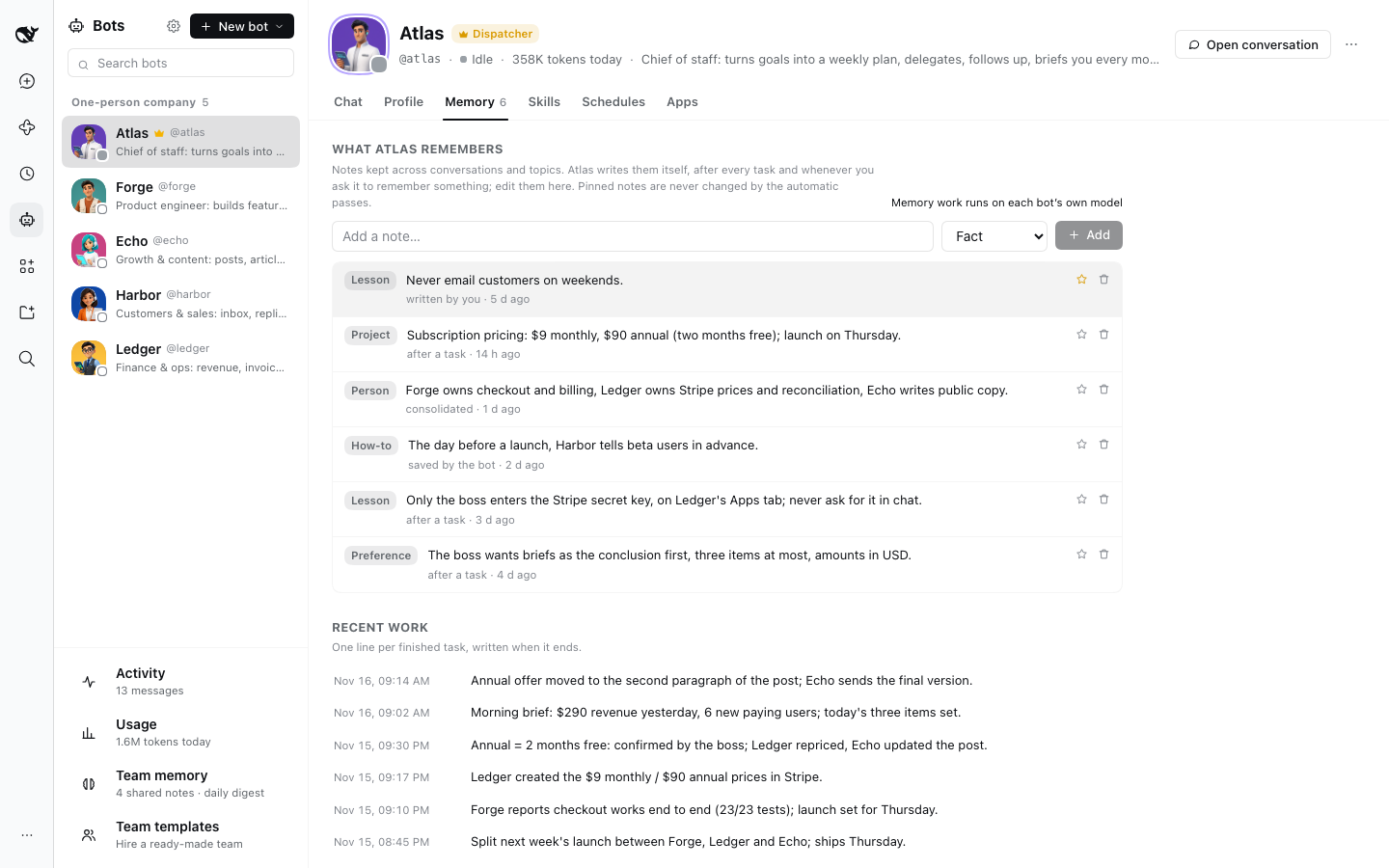
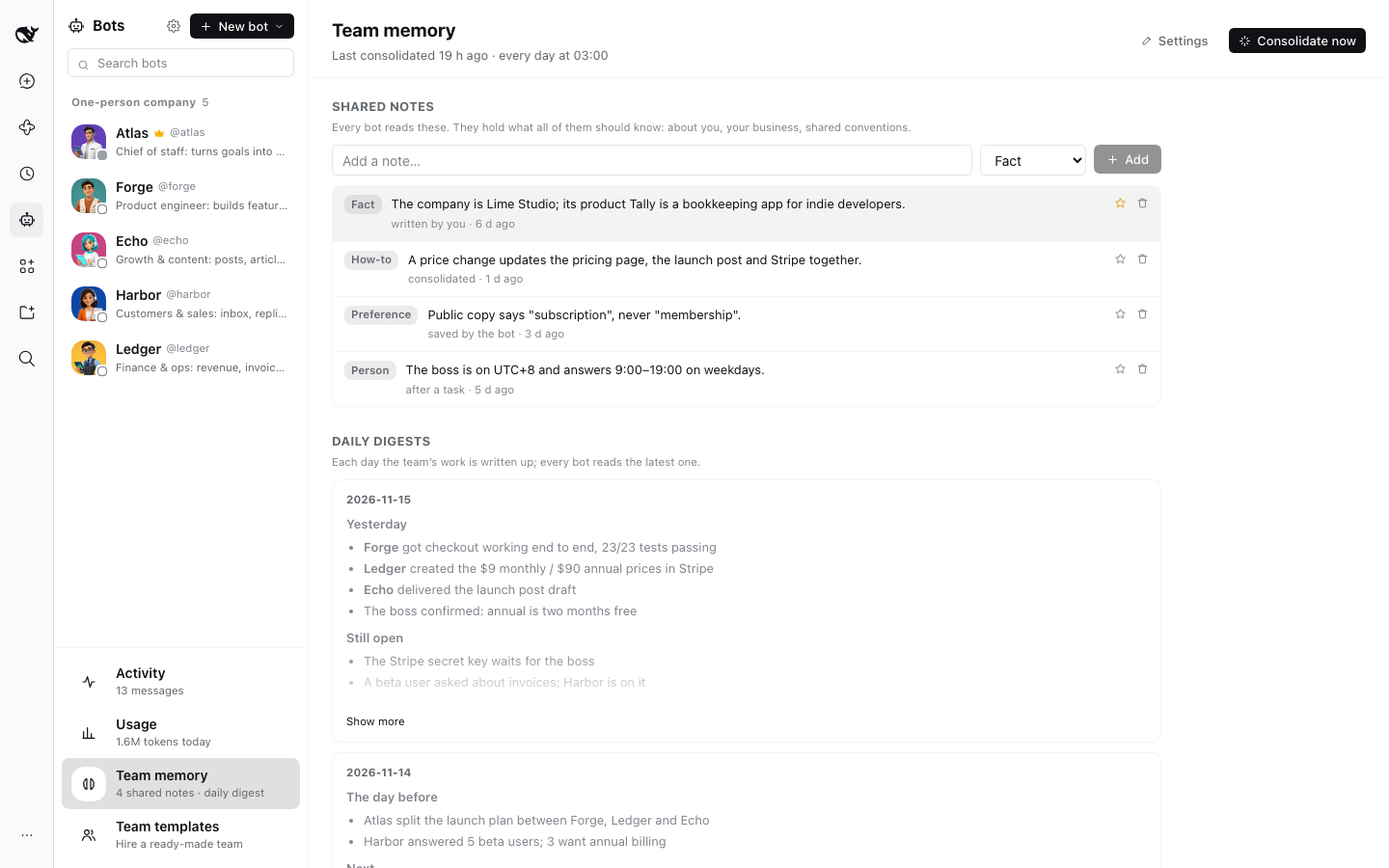
Memory
Every bot keeps notes that outlast its topics, and the team shares one more list every bot reads:
- After each piece of work a short model call writes one line to the bot's journal (what was asked, what came of it) and adds, corrects or removes notes — preferences, people, decisions, procedures, lessons. Facts every bot should know go to the team notes. In a bot's own conversation this happens after every run (everything the bot does for one request, until it is idle again); for a task, once, when the task ends.
- The bot itself saves notes with
memory_savewhen you tell it to remember something, removes them withmemory_forget, and looks through notes, the team journal, digests and tasks (their titles and reports) withmemory_search. In a task's conversation it finds, besides the notes, only the journal lines and tasks of that task, the task that asked for it and its sub-tasks, and no digests. - Every night (03:00 by default) memory is consolidated: each bot's notes are merged, corrected and trimmed with its recent journal, the shared notes too, and the day's work is written up as the team's daily digest. Consolidate now runs it at once. Notes and digests are written in the language you write to the bots in, judged from your recent messages; a note left in another language is rewritten in it.
- A bot reads its notes, the team notes, its last few journal lines and the latest digest when a topic or a task's conversation starts, and again at the next run after you edit memory or the nightly consolidation ran. Within a topic the memory part of its prompt stays the same, so the model's prompt cache over the conversation keeps working (what it learns in a topic is in that conversation anyway). A short exchange — an acknowledgement, a one-line answer to a teammate — gets a journal line without a model call.
- The Memory tab of a bot and Team memory in the sidebar show everything; add, edit, pin or delete notes there. Pinned notes are never changed by the automatic passes. Text that looks like a key or token is never stored.
- Memory work runs on each bot's own model unless Settings names a cheaper one.
Usage
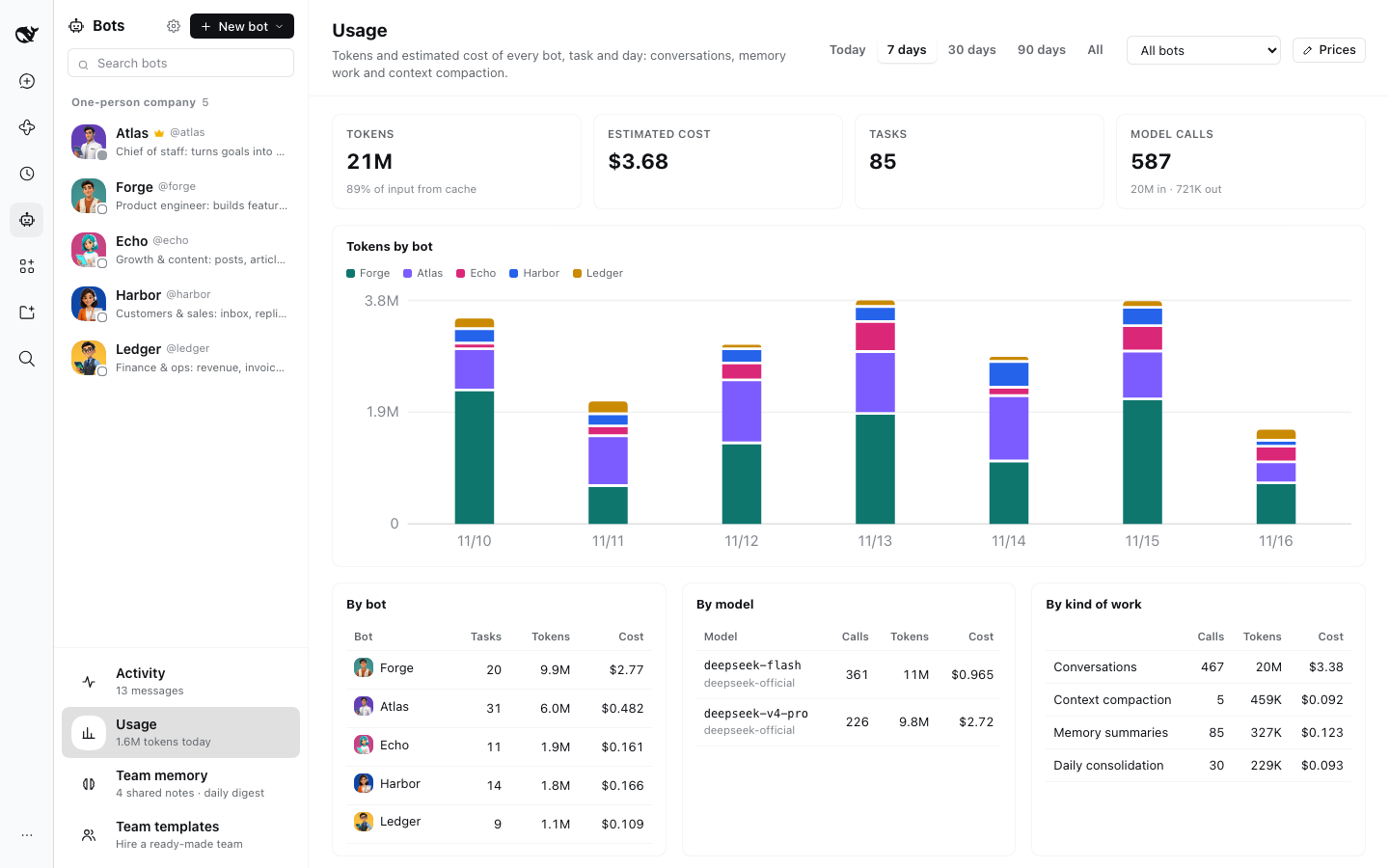
Usage in the sidebar counts every model call the bots make — their conversations (tasks' included), the memory work and Harness compacting their context — by bot, model, kind of work, scheduled task, task and day (or hour, for today), with the change from the period before. Runs and Recent runs count runs (see Memory: one request, from you, a chat app, a schedule or another bot, until the bot is idle again); a task takes one run or more, By task adds them up, and a task's own page shows its usage. Costs are estimates from your own prices or LiteLLM's public price list (Prices); a model with no price shows its tokens only.
Message your team from Feishu, Telegram, Slack or Discord
Add Feishu / Lark, Telegram, Slack or Discord to a bot (normally the dispatcher) in its Apps tab, and you can hand out work from your phone: what you send the chat bot goes to the team as if you typed it in the panel, and the replies come back to the chat, including the dispatcher's report once its teammates have answered.
You, in Telegram: Get the release organised for next week.
Atlas: On it: Forge takes the three P1 bugs, Echo drafts the launch post.
Atlas (later): Bugs fixed and merged; the launch draft is ready for your review.
Telegram
- In Telegram, open @BotFather, send
/newbot, pick a name and a username ending inbot. Make a new bot just for this team. - In Bots, open the dispatcher → Apps → Telegram → paste the token BotFather gave you → Add. It connects at once and shows Connected as @yourbot.
- Pair yourself: the panel shows a one-time code (it works once, for 10 minutes). Click Open in Telegram and press Start, or send the code to your bot. The bot answers "Paired".
- Message the bot. Start a message with
@handleto reach another bot directly (@forge fix the login bug). In a group, add the bot and @mention it (or reply to it); it ignores the rest of the conversation.
Discord
- In the Developer Portal: New Application → Bot → Reset Token and copy it. On the same page turn on Message Content Intent (without it the bot cannot read messages, and the panel says so).
- Add Discord to the dispatcher with that token. Once connected, use Invite the bot to a server (any server you are in, a private one is fine): Discord only lets you DM a bot you share a server with.
- DM the bot the pairing code, then DM it your requests, or @mention it in a channel.
Feishu / Lark
Feishu uses its long connection: the Harness connects out to Feishu, so your computer needs no public address. The same steps work for Lark; the panel finds out which one your app belongs to.
- Open the developer console at https://open.feishu.cn/app (Lark: https://open.larksuite.com/app) and Create Custom App.
- Add Features → Bot.
- Permissions & Scopes (Batch import/export scopes accepts the JSON below):
- required:
im:message.p2p_msg:readonly,im:message.group_at_msg:readonly,im:message:send_as_bot - optional:
contact:contact.base:readonly+contact:user.base:readonly(sender names),im:message.reactions:write_only(a "Typing" reaction while the team works),im:chat:readonly(group names)
- required:
- Copy the App ID and App Secret from Credentials & Basic Info into the bot's Apps → Feishu / Lark, and save. The long connection comes up. If the panel asks you to turn on the bot, that only means no version is published yet; the connection is already online.
- With the Harness running, go to Events & Callbacks → Event Configuration, set the subscription mode to Receive events through persistent connection and save. The console only accepts this while a connection is online.
- Add Events →
im.message.receive_v1. - Version Management & Release → create a version whose availability includes the people who will use it, and publish (an admin may need to approve).
- In Feishu, open a chat with the bot (search for the app, or use Open in Feishu in the panel) and send the pairing code. For a group, add the bot to the group and @ it.
Use an app made for this team only: when several programs connect with the same App ID, Feishu hands each message to just one of them.
{"scopes":{"tenant":["im:message.p2p_msg:readonly","im:message.group_at_msg:readonly","im:message:send_as_bot","im:message.reactions:write_only","contact:contact.base:readonly","contact:user.base:readonly","im:chat:readonly"],"user":[]}}
Slack
Slack uses Socket Mode: the Harness connects out to Slack, so your computer needs no public address.
- Open https://api.slack.com/apps → Create New App → From a manifest, pick your workspace, choose the JSON tab and paste the manifest below (rename "Bot Team" if you like) → Next → Create.
- Install App → Install to Workspace → Allow. Copy the Bot User OAuth Token (
xoxb-…). - Basic Information → App-Level Tokens → Generate Token and Scopes: any name, Add Scope →
connections:write, Generate, and copy the token (xapp-…). - In Bots, open the bot → Apps → add Slack, paste both tokens and save. Once it shows Connected, a pairing code appears.
- In Slack, open the app (Open in Slack next to the code, or Apps → your app → Messages) and send it the code.
- To use it in a channel, invite the app (
/invite @Bot Team) and @mention it; it answers in the thread.
Use one Slack app per bot, and don't run the same app in another program: Slack hands each message to only one connection. If you change scopes later, reinstall the app to the workspace and press Reconnect.
{
  "display_information": {
    "name": "Bot Team",
    "description": "Message your bot team from Slack: DM the app, or @mention it in a channel.",
    "background_color": "#4a154b"
  },
  "features": {
    "app_home": { "home_tab_enabled": false, "messages_tab_enabled": true, "messages_tab_read_only_enabled": false },
    "bot_user": { "display_name": "Bot Team", "always_online": true }
  },
  "oauth_config": {
    "scopes": { "bot": ["app_mentions:read", "channels:read", "chat:write", "groups:read", "im:history", "users:read"] }
  },
  "settings": {
    "event_subscriptions": { "bot_events": ["app_mention", "message.im"] },
    "org_deploy_enabled": false,
    "socket_mode_enabled": true,
    "token_rotation_enabled": false
  }
}
What else to know
- Who can talk to it: only people you paired. Anyone else is ignored; in a private chat they get at most one "this bot is private" line a day. Pairing happens only in a private chat, with the current code, and a few wrong guesses lock a person out until the next code. You can pair more people (each needs a new code) and remove anyone from the panel; the panel also counts ignored messages.
- Treat a pairing like your own login: a paired person can ask the bots for anything you could, including whatever their abilities and apps allow on this Mac. Pair only yourself or people you trust, and turn off risky abilities on the bot that owns the channel if others are paired.
- Where replies go: to the chat the request came from, and a task's result to the chat that task was asked from (see Chats and threads). Write in the panel and the answer stays in the panel. Telegram gets plain text (Markdown markers removed); Discord, Slack and Feishu show the Markdown. In a Slack channel the answer goes into the thread of your message.
- Scheduled reports: a scheduled task of the bot that owns the channel reports to the first paired person (switch it off in the panel), so "every weekday at nine Atlas briefs you" lands on your phone.
- One token, one place: a chat bot token can be connected on one bot of one Harness at a time. If another program uses the same Telegram token, the panel says so.
- The token is stored with the bot like other app keys, never shown back in the panel, and kept out of logs and error messages. Harness must be running for the bot to answer; Telegram holds messages for up to 24 hours, and a message is never run twice after a restart.
How it works
- Each bot owns one ordinary Harness conversation of its own, in the Bots workspace
(
~/.dsh/bots/workspaceunlessworkdiris set), and one more for each task it works on (ticket-<id>), in the same workspace. A task's conversation is archived in Harness once the task has been over for the hours set in Settings. Each thread is a conversation too, forked with Harness's session fork from the bot's conversation at the message replied to and titled " · "; it is archived after a quiet day and taken out of the archive on the next reply. - When it runs, the bot's persona and the team roster join its system prompt; its own skills, ability limits and apps apply to its conversations only. In a task's conversation the prompt also says which task it is, who asked, and how to report. Edits apply at once; a new or changed app connects the next time the conversation starts.
bot_send_messagefrom a bot's own conversation opens a task and returns at once; from a task's conversation it reports to whoever asked (with a status) or opens a sub-task. A message to the dispatcher opens no task: it goes into the dispatcher's own conversation (one sent from a task names it, and the dispatcher's answer is added to that task). The dispatcher names the request a task serves withneed(Requests). Two bots may exchange at most 16 messages in 10 minutes (new tasks and messages added to tasks count), so conversations end.- A bot with nothing to say (after a report, say) answers
NO_REPLY, which is never shown or sent to a chat app. Harness counts an answer with no content as a failed model call (returned a completed response with no content), so a bot cannot just say nothing; should a model still answer with nothing, its task does not fail for it. - Every conversation gets
bot_list,bot_create,bot_update,bot_delete,bot_send_message,bot_reply,bot_recall,bot_ticket,bot_needandbot_scheduleto manage bots and tasks, andmemory_save,memory_forgetandmemory_search.bot_replysends an answer to a named chat;bot_recallreads a task, its reports or its conversation, or a chat thread, a page at a time, so a bot looks things up instead of guessing;bot_ticketstops, closes or retries a task the bot asked for, or asks it for a status report;bot_needlets the dispatcher rename, merge or drop one of your requests. API.md lists their parameters. A sub-agent started in a bot's or a task's conversation uses them as that bot or task; one that cannot be traced back to where it started (that conversation is gone) is refused. - A bot's memory is a section of its system prompt, read when a topic or a task's conversation starts
(and at the next run after a memory edit in the panel or the nightly consolidation), never in the middle
of a run. A run ends when the bot's Agent is idle; its transcript (prompts, replies, tool calls, short
tool results), or for a task the transcript of its runs, is what the memory pass reads. Usage comes
from the
assistant/messageandcompaction/summaryevents of the bots' conversations, plus the plugin's own memory calls. - A chat app is not an MCP server: the Host keeps one connection per chat app (long polling for Telegram,
the gateway for Discord, Socket Mode for Slack, the long connection for Feishu), starts and stops it as you add, change, switch off or remove the
app, and hands paired people's messages to the bot as user prompts headed
[Telegram · Name] (thread <key>), or to the tasks or the own conversation of that thread (see Chats and threads). The thread key is whatbot_replynames.
Open Computer Use
open-computer-use lets a bot operate macOS apps through the accessibility tree. Click Install now on its card, then grant DeepSeek Harness Accessibility permission and restart it.
What it stores and sends
~/.dsh/cache/bots/(bots.json,channels.jsonandtickets.jsonare readable by your user only):bots.json(bots, including keys and chat bot tokens entered for apps),messages.jsonl(timeline),channels.json(paired people per chat app, and the last message handled per chat),tickets.json(tasks, with what was asked and their reports, and the chat threads they came from; the newest 500 archived tasks are kept),avatars/,skills/(skills imported from GitHub),memory/(notes, journal, digests),usage.jsonlandtasks.jsonl(token counts per call and run, kept 400 days),topics.json,discussions.json(threads, where each message sits in its conversation, threads you have read),settings.json,price-catalog.json. Iftickets.jsoncannot be read (permissions, say), Bots does not start and says why in the Harness log, so the file is never written over; a damaged one is kept astickets.json.corrupt-<time>and tasks start empty.- Custom endpoints and a borrowed Codex login are written to Harness's own model settings (
llm-pi-ai) and credential store. With the Codex login in use, tokens Harness refreshes are written back to~/.codex/auth.json. - Nothing leaves your machine except through the bots' own conversations (your configured model), the memory passes (a run's or a task's transcript and the bot's notes, to the bot's model or the memory model), the LiteLLM price list (downloaded from GitHub weekly), the apps you connect, the image model when you generate an avatar, GitHub when you import skills, and the Feishu / Lark, Telegram, Slack or Discord API when you connect a chat app (the bots' replies to paired people, typing indicators, and the one-line note to strangers).
Install
Add the DSH Plugins index in DeepSeek Harness (Plugins → Discover → Sources):
https://raw.githubusercontent.com/kadaliao/dsh-plugins/main/marketplace.json
then install Bots. The Discover tab is part of the experimental Custom plugin markets feature; turn it on under Plugins → Experimental plugins if you don't see it.
Without Discover, paste the package name into the plugin manager:
@kadaliao/dsh-bots
For the latest unreleased code, use the Git spec git+https://github.com/kadaliao/dsh-bots.git#main instead.
Refresh the page once after installing. For AI avatars, install Images too.
Upgrading from 0.10
- Nothing to do: bots, tasks, memory, schedules, chat apps and pairings stay as they are; 0.11 adds
needs.jsonfor requests. Tasks from before the upgrade belong to no request; when you follow one up in a chat, your words name a request for it. - Hands-on mode is gone, and there is no mode to pick: with a teammate the dispatcher routes, on its own it does the work itself. A team that had picked Hands-on switches to routing and sees the notice once; turn on the small jobs you want the dispatcher to do itself under its Abilities.
- With models that follow the prompt to the letter (GPT, say), the occasional
returned a completed response with no content(a bot answered with nothing after a report, and its task failed) is gone.
Upgrading from 0.9
- Quit and reopen Harness once after the upgrade. A page reload alone gives you the new page while Harness still runs the old Bots, and replies don't land in threads; a banner at the top of the panel says so until you reopen it.
- Nothing else to do: bots, tasks, memory, schedules, chat apps and pairings stay as they are; 0.10 adds
discussions.jsonfor threads. - The messages of 0.9's topics show in the chat in the order they were said, with a link to each topic's thread under its first message; in one with a live task, what you write there still goes to the task.
- Messages from before the upgrade can be replied to: Bots finds the message's place in the conversation's log by its time and forks there. When it cannot (a very long conversation, or one that is gone), it forks at the conversation's latest turn and tells the bot that the chat may have gone on past that message.
- Threads use Harness's session fork; on a Harness without it, a reply says to update Harness first.
Upgrading from 0.8
- Nothing to do: bots, tasks, memory, schedules, chat apps and pairings stay as they are. The timeline in
messages.jsonlgains fields for topics; older messages stay in the main timeline. - A task opened before the upgrade that came from a chat or the panel now answers the person itself when it reports, like new ones.
- The dispatcher in Router mode loses web search in its own conversation (it hands searches to a task, its own if no teammate fits); Turn back on under its Abilities gives it back.
Upgrading from 0.7
- Bots, memory, scheduled tasks, topics, chat apps and pairings stay as they are. 0.8 adds
tickets.jsonfor tasks. - A team that already had bots switches to Router: the dispatcher stops doing work itself and loses the tools listed under The dispatcher as a router in its own conversation, and work handed from one bot to another becomes a task. The Bots panel says so once, with Open its profile and Got it; the notice waits until the team has a bot besides the dispatcher.
- From 0.8 to 0.10 the dispatcher's Profile could switch How it works back to Hands-on; 0.11 has no such choice (Upgrading from 0.10).
- Replies to chat apps follow the request they answer (Chats and threads); in 0.7 they went to the chat of the latest request.
- In Usage, what 0.7 called tasks are runs now (Runs, Recent runs), with the same numbers. By task starts with the first task after the upgrade.
Limits
- Web UI only.
- Group chats between bots are not there yet; bots work together through tasks and direct messages.
- In a group chat a bot hears only messages that @mention it (or reply to it); it does not listen to the rest of the conversation. 0.8 does not change that.
- Thread history starts with 0.8: messages from before the upgrade belong to no thread, so reading a chat
thread with
bot_recallshows only what was said there since. Panel threads start with 0.10. - A thread doesn't see the main chat's later messages because it is a fork, and a fork needs the message's place in the conversation's log. For a very old message whose place cannot be found, the thread forks at the latest turn and sees what came after (the bot is told so).
- In a chat app, replying to one of the bot's messages makes a thread only for messages sent since 0.10; a message sent straight into a private chat is still part of one conversation and goes to the dispatcher.
- The watchdog goes by time and status only; it does not judge whether a task is heading the right way.
- Costs are estimates. Gateways, subscriptions and discounts bill differently; set your own prices.
- Only the Codex CLI's login can be borrowed so far; other subscriptions sign in from Harness Settings → Models where Harness supports them.
- Harness skills a team template names that you don't have are skipped; import them from GitHub or have the bot write them later.
Related plugins
webnovel-writer
lingfengqaq/webnovel-writer
loopx (dsh-loopx-plugin)
loopx-project/loopx
ouroboros (dsh-plugin)
q00/ouroboros
loopx (dsh-loopx-plugin)
huangruiteng/loopx