dsh-prompt-manage
maxlee/dsh-prompt-manage
Reuse prompts you have typed across DeepSeek Harness conversations: a searchable palette beside the model selector in the composer, a magic-wand optimizer that rewrites the current draft with the session model through an editable system prompt, and a searchable sidebar page over the full prompt history.
Install
dsh plugin --profile web add github:maxlee/dsh-prompt-manageREADME

Prompt Manage


Prompt Manage is a DeepSeek Harness plugin that helps you reuse prompts you have already written and turn rough drafts into clearer prompts before sending them.
Features
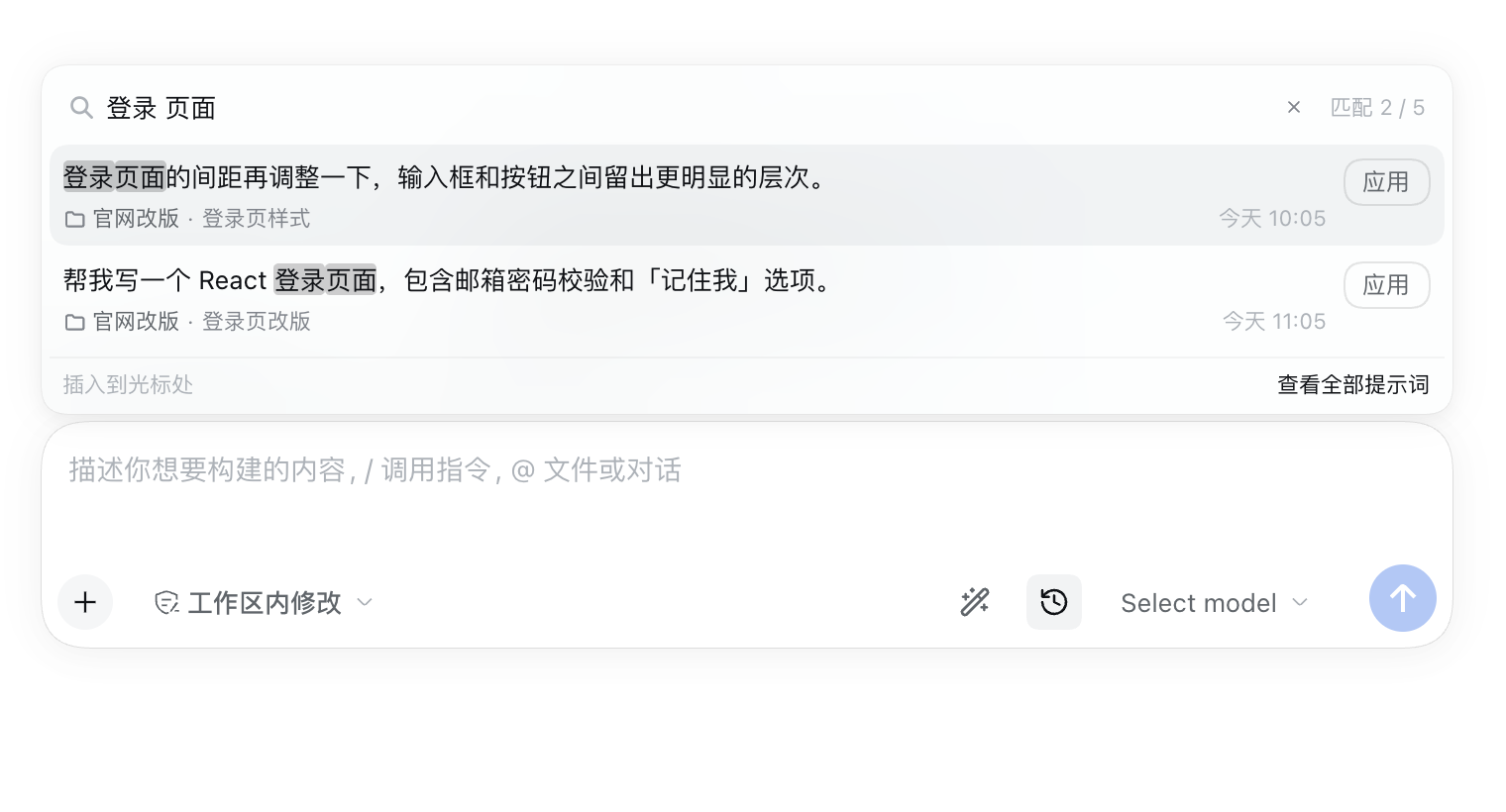
- Prompt palette. Click the clock icon in the composer to search every prompt you have written. Search prompt text, project names, and session titles; separate words with spaces to require all of them. Apply inserts a prompt at the caret.
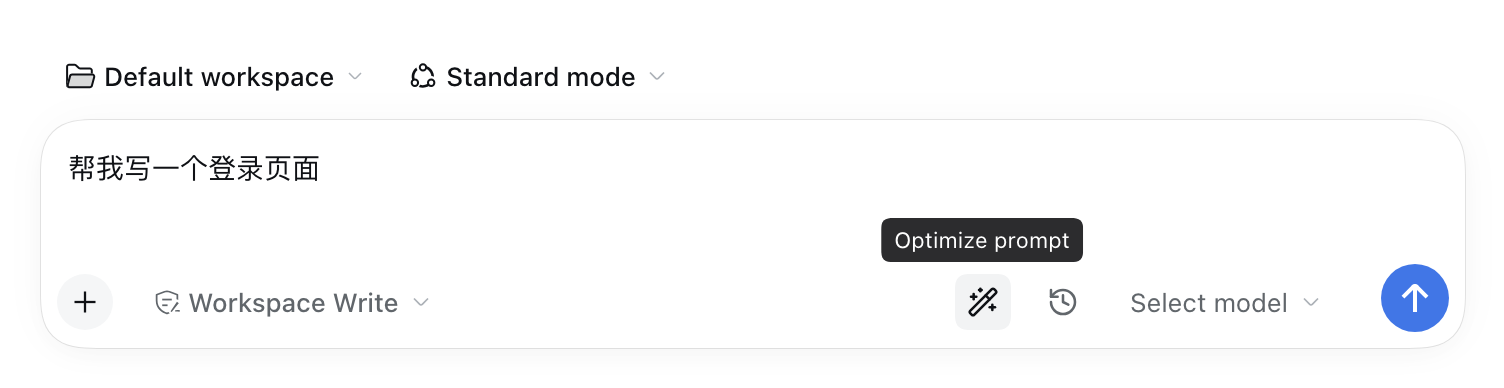
- Prompt optimizer. Click the magic-wand icon to rewrite the current draft with the model selected in the composer. Undo restores the original text.
- Prompt Manage page. Open it from the sidebar to browse every prompt with its project, session, and time. Copy any prompt with one click.
Screenshots
Installation
From npm
dsh plugin --profile desktop add dsh-prompt-manage
From a local checkout
In DeepSeek Harness, open Plugins → Add plugin and select the checkout directory.
Requirements
- DeepSeek Harness 0.2.2 or newer
- A Web or desktop profile
Usage
Reuse a prompt
- Open a conversation and click the clock icon next to the model selector.
- Search for a prompt, then click Apply or press Enter.
- Edit the inserted text before sending.
If you search with multiple words, every word must match. For example,
react 登录 finds prompts that mention both terms.
Optimize a draft
- Type or paste your draft in the composer.
- Click the magic-wand icon.
- Review the rewritten draft and press Undo if needed.
Browse prompt history
Open Prompt Manage from the sidebar to see all saved prompts, or choose View all prompts at the bottom of the composer palette. Each row shows the prompt's project, session, and time; use Copy to copy it.
Privacy
Prompt Manage reads local DSH session records only. Nothing is uploaded except the draft you choose to optimize, which is sent to the model selected in your composer in the same way as a normal message. The plugin never writes to your session history.
License
MIT. See LICENSE. Icon geometry adapted from Lucide is covered in THIRD_PARTY_NOTICES.md.
Related plugins
dsh-web (dsh-task-board)
zhu1090093659/dsh-web
dsh-web (dsh-web-all)
zhu1090093659/dsh-web
dsh-TUI
ccch1mneyyy/dsh-tui
dsh-web-ui (dsh-task-board)
zhu1090093659/dsh-web-ui