dsh-desk-card
nanshang328/dsh-desk-card
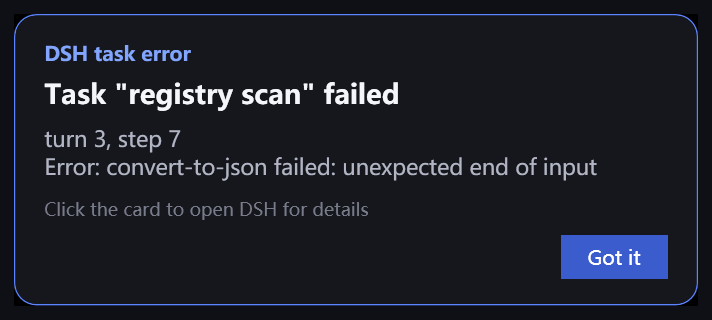
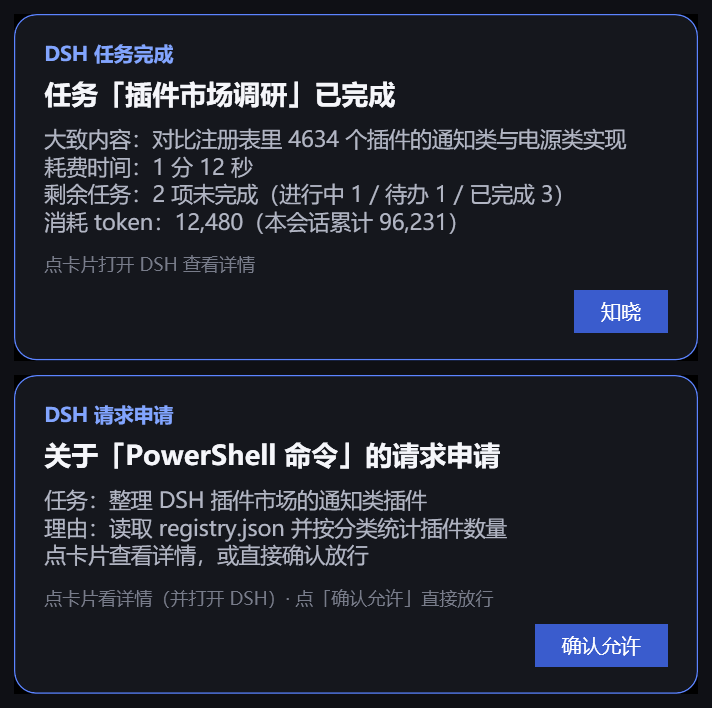
Windows-only plugin that shows permission requests, waiting questions, task errors and finished turns as native card windows, and can allow a permission request straight from the card.
Install
dsh plugin --profile web add github:nanshang328/dsh-desk-cardREADME
dsh-desk-card
Bottom-right native desktop cards for DSH (DeepSeek Harness) approvals, questions, turn completion and errors.
Each card is a small always-on-top window drawn by PowerShell/WPF — not a system toast — so it can carry a button that answers the request. An approval can be allowed straight from the card, and the moment a card would interrupt something else (a fullscreen app, a game, Do-Not-Disturb) it is skipped and the decision goes back to the normal DSH UI.
Windows only. No dependencies, no network, no build step.
Why not just a toast
| system toast | this card | |
|---|---|---|
| carries a button that returns an answer | depends on the shell / extra runtime | yes, the card's own button |
| can allow an approval in place | no (toasts only focus the app) | yes — 确认允许 / Allow |
| respects fullscreen games and Do-Not-Disturb | only if the OS suppresses it | explicit gate, checked before the window is drawn |
| UI language | whatever the OS shows | follows the DSH locale, or forced with language |
Screenshots


Requirements
- Windows 10/11 (cards are drawn with
powershell.exe+ WPF, which ship with Windows). - DSH desktop profile (the cards are injected by the host process, no browser side needed).
- Node.js 20+ (whatever DSH ships is fine).
Install
From this repository:
dsh plugin --profile desktop add github:nanshang328/dsh-desk-card
Or from a local clone / download:
dsh plugin --profile desktop add ./dsh-desk-card
Then restart DSH. The package declares dsh.bundle, so the CLI records it in
dsh.profile.bundles and mounts it as a normal profile layer — no hand-written paths.
Windows developer helper: powershell.exe -File tools/deploy-local.ps1 copies the working tree
into %USERPROFILE%\.dsh\profiles\desktop\plugins\dsh-desk-card and registers it the same way.
What shows up
| card | when | auto-close | buttons |
|---|---|---|---|
| Approval | a tool call needs permission | never (waits for you) | 确认允许 / Allow approves once · clicking the card opens DSH for the full dialog |
| Question | the agent asks you something | never, closes when the question is answered | 知道了 / Got it |
| Completion | a turn ends normally | doneTimeoutSeconds (default 5s) | 知晓 / OK |
| Error | a turn fails | never | 知道了 / Got it |
The completion card also carries a short summary of your last message, the elapsed time, the remaining todo count and the turn/session token usage.
Cards never overlap: a new card stacks above the ones already on screen. If the DSH window is closed while a card is open, the card closes itself too.
Configuration
Everything has a built-in default, so this section is optional. To change something, add a row
with the same id from your profile's own cordis.patch.yml (~/.dsh/profiles/desktop/cordis.patch.yml):
- insert:
    - id: dsh-desk-card
      name: dsh-desk-card
      config:
        doneTimeoutSeconds: 10
        scale: 1.0
        language: en
Only the keys you list are changed — a config object replaces the whole object, and every key
you leave out falls back to the defaults below.
| key | default | meaning |
|---|---|---|
timeoutSeconds | 0 | auto-close seconds for cards that wait for you (approval / question). 0 = stay until answered |
doneTimeoutSeconds | 5 | auto-close seconds for the completion card. 0 = keep it until clicked |
scale | 1.2 | card scale factor |
skipWhenFullscreen | true | skip cards while a fullscreen app is in the foreground, or while Windows says Do-Not-Disturb |
notifyQuestions | true | show the question card |
notifyErrors | true | show the error card |
notifyDone | true | show the completion card |
language | auto | auto (follow the DSH locale), zh or en |
hostProcess | DeepSeek Harness | the process whose window is brought to front when you click a card |
The three notify* switches only control the cards — approvals and questions always keep
working, the card just does not appear.
The fullscreen gate
A card is not drawn when either of these is true:
SHQueryUserNotificationStatereports a fullscreen app, presentation mode or Do-Not-Disturb; or- the foreground window covers its whole monitor and is not the desktop (this keeps games that hide the real state from being interrupted).
When a card is skipped the approval is handed back to the normal DSH UI (with prepend: true
this plugin speaks first, and a skipped card always delegates to the next answerer), so nothing
gets stuck. Two test tools reproduce the condition without a game:
powershell.exe -File test/gate-probe.ps1 -MaxSeconds 20          # watch the gate flip blocked -> free
powershell.exe -File test/fake-fullscreen.ps1 -HoldSeconds 8     # paint a fullscreen window for 8s
How it works
lib/index.js      host half: listens to approval/request, user-questions/request,
                  agent/error, agent/status; spawns one card per event and maps the
                  card's exit code back to an approval outcome.
scripts/card.ps1  render half: one PowerShell process per card. Runs the gate, draws the
                  WPF window, stacks it above sibling cards, runs timers, then exits with
                  a code that the host half reads.
Exit-code protocol between the two halves:
| code | meaning |
|---|---|
10 | the card's primary button was pressed |
12 | the card body was clicked — bring the DSH window to the front, let the UI decide |
0 | gate skipped the card (fullscreen / Do-Not-Disturb) |
3 | rendering failed |
Being one process per card keeps the render half stateless: a card can never wedge the host, and a card that is killed by the OS just delegates the decision.
Logs and troubleshooting
%TEMP%\dsh-desk-card.log records card placement, exit codes, config and gate decisions:
apply() started config={"skipWhenFullscreen":true,...}
showCard[approval]: exit 10
approval resolved: allowed-once
done card (41234ms, autoClose=5s)
Cards are spawned without a console window. If no card ever appears, check in order: a
fullscreen app is holding the gate (-SkipWhenFullscreen false for a manual test), PowerShell
is blocked by policy for the DSH process, and finally the log file.
Manual card render (bypasses the host half entirely):
$payload = [Convert]::ToBase64String([Text.Encoding]::UTF8.GetBytes('{"badge":"test","head":"hello","body":"line","okLabel":"OK","okCode":10}'))
powershell.exe -File scripts/card.ps1 -Payload $payload -TimeoutSeconds 5 -Scale 1.2 -SkipWhenFullscreen false -DebugLog "$env:TEMP\card-test.log"
Limitations
- Windows only. The render half is PowerShell + WPF; there is no macOS/Linux path.
- Cards are ordinary top-level windows, so they appear above other windows but not above a fullscreen exclusive game — which is why the gate exists.
- One PowerShell process per card (about 100 ms of warm-up). A card is not a notification center entry: once it is closed it is gone.
- This plugin deliberately does not restart or shut down DSH. If you want power controls, dsh-power-button and dsh-restart do that well.
Privacy
The host half never opens a socket and never reads a file. It spawns one local PowerShell
process per card and appends a line to %TEMP%\dsh-desk-card.log. Card payloads contain short
excerpts of your session (task title, tool name, approval reason, error message) and are passed
to that child process as a command-line argument.
License
MIT
Related plugins
dsh-web (dsh-ssh)
zhu1090093659/dsh-web
dsh-web (dsh-remote-web-ui)
zhu1090093659/dsh-web
dsh-web-ui (dsh-ssh)
zhu1090093659/dsh-web-ui
dsh-web-ui (dsh-remote-web-ui)
zhu1090093659/dsh-web-ui