dsh-worktree-space
kangtsang/dsh-worktree-space
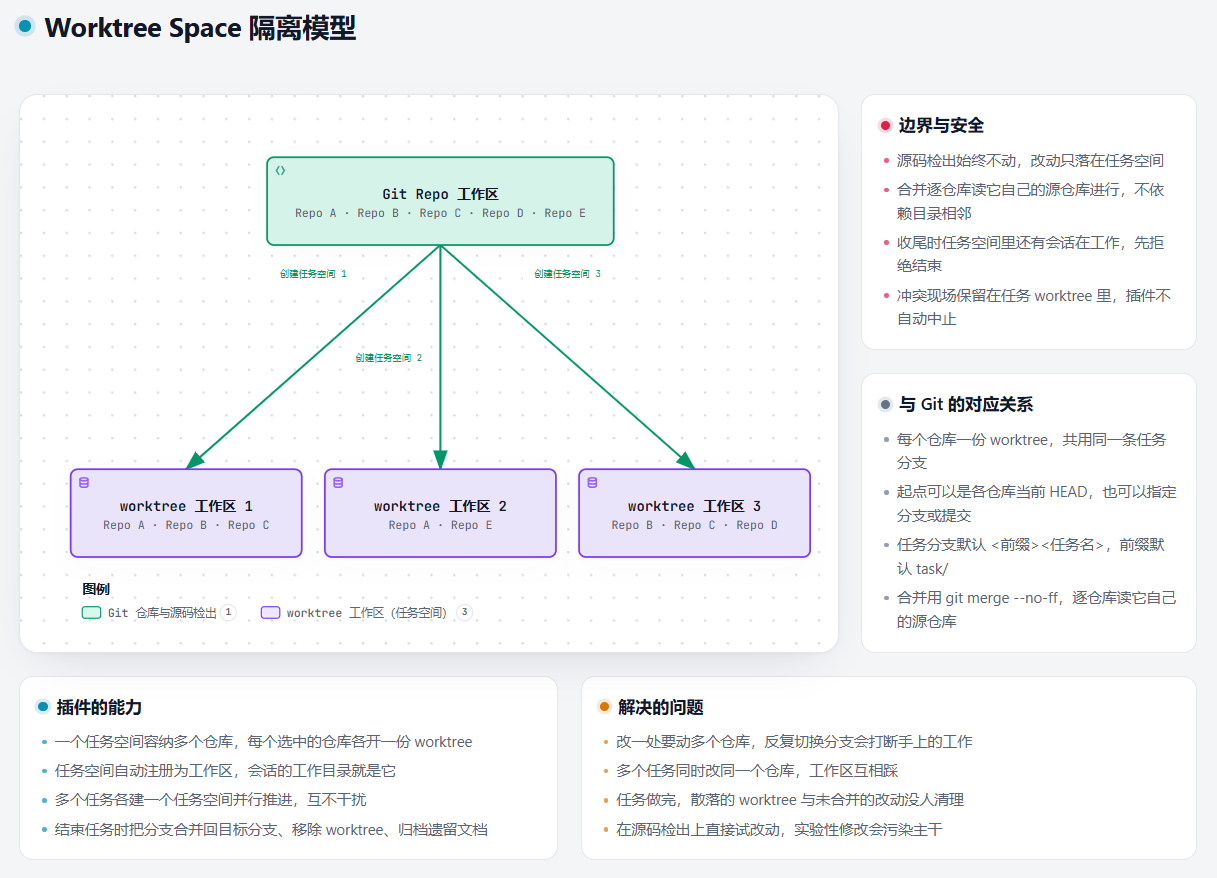
O Worktree Space reúne em um diretório próprio uma tarefa que abrange um ou mais repositórios Git. Cada repositório recebe seu próprio worktree em uma mesma branch de tarefa compartilhada; o espaço é registrado como DSH Workspace para permitir tarefas paralelas. Ao concluir, pode mesclar na branch de destino de cada repositório, remover os worktrees e arquivar na pasta escolhida os arquivos não rastreados pelo Git.
Instalar
dsh plugin --profile web add github:kangtsang/dsh-worktree-spaceREADME
Worktree Space
简体中文 · English · 更新日志 · 
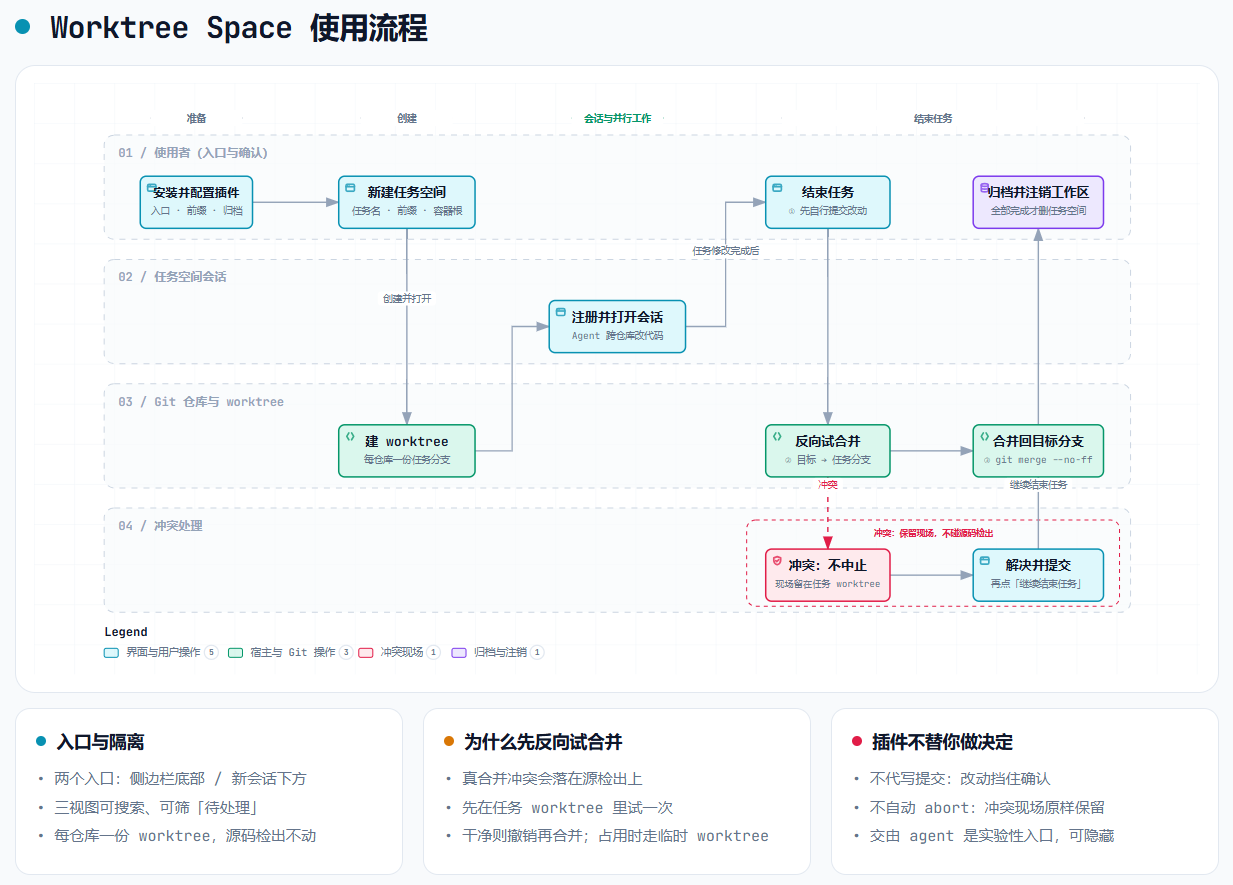
Worktree Space:一任务一空间,工作多路并行。把一个涉及一个或多个 Git 仓库的工作任务放进独立的任务空间目录——参与的每个仓库都在同一个任务分支上各开一个 worktree;任务空间自动注册为 DSH 工作区,会话直接在任务空间里开工;多个任务各建一个任务空间并行推进、互不干扰。建空间时可以定下这个任务要不要部署验收,勾了它,一条通过的冒烟记录就是收尾合并的闸门。任务结束时把任务分支合并回目标分支、移除 worktree,并把空间里遗留的文档归档到指定目录;也可以把未处理的提交和合并冲突交给一个 agent 会话处理。
两种使用方式:在UI界面上使用(使用),或者让 Agent 用工具自动编排(进阶用法)。完整步骤、异常流程与错误码都在 《Worktree Space 使用指南》。






📺 视频介绍:Worktree Space 插件介绍(B 站)

📑 目录
- 🚀 安装
- 🔧 环境要求
- ⚡ 快速开始
- ✨ 功能
- 📂 任务目录结构
- 🛠️ 使用 面板手动流程:➕ 创建 · 🗂️ 管理 · 🚢 部署验收 · 🏁 结束(组合行为)
- 🤖 进阶用法:让 Agent 全自动编排
- 🤖 把提交与冲突交给 agent
- ⚙️ 插件配置
- 🔐 权限与失败边界
- 📝 操作日志
- 📄 配套文档
🚀 安装
网页端,从命令行安装:
dsh plugin --profile web add dsh-worktree-space
卸载:dsh plugin --profile web remove dsh-worktree-space;更新时先卸载再重新安装。
桌面端在插件管理页里操作:侧边栏 → 插件,在「插件包名」填 dsh-worktree-space,点「安装」;
卸载时在插件列表里点开 Worktree Space,进「插件详情」页,右上方点「卸载」按钮。
🔧 环境要求
- Node.js
^22.19.0 || >=24.0.0(22 线自 22.19.0 起,24 线不设上界;不把 23 这类奇数线算进支持范围) - Git:所有 worktree 与分支操作都由它执行,不随插件分发,需在
PATH上 - DSH
>=0.2.0-rc.1 || >=0.2.1-rc.1 || >=0.2.2-rc.1(按三条已发布的版本线各取一个下界,写法与生态里其它插件一致;逐版本实测范围见本节末) - 客户端:网页端与桌面端均可用;桌面端由人工验证,命令行矩阵未覆盖
五个 DSH 版本逐个实测通过:0.2.2-rc.1、0.2.1-rc.5、0.2.1-rc.4、0.2.1-rc.3、0.2.1-rc.2,
每个版本都用该版本自己的 DSH CLI 在一次性 profile 里跑通了安装、启动、卸载、回滚。这套验证覆盖的是
命令行与网页端的路径;桌面端(Electron)只做了人工安装可用性确认,未纳入脚本矩阵。逐条记录见
docs/store-evidence.md。
兼容判定看清单里的 engines.dsh(本包声明 >=0.2.0-rc.1 || >=0.2.1-rc.1 || >=0.2.2-rc.1):只要声明了它,DSH 就按它单独判定,
peerDependencies 不再参与 —— 运行时版本不满足会在安装前或启动时被拒绝,并给出 dsh plugin allow-version
的精确豁免命令。peerDependencies 表达的是另一件事:声明的 13 个宿主包(含 dsh.client.inject 里那 10 个
客户端模块)由 DSH profile 提供,插件运行期使用宿主那一份;它们已用 peerDependenciesMeta 全部标成
optional,自动安装 peer 的安装器不再把副本写进 profile。
实测范围之外的版本一律按未知处理,不拿宽泛范围冒充证据;遇到版本相关的问题请到
Issues 反馈。
⚡ 快速开始
一次完整任务的最短路径:在仓库工作区里与 Agent 确认需求,由它在任务空间内完成修改, 你验收后合并回各仓库当前检出的分支。全程无需手动执行 git 命令。
第一步:在仓库工作区与 Agent 理清需求
先在本仓库的工作区会话中说明任务范围:涉及哪些仓库、要达到什么效果、以什么标准判定完成。 这一步必须早于任何 git 操作——需求未定时创建任务空间,中途变更方向意味着已建的 worktree 与已产生的提交都要重来。
需求明确后,Agent 会逐项确认任务空间的位置、参与的仓库、起点分支以及是否启用部署验收。 其中是否部署验收在创建任务空间时即固定,事后无法追加或更改,须在此步一并确定。
第二步:发送提示词,创建任务空间并派单
需求确定后,向该会话发送:
创建一个任务空间并派单,将已确定好的需求通过 worktree 方式检出并执行修改实现; 修改完成后通知我验收,验收通过后再合并。
Agent 据此创建任务空间——每个参与仓库一份 worktree,共用一条任务分支——并开启一个任务会话, 把需求作为任务书交付。任务会话在独立目录中修改代码,不影响各仓库当前的检出。
第三步:验收后提交合并
任务会话完成修改后通知你。先验收:在所给 worktree 中确认实现是否符合需求、测试是否通过。
验收通过后,回到派单的会话发送:
现在验收通过,请合并到各仓库当前检出分支,并删除任务空间。
Agent 执行合并、移除 worktree、归档遗留内容,并按需删除分支。若某个仓库停在冲突或未提交的改动上, 它不会强制继续,而是指出受阻的仓库,待对应会话处理后再合并。
✨ 功能
- 从会话里建任务空间。 勾选要参与的仓库(默认全选)、给任务起名、定分支前缀、指定任务空间放哪。
每个参与的仓库都会得到一份位于
<分支前缀><任务名>的 worktree(前缀默认task/)。起点默认是各仓库 当前的 HEAD;面板另有一个下拉,列出所有已勾选仓库共有的分支,没有单独指定起点的仓库都从这里开始, 而每张卡片也可以只给那一个仓库另选起点。走工具调用时,baseRef/baseRefs接受任意 ref(含提交)。 - 唯一一项交付选择:这个任务要不要部署验收。 任务信息最后就是一个勾选框 —— 部署到 Docker,
勾上后会多出一个 部署脚本 输入框(留空则用
工作区/.worktree-space/deploy/deploy.sh)。 它之所以在建的时候就问,是因为交付策略只在创建时落一次,事后没有入口能加、能改:没勾等于定了 「这个任务不做验收」,之后也不会有任何东西再提起这件事。反过来,勾了却找不到可用的入口脚本时 创建会被直接拒绝,而不是留一个永远部署不起来的任务空间。 其余收尾时的决定 —— 合到哪条分支、要不要删分支、冲突怎么办、遗留文档怎么处理 —— 都不在这里预定, 留给结束任务那一刻当场决定。 - 部署验收(勾了才有)。任务空间自带一个部署根:源码根的
.worktree-space/deploy/会被复制进来, 入口脚本提供up(起环境、写验收地址)与smoke(跑冒烟、把结果写进.state.json)。 每个任务的环境身份互不相同,任务之间不会互相顶掉。合并之前有一道闸门:<部署根>/.state.json里没有一条result: "pass"的lastSmoke,合并就被拒;面板会问「冒烟还没过,仍要结束吗?」, 这份豁免只有人能给。 - 注册成工作区,名字是
<上级>/<任务名>,同时开一个会话,工作目录就是这个任务空间 —— 在任务空间里 改代码,不会动到源码检出。 - 管理页面,分三个视图(入口见「管理 Worktree Space」一节):
- 工作区视图:哪些工作区可以建任务空间,以及每个工作区里有几个仓库。每个源码仓库带一行
远端分支:<分支>+ 领先/落后提交数(↑/↓)+ 这些提交的增删行数,工作区头部是它下面 所有仓库的合计(已提交与未提交合计在一对行数里); - Git 仓库视图:扫到的每个 Git 仓库,以及它链接的 worktree;
- 任务空间视图:把每个任务下面的仓库列在一起(分支、改动数、是否被锁定、是否可清理), 任务行下面就是它的部署卡片。任务行显示任务分支与整个任务的合计(已提交与未提交合计在一对 行数里),展开后每个仓库显示自己的基线分支与那一份数字。
- 任务空间自己注册成工作区时也能被发现:任务的 worktree 由源仓库报出,所以源仓库不在任何工作区里 时,任务本来查不到。此时插件读任务记录里记下的源仓库,用它们把任务找出来 —— 只列出属于这个任务空间的 worktree,同一源仓库下没在工作区里的其它任务不会跟着露出来;而源仓库本身被注册成工作区时,它下面 所有 worktree(含其它任务)照常全部列出。
- 工作区视图:哪些工作区可以建任务空间,以及每个工作区里有几个仓库。每个源码仓库带一行
- 给任务补仓库:任务进行到一半才发现少一个仓库时,在任务行上点「添加仓库」—— 候选就是 Git 仓库视图里 那一列,任务已经有的不会重复列出;也可以直接填一个仓库目录,它会注册成工作区,因此同样进入 Git 仓库视图。 新仓库在任务现有分支上开 worktree,起点默认各仓库当前的 HEAD,也可指定分支或提交。新仓库可以位于不同目录 甚至不同磁盘;只有在把提交交给 agent 时才可能需要批准提权(见使用指南)。本版本不支持从任务里移除仓库。
- 结束任务:在任务行上点「结束任务」,默认把各仓库的分支合并回它的目标分支、删掉 worktree、把任务 空间里的文档归档到选定的目录,最后注销这个工作区;任务空间里还有会话在干活时先拒绝。合并往哪儿做、 冲突怎么办,见「结束 Worktree Space」。
- 新建任务空间与结束任务空间也在工作区列表自己的
⋯菜单里 —— 前者只对包含代码仓库的工作区显示, 后者只对确属任务空间的目录显示,点开的就是同一个对话框。 - 界面跟随 DSH 的语言设置,管理页、对话框、配置项与错误提示均有中英文。 勾了「部署到 Docker」的任务另有一层前提:这台机器上要有可用的容器引擎,见部署验收。
📂 任务目录结构
术语:Worktree Space 容器(下称容器)=插件存放任务空间的专用目录,也就是容器根目录
worktree-space/。下文每段第一次提到容器时写全称,同段之后用简称。容器根是容器根目录的简称,指同一个目录:既指那个目录本身(区域),也指设置项里要填的路径(路径)。
~/workspace/                           根工作空间:项目都挂在这一层,也存放 Worktree Space 容器根目录
├── repo-x/                            项目 x 的主工作区(本身就是仓库)
│   └── .worktree-space/               插件在这个源码根自己的目录:用到哪样才出现哪样
│       ├── deploy/                    工作区自己写的部署脚本,创建任务空间时整份复制进去
│       ├── tasks/repo-x/task-x.json   任务索引:从源码检出就能查到任务在哪、哪些会话做过
│       ├── tasks-archive/repo-x/      收尾后归档的索引,每个项目留最近 10 份
│       └── .gitignore                 仅当这个源码根本身是仓库时写入:忽略 tasks/ 与 tasks-archive/,不含 deploy/
├── project1/                          项目 1 的主工作区(下面若干仓库)
│   ├── repo-a/
│   └── repo-b/
├── deep-path/project2/                项目 2 的主工作区,目录位置埋得更深
│   ├── repo-c/
│   └── repo-d/
└── worktree-space/                    容器根目录:插件专用区
    ├── repo-x/                        项目层,名字就是源工作区目录名
    │   └── task-x/                    任务空间 —— 同时是会话的工作目录
    │       ├── .worktree-space/       插件专属目录:插件自己的东西全在这里
    │       │   ├── worktree-space.json  任务的记录:分支、起点、项目、仓库、部署策略与创建时间
    │       │   ├── worktree-space.md    由上面的记录渲染出来,给人读的分支、起点与约定
    │       │   └── deploy/              部署根:源码根 .worktree-space/deploy/ 的副本,.state.json 在这里
    │       └── repo-x/                位于 <分支前缀>task-x 的 worktree
    ├── project1/
    │   ├── hotfix/
    │   │   ├── repo-a/                都以 <分支前缀>hotfix 开 worktree
    │   │   └── repo-b/
    │   └── task-a/
    │       ├── repo-a/
    │       └── repo-b/
    ├── project2/                      目录位置埋得深不影响它落在同一个容器里
    │   └── task-b/
    │       ├── repo-c/
    │       └── repo-d/
    ├── archived-docs/                 归档根(默认):非 Git 产物收在这里
    │   └── project1/                  按项目归档
    │       └── hotfix-20260926-020933/   「任务名-YYYYMMDD-HHMMSS」,每个任务一层
    ├── README.md                      第一次使用时由插件写入:这里是 Worktree 专用区
    └── worktree-space-log.jsonl   操作日志:插件发的每条 git 命令、每个错误与警告

~/my-archive/                          归档根:可以在插件设置改成指定的目录
└── project2/                          结构一样:项目一层,任务名加时间戳一层
    └── task-b-20260926-020933/
Worktree Space 容器根推荐落在根工作空间的下一层(~/workspace/worktree-space),放在哪儿只看路径上盘根下面的
第一个目录:所以 ~/workspace/project1 和 ~/workspace/deep-path/project2 推荐的是同一个
容器,项目各自埋多深都不影响。创建时仍可指定其它路径,但容器根与源码根必须互不包裹。
项目名就是源工作区目录名,插件自动分层,无需填写:同一个 Worktree Space 容器里跑多个项目时,各项目下同名的任务
(都叫 hotfix)因此各占一层,不会挤在一起。源工作区本身就是仓库时(工作区目录 = ~/workspace/repo-x),
项目层与仓库层同名,得到 repo-x/task-x/repo-x —— 这处重复是有意接受的:布局深度恒定为三层,插件与
客户端都不需要额外信息就知道哪一层是哪一层。
Worktree Space 容器根是插件的专用区:第一次在这底下建任务空间时,插件会写一份 README.md 说明这里是 Worktree 专用区、
不要直接 git init 或 clone(已经有了就不覆盖)。反过来说,容器根本身要已经是 Git 仓库(下面有 .git),
创建会被拒绝,且一个目录都不会建出来。
源码根下也会有一个 .worktree-space/,和任务空间里那个同名但用途不同:deploy/ 是工作区自己写的部署脚本(创建任务空间时整份复制进去);tasks/ 是任务索引,让从源码检出工作的会话不必知道容器根在哪儿也能查到任务落在哪;tasks-archive/ 收尾后归档的索引,每个项目留最近 10 份。这个目录用到才出现:没写部署脚本、也没有从源码检出查过任务的源码根,下面不会有它。源码根本身是仓库时,插件还会写一份 .gitignore,只忽略 tasks/ 与 tasks-archive/ 两项——deploy/ 是否纳管由工作区自己决定,插件不动。要让整个 .worktree-space/ 都不进版本库,在仓库根自己的 .gitignore 里加一行 .worktree-space/;插件已经写过的那份不会被覆盖。
归档根底下再分两层:<项目>/<任务名>-<YYYYMMDD-HHMMSS>/。归档结构因此与 Worktree Space 容器结构同形,一个项目的归档收在自己
那一层里;默认档就在容器根下,整块只多出 archived-docs 这一个目录和操作日志那个文件(见操作日志)。删掉 worktree 不会删除对应的 Git
分支;结束任务会先把分支合并回去,再删 worktree。
🛠️ 使用
本节是面板手动流程的简述:从创建、干活、部署验收到结束任务,全程在界面上点完,
不需要「队长 / 队员」或工具调用那一套。每一步的完整说明、会遇到的异常与被拒之后怎么办,
见 《Worktree Space 使用指南》。各项设置见插件配置。
另一条路 —— 让一个 Agent 用 wts_worktree_space 把整条链自动跑完 —— 见
进阶用法:让 Agent 全自动编排。
➕ 创建 Worktree Space
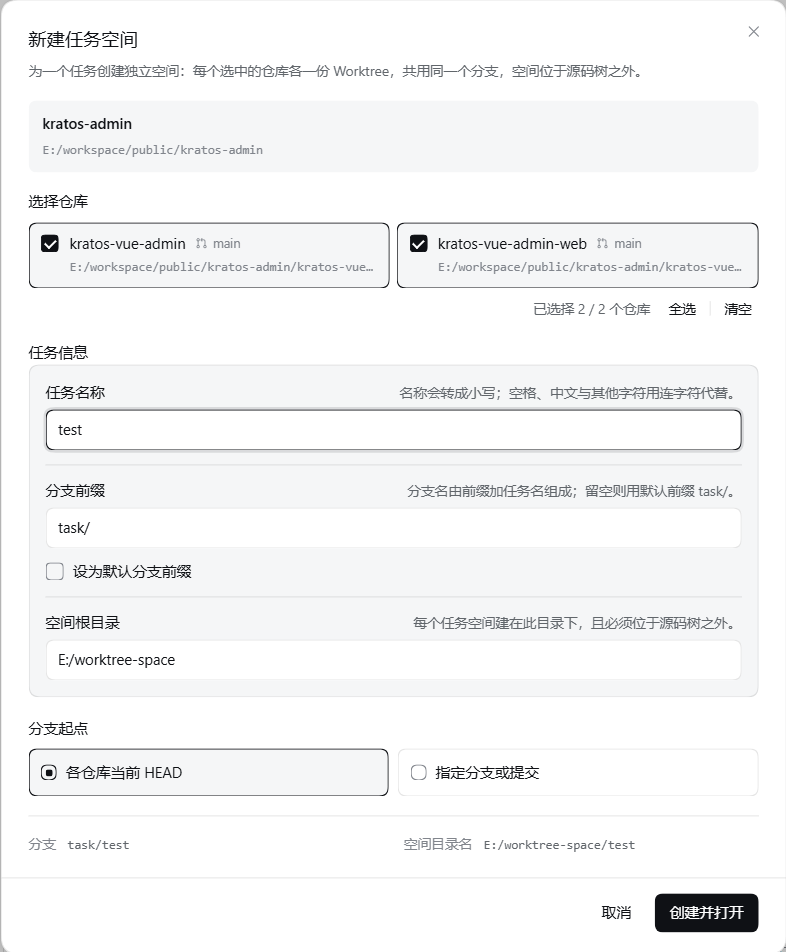
术语:源码根=交给插件的工作区目录:它自己是一个 Git 仓库,或者它作为顶层目录装着若干 Git 仓库。
四个入口都能到这里:会话输入框旁的插件图标、管理页面里工作区或仓库行的 新建 Worktree Space、
工作区列表里的 ⋯ 菜单。对话框从上到下:
- 选择仓库:勾选任务要参与的仓库,卡片上标着各仓库当前 HEAD 所在的分支与路径,底部有 全选 / 清空 和「已选择 N / M 个仓库」。至少要选一个。卡片右侧的 指定分支 只给这个仓库的 新 worktree 定起点,不是 checkout —— 源仓库当前检出的分支不会变;改过之后该仓库不再跟随下面的 默认起点,面板里的「跟随默认分支起点」可以退回。
- 默认分支起点(仓库列表下方,未选时显示「各自当前 HEAD」):没有单独设置起点的仓库都从这里开始。
列表只列出所有已勾选仓库共有的分支 —— 一次创建给每个 worktree 同一个起点,某个仓库没有该分支
就会整次失败。取消勾选某个仓库后,所选分支若不再共有,会作废、不带进创建。字段名旁的
?写着 完整的优先级与例外。 - 任务名称:会转成小写,除字母、数字、点、连字符和下划线以外的字符(空格、中文等)都换成连字符; 它同时是任务空间的目录名和分支后缀。不合法时直接说出违反了哪一条。
- 分支前缀:分支名就是前缀加任务名(默认
task/)。改成与当前默认不同的值时,下面出现 设为默认分支前缀 —— 勾选后,点「创建并打开会话」时把这次的值写回插件设置。 - Worktree Space 容器根目录:界面已填好推荐值(根工作空间的下一层
worktree-space),通常无需修改; 改动时同样出现 设为默认…,勾选后把这次的路径写回设置。容器根自身是 Git 仓库会被拒绝。 - 部署到 Docker(默认不勾):勾上后多出 部署脚本 输入框,留空则用
工作区/.worktree-space/deploy/deploy.sh。这一格定的是「合并要不要冒烟这道闸门」, 只在创建时这一回落一次,之后没有入口能补。 - 预览:跟着上面的输入实时算出这次的分支名与空间目录名。
- 点 创建并打开会话:建完直接在该任务空间开一个会话。
如果任务空间已经建好、但工作区注册失败,对话框说明原因,并提供重新注册的入口;注册之后它就是一个正常的 任务空间,可以按「结束任务」正常收掉。注册之外的步骤失败时,建出来的那部分会被回滚掉 —— 目录、 worktree 与分支一起,不会留半个任务在那儿。
🗂️ 管理 Worktree Space
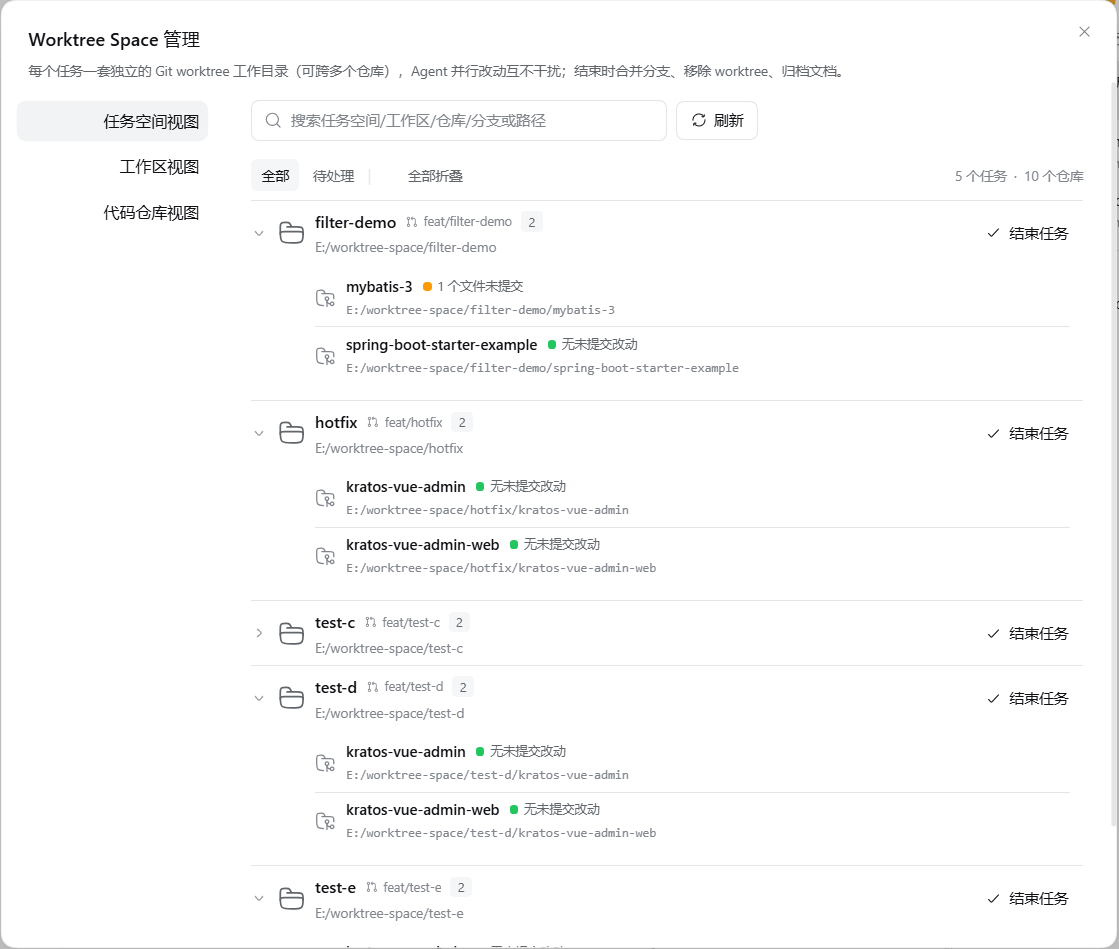
打开 管理页面,两种形态:
- 侧边栏底部的 Worktree Space(默认显示)—— 以对话框打开;
- 侧边栏「新会话」下方的 Worktree Space 行(默认隐藏,在配置里打开)—— 在主区域整页打开, 导航第一项是 返回会话。
两种形态共用同一条左侧导航,下面三项在工作区 / Git 仓库 / 任务空间三个视图间切换;导航底部是
⚙ 插件设置,跳到宿主的插件页改本插件的配置。右侧的统计跟着视图变(N 个任务 / N 个工作区 /
N 个仓库 · M 个 Worktree)。
面板每次打开都会重新扫描,但会先用宿主缓存的上一次扫描结果绘制界面,打开即可显示数据。这份记忆只放在 DSH 实例的内存里,实例关闭时随之清空。
🚢 部署验收
勾了「部署到 Docker」的任务,任务空间里会多一张部署卡片(管理页面的任务行下面),提供两件事:
up—— 跑入口脚本把环境起来,并把验收地址写进<部署根>/.state.json;smoke—— 跑冒烟,由脚本自己把lastSmoke: { result, at }合进同一个状态文件。
环境身份由容器根、项目、任务名与本地端口一起算出,每个任务一份,互不干扰;动态端口每次部署都可能变, 所以状态(地址、最后一次冒烟)都是每次读了实时拿的,而不是某次读到的缓存。结束任务时若有这套环境, 会把它拆掉 —— 随它一起消失的是那个 URL(动态端口已经没了),而冒烟的通过与否会留在记录里。
合并之前还有一道闸门:<部署根>/.state.json 里没有一条 result: "pass" 的 lastSmoke,合并就被拒,
对话框直接说出缺的是部署还是冒烟。这份豁免只有面板上的你能给 —— 你可以在对话框里确认「冒烟没过仍要结束」,
任务记录里会留下一条 delivery-gate-bypassed 警告;走工具调用那条路时,越过闸门的唯一办法是把环境起来、
把冒烟跑过。
部署根的复制规则、状态文件契约、环境身份怎么算,见 使用指南第 6 节。
🏁 结束 Worktree Space
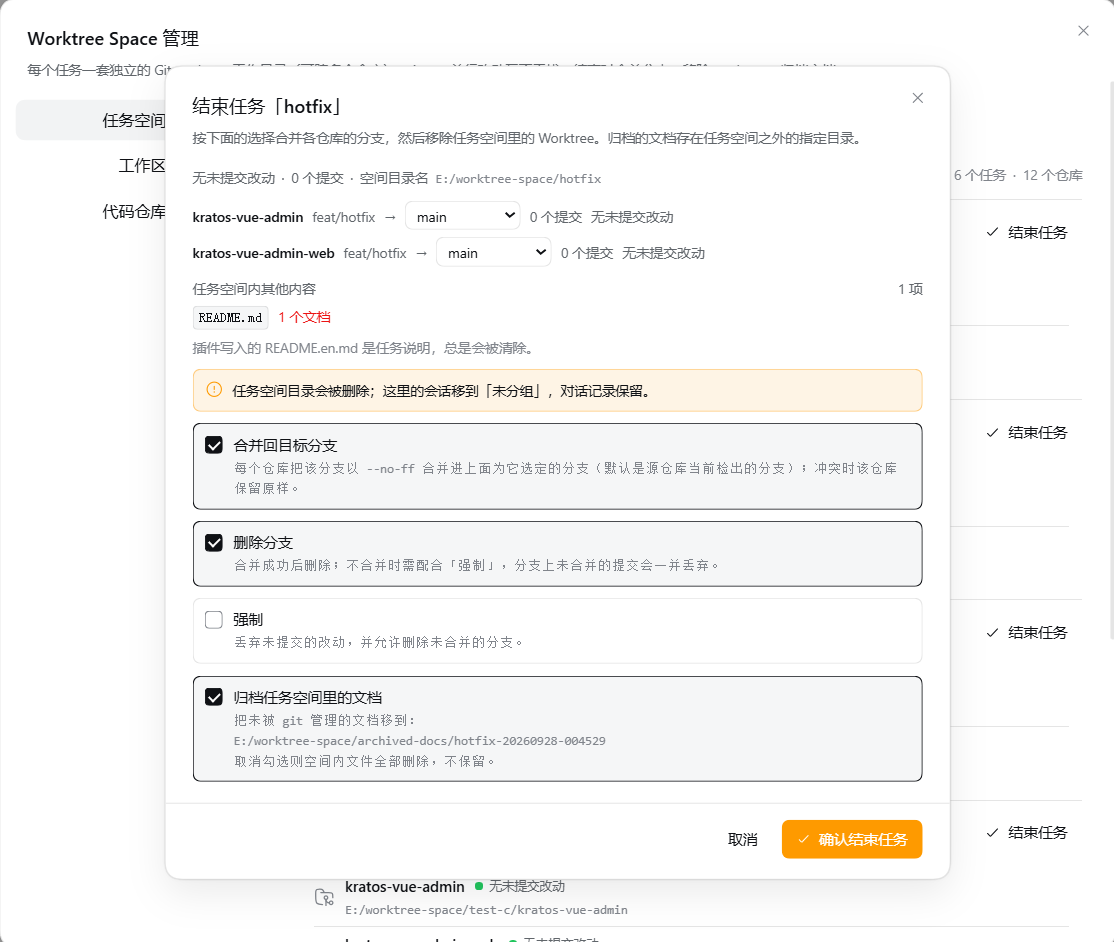
在任务行上点 结束任务,或在工作区列表的 ⋯ 菜单里点 结束任务空间。对话框打开时先把计划读一遍
(不信任打开它的那一行),分两行列出:空间目录(一行,空间目录名 + 路径),然后是汇总与逐仓库的
变更数据。逐个仓库列出:当前分支、要合并到哪条分支(可以换)、领先/落后该目标分支几个提交
(↑ / ↓)、已提交变更与未提交变更各自的增删行数,以及确实存在遗留内容时才出现的
归档任务空间里的文档 选项。换目标分支后这些数字立刻按新目标重算。
四个勾选框:合并回目标分支(默认选中)、删除分支、强制、归档任务空间里的文档(默认选中); 「删除分支」在不合并也没勾强制时不可用。
「确认结束任务」按不下去,只有三种原因,对话框会当场点名:任务空间里还有会话在干活、还有仓库带着未提交的 改动(而「强制」没勾)、或者部署验收还差一次通过的冒烟。
结束任务是一条标准流程,分三步:
1. 提交。未提交的改动必须由你提交,插件不代为提交。 只要还有仓库带着未提交改动、而「强制」没勾,
按钮就一直不可用 —— 这些改动不是插件这一侧能写的,worktree 也不会带着它们被移除。在各自的 worktree 里
git add 与 git commit(提交信息由你写),关掉再打开对话框(它会重读),那些仓库就不再拦着了。
也可勾选 强制:放弃这些改动,它们随 worktree 一并丢弃。需要代为处理时用 交由 agent 提交
(见下一节)。正处在未完成合并中的仓库不走这一步,那份交给第 3 步。
2. 合并。先反着试一次,再正着合。 真正的合并是把任务分支合并进目标分支(默认是该仓库源检出 所在的分支),落点在源仓库。但在动目标分支之前,插件先在任务空间自己的 worktree 里反着试一次 (把目标分支合进任务分支):
- 干净 —— 撤销这次试合并,再按常规把任务分支
--no-ff合并进目标分支,历史顺序不变; - 冲突 —— 不中止、不还原,这次试合并停在任务分支的 worktree 里,带着冲突标记, 目标分支未被触碰,源检出也不变。
反过来试的理由就在上面:真合并一旦冲突,现场就落在源码检出上、要逐处取舍;先反着试,冲突就落在插件自己的 worktree 里,可以就地处理。
3. 冲突。停下,等你在现场解决。 只要有仓库停在冲突上,这次结束就是部分完成:其余仓库照常合并并移除,
停在冲突上的仓库原地保留,报告里给出 mergeInProgress、mergeSite(现场目录)与 conflictedFiles。
现场就是任务分支自己的 worktree:在那里解决冲突、git add,再用一条说明取舍的 git commit 完成合并提交,
然后点 继续结束任务。需要由 agent 处理时用 交由 agent 解决冲突。没提交干净、或者文件里还留着
冲突标记的,插件不替它提交,原样保留并说明。
各选项组合的行为
| 合并回目标分支 | 删除分支 | 强制 | 会发生什么 |
|---|---|---|---|
| ✓ | 「确认结束任务」先不可用:把每个 worktree 里的未提交改动提交到各自的任务分支,再把任务分支以 --no-ff 合并进它那一行选定的目标分支;移除 worktree;分支保留。停在冲突上的仓库原地保留、其余照常结束 | ||
| ✓ | ✓ | 同上,并在合并成功后删除分支(git branch -d,所以未合并的分支删不掉) | |
| ✓ | ✓ | 合并照做,跳过提交那一步:worktree 里未提交的改动随 worktree 一起丢弃;分支保留 | |
| ✓ | ✓ | ✓ | 合并、强制删除分支(git branch -D);分支已合并,所以并不额外丢东西 |
| 什么都不合并:改动仍要自己提交(提交留在保留下来的分支上),再移除 worktree 和任务空间,分支保留(随时可以自己合) | |||
| ✓ | 同上但不提交:未提交的改动随 worktree 一起丢弃;分支保留 | ||
| ✓ | ✓ | 放弃:不合并、不提交,强删分支,分支上未合并的提交连同 worktree 里未提交的改动一并丢弃 |
(不合并又没勾强制的组合下,「删除分支」不可用,所以表里没有那一行。)勾了 强制 的组合都会跳过提交那一步。
无论哪种组合,有三条不变:
- 插件自己的元数据总是被清除。
.worktree-space/下的任务记录(JSON 与由它渲染出的 Markdown) 和里面的部署根副本,每次结束都清掉。 - 遗留内容按「归档任务空间里的文档」的选择处理。 只有确实存在非构建产物时才出现这个勾选框:勾着就复制进
归档目录
<归档根>/<项目>/<任务名>-<时间戳>/;取消勾选就是删除,取消时对话框会当场点名会被删的东西。 构建产物与编辑器状态总是清掉 —— 它们放在工作目录里是常态,不是要留下来的东西。 - 没做完的仓库原样保留。 改动没人提交、或者合并停在冲突上的仓库会原样保留并记为未完成(其余仓库照常结束), 任务空间目录和它的工作区注册也因此都留下;只有所有仓库都真的移除了,任务空间目录与工作区注册才一起删除, 其中的会话落到「未分组」但对话记录保留。
「结束任务」按钮的颜色跟着这件事走:橙色是常规收尾(合并可以回退,没有东西被丢);只有对话框能 明确列出「哪些内容将被丢弃」时才是红色——也就是选择放弃任务空间(不合并、强制删分支),而 worktree 里还有未提交的文件、或者分支上还有未合并的提交。
这份组合表只是速查。每个勾选框的确切含义、被拒之后的处理,见 使用指南第 7 节。
🤖 进阶用法:让 Agent 全自动编排
面板手动操作之外,还有一条同样受支持的路:给一个 Agent 装上 wts_worktree_space 与
wts_session_tool 两个工具,它可以自己把整条链跑完 —— 建空间、派单、盯进度、插话纠偏、部署验收、收尾合并,
全程不需要人在面板上按任何按钮。
这两个工具不常驻在每个会话里:两者加起来约 3.6k token,而多数会话跟任务空间无关。所以普通会话只会
看到一个 load_worktree_space,需要时调一次就把两个工具装进来;任务空间里的会话(被派单干活的那一个)
两个工具一开始就在手上,不用多调一次。
工具本身自带足够说明,不读 skill 也能用来做单件事:需要的是快、准,不必先去读一份长文档。
这条路上的两个角色:队长是编排的那一个(也是你在对话里的那一个),队员是它在任务空间里开出来干活 的那一个会话。定义见使用指南第 11 节。
| 阶段 | 队长怎么走 |
|---|---|
| 先看一眼布局 | suggest-root:某个源码根下有哪些仓库、推荐容器根在哪 |
| 建空间 + 派第一件活 | create:建目录与 worktree、注册工作区、开一个队员会话并把任务书交给它 |
| 派第二件及以后的活 | dispatch:同一个会话还有活要接,就带 sessionId 交给它(别同时开两个会话改同一批文件,会互相打断);省略 sessionId 则新开一个 |
| 中途补仓库 | add:给已经存在的任务加一个 worktree |
| 盯进度 | wts_session_tool status 的 lastActivity 判「卡住」还是「在跑长步骤」,不轮询 |
| 中途改需求 | wts_session_tool send 以 mode: "steer" 注入,长回合里也送得到。这说明是纠话,不是派新活——派新活要用上面的 dispatch,否则它静默停手时收不到漏报提醒 |
| 异常回接 | 队员会话异常中断时会自动收到通知,按通知里的会话 id 把它拉回工作 |
| 收尾合并 | done 带 merge 一次完成合并、移除 worktree、归档遗留内容;停在冲突或未提交上时,把队员会话指回来处理后再调一次 |
| 部署验收 | 勾了部署的任务,用任务空间自己的入口 up / smoke 过冒烟闸门 |
盯住一个会话靠的是 wts_session_tool 的八个 action:find / status / read / send / create /
resume / cancel / model。参数与「何时用哪个」见使用指南附录。
两条路执行的是同一套流程,差别只在由谁驱动。完整的步骤、以及哪些事仍然只有人能做 (放弃任务、丢弃遗留内容、豁免冒烟闸门),见使用指南的 第二部分 · Agent 自动编排。
使用提示词示例
在对话中使用无需记 action 名和参数,只需要触发关键术语把需求讲清楚即可,Agent 自己会处理工具调用参数。 以下四个是最常用的场景,可直接参照改写。
仅创建任务空间,不派发任务。 「在
E:\workspace\my-project下创建任务空间login-revamp,涉及 auth 与 web 两个仓库。」结果为一条任务分支与两个 worktree,不创建会话。适用于先确认目录结构与 worktree 布局, 稍后再决定由哪个会话承接工作。
创建任务空间并派单,一次完成。 「创建任务空间
login-revamp,涉及 auth 与 web 两个仓库,并在其中开启会话执行:将登录页切换到 新设计稿,并保证现有测试通过。」最常用的方式:创建目录与 worktree、注册工作区、开启任务会话、交付任务书,一次完成。 任务书必须自包含——任务会话不共享当前对话的上下文。
含部署与冒烟验收。 「创建任务空间执行本次改动,只检出本次改动涉及的仓库:
gateway、product、web、e2e。 完成后部署到 Docker,冒烟验收通过后合并回当前分支。」仓库有两种写法,取舍不同:点名列出(如上)结果确定,适合已经清楚改动范围时; **只说「只检出本次改动涉及的仓库」**则由 Agent 依据改动范围自行判断,省事但需要复核它的选择。 任务空间为列出的每个仓库各建一个 worktree,未列出的仓库不会被检出——这是它区别于「检出全部」的地方。
部署在创建任务空间时确定,事后无法追加,因此必须在提示词中一并说明。冒烟由任务空间自己的入口脚本 执行(默认
.worktree-space/deploy/deploy.sh,实现up/smoke/destroy三个子命令), 结果写入状态文件,未通过则拒绝合并;所以冒烟需要的依赖写在deploy.sh里,或随列出的仓库一并检出。
仅执行合并收尾。 「任务已完成,合并回
main并删除任务分支。」对应
done:合并、移除 worktree、归档遗留内容,并按需删除分支。遇到冲突或未提交改动时不会强制继续, 而是指出受阻的仓库;由对应会话处理完毕后再次调用done即可。
两点需要留意:
- 同一任务不要连续派发两次:两个会话修改同一批文件会互相打断。补充要求用
send的steer; 派发第二项任务前,先确认前一项已经收尾。 - 仍需由使用者决定的操作:放弃任务空间、丢弃遗留内容、豁免冒烟闸门。Agent 会停下来询问,不会代为决定。
🤖 把提交与冲突交给 agent
结束任务对话框可以开一个 DSH agent 会话代为完成两件事:交由 agent 提交(有未提交改动的仓库)、 交由 agent 解决冲突(停在合并冲突上的仓库)。两种都不 push、不动其它仓库或任务空间、不把分支 合并回目标分支——那一步是插件的。两个入口默认显示,可在配置里隐藏。
- 交由 agent 提交:开一个会话,把每个 worktree 的改动
git add并提交,提交信息说明改动内容与原因 (语言和风格随该仓库已有的提交)。 - 交由 agent 解决冲突:开一个会话,读两边的变更、弄清各自想做什么,写出同时保留双方意图的版本,
git add之后用一条说明取舍方式的提交信息git commit,完成本次合并提交。
这些仓库共用一个会话(冲突阶段会复用提交阶段那一个 —— 它已经把这个 worktree 的改动读过一遍了)。
会话的工作目录取它们边界的共同祖先,够不到源仓库的 .git 时会在那个会话里请你批准提权。
默认的工作目录由布局决定,不由插件决定 —— 所以这些会话只会落进恰好在那个目录上的工作区,布局里没有就
散进侧边栏的「未分组」。配置里的 交由 agent 处理冲突和提交的会话使用完全权限(默认关)改变这一点:
打开后,这两个会话开在任务空间上并立即置为「完全权限」(danger-full-access),因为任务空间够不到源仓库的
.git。代价是那个会话此后可以写到这台机器上 DSH 进程能写的任何位置,不再逐次询问;这条权限记在会话日志里,
重启后依然生效。它只影响之后开起的会话,结束任务对话框里可以就地切换并写明当前状态。开在任务空间上还有一个
好处:工作区列表里那一条以这个任务命名,收尾删掉任务空间时一并删除,不会像挂在容器根那样留一条所有项目共用的条目。
会话开起来后还会被放进那条分组里——工作区已经存在时,新开的会话不会自己加入,所以这一步由插件显式做。
步骤很简单:点按钮 → 会话开起来干活(对话结束后插件重读一次计划,标题换成绿灯加「可以继续结束任务」)→ 你自己点 确认结束任务 或 继续结束任务。最后那一下始终由你按下,会话停下来不会自动往下走。
完整步骤与会话工作目录怎么定,见使用指南第 7.6 节。
⚙️ 插件配置
在界面里改(推荐):侧边栏 →「插件」→ Worktree Space →「插件详情」页的配置区,和其它插件的配置在同一处,
保存后立即生效,无需重启。也可以直接改配置文件:DSH 数据目录下 profiles/<profile>/cordis.patch.yml
里这个插件的 config: 区块,改完重启 DSH 生效。
| 设置 | 取值 | 默认 | 说明 |
|---|---|---|---|
| 插件槽位入口 | 显示 / 隐藏 | 隐藏 | 侧边栏面板列表里那一行,整页打开管理页面(页面自带左侧导航和「返回会话」);默认隐藏 |
| 侧边栏底部快捷入口 | 显示 / 隐藏 | 显示 | 侧边栏底部那个快捷入口,以对话框打开同一个管理页面 |
| 交由 agent 处理冲突和提交的会话使用完全权限 | 关 / 开 | 关 | 打开后,这两个会话开在任务空间上并立即置为「完全权限」(danger-full-access);代价是该会话此后可以写到这台机器上 DSH 进程能写的任何位置,不再逐次询问。只影响之后开起的会话,结束任务对话框里可以就地切换。 |
| 操作日志 | 开 / 关 | 开 | 容器根下 worktree-space-log.jsonl 的开关。关掉只是不再写新记录,磁盘上已有的日志原样保留 |
| 扫描深度 | 1–5 层 | 3 层 | 从工作区目录(第 0 层)往下找 Git 仓库的层级数 |
| 最大遍历目录数 | 500 / 1000 / 2000 / 3000 / 5000 / 10000 | 2000 | 一次扫描最多读取的目录数;超了会停下来并提示哪些没看到 |
| 自动拉取远端分支 | 开 / 关 | 开 | 打开管理页时在后台对每个源码仓库执行 git fetch --quiet --no-tags,随后按拉到的远端跟踪引用算领先/落后。fetch 只更新远端跟踪引用,不动工作区与本地分支;关掉后只与本地已有的引用比较。远端没有新提交时不重算也不重绘 |
| 拉取超时 | 3 / 5 / 8 / 15 / 30 / 60 秒 | 8 秒 | 单个仓库的 fetch 超过这个时间就放弃、改用本地已有的引用;各仓库独立计时,一个仓库超时不影响其它仓库。远端较慢或走代理时调大 |
| 工作区仓库扫描忽略目录 | 任意目录名列表 | 内置 25 个 | 扫描永远不会进入这些名字的目录。插件自带 25 个:各语言的依赖与编译输出目录(node_modules、target、__pycache__、Pods 等),加上插件自己的任务容器名 worktree-space、dsh-worktree-space。可以添加自己的,也可以把内置的放回来 —— 放回内置项需要二次确认,因为代价落在下一次扫描上。名字不区分大小写;点右侧「编辑」打开对话框,可搜索、增删,保存后才写入配置 |
| 默认分支前缀 | 任意文本 | task/ | 新建任务空间时默认用的前缀;在新建对话框里改动并勾选「设为默认分支前缀」,点创建时一并写回这里 |
| Worktree Space 容器根目录 | 默认 / 指定目录 | 默认 | 新建任务空间默认放哪。推荐用默认:它按下面的规则从源码根推导,落在根工作空间的下一层,因此同一根工作区下的所有项目——无论各自埋得多深——都会落进同一个容器。若改用指定目录,而它与仓库目录没有公共祖先,agent 处理提交与冲突的会话需要手动提权 |
| 指定 Worktree Space 容器根目录 | 任意路径 | 留空 | 只在「指定目录」这一档生效;留空则按推荐规则推导。新建对话框里改动容器根并勾选「设为默认 Worktree Space 容器根目录」,点创建时把这两项一并写回 |
| 归档文档位置 | 跟随容器根 / 指定目录 | 跟随容器根 | 遗留文档存到哪个根目录下;两档都在该根目录下再建一层 <项目>/<任务名>-<YYYYMMDD-HHMMSS>,时间戳是归档那一刻的本地时间,精确到秒。默认档收在容器根自己的 archived-docs 里,与任务空间建在哪一层无关 |
| 指定归档目录 | 任意路径 | 留空 | 只在「指定目录」这一档生效;留空则收在容器根的 archived-docs 里 |
| 任务会话模型 | 宿主可路由的任意「供应商/模型」 | 不指定 | 派单开起的任务会话用哪个模型。选项就是宿主当前能用的模型列表;不指定时任务会话跟随派单会话自己用的模型。派单时用 model 参数指定则优先于这里(详见任务会话用哪个模型) |
任务会话用哪个模型
派单(含「创建并打开会话」那种一次做完的)会开一个任务会话,它用哪个模型按这个顺序决定:
- 派单时指定的
model—— 只影响那一次派单。形如provider/model,可另带reasoningEffort。 - 上面这个「任务会话模型」设置 —— 影响之后开起的每个任务会话。
- 派单会话当前用的模型 —— 前两条都没指定时用它,也就是默认行为,不需要配置任何东西。
指定了宿主用不了的模型不会被静默退回,但两种情形不一样。宿主确认不支持这个模型时,这次派单
直接失败(E4018)——任务空间、分支、会话都不会创建,换一个模型重派即可,答复里列出实际可用的路由;
宿主只是读不出路由(模型目录暂时读不到)时照常派单,答复里带一条警告,写明读不出的原因。
任务会话跑到一半因为模型故障停下时(供应商挂了、路由不可用),它自己恢复不了 —— 故障的就是它。
这时用 wts_session_tool 的 model 动作给它换一个模型:不带参数时列出它当前的模型和宿主能用的全部模型,
带上 "provider/model" 就切换,会话若已离线会先自动唤醒,所以「换模型 + 继续干」是一次调用。
换的模型记在会话自己的日志里,重启后仍然有效。
只有派出这个任务的会话能改它的模型。队员之间互相改、或者队员反过来改队长的,都会被拒绝(E4017)。
扫描覆盖全部工作区;按广度优先逐层进行,每层最多同时读 8 个目录。任何一层只要发现 .git 目录就认定是
仓库(git 的链接 worktree 里 .git 是文件,不重复计入);node_modules、dist、build、vendor 等目录
和隐藏目录会跳过(.worktrees 除外)。
🔐 权限与失败边界
本插件在运行时会读写文件、并调用 git;这两类权限就是它的功能本身,无法裁剪为零。运行期依赖都由 DSH
profile 提供,不随插件分发 —— 安装本插件不会引入新的运行期第三方依赖,也不连接任何外部服务、不上报遥测。
权限一览:
| 权限 | 范围 |
|---|---|
| 文件读取 | 所选工作区目录(广度优先扫描,跳过 node_modules、dist、build、vendor 与隐藏目录,.worktrees 除外);任务空间与 Worktree Space 容器根下的记录文件;各 worktree 的 .git 标记文件;结束任务时为判断合并是否仍留冲突而读回变更文件的内容 |
| 文件写入 | 只写任务空间与 Worktree Space 容器根下的文件,以及配置选定的归档目录(见插件配置),结束时删除的是插件自己创建的 worktree 与文档;合并时另在系统临时目录里建一份临时检出,用完即删。不写源码仓库检出里的文件,也不写 DSH 数据目录 |
| 命令执行 | 只调用 git(git -C <目录> <子命令>,固定参数、不经 shell,全部走同一处 runGit);部署勾了时才另跑任务自己的入口脚本(up / smoke)。add 与 commit 不在其中:插件不代写提交,未提交的改动会让该仓库停下(见下表);交给 agent 的提交由宿主里的那个会话自己执行 |
| 操作日志 | 容器根下的 worktree-space-log.jsonl,默认开启:改动仓库状态的 git 命令、任何失败的 git 命令、每个操作的结论、每个错误与警告(带错误码)。可在插件设置里关掉,关掉不影响已有文件。不含任何文件内容,URL 里的凭据写入前抹掉;不发送到任何地方,不离开这台机器 |
| 网络 | 无:插件自身不发任何 HTTP 请求,也不执行任何 git push;它发出的 git 子命令全是本地操作 |
| 凭据 | 不读取、不保存、不转发;插件不接触密钥 |
| 全局资源 | 不装全局包、不起常驻进程或服务、不写系统目录 |
逐条说明(读什么、写什么、执行哪些子命令、失败时怎么办)见 PERMISSIONS.md; 一次性 Profile 的安装、启动、卸载与回滚验收证据见 docs/store-evidence.md。
失败边界(绝不静默):
| 情形 | 行为 |
|---|---|
| 扫描目录数超过上限 | 不再抛错丢掉全部结果:停在上限处并提示哪些更深的仓库没看到,请提高上限或换一个更具体的工作区 |
任一 git 命令失败 | 抛出 git <参数> failed (exit N): <stderr>,把 Git 自己的诊断原样带出 |
| 结束任务时任务空间里还有会话在干活 | 拒绝整次收尾并点名那几个会话;先让它们停下来或结束它们 |
| 结束任务时某仓库还有未提交的改动 | 停下该仓库(force 才丢弃):uncommitted work is waiting in <worktree>; commit it before the task can be finished;插件不代写提交,其余仓库继续,结果里逐条报出 |
| 合并已解决但没有提交 | the merge in <worktree> is resolved but not committed,现场原样保留 |
| 解决后的文件里仍有冲突标记 | the resolved merge still has conflict markers in <files>,原样保留,不替任何一方取舍 |
| 试合并撞上冲突 | 不自动 merge --abort,保留合并现场(mergeSite 与 conflictedFiles),待解决并提交后可继续 |
| 真合并撞上期间的新提交 | 试合并通过后,真合并时目标分支出现新提交,插件撤销本次合并(merge --abort,分支恢复原状)并原样带出 Git 的诊断;worktree 与任务分支保留,再次点「继续结束任务」会重新试合并 |
| 部署验收没通过就想合并 | 拒绝合并并说明缺什么(up 还是 smoke);冒烟通过后直接重试即可 |
| worktree 删除失败 | 报 failed to remove the worktree (uncommitted changes? force it deliberately),保留该 worktree 并报告,可用 git worktree prune 清理 |
| 任务目录非空 | 保留目录与工作区注册,不强行删除 |
| 无法确认的事实 | 在文档里写「未知」,不把「没有搜到」推断成「不访问」 |
📝 操作日志
容器根下有一个 worktree-space-log.jsonl,默认开着,记录这次任务空间里发生过的每一步:
- 改动仓库状态的 git 命令,以及任何一条失败的 git 命令(哪怕失败的是只读命令)。
成功的只读查询不记,否则文件会被
git status的回声淹没。 - 每个操作的结论:创建成功还是失败、结束任务收掉了哪些 worktree。
- 插件遇到的每个错误和警告,带一个错误码,码能直接定位到源码里出问题的那一行。
开关: 插件设置里的 操作日志 可以关掉。关掉只是不再写新记录,磁盘上已有的日志原样保留—— 那常常是某次工作唯一的一份账。想清掉就自己删文件。
它不发送到任何地方,就是容器根下的一个文件;容器根被删,日志一起没。 写日志失败也不会影响任何操作。
📄 配套文档
| 文档 | 内容 |
|---|---|
| USAGE.md | 《Worktree Space 使用指南》:分面板手动流程(1–9 节:管理页面、新建、工作、补仓库、部署验收、结束任务、冲突处理、排障)与Agent 自动编排(10–14 节)两部分,另有错误码速查与「会话控制工具」附录。英文部分见本文档英文区 |
| PERMISSIONS.md | 权限与失败边界的完整声明:读什么、写什么、执行哪些 git 子命令、失败时如何处理 |
| docs/store-evidence.md | 一次性 profile 的安装、启动、卸载与回滚验收步骤与逐版本记录 |
| CHANGELOG.md | 版本发布历史 |
| GitHub Issues | 问题反馈 |
Worktree Space (English)
English · 简体中文 · Changelog ·
Worktree Space: One task, one space — work on parallel tracks. A task that involves one or more Git repositories goes into its own task space directory, where each participating repository gets a worktree on one shared task branch; the task space registers itself as a DSH workspace and sessions start working inside it, so several tasks can run in parallel without interfering with one another. When the space is created you settle whether this task deploys for acceptance — tick it, and a passing smoke record becomes the gate the finishing merge has to clear. When a task is finished its branch is merged back into the target branch, the worktrees are removed, and whatever documents were left in the space are filed into a directory you choose; uncommitted work and merge conflicts can instead be handed to an agent session.
Two ways to use it: through the UI (Usage), or letting an agent orchestrate it with the tools (Advanced). The full step-by-step instructions, the failure paths and the error codes live in the Worktree Space manual.
📑 Contents
- 🚀 Install
- 🔧 Requirements
- ⚡ Quick start
- ✨ Features
- 📂 Layout of a task
- 🛠️ Usage the manual route: ➕ Create · 🗂️ Manage · 🚢 Deploy and acceptance · 🏁 Finish (combinations)
- 🤖 Advanced: letting an agent orchestrate end to end
- 🤖 Handing the commits and the conflicts to an agent
- ⚙️ Plugin configuration
- 🔐 Permissions and failure boundaries
- 📝 The operation log
- 📄 Companion documents
🚀 Install
On the web client, from the command line:
dsh plugin --profile web add dsh-worktree-space
To uninstall: dsh plugin --profile web remove dsh-worktree-space. To update, remove and reinstall.
On the desktop client, from the plugin management page: sidebar → Plugins, put
dsh-worktree-space in Plugin package name, and press Install; to remove it, open
Worktree Space from the list, go to its Plugin details page, and press Uninstall at the
top right.
🔧 Requirements
- Node.js
^22.19.0 || >=24.0.0(the 22 line from 22.19.0 up, the 24 line open-ended; odd lines such as 23 are outside the supported range) - Git: it runs every worktree and branch operation, is not shipped with the
plugin, and has to be on
PATH - DSH
>=0.2.0-rc.1 || >=0.2.1-rc.1 || >=0.2.2-rc.1(one lower bound per published release line, the same shape other plugins in the ecosystem declare; the tested versions are the matrix at the end of this section) - Clients: both the web client and the desktop client work; the desktop client was verified by hand, the command-line matrix does not cover it
All five DSH releases were verified one by one — 0.2.2-rc.1, 0.2.1-rc.5, 0.2.1-rc.4,
0.2.1-rc.3 and 0.2.1-rc.2 — each against its own DSH CLI, in a disposable profile, through
install, start, uninstall and rollback. That matrix covers the command line and the web client;
the desktop client (Electron) was only confirmed installable by hand and is not part of the scripted
matrix. The per-release record is in
docs/store-evidence.md.
Compatibility is decided by the manifest's engines.dsh (this package declares
>=0.2.0-rc.1 || >=0.2.1-rc.1 || >=0.2.2-rc.1): when it is declared DSH judges by it alone and peerDependencies is not
consulted — a runtime outside the range has the install refused before pnpm runs, or the plugin
refused at startup, with the exact-version exemption (dsh plugin allow-version) offered instead.
peerDependencies says something else: the 13 declared host packages (the 10 client modules in
dsh.client.inject among them) come from the DSH profile and the plugin uses the host's copy at
runtime; they are marked optional in peerDependenciesMeta, so an installer that installs peers
automatically no longer writes copies into the profile. Anything outside the
tested range is treated as unknown rather than
passed off as evidence; if you hit a version-specific problem, open an
issue.
⚡ Quick start
The shortest path through one complete task: settle the requirement with the agent in your repository workspace, let it make the change inside a task space, then review it and merge back into each repository's currently checked-out branch. No git command has to be typed by hand.
Step 1: settle the requirement in the repository workspace
Start a session in this repository's workspace and state the scope of the task: which repositories are involved, what the result should be, and what counts as done. This comes before any git operation — creating a task space around a requirement that is still moving means the worktrees already made and the commits already written have to be redone when the direction changes.
Once the requirement is settled, the agent confirms the task space's location, the participating repositories, the starting commit, and whether the task is deployed for acceptance. Whether to deploy is fixed when the task space is created and cannot be added or changed afterwards, so it has to be settled here.
Step 2: send the prompt that creates the task space and dispatches
With the requirement settled, send this to that session:
Create a task space and dispatch: check out the settled requirement as a worktree and carry out the change; tell me when it is done so I can review it before it is merged.
The agent creates the task space — one worktree per participating repository, all on one task branch — and opens a task session, handing it the requirement as its brief. That session edits files in its own directory and leaves the repositories' current checkouts untouched.
Step 3: review, then merge
The task session reports when the change is done. Review it first: in the worktree it names, confirm the implementation meets the requirement and the tests pass.
Once it passes, go back to the dispatching session and send:
The review has passed; merge it into each repository's currently checked-out branch and remove the task space.
The agent merges, removes the worktrees, files what was left behind, and deletes the branch when asked. If a repository is stopped on a conflict or uncommitted work it will not force its way past; it names the repository that stopped it, and merges once that session has resolved it.
✨ Features
- Create a task space from a session. Tick the repositories taking part (all of them are ticked
to start with), name the task, settle the branch prefix, and say where the space goes. Every
participating repository gets a worktree on
<branch prefix><task>—task/<task>by default. The start point defaults to each repository's current HEAD; a dropdown in the dialog lists the branches every ticked repository carries and every repository without a start point of its own starts there, while a card can name a start point for that one repository alone. Through the tool,baseRef/baseRefsaccept any ref, commits included. - One delivery choice, and only one: does this task deploy for acceptance? The bottom of Task
details is a single tick box — Deploy to Docker — which, once ticked, adds one Deploy script
field (empty means
workspace/.worktree-space/deploy/deploy.sh). It is asked at creation because the delivery choice is made once, when the space is created, and nothing afterwards can add or change it: not ticking it settles "this task needs no acceptance", and nothing later will mention that again. Ticking it while no usable entry script exists refuses the create outright, rather than leaving a task space that can never deploy. Everything a finish decides — which branch to merge into, whether to delete it, what a conflict does, what happens to the documents left behind — is deliberately not settled here, and is asked at the finish, where you can see the work it applies to. - Deploy and acceptance (when it was ticked). The task space carries its own deploy root: the
source root's
.worktree-space/deploy/is copied into it, and its entry script answersup(raise the environment, write the acceptance URL) andsmoke(run the smoke test, write the result into.state.json). The environment identity is computed from the container root, the project, the task name and a local port, so each task gets its own, and tasks cannot crowd each other out. There is a gate before the merge: without alastSmokecarryingresult: "pass"in<deploy root>/.state.json, the merge is refused; the panel then asks whether to finish anyway, and that exemption is one only a person can give. - Registered as a Workspace named
<parent>/<task>, opened with a session whose working directory is the task space, so code can be edited inside the task space without touching the source checkouts. - A management page, with three views (the ways in are listed under Manage a Worktree Space):
- Workspaces shows which Workspaces can host a task space, and how many repositories
each one has. Every source repository carries
Remote branch: <branch>with the commits ahead and behind (↑/↓) and the lines those commits add and remove; the Workspace header carries the sum over its repositories, with committed and uncommitted lines added up into one pair; - Git repositories lists every Git repository found and the worktrees linked to it;
- Task spaces puts each task's repositories together (branch, how many files changed, whether it is locked or prunable), with that task's deployment card under its row. A task row carries the task branch and the whole task's totals, with committed and uncommitted lines in one pair; opened, each repository shows its own base branch and that repository's figures.
- A registered task space is found on its own: a task's worktrees are reported by its source repositories, so a task whose source repositories are in no Workspace used to be invisible. The recorded source repositories are read instead, and the task is listed - down to the worktrees of that task space only, so another task under the same source repository does not appear with it. Registering the source repository itself still lists every worktree it holds, other tasks included.
- Workspaces shows which Workspaces can host a task space, and how many repositories
each one has. Every source repository carries
- Add a repository to a task from its row, when the work turns out to need one the task did not start with. The candidates are the Git repository view's own list, minus the ones the task already has; a repository directory can also be typed in, and it is registered as a Workspace so it joins that view too. The new repository gets a worktree on the branch the task is already on, starting from its own HEAD or from a branch or commit you name. An added repository may sit in another directory or on another volume; the only thing that affects is a session handed the commit, which may need the elevation approved in that session (see the guide). This release does not offer removing a repository from a task.
- Finish a task from its row: each repository's branch is merged back into its target branch, the worktrees are removed, the task space's documents are filed under a selected directory, and the Workspace registration is removed — but not while a session is still working in that space. Where the merge runs and what a conflict means: see Finish a Worktree Space.
- New task space and Finish task space also sit in that workspace list's own
⋯menu — the first for Workspaces that hold repositories, the second for directories that really are task spaces; both open the same dialog the rest of this document describes. - The interface follows DSH's language setting; the page, the dialogs, the configuration items and the error messages all come in Chinese and English. A task ticked Deploy to Docker has one prerequisite of its own — a container engine this machine can reach; see Deploy and acceptance.
📂 Layout of a task
Terms: the Worktree Space container (the container below) is the directory the plugin keeps task spaces in — that is, the container root directory
worktree-space/. Each paragraph names it in full the first time and in short after.Container root is short for container root directory and points at that one directory: both the area it occupies and the path you fill into the setting.
~/workspace/                            the root workspace: projects hang off this level, and the Worktree Space container root lives here too
├── repo-x/                             project x's main Workspace (a repository itself)
│   └── .worktree-space/                the plugin's own directory in this source root; each entry appears only once it is used
│       ├── deploy/                     the workspace's own deploy scripts, copied whole into each task space
│       ├── tasks/repo-x/task-x.json    the task index: which task lives where, and which sessions worked in it
│       ├── tasks-archive/repo-x/       finished tasks' indexes, ten per project
│       └── .gitignore                  written only when this source root is itself a repository: ignores tasks/ and tasks-archive/, not deploy/
├── project1/                           project 1's main Workspace (several repositories)
│   ├── repo-a/
│   └── repo-b/
├── deep-path/project2/                 project 2's main Workspace, filed under a deeper directory
│   ├── repo-c/
│   └── repo-d/
└── worktree-space/                     the container root: the plugin's own zone
    ├── repo-x/                         the project layer, named after the source Workspace directory
    │   └── task-x/                     the task space — also the session's working directory
    │       ├── .worktree-space/        the plugin's own directory: everything it writes lives here
    │       │   ├── worktree-space.json   the task's record: branch, base, project, repositories, delivery choice, created
    │       │   ├── worktree-space.md     rendered from that record — branch, base and conventions
    │       │   └── deploy/               the deploy root: a copy of the source root's .worktree-space/deploy/, state file included
    │       └── repo-x/                 a worktree on <branch prefix>task-x
    ├── project1/
    │   ├── hotfix/
    │   │   ├── repo-a/                 both on a worktree named <branch prefix>hotfix
    │   │   └── repo-b/
    │   └── task-a/
    │       ├── repo-a/
    │       └── repo-b/
    ├── project2/                       filed under a deeper directory, and still the same container
    │   └── task-b/
    │       ├── repo-c/
    │       └── repo-d/
    ├── archived-docs/                  the archive root (default): non-Git output lands here
    │   └── project1/                   filed by project
    │       └── hotfix-20260926-020933/   `<task>-<YYYYMMDD-HHMMSS>`, one folder per task
    ├── README.md                       written once, on first use: this is the worktree-only area
    └── worktree-space-log.jsonl        the operation log: every git call, error and warning

~/my-archive/                           an archive root, chosen in the plugin's settings
└── project2/                           same shape: a project layer, then a task name with its timestamp
    └── task-b-20260926-020933/
The Worktree Space container root is recommended one level below the root workspace (~/workspace/worktree-space),
and where that is depends only on the first directory below the volume root: ~/workspace/project1 and
~/workspace/deep-path/project2 are both offered the same container however deep their own project
sits. A different path can be given when a task space is created, but the container root and the source
root must not contain one another.
The project name is the source Workspace's directory name; the plugin layers by itself, so there is
nothing to fill in. Two projects in one Worktree Space container can each hold a task called hotfix without crowding
each other. When the Workspace directory is a repository (~/workspace/repo-x), the project and
repository layers end up with the same name — repo-x/task-x/repo-x. That repeat is deliberate: the
layout is three levels deep either way, so neither the plugin nor the client needs to be told which
level is which.
The Worktree Space container root is the plugin's zone: the first task space created under it writes a README.md
saying this is a worktree-only area and that git init / clone do not belong there (an existing one is
never overwritten). Conversely, if the container root is itself a Git repository — it has a .git —
creation is refused, and not a single directory is made.
A source root also gets its own .worktree-space/, the same name as the one in a task space but a different
job: deploy/ holds the workspace's own deploy scripts, copied whole into each task space; tasks/ is the task
index, so a session working in the source checkout can find where a task lives without knowing the container
root; tasks-archive/ keeps finished tasks' indexes, ten per project. The directory appears only once it is
used — a source root with no deploy scripts and no task looked up from its checkout will not have it. When the
source root is itself a repository the plugin also writes a .gitignore there, ignoring tasks/ and
tasks-archive/ and nothing else: whether deploy/ is versioned is the workspace's decision, not the plugin's.
To keep the whole .worktree-space/ out of version control, add .worktree-space/ to the repository root's
own .gitignore; the file the plugin wrote is never overwritten.
The archive root splits two levels further, <project>/<task>-<YYYYMMDD-HHMMSS>/, so its shape mirrors the
Worktree Space container's and a project's documents stay in that project's own folder. By default it sits in the
container root, adding exactly one directory — archived-docs — and the operation log's one file to the
whole volume. Removing a worktree does not delete the Git branch behind it; finishing a task merges the
branch back first and removes the worktree afterwards.
🛠️ Usage
This section sketches the manual route — creating, working, deploy and acceptance, finishing —
clicked through on the panel, with no leader or member and no tool calls in sight. The
full instructions for each step, the failures you can meet and what to do after a refusal are in the
Worktree Space manual; every setting is in
Plugin configuration. The other route — one agent driving the whole chain with
wts_worktree_space — is Advanced: letting an agent orchestrate end to end.
➕ Create a Worktree Space
Terms: the source root is the Workspace directory whose Git repositories the plugin recognises: the source root is itself a Git repository, or it is the top-level directory holding several Git repositories.
Four entries reach this dialog: the plugin icon beside a blank conversation's composer, New
Worktree Space on a row in the management page, and the ⋯ menu in the workspace list. From the
top down:
- Repositories: tick the ones taking part. Each card names the branch its HEAD is on and its path, and the footer carries Select all / Select none with "N / M selected". One is the minimum. The Choose branch button on a card sets the start point for that repository's new worktree alone, and it is not a checkout — the source repository stays on the branch it is on. Once set, that repository stops following the default start point below; Use the default start point below on the same panel puts it back.
- Default start point (under the repository list, showing Each repository's current HEAD
until one is chosen): every repository without a start point of its own starts here. The list
holds only the branches every ticked repository carries — one create gives every worktree the
same start point, so a branch one of them lacks fails the whole create. The
?beside the field spells out the full order and the exceptions, and a choice that stops being shared — because a repository carrying it was unticked — is discarded rather than sent. - Task name: lower-cased, with everything except letters, digits, dots, dashes and underscores (spaces, Chinese characters and so on) turned into dashes. It is both the task space's directory name and the branch suffix, and an invalid name is reported with the rule it breaks.
- Branch prefix: the branch is this prefix plus the task name,
task/by default. Change it to something other than the stored default and Set as the default branch prefix appears — ticking it writes this value back into the settings when the space is created. - Worktree Space container root: pre-filled with the recommendation, one level below the root workspace, and rarely changed; moving it offers the same Set as the default… box, which writes the path back the same way. A container root that is itself a Git repository is refused.
- Deploy to Docker (unticked to start with): ticked, it adds one Deploy script field, empty
meaning
workspace/.worktree-space/deploy/deploy.sh. This box settles whether a passing smoke gates the merge, and it is recorded once, at creation — nothing afterwards can add it. - Preview: the branch name and the space's directory this task will use, live as you type.
- Press Create and open session: the space is built and a session is opened in it.
If the space is built but registering the Workspace fails, the dialog says why and offers to retry the registration; once registered it is an ordinary task space and can be finished normally. When any other step fails, what was built is rolled back — directory, worktrees and branch together — so no half task is left behind.
🗂️ Manage a Worktree Space
Open the management page — two ways in:
- The Worktree Space shortcut at the sidebar foot (shown by default) — opens it as a dialog;
- The Worktree Space row under New session (hidden by default, turn it on in the configuration) — opens it full width in the main column, leading with Back to conversation.
Both forms share one left-hand navigation: three entries switch between the Workspaces, Git
repositories and Task spaces views, and ⚙ Plugin Settings at the foot jumps to this
plugin's configuration on the Host's Plugins page. The statistics on the right follow the view
(N tasks / N workspaces / N repositories · M worktrees).
The panel rescans every time it is opened, but it first paints what the Host still remembers of the previous scan, so it shows data straight away. That memory lives in the DSH instance's own process only, and is gone when the instance exits.
🚢 Deploy and acceptance
A task created with deployment ticked gains a deployment card in its row on the management page, answering two calls:
up— runs the entry script to raise the environment, and writes the acceptance URL into<deploy root>/.state.json;smoke— runs the smoke test, the script merginglastSmoke: { result, at }into that same state file.
The environment identity comes from the container root, the project, the task name and a local port, so each task has its own and they do not crowd each other out; that port can change with every deploy, which is why the state — the URL, the last smoke — is read live on every call rather than cached. When such a task is finished, its environment is taken down: what dies with the containers is the URL, since that dynamic port is gone, while the smoke's own verdict stays in the task's record.
Before the merge there is one gate: absent a lastSmoke with result: "pass" in
<deploy root>/.state.json, the merge is refused and the dialog names what is missing, a deployment
or a smoke. That exemption is only yours to give on the panel — you can confirm "finish anyway"
and the task's record keeps a delivery-gate-bypassed warning; down the tool route, the only way past
the gate is raising the environment and running the smoke.
How the deploy root is copied, the state file's contract, and how the environment identity is computed: section 6 of the manual.
🏁 Finish a Worktree Space
Use Finish task on the task row, or Finish task space in the workspace list's ⋯ menu. The
dialog reads the plan once more when it opens — it does not trust the row that opened it — and
shows two lines: the space directory on one, the change figures on the other. Per repository it
lists the current branch, which branch it would merge into (changeable), how many commits it is
ahead of and behind that target (↑ / ↓), the lines committed and uncommitted each carry,
and, only when there really is something left behind, the Archive the task space's documents
option. Changing the target recomputes every one of those figures at once.
Four tick boxes: Merge into the target branch (ticked), Delete branch, Force, and Archive the task space's documents (ticked). Delete branch is unavailable without either a merge or Force.
There are only three reasons the finish button stays disabled, and each one is named where you can see it: a session is still working in the task space, a repository still carries uncommitted work and Force is not ticked, or a passing smoke is still owed.
Finishing a task space is one standard path, in three steps:
1. The commits are the user's to make; this plugin never writes one. While the plan shows
uncommitted changes in a repository and Force is not ticked, the button stays unavailable — those
changes are not this side's to write, and a worktree will not be removed carrying them. Commit them in
each worktree with git add and git commit (the message is written by the user), then close and
reopen the dialog, which re-reads the plan; those repositories stop blocking it. Force is the
other way past: those changes are discarded with the worktree. Hand the commits to the agent does
it for you instead (see the next section).
A repository standing in an unfinished merge does not take part in this step — that one belongs to
step 3.
2. Merge: rehearse the other way round, then merge for real. The merge itself puts the task branch into the target branch (by default the branch the source repository has checked out), and the merge lands in the source repository. Before the target is touched, the target is merged into the task branch inside the task space's own worktree — the opposite direction:
- Clean — the rehearsal is undone and the task branch is merged into the target with
--no-ffas usual, leaving the history in its own order; - Conflicted — not aborted, not reverted: the rehearsal stays standing in the task branch's worktree, with its conflict markers, and the target branch is untouched, as is the source checkout.
Why it rehearses backwards: once a real merge conflicts, the site is on the source checkout and every difference has to be reconciled there; rehearsing first puts the conflict into the plugin's own worktree, where it can be dealt with on the spot.
3. A conflict stops the finish and waits for you to resolve it on the spot. A repository standing on
a conflict keeps its worktree while the others merge and go, and the report names mergeInProgress,
mergeSite (where the conflict stands) and conflictedFiles. The site is the task branch's own
worktree: resolve the conflict there, git add, and one git commit that says how the two sides are
reconciled concludes the merge. Continue finishing then carries on. Hand the conflict to the
agent puts a session on it instead. Left resolved but uncommitted, or still carrying
markers, the plugin does not commit it for you — it keeps things as they stand and says so.
What each combination does
| Merge into the target branch | Delete branch | Force | What happens |
|---|---|---|---|
| ✓ | The button is unavailable until each worktree's uncommitted changes are committed to its own task branch, and the task branch is then merged with --no-ff into the target branch chosen on its row; the worktrees are removed and the branch is kept. A repository standing on a conflict is kept as it is while the rest finish | ||
| ✓ | ✓ | The same, and the branch is deleted once the merge succeeds (git branch -d, so an unmerged branch cannot go) | |
| ✓ | ✓ | The merge runs and the commit step is skipped: uncommitted changes go with the worktree; the branch is kept | |
| ✓ | ✓ | ✓ | Merges and force-deletes the branch (git branch -D); it was merged, so nothing extra is lost |
| Nothing merges: the changes still have to be committed yourself — they stay on the branch, which is kept — and then the worktrees and the space are removed. The branch is kept, and you can merge it yourself whenever you like | |||
| ✓ | The same without committing: uncommitted changes go with the worktree; the branch is kept | ||
| ✓ | ✓ | Abandon: nothing merges, nothing commits, the branch is force-deleted, and its unmerged commits go with the worktree's uncommitted changes |
(Without a merge and without Force, Delete branch is unavailable — hence the missing row.) Any combination carrying Force skips the commit step.
Three things hold whatever you pick:
- The plugin's own metadata is always cleared. The task record under
.worktree-space/(the JSON and the Markdown rendered from it) and the copied deploy root go with every finish. - What is left behind follows the documents tick box. It appears only when something other than
build output is there: ticked, those documents are copied into
<archive root>/<project>/<task>-<stamp>/; unticking deletes them, and unticking names what will go. Build output and editor state are always cleared — they live in a working directory by nature, not to be kept. - Unfinished repositories are kept exactly as they are. A repository whose changes nobody committed, or whose merge stands on a conflict, is kept and reported as unfinished while the others finish; the task space directory and its Workspace registration stay too. Only once every repository really is gone do the directory and the registration go together — and the sessions in it fall back to Ungrouped with their conversations intact.
The finish button's colour follows that: amber is an ordinary finish, where a merge can be reverted and nothing is lost; red appears only when the dialog can list exactly what will be thrown away — abandoning a space (no merge, force-deleted branch) while a worktree still holds uncommitted files or a branch still holds unmerged commits.
This table is the quick reference. What each tick box really means, and what to do after a refusal: section 7 of the manual.
🤖 Advanced: letting an agent orchestrate end to end
Beyond driving the panel by hand, a second equally supported route exists: give one agent the
wts_worktree_space and wts_session_tool tools and it can run the whole chain itself — create the
space, dispatch, watch progress, steer mid-flight, deploy and accept, merge at the finish — with no
press in the panel at any point.
Those two tools are not resident in every session: together they carry about 3.6k tokens, and most
sessions have nothing to do with a task space. So an ordinary session sees one load_worktree_space
and mounts the pair with a single call when it needs them, while a session inside a task space -
the one a dispatch put there to do the work - starts with both in hand and pays nothing extra for it.
Each tool also carries enough description to be used on its own; the bundled worktree-space
skill adds the order to do things in and what each stop means, loaded a stage at a time.
Two roles on that route: the leader is the orchestrating one, the one you are talking to, and the member is the session it opens in the task space to do the work. Both are defined in section 11 of the manual.
| Stage | What the leader does |
|---|---|
| Read the layout first | suggest-root: which repositories are under a source root, and which container root it recommends |
| Create + first dispatch | create does it in one call: make the directory and the worktrees, register the Workspace, open a member session and hand it the brief |
| Dispatch the work after that | dispatch hands another job to the session already on the task when it is given a sessionId (never run two sessions over the same files — they interrupt each other's commits); without one it opens a new session |
| Add a repository mid-task | add gives an existing task one more worktree |
| Watch progress | lastActivity from wts_session_tool status tells "stuck" from "busy with a long step" - no polling |
| Change the requirement | wts_session_tool send with mode: "steer", which lands even inside one long turn. That is a correction, not a new job - give new work with dispatch above, or a silent stop is not reported back to you |
| Recover a failure | an abnormal turn reports itself; the notice names the member session id to pull back to work |
| Finish and merge | done with merge merges, removes the worktrees and files what was left in one call; a conflict or uncommitted work is handed back to the member, then done again |
| Deploy and accept | for a deploying task, the space's own entry runs up / smoke to pass the smoke gate |
Keeping a hold on one session is the work of wts_session_tool's eight actions: find / status /
read / send / create / resume / cancel / model. Their arguments and "which one when"
are in the manual's appendix.
Both routes run the same flow; only the driver differs. The full chain, and which steps still have to be done by the user (abandoning a task, discarding what was left behind, exempting the smoke gate), are in the manual's part two, agent orchestration end to end.
Example prompts
There is no action name to memorise and no argument to look up: state the requirement in terms of the key concepts and the agent resolves the tool call and its arguments itself. These four cover the usual scenarios and can be adapted directly.
Create the task space only, dispatch nothing. "Create the task space
login-revampunderE:\workspace\my-project, spanning theauthandwebrepositories."The result is one task branch and two worktrees, with no session created. Useful for confirming the directory and worktree layout first, and deciding later which session takes the work.
Create the task space and dispatch, in one call. "Create the task space
login-revamp, spanningauthandweb, and open a session in it to switch the sign-in page to the new design and keep the existing tests passing."The most common route: directory and worktrees, workspace registration, the task session, and its brief, all at once. The brief must stand alone — the task session does not share this conversation's context.
With a deployment and a smoke gate. "Create a task space for this change, checking out only the repositories this change touches:
gateway,product,web,e2e. Deploy it to Docker on completion, and merge it back into the current branch once the smoke passes."Naming the repositories is the precise form and suits a change whose scope is already known. Saying "only the repositories this change touches" leaves the choice to the agent, which is less to write but worth checking. The task space creates one worktree per listed repository and none for the rest - which is what makes this different from checking out everything.
The deployment is settled when the task space is created and cannot be added later, so it has to be stated in the prompt. The smoke runs through the task space's own entry script (
.worktree-space/deploy/deploy.shby default, implementingup/smoke/destroy), writes its result to the state file, and a smoke that did not pass refuses the merge; whatever the smoke depends on therefore belongs indeploy.sh, or among the repositories listed above.
Finish and merge only. "The task is complete; merge it back into
mainand delete the task branch."This runs
done: merge, remove the worktrees, file what was left behind, and delete the branch when asked. It will not force its way past a conflict or uncommitted work; it names the repository that stopped it, that session resolves the problem, anddoneis called again.
Two points worth noting:
- Do not run two sessions over the same files at once. They interrupt each other's commits. To correct
or redirect the session already running, use
sendwithsteer; to hand that same session its next job, usedispatchwithsessionId— that is what starts a new job, and what makes a silent stop reported back to you. Without asessionIda dispatch opens a new session, which is right when the work does not overlap. - What still requires the user's decision: abandoning a task space, discarding what was left behind, exempting the smoke gate. The agent stops and asks rather than deciding these.
🤖 Handing the commits and the conflicts to an agent
The finish dialog can open a DSH agent session to do two things: Hand the commits to the agent (for repositories with uncommitted work) and Hand the conflict to the agent (for repositories stopped on a merge). Neither pushes, touches other repositories or the task space, or merges the branch into its target — that step is the plugin's. Shown by default; the configuration can hide both entries.
- Hand the commits to the agent opens one session that
git adds and commits each worktree's changes, the message saying what changed and why, in the language and style that repository already keeps; - Hand the conflict to the agent opens one session that reads both sides, works out what each is
trying to do, writes the version keeping both intentions,
git adds it, and commits with a message saying how the two were reconciled.
Those repositories share one session — the conflict reuses the one the commits ran in, because it
has already read those changes. Its working directory is the common ancestor of their boundaries, and
where that cannot reach a source repository's .git, the elevation is yours to approve in that
session.
The working directory is chosen by the layout, not by the plugin, so those sessions land in whichever
Workspace happens to sit there, and fall into Ungrouped where none does. The configuration's Full
access for the sessions handed to the agent for conflicts and commits (off by default) changes that:
turned on, both sessions are opened in the task space and widened to danger-full-access,
because the task space cannot reach a source repository's .git. The cost is that such a
session can afterwards write anywhere the DSH process can, without asking again, and the grant is a
session-log event that survives a restart. It governs only the sessions opened after it, and the
finish dialog switches it where the choice is made. Opening them in the task space rather than above it
has one more benefit: the entry in the workspace list is named after this task, and the finish that
removes the task space drops that entry with it, instead of leaving a row shared by every project.
Once opened, each session is also filed under that group — a session started on a directory that is
already a Workspace does not join it by itself, so the plugin does that step explicitly.
The steps are short: press the button → the session works (once it stops, the plan is read again and the headline turns green with "you can continue finishing") → you press Finish task or Continue finishing yourself. That last press is always the user's; a session stopping never carries on by itself.
What each button does, how the working directory is chosen, and the full steps: section 7.6 of the manual.
⚙️ Plugin configuration
In the UI (recommended): sidebar → Plugins → Worktree Space → the configuration
section of its Plugin details page, beside every other plugin's; changes take effect
immediately, no restart. The file can also be
edited directly: the plugin's config: block in profiles/<profile>/cordis.patch.yml under the DSH
data directory, which needs a DSH restart.
| Setting | Values | Default | Meaning |
|---|---|---|---|
| Plugin slot entry | show / hide | hide | The row in the sidebar's panel list that opens the management page full-width (the page brings its own left-hand navigation and its Back to conversation); hidden by default |
| Shortcut in the sidebar footer | show / hide | show | The shortcut at the sidebar foot, opening that same page as a dialog |
| Full access for the sessions handed to the agent for conflicts and commits | off / on | off | On, those two sessions are opened in the task space and widened to danger-full-access straight away. The cost is that such a session can afterwards write anywhere the DSH process can, without asking again, and the grant survives a restart. It governs only the sessions opened after it, and the finish dialog can switch it where it matters. |
| Operation log | on / off | on | The switch for worktree-space-log.jsonl at the container root. Off stops new records only; a log already on disk is left alone |
| Scan depth | 1–5 levels | 3 levels | How many levels below a Workspace directory (level 0) the scan looks for Git repositories |
| Scan directory limit | 500 / 1000 / 2000 / 3000 / 5000 / 10000 | 2000 | How many directories one scan may read; past it, the scan stops and says what it did not reach |
| Fetch remotes automatically | on / off | on | Opening the management page runs git fetch --quiet --no-tags per source repository in the background, then compares against the refs it brought. A fetch updates the remote-tracking refs only — never the working tree or a local branch. Off compares against the refs already on disk. A fetch that brings nothing new neither recomputes nor repaints |
| Fetch timeout | 3 / 5 / 8 / 15 / 30 / 60 seconds | 8 seconds | A repository's fetch that runs past this is given up on and the local refs are used instead. Each repository is timed on its own, so one slow remote does not hold up the others. Raise it for a slow remote or a proxy |
| Directories the scan skips | any list of directory names | the plugin's 25 | A scan never descends into directories with these names. The plugin ships 25: dependency and build-output directories across languages — node_modules, target, __pycache__, Pods and the rest — plus this plugin's own task container, under both names it takes, worktree-space and dsh-worktree-space. You can add your own, and you can put one of those back. Restoring a built-in one asks first, because the cost lands on the next scan rather than in the dialog. Names are matched without regard to case; the Edit button on the right opens a dialog to search, add and remove, and nothing is written until it is saved |
| Default branch prefix | any text | task/ | The prefix a new task space starts from; changing it in the create dialog and ticking Set as the default branch prefix writes it back here when the space is created |
| Worktree Space container root | default / custom directory | default | Where new task spaces go. The default is the recommended choice: it is derived from the source root by the rule above and lands one level below the root workspace, so every project under that root workspace falls into the same container however deep its own directory sits. A custom directory that shares no common ancestor with the repositories makes the session that hands commits and conflicts to an agent ask for authorisation by hand |
| Custom Worktree Space container root | any path | empty | Used only by the custom strategy; empty keeps the derived recommendation. Changing the Worktree Space container root in the create dialog and ticking Set as the default Worktree Space container root writes both back when the space is created |
| Archive documents location | in the container root / custom directory | in the container root | The root the archive is filed under; both strategies add a <project>/<task>-<YYYYMMDD-HHMMSS> folder beneath it, the stamp being the local time of that moment, to the second. The default files them in the Worktree Space container root's own archived-docs, wherever the task space was made |
| Custom archive directory | any path | empty | Used only by the custom strategy; empty files them in the Worktree Space container root's archived-docs |
| Task session model | any provider/model this host can route to | not specified | The model a dispatched task session runs on. The options are the models the host can reach right now; not specified means the task session follows the model the dispatching session is using. Naming a model on the dispatch itself takes precedence over this (see Which model a task session uses) |
Which model a task session uses
A dispatch — including the one-call "create and open a session" — opens a task session, and its model is decided in this order:
- The
modelgiven on the dispatch — that call only. Written asprovider/model, with an optionalreasoningEffort. - The Task session model setting above — every task session opened afterwards.
- The model the dispatching session is using — when neither of the above names one. This is the default, and it needs no configuration at all.
A model the host cannot route to is not swapped for the inherited one in silence, but the two
ways that can happen differ. When the host knows it does not serve the model, the dispatch
itself fails (E4018) — no task space, no branch, no session is made, and the answer lists the
routes that do exist, so naming another model and dispatching again is the whole repair. When the
host merely cannot read the routes (the model catalogue is out of reach), the dispatch goes
through and the answer carries a warning saying what could not be read.
When a task session stops because its model failed — the provider went down, the route is
unavailable — it cannot recover itself, because it is the thing that is failing. Move it with
wts_session_tool's model action: with no argument it reports the session's current model and
every model the host can reach; with "provider/model" it switches, resuming the session
first if it went offline, so switching and continuing is one call. The selection is recorded
on the session's own log, so it survives a restart.
Only the session that dispatched a task may move its model. A member moving its leader, or two
members moving each other, are refused (E4017).
A scan covers every Workspace. It goes breadth-first, reading up to eight directories at
a time per level. A directory holding a .git directory counts as a repository — a linked
worktree carries .git as a file, and is not counted twice — and node_modules, dist, build,
vendor and hidden directories are skipped (except .worktrees).
🔐 Permissions and failure boundaries
At runtime this plugin reads and writes files and runs git. Those two permissions are its
function; they cannot be reduced to zero. Every runtime dependency is supplied by the DSH profile and
none of them ship with the plugin — installing it brings in no new runtime third-party dependency,
contacts no external service and reports no telemetry.
Permissions at a glance:
| Permission | Scope |
|---|---|
| File reads | The selected Workspace directories (breadth-first scan, skipping node_modules, dist, build, vendor and hidden directories except .worktrees); the record files in the task space and at the Worktree Space container root; each worktree's .git marker file; and, at finish, the contents of the files git lists, read only to decide whether a merge still carries conflict markers |
| File writes | Only inside the task space, the Worktree Space container root, and the archive directory the configuration names (see Configuration); finishing a task removes only the worktrees and documents the plugin itself created, and a merge also git worktree adds one temporary checkout under the system temporary directory and deletes it right after. It does not write the files of a source repository's checkout and does not write the DSH data directory |
| Command execution | git only, always as git -C <dir> <subcommand> with fixed argv through a single runGit seam — no shell; plus the task's own entry script (up / smoke), and only for a task created with deployment ticked. add and commit are not among them: the plugin writes no commit, uncommitted work stops that repository (see below), and a commit handed to an agent is run by the host's own session |
| Operation log | worktree-space-log.jsonl at the container root, on by default: the git commands that change repository state, any git command that fails, the outcome of every operation, and every error and warning with an error code. Switchable in the plugin settings; switching it off leaves any log already there alone. No file contents, credentials in a URL masked before the write; nothing sends it anywhere and it leaves this machine |
| Network | None: the plugin itself makes no HTTP requests and runs no git push; every git subcommand it runs is local |
| Credentials | Reads, stores and forwards none; the plugin never touches keys |
| Global resources | No global installs, no daemon or resident service, no writes to system directories |
The full account — what it reads, what it writes, which subcommands it runs and what happens when things fail — is in PERMISSIONS.md; the disposable-Profile install, start, uninstall and rollback acceptance evidence is in docs/store-evidence.md.
Failure boundaries (never silent):
| Situation | Behaviour |
|---|---|
| Directory scan hits its limit | It stops where it is and says which deeper repositories were not looked at; raise the limit, or point the Workspace at a narrower root. It no longer throws away every other path's findings |
Any git command fails | Throws git <args> failed (exit N): <stderr>, surfacing Git's own diagnosis verbatim |
| A session is still working in the task space at finish | The whole finish is refused, naming those sessions; let them finish or stop them first |
| A repository still holds uncommitted work at finish | That repository stops (force is what discards it): uncommitted work is waiting in <worktree>; commit it before the task can be finished; the plugin writes no commit, the others carry on, and the result names each one |
| A merge is resolved but not committed | the merge in <worktree> is resolved but not committed — the state is kept as it stands |
| The resolved files still carry conflict markers | the resolved merge still has conflict markers in <files> — kept as they stand, no side is taken |
| The rehearsal merge conflicts | Does not auto merge --abort; the merge site is kept (with mergeSite and conflictedFiles) until it is resolved and committed, then carry on |
| The real merge meets a fresh commit | The rehearsal passed, then the real merge ran into a commit someone pushed in between: the merge is undone (merge --abort, the branch is left as it was) and Git's own words are surfaced; the worktree and the task branch are kept, and pressing Continue finishing rehearses again |
| Deploy and acceptance blocks the merge | Refuses the merge and names what is missing — a deployment or a smoke — and takes the merge again once there is a passing smoke |
| Worktree removal fails | Reports failed to remove the worktree (uncommitted changes? force it deliberately); the worktree is kept and reported, and git worktree prune is the remedy |
| A task directory is not empty | The directory and the Workspace registration are kept rather than force-deleted |
| A fact cannot be confirmed | It is written as "unknown" — absence of evidence is never inferred as absence of access |
📝 The operation log
A worktree-space-log.jsonl sits at the container root, on by default, recording every step this
task space has been through:
- git commands that change repository state, and any git command that fails - including a read
that fails. A successful read is not recorded, or the file would be nothing but the echo of
git status. - The outcome of every operation: whether a create worked, which worktrees a finish removed.
- Every error and warning the plugin hits, carrying an error code that points straight at the line in the source that went wrong.
The switch is in the plugin settings. Turning it off only stops new records being written - a log already on disk is left exactly where it is, because it is often the only account of some piece of work. Delete the file yourself if you want it gone.
Nothing is sent anywhere: it is a file in the container root, and deleting the container root takes it with it. Failing to write it never affects any operation.
📄 Companion documents
| Document | What it covers |
|---|---|
| USAGE.md | The Worktree Space manual in two independent parts — the manual route (sections 1–9: the management page, creating, working, adding repositories, deploy and acceptance, finishing, conflicts, troubleshooting) and agent orchestration end to end (sections 10–14) — plus an error-code reference and a session-control appendix. The Chinese edition is the first half of this file |
| PERMISSIONS.md | The full permissions and failure boundaries: what is read, what is written, which git subcommands run, and what happens when one fails |
| docs/store-evidence.md | The disposable-profile install, start, uninstall and rollback acceptance steps, with per-release records |
| CHANGELOG.md | Release history |
| GitHub Issues | Problem reports |
Plugins relacionados
dsh-web (dsh-git-graph)
zhu1090093659/dsh-web
plannotator
backnotprop/plannotator
dsh-web-ui (dsh-git-graph)
zhu1090093659/dsh-web-ui
codex-guard (dsh)
akimiya-z/codex-guard