lumina-dsh
rainnnnnnny/lumina-dsh
Drive local Adobe Photoshop for game screenshots and photos: layered HDR, multi-zone colour/person masks, SUPIR/Real-ESRGAN super-resolution, native 1:1 vision inspection. Requires Windows 10/11 and Adobe Photoshop 2025; the grading tools do not run on macOS or on earlier Photoshop versions.
Instalar
dsh plugin --profile web add github:rainnnnnnny/lumina-dshREADME
Lumina · Light
The Photoshop post-processing suite for DSH: drive your local Adobe Photoshop from a script to grade game screenshots / photos — persistent session, parameterized recipes, one-call automated output, objective QA, style LUTs, HDR highlight reconstruction, optional super-resolution, and pixel-level visual inspection.
Lumina is a DSH host plugin (bundle). It turns "drive PS from the command line" — a loop where every iteration costs a permission prompt, a 6-second cold start, hand-written JSX, and silent-failure trial and error — into an everyday delivery tool that runs ≈5 seconds per iteration with automatic metrics and reproducible parameters:
- Persistent Photoshop session: one cold start, then ~5 seconds per image; automatically restarts and retries after a crash or kill.
- Parameterized recipes: 19 grading recipes + 5 built-in style LUTs; every parameter can be deep-merged and overridden, and versions can be appended iteratively. Styles themselves are hot-reloadable data packs (add/replace them without restarting, including parameter-only presets).
- Any framing: game screenshots, real photos, portrait/square/ultra-wide images all work; only a screenshot UI strip detected with high confidence is cropped away.
- Auto mode: just drop in an image — it crops the UI strip, decides character vs. landscape, runs HDR highlight reconstruction when needed, and applies an accepted draft preset.
- Optional super-resolution preprocessing: small/low-detail sources can first run through an external AI upscaler (Real-ESRGAN / waifu2x, ...), with a built-in Lanczos fallback when no external tool is configured, before HDR reconstruction and grading.
- Objective QA: highlight clipping, sharpness, midtones, saturation, output size — pass or fail is listed outright; auto mode can also self-heal and re-run.
- Per-task project folder: source image, the actual JSX that ran, PSD, final output, before/after metrics, a 1:1 comparison image, and the full version history are all persisted and reproducible.
- Vision tools: high-zoom viewing with a coordinate grid, a pixel probe, and native-resolution text pixel maps — not bounded by the image token limit.
Screenshots
| Auto · landscape (HDR reconstruction + before/after) | Auto · character (cinema style LUT) |
|---|---|
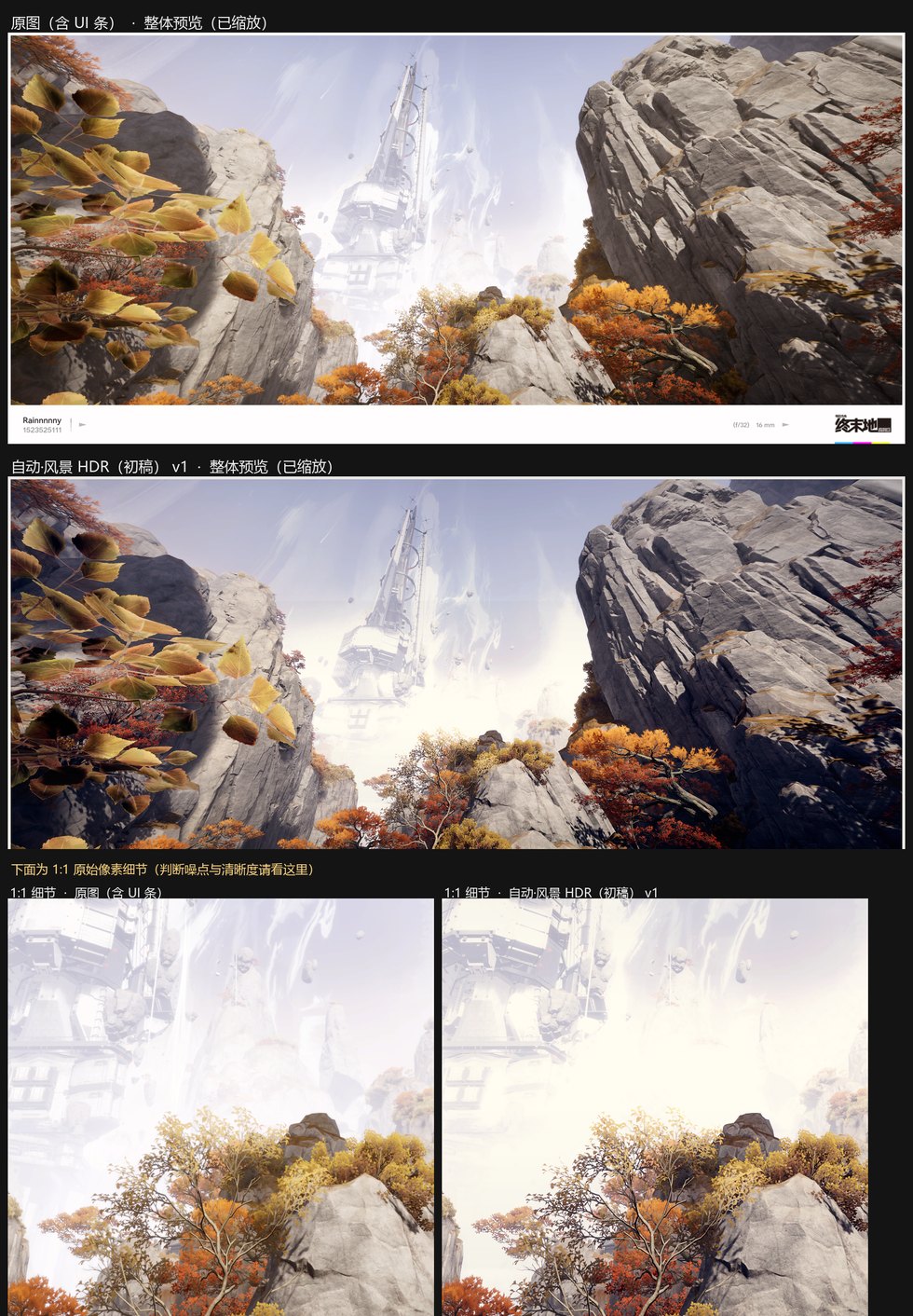 | 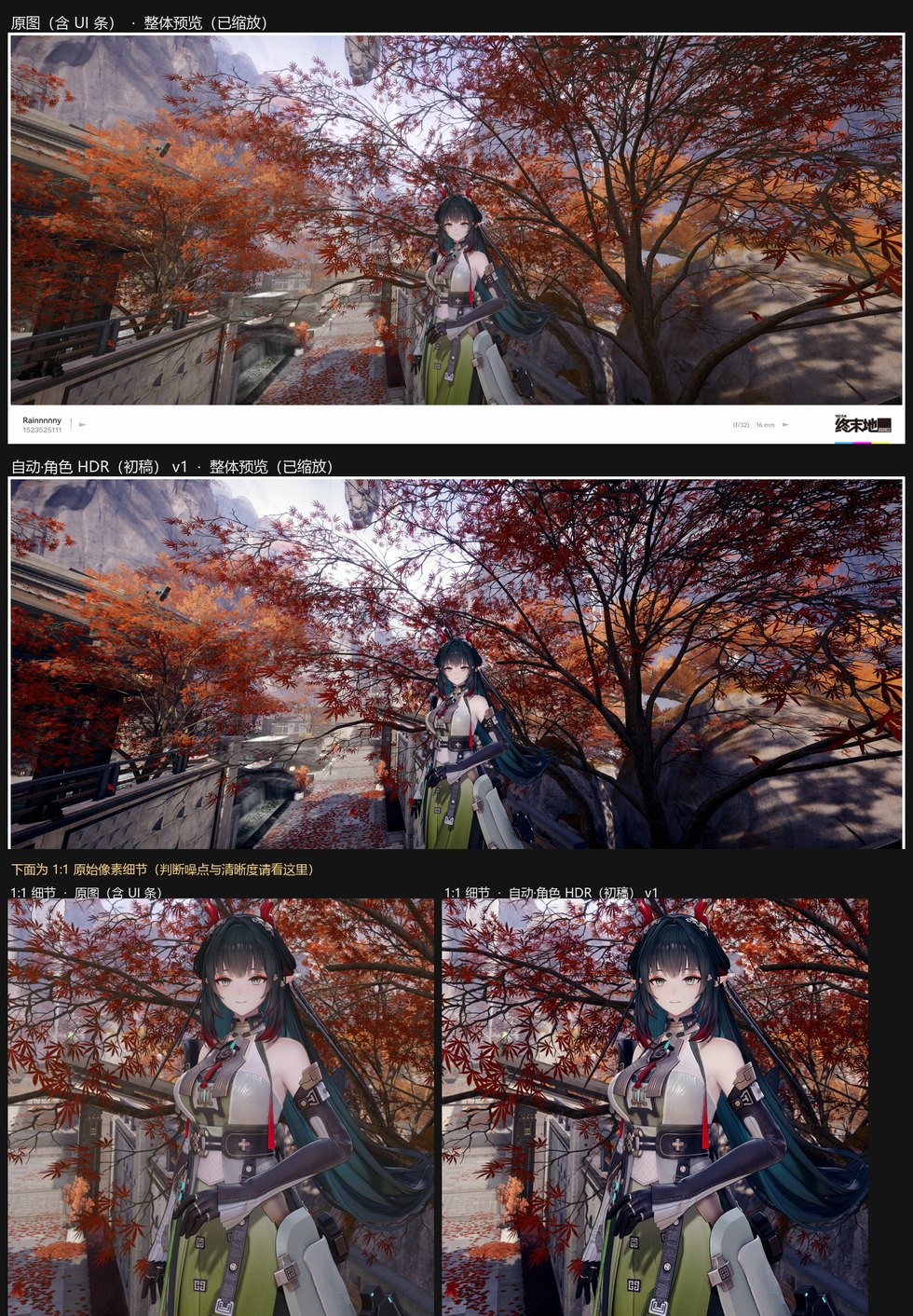 |
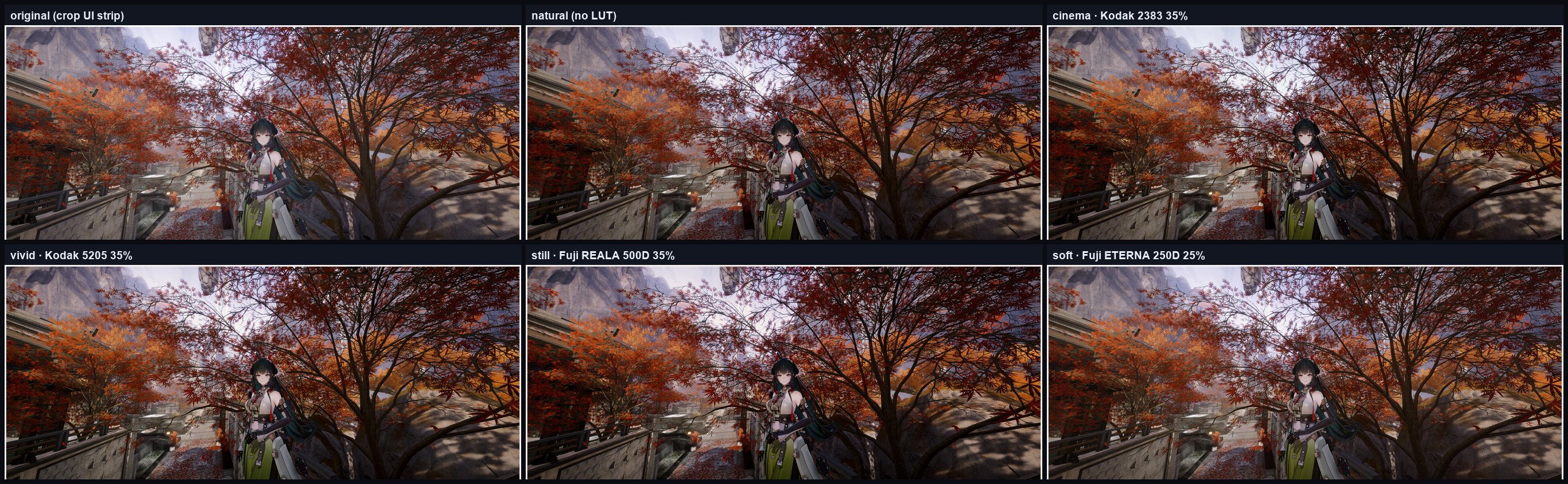
All 5 built-in styles side by side (original → natural → cinema → vivid → still → soft):
Tools
| Tool | What it does |
|---|---|
ps_grade | Runs a recipe on an image: creates the project folder, universal auto assessment (screenshot/photo, sharpness, UI strip, EXIF orientation, low-res/blurry auto super-resolution, automatic fallback for corrupt engines), grades/layers, writes PNG/PSD, builds a before/after comparison image with 1:1 detail, computes metrics, and runs QA. Pass project to append a new parameter version; crop:{"mode":"none"} keeps the full resolution. |
ps_measure | Quality metrics for any image (brightness distribution, highlight/shadow clipping, saturation, sharpness, size, UI strip) + automatic assessment: blur, noise, EXIF orientation, photo/screenshot decision. Does not modify the file. |
ps_state | Photoshop session state, LUT folder, case bank, hot style pack, super-resolution settings, available recipes / styles, recent projects. start=true warms it up, quit=true releases the memory. |
vision_zoom | High-resolution viewing: enlarge a region + original-image coordinate grid + edge overlay + markers, and hand the image straight back to the model. |
vision_probe | Pixel probe: exact RGB, luminance, and edge strength at given coordinates or at sampled points along a line segment. |
vision_textmap | Renders an image region as a native-resolution "text pixel map", not bounded by image token/size limits. |
Installation
Requirements
Photoshop compatibility: 2025 (26.x) tested; 2020-2024 expected (older Select Subject failures degrade gracefully); 2019 and earlier unsupported; Photoshop Elements / macOS unsupported (Windows COM required).
- Windows 10/11 + Adobe Photoshop (developed and verified against Photoshop 2025;
ps_graderelies on Windows COM, earlier versions are untested). - The DSH desktop app (the host plugin runs in the DSH host process, which is what makes launching Photoshop COM possible).
- Node.js ≥ 20 (the DSH bundled runtime is enough).
- Python 3.10+, with
numpyandPillow(already included in the DSH bundled runtime; install them yourself for standalone use).
Photoshop's install path needs no configuration: automation launches it through the system's Photoshop COM registration; only style LUTs need the
Presets/3DLUTsfolder, which is auto-detected (see below); unusual installs can setlutDir.
Install from npm (recommended)
dsh plugin --profile <profile> add lumina-dsh
Desktop app: Settings → Plugins → install bundle → lumina-dsh.
Restart DSH once after installing, then say hilumina in a conversation: the plugin runs its self-check (dependencies, GPU/disk, the complete super-resolution tier ladder), confirms the output folder and the CUDA fallback model, and is ready for images.
For local development, use the checkout-based install below.
Install from a local checkout (development)
Put this repository in any directory, install it in a DSH profile as a link: / file: dependency, and add it to the bundle list, e.g.
C:\Users\<you>\.dsh\profiles\<profile>\package.json:
{
  "dependencies": {
    "lumina-dsh": "link:C:/path/to/lumina-oss"
  },
  "dsh": {
    "profile": {
      "bundles": ["@deepseek-ai/dsh-base", "@deepseek-ai/dsh-web-app", "lumina-dsh"]
    }
  }
}
After installing dependencies (or simply symlinking the repository folder to <profile>/node_modules/lumina-dsh), restart DSH.
The plugin's cordis.patch.yml registers the six tools ps_grade / ps_measure / ps_state /
vision_zoom / vision_probe / vision_textmap.
Configuration (optional)
Every config key can be omitted; omitted keys use the defaults in the table below. Example cordis.patch.yml:
- insert:
    - id: photoshop
      name: 'lumina-dsh'
      config:
        projectRoot: 'D:/Photos/Lumina'   # default <home>/Lumina
        # pythonPath: 'C:/Python312/python.exe'   # defaults to the DSH bundled Python
        # lutDir: 'C:/Program Files/Adobe/Adobe Photoshop 2025/Presets/3DLUTs'
        # casesFile: 'D:/Photos/Lumina/.lumina-cases.json'
        psWaitMs: 90000        # longest wait for a cold Photoshop start
        opTimeoutMs: 240000    # per-image operation timeout
        maxViewDimension: 4096 # max view size for vision_zoom
| Config key | Default | Description |
|---|---|---|
projectRoot | <home>/Lumina | Every task's project folder is created here; the LUMINA_PROJECT_ROOT env var is also supported |
pythonPath | auto | Python interpreter; LUMINA_PYTHON / DSH_PYTHON are also supported |
lutDir | auto-detected | The Photoshop Presets/3DLUTs folder; LUMINA_LUT_DIR is also supported |
casesFile | <home>/.lumina/auto-cases.json | Writable style case bank; LUMINA_CASES_FILE is also supported |
casesSeedFile | <package>/assets/auto-cases.json | Read-only seed case bank (empty/absent in the published package) |
stylesFile | <home>/.lumina/styles.json | Hot-reloadable user style pack (overrides built-in styles by name); LUMINA_STYLES_FILE is also supported |
superResolution | disabled | Default super-resolution preprocessing parameters (see "Super-resolution preprocessing"); fallback controls corrupt-engine fallback |
assess | built-in thresholds | Overridable universal auto-assessment thresholds: {minLongEdge, blurThreshold, maxBlurUpscaleEdge, maxLongEdge, photoRecipe} |
psWaitMs / opTimeoutMs | 90000 / 240000 | Start wait / per-step timeout (milliseconds) |
maxViewDimension | 4096 | Cap on the image produced by vision_zoom (the model-side image size limit) |
More environment variable aliases: LUMINA_CASES_SEED, LUMINA_STYLES_FILE, DSH_LUMINA_LUT_DIR, DSH_LUMINA_CASES_FILE, DSH_PHOTOSHOP_PROJECT_ROOT, DSH_PHOTOSHOP_PYTHON, DSH_VISION_PYTHON; when troubleshooting set LUMINA_DEBUG=1 (or DSH_PHOTOSHOP_DEBUG=1) to print host-side debug logs.
User config file (machine settings, not in the repository/package)
To change the plugin config without touching it, and to put projects and runtime data on another drive, use the user config file:
<home>/.lumina/config.json (or point the LUMINA_CONFIG environment variable at any path)
// C:/Users/<you>/.lumina/config.json — e.g. put everything on the D: drive
{
  "projectRoot": "D:/Photos/LuminaProjects",  // project folders (outputs/PSD/comparison images live here)
  "dataDir": "D:/Photos/LuminaData",          // default dir for case bank / style pack / caches
  "lutDir": "D:/PS/Presets/3DLUTs",           // optional: non-standard Photoshop install location
  "stylesFile": "D:/Photos/LuminaData/styles.json",  // optional: explicit path (otherwise <dataDir>/styles.json)
  "casesFile": "D:/Photos/LuminaData/auto-cases.json",
  "superResolution": { "enabled": true, "mode": "auto", "minLongEdge": 1600, "scale": 2 }
}
Full precedence: plugin config (cordis.patch.yml) > environment variable > user config file > built-in default. The user file is read when the plugin loads (restart/reload DSH after editing); the case bank and style pack themselves remain hot-reloaded on every call.
You can copy the shipped example: assets/config.example.json → <home>/.lumina/config.json, then change the paths to your own drives (the example puts projects and runtime data under D:/Lumina).
Quick start
First install: say hilumina (or "initialize"). The plugin self-checks dependencies/config, probes GPU VRAM / disk / runtimes, and renders the complete tier ladder (SUPIR (diffusion) → HAT/DAT → UltraSharp/Remacri → Real-ESRGAN → waifu2x → Lanczos) with status/size/adapter/license notes and the current engine chain, then always asks two explicit confirmations: the output folder (current value; change allowed) and the CUDA fallback model (SUPIR stays first in the chain). Missing tiers can be downloaded in the background with one reply. Pass
onboard:true, forceAsk:trueto add the write-confirmation step (first install / testing).
// Zero prompt: drop in a screenshot and let auto mode deliver
{ "source": "C:/Photos/MyScreenshot.png", "auto": true }

// Explicit recipe + title
{ "source": "C:/Photos/MyScreenshot.png", "recipe": "clean-premium", "title": "night-draft" }

// Add the cinematic style LUT
{ "source": "C:/Photos/MyScreenshot.png", "auto": true, "style": "cinema" }

// Append a parameter version to an existing project (no new folder)
{ "project": "20261024-214504-auto-canyon", "recipe": "atmospheric-depth",
  "params": { "vignette": 30, "tone": { "gamma": 0.88 } } }
A task returns the project folder, output PNG, PSD, comparison sheet, before/after metrics, QA checks, and warnings.
If QA is not to your taste, append another version with project + params; every version is recorded.
Any image, automatically (game screenshots / real photos / blurry images)
auto:true is the universal automatic path: you never have to tell the plugin whether this is a game screenshot or a photo, or whether it is sharp — just drop an image in and the plugin assesses it and decides every step itself; the plan is written into the result and project.json.
The automatic pipeline is: assess → plan → execute → fallback
- Assess (runs automatically for every auto call, no extra dependencies): resolution/pixel count, scale-normalised blur (measured at a fixed 1024px long edge, comparable across resolutions), noise, EXIF (camera info / orientation), UI-strip detection, clipping ratio, AI subject fraction.
- Plan (built-in thresholds, overridable):
| Condition | Automatic decision |
|---|---|
Long edge < minLongEdge (default 1600) or blur < blurThreshold (default 0.010, and long edge ≤ maxBlurUpscaleEdge) | Super-resolve first (use the AI engine when available; otherwise fall back to built-in Lanczos automatically), then grade |
| Very large but soft image | Do not force an upscale; report a "consider AI restore" hint (you can manually use mode:"always", scale:1) |
| UI-strip detection confidence high | Treat as a screenshot and trim the bottom UI strip |
| No UI strip / photo-like aspect such as 4:3 or 3:4 / camera EXIF | Treat as a photo: keep the full frame and deliver with the gentle clean-premium (no game-oriented auto-* recipe, no case bank) |
| Highlight clipping ≥ threshold (screenshots/renders only) | Run HDR highlight reconstruction first |
| EXIF orientation ≠ 1 (phone portrait shots) | Normalise the orientation first, then process; the original image stays in input/ |
- Execute:
super-resolution (as needed) → HDR (as needed) → crop/grade → style; the project folder / comparison image / QA system is unchanged. - Fallback (quality-first chain): degrade automatically in the order CUDA dual-model → waifu2x Vulkan → ONNX/DirectML → Lanczos; if an engine is missing, fails to start, times out, runs out of memory, or returns a corrupt frame (e.g. the 2022 Real-ESRGAN ncnn build on RTX 50-series cards: exit code 0 but an almost-black output) → validation intercepts it and the next engine is tried automatically, ending with Lanczos (
fallback:"lanczos"; change it to"skip"if you prefer); the main pipeline delivers an image in every case.
// One entry point: auto-detect screenshot/photo and auto-decide whether to upscale
{ "source": "D:/Photos/whatever.jpg", "auto": true }

// Force the photo flavour / keep the full frame
{ "source": "D:/Photos/portrait.jpg", "auto": true, "crop": { "mode": "none" }, "style": "cinema" }

// Override a decision (e.g. force the landscape draft):
{ "source": "D:/Photos/street.jpg", "auto": { "scene": "landscape" } }
ps_measure also returns the assessment (blur, noise, EXIF, photo/screenshot decision), so you can inspect an image before deciding how to process it.
Cropping (the crop argument, takes precedence over the automatic decision):
crop.mode | Behaviour | Good for |
|---|---|---|
bottom-strip | Detect and trim the bottom UI strip; low confidence (<8px) is ignored automatically | Game/app screenshots |
auto | Only trims when detection confidence is high, otherwise keeps the full frame (this is what photos use automatically) | Real photos (recommended) |
none | Never crop, keep the full size | Photos / when the original size matters |
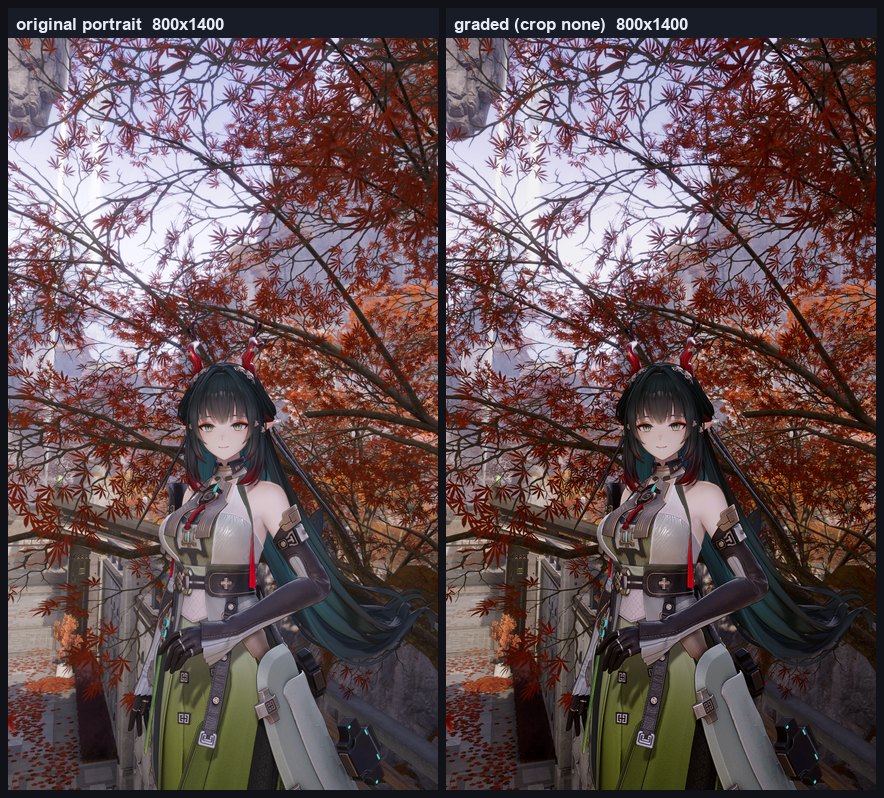
Measured (real 12MP phone photos on this machine, 3 shots):
- 2 landscape 4:3 shots + 1 portrait shot with EXIF rotation → all automatically classified as
photo, full frames kept (4032×3024 / 3024×4032), no wrong cropping, no wrong super-resolution trigger; - the same image downscaled to 900px and blurred → automatically classified as low-resolution + blurry, auto 2x output (with Lanczos as the fallback while no AI engine is installed);
- a faked "corrupt-frame AI engine" (exit 0, almost-black output) → output validation intercepted it and fell back to Lanczos automatically; output was normal.
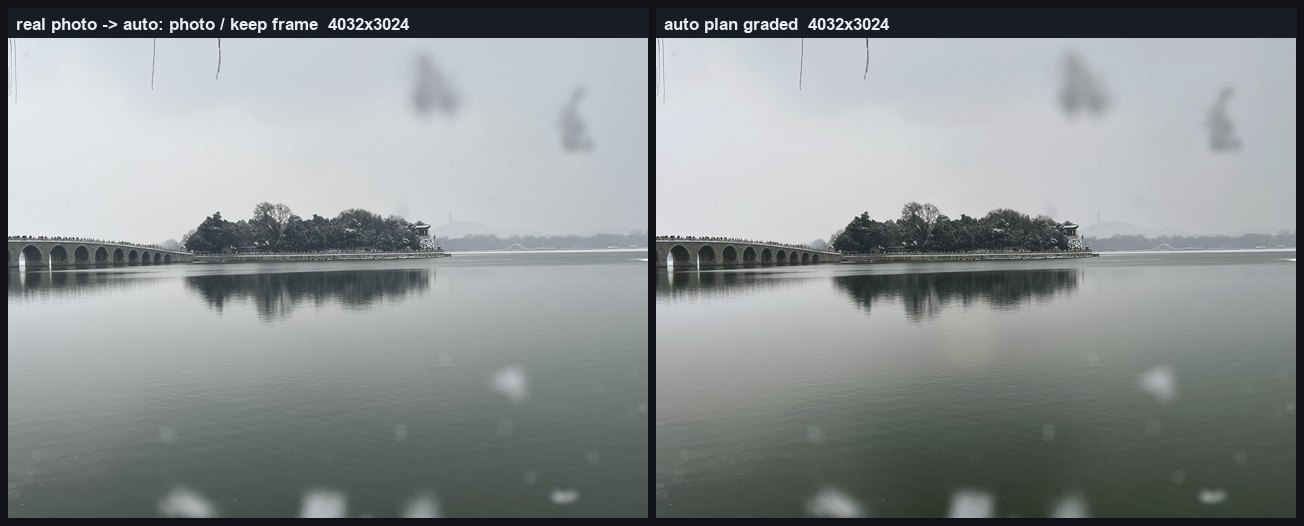
- Layered mask coordinates (
personellipse,polygon,horizon/depth) are 0–1 relative values, reusable across aspect ratios and resolutions. - Screenshots still use the original
auto-character-*/auto-landscape-*recipes and the case bank, behaviour is unchanged (the existing auto regression baselines show Δ=0).
Auto mode (auto)
With auto: true, one call does:
- crop the bottom screenshot UI strip (auto-detected, confidence reported in the result);
- scene classification: Photoshop "Select Subject" AI selection + colour heuristics → character / landscape;
- highlight reconstruction: when content-area highlight clipping is ≥2.5%, run
assets/hdrsynth.py --sdr-mode neutralfirst to reconstruct highlights, then grade; - apply an accepted draft recipe (
auto-character-hdr/natural,auto-landscape-hdr/natural); - produce the comparison image / PSD / metrics as usual, and write the classification basis into warnings.
{ "source": "C:/Photos/shot.png", "auto": { "style": "natural", "scene": "landscape", "hdrThreshold": 3.0 } }
{ "source": "C:/Photos/shot.png", "auto": { "recipe": "atmospheric-depth", "params": { "vignette": 24 } } }
Auto mode is a "first draft": it saves you from picking a recipe and tuning per image; refine with one follow-up call (append a version with project).
Auto self-heal
If a QA check fails in auto mode, Lumina computes a small parameter patch and re-runs once (a single retry only):
| Failed check | Automatic patch |
|---|---|
highlight_clip | Global output white point −4, bloom ×0.7; −3 per-layer white point |
midtones / mean | Adjust tone gamma towards the target median (clamp 0.62–1.35) |
The retry is recorded as a new version; warnings say "first pass failed xxx, auto-tuned and re-ran as vN". Disable with selfHeal:false.
Style case bank
learn:truebanks an accepted version:{source, auto:true, learn:true}or{project, learn:{version:N, note:"final"}};- Banked content: image features (clip ratio / wash ratio / mean / median / subject fraction / scene), recipe, full parameters, style;
- Before an auto grade, a nearest-neighbour match is performed (hit when distance ≤0.85); on a hit, that run's recipe + parameters + style are reused, and the result shows "case-bank hit";
- The bank has two layers: a read-only seed bank
assets/auto-cases.json(optional; the published package ships no private cases) + a writable user bank~/.lumina/auto-cases.json; ps_stateshows both case-bank paths and their counts.
Styles and LUTs
The style argument applies a 3D LUT (colour lookup table; pure colour mapping, no grain, no resolution change) after grading:
| style | Source (Photoshop-built-in LUT) | Strength | Effect |
|---|---|---|---|
natural (default) | — | 0 | No LUT |
cinema | Kodak 5218 → Kodak 2383 print emulation | 35% | Warm highlights, teal shadows |
vivid | Kodak 5205 → Fuji 3510 | 35% | Richer warmth and contrast |
still | Fuji REALA 500D → Kodak 2393 | 35% | Softer highlight roll-off |
soft | Fuji ETERNA 250D → Kodak 2395 | 25% | The gentlest option |
Key points:
- LUT files are not distributed with the plugin. They are the local Photoshop-installed
.cubefiles, located automatically in this order: ① config keylutDir→ ② env varLUMINA_LUT_DIR→ ③ thePresets/3DLUTsunder the Photoshop install path in the Windows registry → ④%ProgramFiles%\Adobe\Adobe Photoshop*. If not found, that style is skipped with a warning and the rest of the pipeline is unaffected. - Sharpness gate: after applying the LUT, sharpness is measured automatically; if it drops by more than 2%, the strength is lowered to 60% and retried, and if it still does not pass, that style is skipped (sharpness first).
- The PSD is the pre-LUT version; the final PNG already includes the LUT (
work/style-vN.pngkeeps the post-LUT intermediate image).
Custom style packs (hot-reloadable, replaceable)
The 5 built-in styles are only a starting point; styles are replaceable data files, not hard-coded code:
- Copy the example
assets/styles.example.jsonto<home>/.lumina/styles.json(or<dataDir>/styles.json, or point the plugin configstylesFileat any path); - After editing, the next ps_grade call picks it up immediately (hot-reloaded by mtime) — no DSH restart needed; a style with the same name overrides the built-in one;
- Styles marked with
*inps_statecome from the user pack, and the stylesFile path is shown.
// ~/.lumina/styles.json
{
  "styles": {
    "teal-orange": {                    // any name; pass this string directly as ps_grade's style
      "label": "Teal & orange (bring your own grade)",
      "lut": "my-teal-orange.cube",     // bare file name: resolved from Photoshop Presets/3DLUTs or lutDir;
                                        // an absolute path like D:/MyLUTs/xxx.cube also works; null = no LUT
      "strength": 40,
      "params": {                       // optional: the style's own parameter preset, deep-merged over the recipe
        "vignette": 18, "tone": { "gamma": 1.02 }, "desat": 4
      }
    },
    "warm-matte": {                     // parameter-only style (a style with no LUT)
      "label": "Warm matte",
      "lut": null,
      "params": { "tone": { "gamma": 0.9, "ob": 4 }, "vignette": 34, "desat": 4 }
    }
  }
}
lutDircan also be written inside a single style (applies only to that style), e.g."lut": "x.cube", "lutDir": "D:/MyLUTs".- The
styleargument is a free string: a new style name works without a restart; a wrong name produces an error listing all currently available styles. - Style parameters are merged after recipe/case parameters, which suits "same recipe, different flavour"; the run record (
project.json'sparams/style) is fully retained and reproducible.
HDR highlight reconstruction
In 8-bit screenshots, highlight detail beyond/near display white is irreversible in the original data, but can be credibly reconstructed from the neighbourhood:
python assets/hdrsynth.py --input original.png --out-dir out/hdr --crop-bottom 149
Outputs hdr-view.png (SDR look), RGB16 linear/PQ HDR, gainmap.png, headroom.png, meta.json. Auto mode calls it automatically when the clip ratio is ≥ the threshold; you can also pre-process manually and then pass the result to ps_grade.
Super-resolution preprocessing (optional)
When the source resolution/sharpness is insufficient, run a super-resolution preprocessing pass before grading, then continue with HDR reconstruction and grading (order: super-resolution → HDR → recipe).
Quality first (default behaviour): when several engines are configured they are tried from the highest priority down — CUDA dual-model (photo x4plus / screenshot anime_6B) → waifu2x-ncnn-vulkan → ONNX/DirectML → built-in Lanczos; a missing, failing, timing-out or corrupt-frame engine is skipped for the next one, and only then do we fall back to Lanczos. Grading is never blocked.
Measured on an RTX 5080 with waifu2x-ncnn-vulkan 20250915 (MIT, Vulkan): 3440×1578 → ×2 in ~2.2 s, a 900×675 photo → ×2 in ~1.1 s; the photo/screenshot model is switched automatically via {sourceKind} (photos use models-upconv_7_photo, screenshots/anime use models-cunet).
Two sources:
| Mode | Description |
|---|---|
External AI upscaler (command) | Hook up any command-line upscaling tool (Real-ESRGAN / waifu2x / Topaz, ...). The plugin only calls it via a template and checks the output; it bundles no models; models and licences are your responsibility |
| Built-in Lanczos (default fallback) | When no external tool is available, use Python Pillow high-quality resizing. Deterministic, zero-dependency, but does not create detail out of thin air (not AI) |
Trigger (mode): auto = trigger automatically when the long edge < minLongEdge or sharpness < minSharpness; always = trigger every time.
In auto mode the universal assessment decides: with superResolution.enabled on, low-resolution/blurry images are upscaled automatically (thresholds above in "Any image, automatically"); with it off, you only get a hint and nothing is silently upscaled.
// One call: force a 2x upscale
{ "source": "D:/Photos/lowres.jpg", "preprocess": {
    "superResolution": { "enabled": true, "mode": "always", "scale": 2 } } }

// Hook up a local Real-ESRGAN (Windows ncnn build example)
{ "source": "D:/Photos/lowres.jpg", "preprocess": {
    "superResolution": {
      "enabled": true, "mode": "auto", "minLongEdge": 1600, "scale": 2,
      "command": "C:/Tools/realesrgan-ncnn-vulkan/realesrgan-ncnn-vulkan.exe",
      "args": ["-i", "{input}", "-o", "{output}", "-n", "realesrgan-x4plus", "-s", "{scale}"]
    } } }
// Quality-first engine chain (configure once, degrade automatically when needed)
{ "superResolution": {
    "enabled": true, "mode": "auto", "scale": 2, "fallback": "lanczos",
    "engines": {
      "cuda":   { "priority": 100, "label": "CUDA Real-ESRGAN",
                  "command": "C:/Tools/ai/venv/Scripts/python.exe",
                  "args": ["C:/Tools/ai/upscale_torch.py", "--input", "{input}", "--output", "{output}",
                            "--scale", "{scale}", "--kind", "{sourceKind}", "--model-dir", "C:/Tools/ai/models"] },
      "vulkan": { "priority": 50, "label": "waifu2x Vulkan",
                  "command": "C:/Tools/ai/waifu2x/waifu2x-ncnn-vulkan.exe",
                  "args": ["-i", "{input}", "-o", "{output}", "-s", "{scaleInt}", "-n", "2", "-g", "0"] },
      "onnx":   { "priority": 30, "label": "ONNX/DirectML",
                  "command": "C:/Tools/ai/ort_upscale.cmd",
                  "args": ["--input", "{input}", "--output", "{output}", "--scale", "{scale}", "--kind", "{sourceKind}"] }
    } } }
Enable globally (auto mode then only triggers on low-res images): write
"superResolution": { "enabled": true, "mode": "auto", "minLongEdge": 1600, "scale": 2 } in the user config ~/.lumina/config.json.
| Option | Default | Description |
|---|---|---|
enabled | false | Master switch; an explicit preprocess.superResolution can enable it temporarily |
mode | auto | auto / always |
scale | 2 | Target magnification (clamped by maxLongEdge) |
minLongEdge | 1600 | In auto mode, images whose long edge is below this trigger |
minSharpness | 0 | When >0, low-sharpness images trigger too (sharpness comes from metrics) |
maxLongEdge | 8192 | Final long-edge cap, avoiding a 4K→16K memory blow-up |
command / args | empty | External upscaler executable and argument template, supporting {input} {output} {scale} {targetLongEdge}; when engines is set this is the highest-priority engine |
engines | empty | Quality-first engine chain: {name:{command,args,priority,label}}; tried from the highest priority down, failing engines degrade automatically; top-level command acts as a priority-1000 engine |
timeoutMs | 600000 | External command timeout |
fallback | lanczos | When the external engine fails or returns a corrupt frame: lanczos (keeps the upscale intent) or skip (leave the image untouched) |
Corrupt-frame validation: after the external engine runs, output size/luminance/contrast are compared with the input. Known case: the 2022 Real-ESRGAN ncnn build on NVIDIA 570+ drivers (including RTX 50-series) exits 0 but returns an almost-black frame — validation intercepts it and falls back to Lanczos automatically, so a black image is never delivered as the result.
Low-spec / compatibility (quality first by default, automatic degradation when an engine fails; lower-spec machines just use the same engines interface):
| Machine | Recommendation |
|---|---|
| No discrete GPU / do not want to install anything | Configure nothing: disabled by default, or when enabled use the built-in Lanczos (zero-dependency, deterministic, adds no detail) |
| Integrated/any Vulkan GPU | waifu2x-ncnn-vulkan 2025+ (MIT, -g 0 GPU; built-in denoise levels, good for screenshots/anime-style art) |
| Want AI on CPU too | Same engine in -g -1 CPU mode + small -t 200 tile; only recommended for images ≤2000px — slow but usable |
| ≤4GB VRAM | Smaller tile (-t 200) + a tighter maxLongEdge |
| RTX 50-series | Must use an engine built in 2025 or later (the 2022 Real-ESRGAN build returns corrupt frames, caught by validation); or point command at your own ONNX Runtime DirectML script (not bundled — bring your own script/model) |
Project record: the super-resolution result goes to work/sr-vN/sr-view.png, input/ always keeps the original; project.json gains a superResolution record (method/scale/reason/sizes), and the result reports "source → upscaled → output" resolutions; the QA "before" baseline uses the post-super-resolution, pre-grading image, so sharpness/tone evaluation still only measures the grading step.
Layer masks
The following recipes all carry params.layers.mask layering (split into subject/background, or fore/mid/back layers, apply different parameters, then composite);
the mask strategy is written in params.layers.mask.mode:
| mode | Split basis | Good for |
|---|---|---|
person | AI subject selection ∩ person region (ellipse or hand-drawn polygon) | Person vs background |
subject | AI subject selection | Foreground object vs background |
horizon | Horizontal-line split (horizon as a 0–1 height ratio + feathering) | Landscape foreground/background |
polygon | Hand-drawn polygon (absolute pixels or normalised coordinates) + feathering | Precise manual selection |
alpha | The alpha channel of an RGBA PNG as a per-pixel soft mask | Hair strands / semi-transparent edges |
depth | Two widely feathered horizontal lines split fore/mid/back layers (optional midAlphaFile makes the midground = person) | Atmospheric perspective / big scenes |
none | No layering | Single-layer grading |
Layered modes additionally output work/mask-vN.png (mask preview) and region metrics (subject sharpness gain, background stability).
Project folder
One directory per task (under projectRoot by default):
<projectRoot>/<YYYYMMDD-HHmmss>-<slug>/
  input/original.<ext>        read-only copy of the original image
  work/grade-vN.jsx           the ExtendScript actually executed this run (reproducible)
  work/<recipe>-vN.psd        PSD working file (pre-LUT)
  work/mask-vN.png            layered mask preview (layered recipes)
  work/hdr-vN/hdr-view.png    HDR highlight reconstruction result (when triggered)
  work/sr-vN/sr-view.png      super-resolution preprocessing result (when triggered)
  work/oriented-vN.png        EXIF-orientation-normalised working image (phone portrait, when triggered)
  out/<recipe>-vN.png         final output (lossless PNG, original or upscaled resolution)
  metrics/before-vN.json      pre-processing metrics (baseline is "post-SR, pre-grade" when upscaled)
  metrics/after-vN.json       output metrics
  metrics/region-vN.json      region metrics (layered recipes)
  compare-vN.png              before/after comparison image (full preview + 1:1 native pixel detail)
  project.json                task metadata + full version history (incl. auto/preprocess/superResolution/style)
  log.jsonl                   run log
  README.txt                  directory notes
Resolution behaviour: the width always equals the source-image width; the height = source height − the auto-detected bottom UI strip (real photos should use crop:{"mode":"auto"} or none). When super-resolution triggers, the final output is "content area × super-resolution factor"; input/ still keeps the original size.
Recipe reference
| recipe | Label | Description |
|---|---|---|
clean-premium | Clean premium | Pull highlights back, deepen slightly, neutral white balance, subject sharpening, light vignette; default for screenshots/4K |
clean-natural | Natural and clear | The most restrained: highlight recovery + light sharpening only, no vignette; when you want to keep the original feel |
cinematic-film | Cinematic | Deep midtones, matte blacks, cool shadows / warm highlights, strong local contrast; stylized |
subject-pop | Subject pop (separation) | Subject brightened/warmed/sharpened + background darkened/cooled, auto-composited; person mask |
landscape-depth | Foreground/background separation (depth) | Foreground deepened/warmed/sharpened + background brightened/cooled, horizon mask |
dark-cinematic | Dark cinematic | Lift shadows, control high saturation, light split toning; dark / high-contrast scenes |
subject-manual | Subject layering (manual outline · default) | Hand-drawn → hard trace → pixel-level tiled polygon precise mask |
subject-alpha | Subject layering (channel mask · soft alpha) | Per-pixel soft-alpha channel mask, hair strands / semi-transparent edges |
hdr-pop | HDR look (high-dynamic-range simulation) | Warmer/brighter highlights, deeper shadows, richer colour, stronger local contrast |
atmospheric-depth | Atmospheric perspective (fore/mid/back layers) | Graduated three-layer depth + haze, big scenes/landscapes |
depth-subject | Subject × atmospheric perspective (three layers) | Foreground band + subject soft alpha + background, hybrid layering |
auto-character-hdr | Auto · character HDR (draft) | Used by auto: AI subject layering + HDR look |
auto-character-natural | Auto · character natural (draft) | Used by auto: AI subject layering + natural tone |
auto-landscape-hdr | Auto · landscape HDR (draft) | Used by auto: atmospheric perspective + dense HDR |
auto-landscape-natural | Auto · landscape natural (draft) | Used by auto: atmospheric perspective + natural depth |
hdr-photo | HDR look (universal layered) | Picks the region mask by content (people -> AI subject, landscapes -> horizon/depth), brightens/warms the sky, crushes/cools the foreground, wide feather |
hdr-photo-cinematic | HDR look (sunset, highlight-safe) | Sunset/backlight: white-point compression protects clouds, warm highlight glow, cool shadow separation, strong contrast + vignette |
region-sky | Region grading (sky colour domain) | Colour-range soft alpha selects sky/cool colours, brightens/warms the selected region and darkens the rest |
region-zones | Multi-zone grading (person / plants / highlight flowers) | AI person + green colour range + luminance highlight masks, each with its own params; person zone runs last and colour zones subtract the pixel-level person alpha |
All parameters can be deep-merged and overridden with params; QA thresholds are written in each recipe's checks (highlight clip cap, sharpness gain floor, p50/mean ranges, subject/background region sharpness, output size).
Architecture
DSH host process (normal user permissions, not subject to the shell sandbox)
  └─ lumina-dsh (index.js)
       ├─ lib/ps-session.js   ←→ PowerShell COM helper (resident, JSON line protocol)
       │                             └─ Photoshop.Application (hidden resident)
       ├─ lib/jsx.js          reads assets/pipeline.jsx to build ExtendScript
       ├─ lib/ps-locate.js    detects Photoshop install and Presets/3DLUTs
       ├─ lib/recipes.js      reads assets/recipes.json + user style packs (hot-reloaded)
       ├─ lib/cases.js        auto case bank (seed + user layers)
       ├─ lib/assess.js       universal auto assessment: screenshot/photo/render + low-res/blurry → upscale plan
       ├─ lib/superres.js     super-resolution preprocessing: trigger decision + external AI command / built-in Lanczos + corrupt-frame validation
       ├─ lib/user-config.js  local user config (<home>/.lumina/config.json)
       ├─ lib/grade.js        project orchestration: assessment/create dirs/preprocess/process/metrics/comparison/QA/versions
       └─ lib/py.js           ←→ Python (numpy + Pillow) metrics/assessment/reconstruction/LUT/super-resolution
- Must run in the host process: the DSH shell sits in a low-integrity sandbox and cannot activate Photoshop's COM; running the plugin in the host process is the prerequisite for driving PS.
- No DSH restart needed for tuning:
assets/recipes.json,assets/pipeline.jsx, andassets/*.pyare read from disk on every call; style packs and the case bank are hot-reloaded by mtime; only changes toindex.js/lib/*.jsrequire a restart. - Many ExtendScript adjustment interfaces in PS 2025 silently no-op (
adjustCurves, Hue/Saturation, Invert, ...);pipeline.jsxonly uses APIs that were verified one by one on greyscale test images and actually change pixels. - CJK paths in UTF-8 and Python→Node stdout UTF-8 are handled; after a PS crash/force-kill, the next call restarts it automatically and retries once.
Known limitations
- Once 8-bit screenshot highlights clip (e.g. a fully white sky), the original detail is irreversible;
hdrsynth.pyinfers/paints rather than restores, and does not guarantee semantic correctness. ps_gradesupports Windows + Adobe Photoshop only;ps_measure/ the vision tools and metric computation are cross-platform.- Style LUTs need the local Photoshop-bundled
Presets/3DLUTs; a trimmed Photoshop install without LUT files will skip styles. - LUTs are not written into the PSD (the PSD is the pre-LUT version); the final PNG is the version with the LUT.
- Super-resolution is only preprocessing: the built-in Lanczos does not add real detail; the quality/licence of external AI super-resolution depends on the tool you hook up — the plugin bundles no models and makes no semantic guarantee about super-resolution results. A missing/failing engine or a corrupt frame falls back automatically and never blocks output.
- Very large but soft images are not auto-upscaled (only a "consider AI restore" hint), avoiding a pointless 12MP→48MP blow-up; only small/low-resolution images are auto-upscaled.
- Phone-photo EXIF orientation is auto-normalised (portrait shots are no longer processed sideways), provided the file still carries the orientation tag; images with completely stripped metadata can only be processed as raw pixels.
- Auto classification is heuristic: if a complex image is misclassified as a screenshot (or vice versa), override it explicitly with
crop/auto.scene/recipe. - The
depthmask only layers by frame height; near/far objects at the same height cannot be distinguished; usepolygon/alphafor intricate scenes. - AI "Select Subject" may pull neighbouring objects into the subject in complex scenes (the result reports the AI selection area as a hint); narrow it with a hand-drawn polygon.
- Auto mode is a first draft; when it is not satisfying, append versions with
params+projectand keep iterating. - Cold-starting Photoshop takes ~6–10 seconds; warm, each image is ~5 seconds (4K images take longer; super-resolution adds extra Python processing time and disk usage).
Development
npm test                        # fast smoke (26 checks, no PS/Python needed): plugin load/6 tools/config and case bank/style pack/universal auto assessment/super-resolution and corrupt-frame decisions/release hygiene
node test/integration.mjs "C:/path/shot.png"   # full-pipeline smoke test (needs local Photoshop)
node test/acceptance.mjs acceptance.json       # regression acceptance (against baseline metrics; includes real-photo auto classification/low-res auto super-resolution/corrupt-engine fallback/custom style local checks)
# or: LUMINA_ACCEPTANCE_MANIFEST=path/to/acceptance.json npm run test:acceptance
See CONTRIBUTING.md for details. Recipes, LUTs, and bug fixes are welcome.
Credits
Development of this plugin was pair-programmed with an AI coding agent running on
DeepSeek Harness: architecture, Photoshop pipeline, test suite and documentation.
Model: DeepSeek V4.1 flash 1017 (deepseek-flash).
License
MIT License, see LICENSE.
Adobe and Photoshop are trademarks of Adobe Inc. This project is not affiliated with Adobe and distributes no Adobe LUT / Photoshop binary files.
Plugins relacionados
dsh-web-ui (dsh-tool-describe-image)
zhu1090093659/dsh-web-ui
modlens
liustack/modlens
ipollowork
devin-axis/ipollowork
dsh-vision-router
ysr666/dsh-vision-router