deepseek-harness-desktop-app
desanv01/deepseek-harness-desktop-app
Updates and plugin management for the DeepSeek Harness desktop app: a sidebar entry beside Settings and a Settings section, driven by the app's native bridge.
Установка
dsh plugin --profile web add github:desanv01/deepseek-harness-desktop-appREADME
DeepSeek Harness Desktop App
A native Windows desktop app for DeepSeek Harness — it starts the harness server on launch, opens straight into your project, and shuts the server down when you close the window.






DeepSeek Harness normally runs as dsh web in a terminal and is opened in a browser tab. This app removes that step: one executable boots the harness, renders its interface in an embedded WebView2 window, and owns the server lifecycle end to end. No terminal, no browser profiles, no manual start or stop.
Project status: this is a working baseline, built and verified against
@deepseek-ai/dsh0.1.5-rc.1 on Windows 11 (see Current status for the exact environment). The launch, attach, and shutdown paths are tested. A signed self-update is not implemented yet.
Screenshots
The DeepSeek Harness UI inside the native window, with the window icon and title bar themed to match the page.
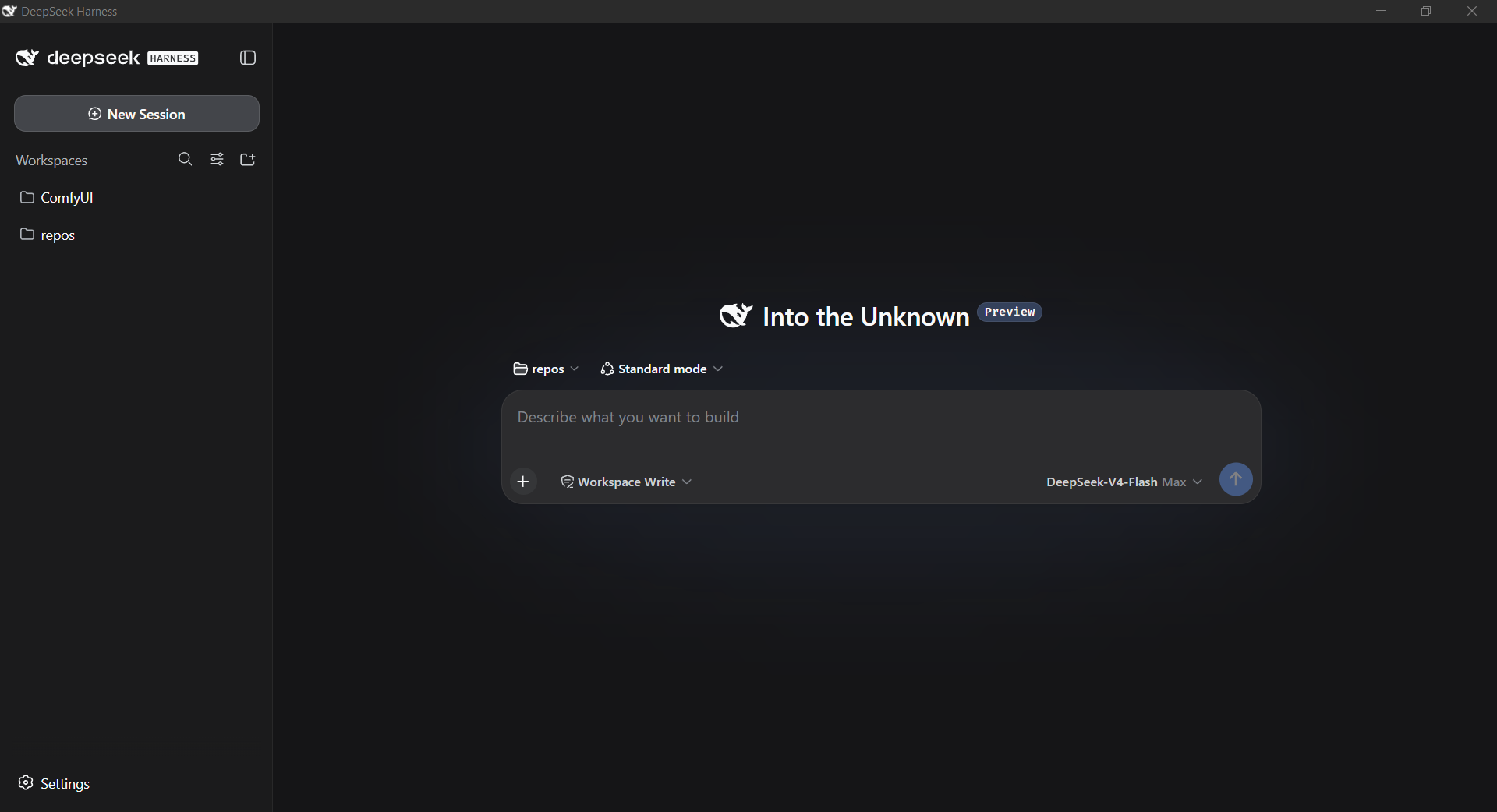
Window chrome follows the rendered page — dark page, dark title bar.
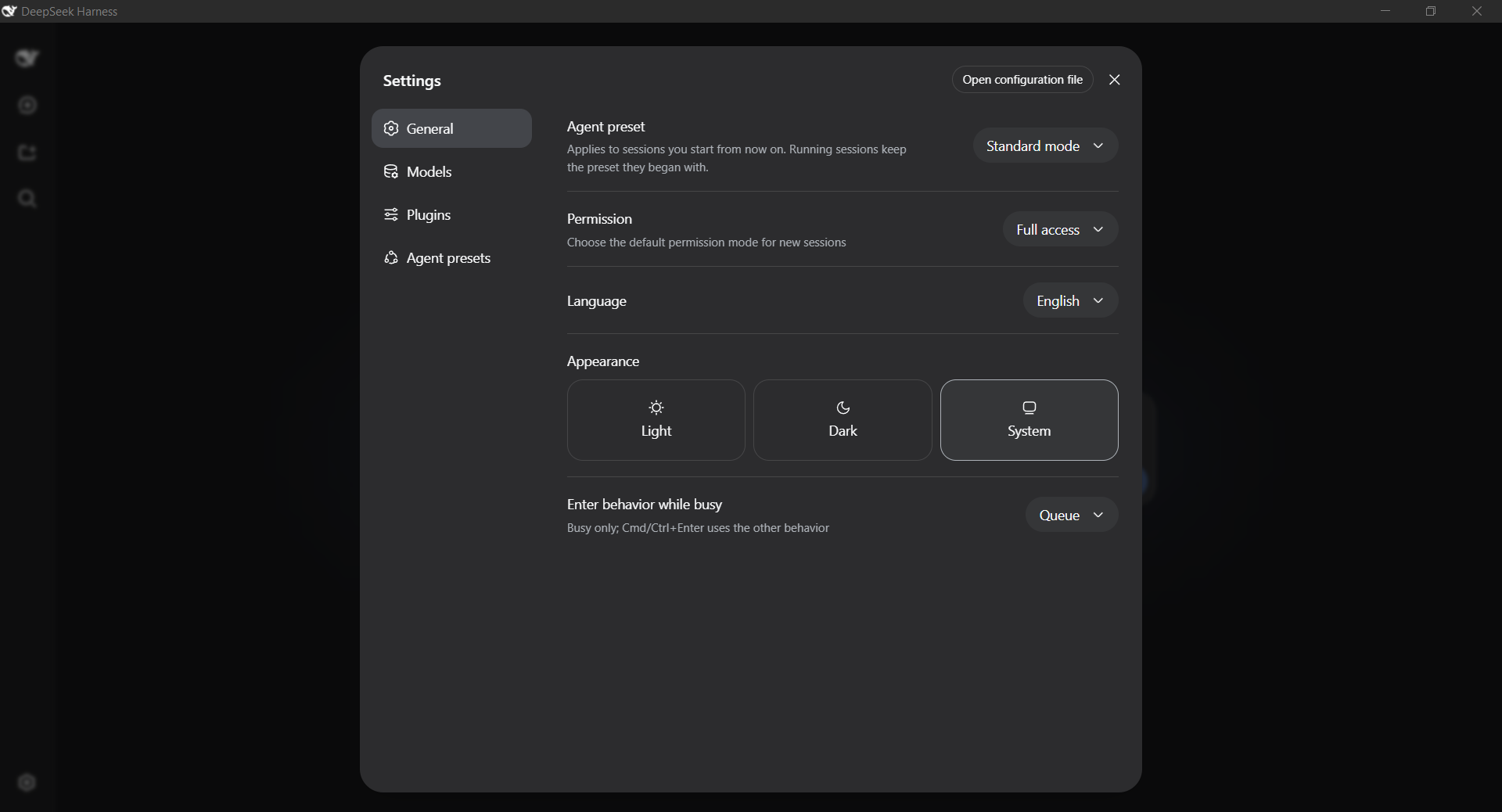
Why this exists
Running the harness by hand means opening a terminal, changing into a project directory, typing a command, copying a tokenized URL, and remembering to stop the server afterwards. That is friction on every session, and it is easy to leave an orphaned server holding a port.
This app turns that sequence into a double-click, and makes the server's lifetime the same as the window's lifetime:
- no terminal and no command to remember;
- the window opens on the project you selected, not a generic dashboard;
- the port is chosen by the operating system, so there is nothing to conflict with;
- closing the window stops the server, and so does crashing the app.
The goal is a dependable desktop shell for a local harness — not a launcher script with a window bolted on.
What it does
- No-terminal launch — starts
dsh web --no-openas a hidden child process. No console window is ever shown. - Fast launch — the CLI is probed cheaply (0.2 s) instead of being verified with a full
dsh web --help(7–8 s) before every boot; the deep check runs only as diagnosis when something fails. The embedded browser is warmed while the server boots, the two update checks wait for the first paint, and — with keep-alive on — a later launch attaches to the running server in seconds instead of booting. - The harness keeps running — by default the server outlives the window, so closing and reopening the app is an attach rather than a boot. The tray's "Stop server and exit" and
--stopend it, and--no-keep-aliverestores "closing the window stops the server". - Remembers your project — the chosen folder, home, and port are saved to
settings.json. Later launches open the same project with no flags; the first launch shows a picker with your recent projects. - Opens your project —
--project <dir>becomes the server's working directory, which is what scopes the harness workspace. The window title shows the project name. - OS-assigned port — starts with
--port 0and reads the real address from the ready line the harness prints, so port conflicts cannot happen. - Verified endpoint — confirms the served root document contains the DSH bootstrap global before showing it, so an unrelated local service is never embedded.
- Guaranteed shutdown — the child is assigned to a Windows job object with kill-on-close. When the app exits, crashes, or is force-killed, the server and its descendants are terminated by the OS.
- One server per home — a named mutex keyed by
DSH_HOMEmeans a second launch hands focus to the running window instead of starting a second writer over the same session files. - Tray icon — present for the whole window lifetime: hide the window to the tray, bring it back, open the project folder or the log directory, see the installed harness version, check for a newer harness, and stop the server.
- Ordinary window behavior — minimizing minimizes to the taskbar like any other window; hiding to the tray is an explicit tray-menu action, and closing the window still stops the server.
- Harness version aware — on launch it reads the npm
latestandalphadist-tags once and shows the result in the tray. The check is read-only; installing is a deliberate click that verifies the CLI before the window restarts. - Finds the harness wherever npm put it — the CLI is located the way a shell locates it: the
dshshim onPATHis read for the entry point it runs, the package's ownpackage.jsonbinis honoured, and a global prefix outsidePATHis found throughnpm prefix -g. A custom npm prefix, a pnpm-style store, or a package layout change therefore still resolves. - Repairs a broken harness install — an interrupted
npm install -gleaves the package directory behind without the files the CLI needs. The app says exactly that instead of claiming the harness is not installed, and offers to install it;--updatedoes the same without asking, and--repair-harnessdoes it from a script. Before npm touches a working install, the app moves it aside and puts it back if the result does not validate, so a failed update never costs you a working harness. - Update aware — on launch it also asks GitHub for a newer build of this app, caches the answer for six hours, and announces one when it exists: a tray notification, a line in the tray menu, a pill inside the harness page, and the version in the window title. Detection reads release metadata only.
- In-app updates — the Updates UI lives inside the harness UI, where this harness expects extensions to live. A bundled DSH plugin contributes a sidebar entry beside Settings, a sidebar panel row, and a Settings section, and talks to the app through a versioned page bridge (
window.__dshDesktop). Opening updates selects the plugin's own panel in this window — a layout action the page performs itself, so nothing appears beside the app and nothing depends on the bridge being up. The app keeps what a page must never hold: the download, the checksum verification, the staged swap, and the restart. The native updates window remains as the fallback surface: the tray menu,--updates, and any case where the page cannot show a panel (no page yet, plugin missing, bridge not answering). - The plugin ships two ways — the executable carries it and installs it into the home the app owns, with no package manager and no network; the same package is published to npm, so
dsh plugin add dsh-plugin-desktop-updatesinstalls it into any home like any other DSH plugin. A boot leaves an installed copy that is newer than the bundled one alone, so the npm path is not undone on the next launch;--install-pluginrestores the bundled copy deliberately. - Plugin management — the same section installs, switches and removes harness plugins: ours and third-party ones, by npm name, git spec, or local folder. pnpm is carried by the build (extracted from the executable, or fetched with npm when the build shipped without it), so
dsh plugin addworks on a machine that has never installed pnpm. Enable/disable goes through the profile's patch layer, so a plugin can be taken out of the tree without uninstalling it. - Safe mode — a plugin the harness cannot load aborts the whole profile. The app reads the loader's own message, disables the offending plugin, and boots again once, so a bad plugin costs a notification instead of a window that never opens.
--safe-modeboots with the base bundles only: it sets aside the plugins this home added, keeps the base bundles and this app's own plugin (the updates panel and settings section live in it, and an escape hatch that removes the way out is not one), and records what it removed so--exit-safe-modecan put the same list back in the same order. - Staged, never in place — the running executable is never overwritten while it runs. The download is verified before the swap, the previous build is kept as
<exe>.olduntil the new one has stayed up, and a checksum mismatch discards the download outright. - Tells you when a plugin has moved on — the app installs, removes, enables and disables plugins, but never said that an installed one had a newer version published.
--check-pluginscompares each installed plugin against its registrylatestand names the ones that are behind. A plugin installed from a local path or a git spec has no published version to compare against, so the recorded spec decides and it is reported as unchecked rather than as up to date — "cannot tell" is never shown as current. The check installs nothing;--add-plugin <name>@<version>is what acts on it. - Bounded logs —
desktop.logrotates at 4 MB, and every other log the app writes (the per-bootserver-*.out.log/.err.logpair, update runs, profile init and the rest) is pruned at startup to the newest 60 files or 7 days, whichever comes first. - The harness's own errors reach the log — the harness keeps runtime warnings and errors in an in-memory ring that nothing exports, its default level filters warnings out of that ring entirely, and session activation failures never reach its logger at all.
--install-log-bridgeadds a bundled plugin that records those to stderr, where this app already writes them todesktop.log, so a boot that fails after startup can say why instead of only that it failed. Every line carries[harness-log], which the app's loader-failure parser skips, so bridged chatter can never change which plugin a recovery pass blames. It is installed on request rather than on every launch, and its row can be switched off through the profile patch layer without uninstalling it. - Imports a web-version home —
dsh webkeeps everything in~/.dsh, so someone who has been using the web UI would otherwise start here with an empty app. The first launch that finds such a home, with this one still unused, offers to copy it: settings, stored credentials, sessions, storages, agent presets, skills, attachments, the profile's own patch layer, and each community plugin's declaration — never the package tree, which is the package manager's output and tied to the tree that produced it. The original is only ever read, the copy is staged and promoted by a single rename so an interrupted import cannot leave a half-populated home, and the answer is recorded so the question is asked once.--import-web-homeand--skip-web-homedo either answer without being asked. - Opt-in updates —
--updaterunsnpm install -g @deepseek-ai/dsh@latestbehind a lock and validates the CLI before booting. Without the flag, a launch never mutates a working install. - Theme-aware window — the title bar and border follow the rendered page background, and the window icon follows the Windows theme.
How it works
flowchart LR
    Start[Launch] --> Resolve{Project resolved?}
    Resolve -->|no| Picker[Project picker]
    Resolve -->|yes| Lock{Home lock}
    Picker --> Lock
    Lock -->|owner| Spawn[node dsh web --port 0]
    Lock -->|busy| Focus[Bring the running window forward]
    Spawn --> Job[Windows job object]
    Spawn --> Ready[Read ready line]
    Ready --> Verify[Verify DSH bootstrap marker]
    Verify --> Window[WebView2 window on the project]
    Window -->|window closed or app killed| Job
    Job --> Stop[Server terminated]
Launch sequence
- The app loads
settings.jsonand resolves the project:--project, then the remembered folder, then an interactive picker with the recent list. - It resolves
nodeand the global@deepseek-ai/dshentry, then validates that the CLI loads. - It acquires the per-home mutex. If another instance owns the home, it signals that window to come forward and exits.
- It spawns
dsh web --no-open --host 127.0.0.1 --port 0with the project as the working directory and the chosenDSH_HOME. - The child is assigned to a kill-on-close job object before any output is consumed.
- The app reads the child's stdout for the ready line —
dsh web: http://127.0.0.1:<port>/?token=<token>— which carries both the port and the access token. - It probes that authenticated URL and requires the DSH bootstrap marker in the root document.
- The WebView2 window opens on that URL. The lease (PID, start time, port, URL, project) is persisted for other instances, and the resolved choices are saved to
settings.json. - On close, the app kills the exact child it started, disposes the job handle, and removes the lease.
Requirements
| Requirement | Notes |
|---|---|
| Windows 10/11 x64 | Windows 11 22H2 or newer enables the full title-bar theming |
| WebView2 Runtime | Preinstalled on Windows 11 and most Windows 10 machines; the window shows the official install link if missing |
| Node.js | Required by the harness itself |
@deepseek-ai/dsh | Installed globally: npm install -g @deepseek-ai/dsh |
| .NET 8 SDK | Only to build from source; the published portable build bundles the runtime |
Quick start
Run a published build
- Download
DeepSeekHarness-win-x64-<version>.zipfrom Releases. - Unzip anywhere and run
DeepSeekHarness.exe. - The first launch shows a project picker; choose the folder to open. The choice is remembered.
- A few seconds later the window opens on that project.
Close the window to stop the server.
Build from source
git clone https://github.com/desanv01/deepseek-harness-desktop-app.git
cd deepseek-harness-desktop-app

# framework-dependent dev build -> dist\ (needs the .NET 8 runtime)
.\build.ps1

# self-contained single-file exe -> release\ (no .NET needed on the target)
.\build_portable.ps1
build_portable.ps1 is a thin alias for build.ps1 -SingleFile. Both accept -RestoreSource to restore packages from a folder or feed instead of the machine's configured NuGet sources — useful for a disconnected or air-gapped machine:
.\build.ps1 -SingleFile -RestoreSource C:\offline-nuget   # folder of .nupkg files
.\build.ps1 -Portable  -RestoreSource https://my-feed/v3/index.json
A missing folder exits with code 2 and a clear message rather than a NuGet stack trace.
Open DeepSeekHarness.sln in Visual Studio and use the PortableFolder or PortableSingleFile publish profile if you prefer the Publish dialog.
Smoke test
dotnet build -c Release -r win-x64            # or .\build.ps1
.\tools\smoke-test.ps1                        # exercises .\dist\DeepSeekHarness.exe
tools\smoke-test.ps1 is a behavioural suite for the part of the app that depends on the machine: it builds throwaway fixtures — a fake npm global prefix with a shim and a package, and a fake npm that can succeed, fail, or leave a half-written package behind — then asserts what the app reports and what it does to the installation. It needs no network, no real harness install, and no real npm, and CI runs it on every push.
tools\client-plugin-smoke.mjs renders the updates plugin's browser half with a minimal React and a fake shell: it loads the real client.js, checks the plugin registers both slots, and asserts what the components produce — the sidebar entry, the settings section with live state, the plugin manager's controls, and the message shown when the desktop app is not attached. The fake shell enforces the rule the real one does — both slots are lists, and a list entry without an id is rejected — and declares the sidebar slot after the plugin applies, which is when the real declaration lands. That is how the UI is verified where WebView2 cannot start; the behavioural suite runs it as its last scenario.
tools\boot-graph-probe.mjs closes the gap between "the plugin is installed" and "the plugin runs in the page". It takes a running dsh web ready line's URL and token, mints the browser session, reads window.__DSH_BOOT__ out of the served page, fetches the plugin bundle the graph advertises, and checks that the source the browser would run carries the module id, the marker, and the slot ids it needs. The behavioural suite's last scenario boots a real server on a fixture home and runs it, so a plugin the loader never emits or a bundle route that answers 404 fails in CI rather than in the window.
Publishing the plugin
The plugin is distributed inside the executable and on npm. The repository copy is private: true — it carries the app's own files, and a stray npm publish from a checkout must not push it — so publishing stages a copy of it first:
node tools\stage-plugin-package.mjs plugins\dsh-plugin-desktop-updates plugin-out
cd plugin-out; npm publish --access public
.github/workflows/publish-plugin.yml does exactly that on demand. Bump the version in plugins\dsh-plugin-desktop-updates\package.json, merge it, then run the workflow with the same version: it refuses a version the manifest does not declare and one that is already published. It takes a method input:
trusted-publishing-oidcis what this package uses. No secret exists anywhere: the runner proves which workflow it is over OpenID Connect, npm exchanges that for a short-lived credential, and the registry attaches a provenance attestation to the release. It needs the workflow'sid-token: writepermission (already set), npm 11.5.1 or later (the step installs the current one), and a trusted publisher configured for the package on npmjs.com —desanv01/deepseek-harness-desktop-app/publish-plugin.yml, with Allownpm publishticked, since npm otherwise permits onlynpm stage publish.token-with-bypass-2fareads theNPM_TOKENrepository secret, and exists for one situation: the first release of a package that has no trusted publisher yet, because a trusted publisher is configured on the package's own settings page and cannot exist before the package does. Such a token must be account-wide, since a granular token can only be scoped to a package that already exists. It only works while the package's Publishing access setting allows bypass tokens; a package that requires two-factor authentication and disallows them can be published by a trusted publisher alone.
Two npm behaviours made that bootstrap awkward, and both are recorded here because they are easy to hit again. The registry refuses a publish that carries neither a one-time password nor a token allowed to bypass 2FA, answering 403 ... Two-factor authentication or granular access token with bypass 2fa enabled is required to publish packages.; and the npm CLI prefers the session token npm login leaves in .npmrc over a bypass token, which fails the same way — writing the bypass token into .npmrc by hand is the way around that, and a CI runner has no session token to conflict with. The npm log also warns that bypass tokens are being restricted for direct publishing, so a trusted publisher is the durable arrangement rather than the token.
Cutting a release
<Version> in DeepSeekHarness.csproj is the release date in yyyy.MM.dd form, and the release tag is v<Version>. The updater compares the two as dates, so they have to agree — and the workflow refuses to publish when they do not.
# 1. set <Version> to today's date, then
git commit -am "Release 2026.09.15"
git push origin main

# 2. tag it; the tag is what publishes
git tag v2026.09.15
git push origin v2026.09.15
.github/workflows/release.yml then builds the self-contained single-file exe from that tag, writes SHA256SUMS over the exe and the zip, and creates the GitHub release with all three assets. .github/workflows/ci.yml builds every push and pull request, checks that the version is a date, and smoke-tests the published executable's flags and exit codes. Both run on windows-latest and need no repository secrets.
The updater downloads the exe and verifies it against SHA256SUMS from the same release, so the checksum asset is not optional: a release published without it can still be installed, but only after the app has told you it could not be verified.
Command-line reference
DeepSeekHarness.exe                              normal launch (own server, OS-picked port)
DeepSeekHarness.exe --project C:\work\my-repo    open that workspace in the window
DeepSeekHarness.exe --dsh-home C:\dsh-home       use a specific harness home
DeepSeekHarness.exe --port 8080                  pin the port instead of letting the OS pick
DeepSeekHarness.exe --update                     update the global dsh first (opt-in, also repairs a broken one)
DeepSeekHarness.exe --repair-harness             install or repair the global @deepseek-ai/dsh, then exit
DeepSeekHarness.exe --dsh-cli <path\bin.js>      use this harness entry point instead of searching for one
DeepSeekHarness.exe --self-test                  environment report and exit
DeepSeekHarness.exe --check-harness              report installed vs published harness versions
DeepSeekHarness.exe --check-updates              report app + harness update state (exit 10 = update available)
DeepSeekHarness.exe --check-plugins              report each installed plugin vs its published version
DeepSeekHarness.exe --updates                    open the updates view on launch (the page panel, else the window)
DeepSeekHarness.exe --keep-alive                 let the harness outlive the window (default)
DeepSeekHarness.exe --no-keep-alive              closing the window stops the server
DeepSeekHarness.exe --safe-mode                  boot with the base bundles only
DeepSeekHarness.exe --exit-safe-mode             put back what safe mode set aside
DeepSeekHarness.exe --install-plugin             install the bundled updates plugin into the home, then exit
DeepSeekHarness.exe --install-log-bridge         install the bundled log bridge into the home, then exit
DeepSeekHarness.exe --import-web-home            copy a `dsh web` home into this app's home, then exit
DeepSeekHarness.exe --skip-web-home              record that the web home should be left alone
DeepSeekHarness.exe --plugin-list                list the plugins this home runs
DeepSeekHarness.exe --add-plugin <spec>          install a plugin (npm name, git spec, or local folder)
DeepSeekHarness.exe --remove-plugin <name>       remove one
DeepSeekHarness.exe --enable-plugin <name>       switch one on (and --disable-plugin for off)
DeepSeekHarness.exe --bridge-selftest            exercise the page bridge protocol without a browser
DeepSeekHarness.exe --install-update             download + verify + stage the newest release, then exit
DeepSeekHarness.exe --install-update --apply-now  ... and hand over to the update helper (restarts the app)
DeepSeekHarness.exe --no-update-check            launch without asking the release feed anything
DeepSeekHarness.exe --update-feed <url|file>     read the release feed from here instead of the GitHub API
DeepSeekHarness.exe --stop                       stop the server this app started
DeepSeekHarness.exe --no-window                  headless boot test: start, verify, stop
| Flag | Default | Meaning |
|---|---|---|
--project <dir> | remembered project, else picker | Working directory of the managed server: the workspace the window opens |
--dsh-home <dir> | remembered home, else %LOCALAPPDATA%\DeepSeekHarness\home | DSH_HOME for the managed server; one server owns one home |
--port <n> | 0 (OS picks a free port) | Pin the listen port; the real port is read from the ready line either way |
--keep-alive | on | The managed server outlives the window; the next launch attaches to it |
--no-keep-alive | off | Closing the window stops the server, as it did before keep-alive |
--safe-mode | off | Boot with the base bundles only, leaving added plugins aside |
--exit-safe-mode | off | Put back the bundles a safe-mode boot set aside, then exit |
--install-plugin | off | Install the bundled updates plugin into the selected home and exit |
--install-log-bridge | off | Install the bundled log bridge into the selected home and exit |
--import-web-home | off | Copy a dsh web home into this app's home, then exit |
--skip-web-home | off | Record that the web home should be left alone, then exit |
--web-home <dir> | ~/.dsh | The web home to read; for a home kept somewhere else |
--plugin-list | off | Print the bundles this home runs, with version and state |
--add-plugin <spec> | — | dsh plugin add through the app: registry name, git spec, or local folder |
--remove-plugin <name> | — | Remove a plugin from the profile |
--enable-plugin <name> / --disable-plugin <name> | — | Switch one through the profile's patch layer, keeping it installed |
--bridge-selftest | off | Check the page bridge protocol (parsing, dispatch, replies, events) and exit |
--address <host> | 127.0.0.1 | Bind address for the managed server |
--ready-timeout <sec> | 240 | How long to wait for the server's ready line |
--update | off | Run npm install -g @deepseek-ai/dsh@latest before boot; also installs or repairs a missing, half-installed CLI |
--no-update | on | Explicit alias that keeps updates off |
--repair-harness | off | Install or repair the global @deepseek-ai/dsh, then exit (0 usable, 1 still broken, 10 node or npm missing) |
--dsh-cli <path> | auto-detected | Harness entry point to use; for an install the search cannot see |
--no-window | off | Owned-mode boot test with no UI |
--self-test | off | Print an environment report and exit |
--check-harness | off | Print installed vs published harness versions and exit (0 current, 10 update available) |
--check-updates | off | Print the desktop-app and harness update state and exit (0 current, 10 update available, 1 nothing checkable) |
--check-plugins | off | Print each installed plugin's standing against its published version and exit (0 current, 10 update available, 1 nothing checkable) |
--updates | off | Open the updates view as soon as the app window is up: the page's panel when it can show one, otherwise the native window |
--install-update | off | Download, verify and stage the newest release without a window, then exit (0 staged, 1 failed) |
--apply-now | off | With --install-update: hand over to the update helper instead of stopping at staging |
--no-update-check | off | This launch never asks the release feed, and the tray still checks on demand |
--update-feed <url|file> | GitHub API | Read the release feed from this URL or JSON file; a local path drives the update flow without a network |
--stop | off | Stop the managed server for the selected home (exit 1 when none was found) |
Command-line flags always win over settings.json; anything not named on the command line falls back to the remembered value.
Exit codes: 0 success, 1 runtime error or nothing to stop, 2 invalid arguments, 10–14 toolchain problems, 21/22 server start or verification failure, 23 unexpected error while booting the server, 30 a pinned port is occupied by another service, 40 home owned by another instance.
Where things live
| What | Where |
|---|---|
| Sessions, settings, storages | DSH_HOME — default %LOCALAPPDATA%\DeepSeekHarness\home |
| App settings | %LOCALAPPDATA%\DeepSeekHarness\settings.json — last project, home, port, recent projects |
| App logs | %LOCALAPPDATA%\DeepSeekHarness\logs\ (desktop.log plus desktop.log.1 after rotation, unique server-*.out/err.log, unique npm-update-*.log) |
| Server lease | %LOCALAPPDATA%\DeepSeekHarness\instance-<home-key>.json — PID, start time, port, URL; removed on clean stop |
| Staged updates | %LOCALAPPDATA%\DeepSeekHarness\updates\<tag>\ — the verified download, pending.json, the apply helper, and apply-*.log |
| Cached update check | %LOCALAPPDATA%\DeepSeekHarness\update-check.json — the last release answer, reused for six hours |
| WebView2 local state | %LOCALAPPDATA%\DeepSeekHarness\webview2\ — safe to delete |
| Build artifacts | dist\ and release\ (git-ignored) |
Deleting settings.json simply restores the first-run picker; it holds no credentials.
Set DSH_DESKTOP_HOME to relocate everything the app owns — settings, logs, leases, and the WebView2 profile — under one directory instead of %LOCALAPPDATA%. That makes the app portable (keep it on a USB stick next to the exe) and gives tests a scratch root to run against:
$env:DSH_DESKTOP_HOME = "D:\portable\DeepSeekHarness"
.\DeepSeekHarness.exe
--self-test reports which root is in use. The variable affects only the app's own files: the harness home is still chosen by --dsh-home / the remembered setting.
Project structure
src/DeepSeekHarness/
├── Program.cs             # entry point, DPI awareness, log pruning, error handling
├── Options.cs             # CLI parsing, validation, settings precedence
├── Settings.cs            # settings.json: last project, home, port, recent projects
├── Orchestrator.cs        # project resolution, boot, focus handoff, window lifetime
├── ProjectPickerForm.cs   # first-run / recent-project chooser
├── ServerManager.cs       # spawn dsh, parse the ready line, lease, stop
├── JobObject.cs           # Win32 job object (kill-on-close)
├── SingleInstance.cs      # focus event that brings the owning window forward
├── Proc.cs                # child process run/spawn/kill, output draining
├── ManagedLock.cs         # per-home named mutex
├── NetProbe.cs            # endpoint identity probe (DSH bootstrap marker)
├── Tools.cs               # node/npm/dsh discovery and CLI validation
├── HarnessUpdate.cs       # npm dist-tag check: installed vs published harness
├── AppInfo.cs             # this build's version, release repo, and asset naming
├── AppUpdate.cs           # GitHub release check, version comparison, cached answer
├── UpdateHttp.cs          # update transport: in-process TLS, Node fallback, file:// feeds
├── UpdateInstaller.cs     # download, SHA-256 verification, staged apply, and the helper
├── UpdatesForm.cs         # the updates window: desktop app, harness, about
├── Updater.cs             # opt-in serialized npm update
├── AppPaths.cs            # %LOCALAPPDATA% layout, home keys, log pruning
├── MainForm.cs            # WebView2 window, theme measurement, tray handoff, bridge host
├── DesktopBridge.cs       # window.__dshDesktop: the versioned page bridge and its protocol
├── DesktopPlugin.cs       # the bundled harness plugin: extract, install, keep current
├── DesktopPluginCli.cs    # --install-plugin
├── HarnessProfile.cs      # the profile a home runs: bundle stack and patch layer
├── PluginManager.cs       # add/remove/enable/disable, with the pnpm runtime it carries
├── PluginCli.cs           # --plugin-list / --add-plugin / --remove-plugin / --enable-plugin
├── SafeMode.cs            # recovery from a plugin the harness cannot load
├── MarkdownView.cs        # release notes rendered into the updates window
├── TrayIcon.cs            # tray icon and its menu
├── SplashForm.cs          # startup splash with live status
├── Theme.cs               # shared palette and embedded artwork
├── NativeTheme.cs         # DWM dark mode and caption colours
├── SelfTest.cs            # --self-test report
├── Log.cs                 # rotating, never-throwing file + console logger
└── Ui.cs                  # message-box error surface
assets/                    # official DeepSeek artwork (regenerated by tools\update-icons.ps1)
assets/pnpm/               # pnpm runtime, fetched by build.ps1 and embedded (git-ignored)
plugins/                   # the harness plugins this app ships
  dsh-plugin-desktop-updates/   # the Updates UI: sidebar entry + Settings section
screenshots/               # README images
build.ps1                  # dev / portable-folder / single-file builds
build_portable.ps1         # one self-contained exe + zip
tools/smoke-test.ps1       # behavioural suite: CLI discovery, repair, install safety
tools/client-plugin-smoke.mjs  # renders the updates plugin's browser half headlessly
tools/boot-graph-probe.mjs # reads a live server's boot graph and the plugin bundle it serves
tools/update-icons.ps1     # regenerates the embedded DeepSeek artwork
Troubleshooting
- Window shows "Starting …" for a long time — run
DeepSeekHarness.exe --self-test, raise--ready-timeout, and read the newestserver-*.out.log. WebView2 failed to initialize— the WebView2 Runtime is missing; the window shows the official install link.- "Could not start the embedded browser" — the message carries the runtime's HRESULT and the data folder it was given, and
desktop.loghas the same line with the inner exception chain.0x8000FFFFis the runtime refusing to start, usually a missing runtime or a temporary folder the account cannot write.0x80080005("Server execution failed") means the browser process could not be launched at all — a restricted environment that denies process access produces it, and the runtime's own crash handler names why (crashpad: OpenProcess: Access is denied); no Chromium flag gets past that, so the app has to run somewhere the browser may start.--self-testprints the runtime version this machine reports. - The window goes blank — a browser process died after starting. The app logs the failure kind and reason to
desktop.logand reloads the page once, which recovers the usual case (the browser process being killed under memory pressure is replaced on the next navigation). If it fails again, or if it was the whole browser process rather than a renderer, the window says so and asks for a restart instead of retrying — a browser that keeps dying is not something a reload fixes, and an unbounded reload loop would only hide it. @deepseek-ai/dsh is not installed globally— nothing that looks like the harness was found. The app offers to install it; from a script,DeepSeekHarness.exe --repair-harnessor--updatedoes the same, and both print where they looked.@deepseek-ai/dsh is installed but incomplete— the package directory is there without the files the CLI needs, which is what an interruptednpm install -gleaves behind. The dialog names the missing file; accepting the install (or--repair-harness) fixes it. Installing over a working CLI keeps a copy until the replacement validates, so this cannot strand you.dshworks in a terminal but the app cannot find it — the app reads thedshshim onPATH, the package'spackage.jsonbin,%APPDATA%\npm, andnpm prefix -g. If your install is somewhere none of those see,--dsh-cli <path\to\bin.js>names it directly;--self-testprints the search.- "Another instance owns this home" — a second window is already serving the same
DSH_HOME. A normal launch would just bring that window forward; this message means the owner is alive but its server did not answer, so close it (or run--stop) and retry. - The project picker appears every launch —
settings.jsoncould not be written (check permissions on%LOCALAPPDATA%\DeepSeekHarness), or the remembered folder was moved or deleted. Pick the project again to re-record it. - The "Check for updates" entry is missing from the sidebar — the harness shell refuses a slot registration silently: it drops the entry and the page looks normal. The plugin records what it registered and what was refused, the app logs that marker after every page load, and the Updates section repeats it. Grep
desktop.logforupdates plugin in the page:— a non-emptyfailedlist names the slot and the shell's reason. The entry carriesid: 'desktop-updates'becausesidebar.footer.actionis a list slot, where the shell requires an entry id. - The Updates section renders but its buttons do nothing, and every value says
unknown— the page's messages are not reaching the app. The app logs what it cannot read (ignoring an unrecognized page message: …) and what the page reports (page info|warn|error: …), so an empty log across a click means the message never arrived, and a logged preview shows what did. The wire is JSON: a page postsJSON.stringify(request), and WebView2 hands the app a string containing it — both shapes are accepted, and--bridge-selftestasserts both. - Port already in use — only possible when you pin one with
--port; the default--port 0cannot conflict. - A server survived a crash — the job object normally prevents this; if it ever happens,
DeepSeekHarness.exe --stopstops only the lease whose PID and process start time still match.
Current status
Verified on Windows 11 x64 with .NET 8, WebView2 153.0.4234.32, and @deepseek-ai/dsh 0.1.5-rc.1:
dotnet build -c Release— clean build;- headless boot (
--no-window) — OS-assigned port, ready line parsed, endpoint verified, server stopped; - GUI launch with
--project— settings written with the project, home, port, and recent list; - second launch with no flags — resolves the project from settings, brings the running window forward, and exits without starting a second server;
- force-kill of the app — the managed server is gone within seconds;
--stop, invalid--port, unknown flag, missing--project— correct exit codes;- update check against the live repository — the redirect endpoint reports the newest tag even while the anonymous API limit is exhausted, and
--check-updatesexits10when a newer build exists and0when the running one is newest; - update install against a local release fixture — download,
SHA256SUMSverification, staged apply, restart; a tampered checksum is refused and the download discarded; a build that exits immediately is rolled back to the previous one; - the injected update pill — exercised against a fake DOM (one element, posts on click, hides, survives a missing
document.body); - harness CLI handling —
tools\smoke-test.ps1covers discovery through a shim and throughpackage.json, a half-installed package reported as incomplete,--repair-harnessinstalling a missing CLI, a failed install restoring the previous one, and a successful install replacing it; - the plugin pipeline — the same suite installs the bundled plugin into a fresh home, adds a local plugin, switches it off and on through the patch layer, refuses to switch off a base bundle, removes it, and boots a home whose plugin throws on import, recovering with that plugin disabled; it also holds a newer plugin in place at boot and restores the bundled copy on
--install-plugin(63 assertions, no network); - the page bridge —
--bridge-selftest, 38 checks over the message shapes the page really sends, dispatch, replies, parameter decoding, event shapes, and the plugin marker — run by the suite, where WebView2 cannot start. A page postsJSON.stringify(...), so the app is handed a JSON string containing the request rather than the request: both that shape and the raw object are asserted, because a bridge that understands only one of them drops every real message while its own tests stay green; - the updates UI —
tools\client-plugin-smoke.mjsrenders it against a fake shell that enforces the real slot rules (a list entry needs anid, the panel slot needs akey): the sidebar entry, the panel row and body under one id, the panel opening by layout selection with no bridge call, the fallback to the app's window when the shell has no layout service, the Settings section and its hand-off, and the plugin manager (53 assertions, part of the same suite); - the served plugin — a real
dsh webis booted on a fixture home and asked what it serves: the boot graph names the plugin row, the bundle route answers200, and the served source carries the module id, the panel row and body, the layout call that opens it, and the marker (13 checks, part of the same suite); the npm path was walked the same way, from a packed tarball through--add-pluginto the graph the server then served; - startup — measured on one machine: 25.5 s to a ready window before, 14.6 s after (the pre-flight phase alone went from 10 s to 1 s);
- keep-alive — the server survives the window, the next launch adopts it (same pid), and
--stopends it; --stop, invalid--port, unknown flag, missing--update-feedfile — correct exit codes (2),--check-updatesexits10/0as documented.
Known limitations:
- The app cannot attach to a
dsh webserver it did not start, because a foreign server never publishes its token. It reports the conflict instead of guessing. - One window per home: two projects need two homes (
--dsh-home) rather than two windows over one server. - Update downloads are verified by checksum, not by signature.
SHA256SUMScomes from the same release as the binary, so it catches a corrupted or altered download, not a compromised release. Authenticode signing andWinVerifyTrustat apply time are the remaining step. - There is no automated unit-test suite yet; CI builds, checks the version scheme, and smoke-tests the command line, and the manual checks above were run by hand.
- The UI itself is verified without a browser: the plugin's components are rendered headlessly and the served bundle is read from a live server, but no check drives a real click in WebView2. A machine where the runtime cannot start runs everything except the window.
Roadmap
- No-terminal launch with a hidden child process
- Project-scoped window
- OS-assigned port and ready-line discovery
- Endpoint verification before display
- Job-object shutdown guarantee
- One server per home with attach
- Persisted settings and a project picker
- Log rotation and retention limits
- Single-instance window with focus-on-relaunch
- Tray icon and "open logs" menu
- Harness version display, with an opt-in in-app update
- Update check for the desktop app itself, with in-app alerts and a cached answer
- Verified self-update: download, SHA-256 check, staged apply, rollback, restart
- Authenticode signing of releases, verified before the swap
- Unit tests for options, lease validation, and the endpoint probe
- GitHub Actions build and release workflow
The detailed gameplan for the remaining items — design, acceptance criteria, risks, and milestones — is in ROADMAP.md.
Security
- The app talks only to a loopback harness server; harness data stays in local files under
DSH_HOME. - The harness access token is passed to the embedded browser in the URL and is never logged by the app.
- The app performs no telemetry. Its outbound requests are the optional npm update, the npm dist-tag read, and the GitHub release check — all of which can be disabled with
--no-update-check(the npm update stays opt-in through--update). - Update detection reads public release metadata. Nothing is downloaded or replaced without an explicit action, and the tray menu, the update window, and
--no-update-checkall let you keep the app quiet. - Downloads are verified. The desktop-app update is refused unless its SHA-256 matches the release's
SHA256SUMS; a mismatch deletes the download, and installing anything without a published checksum requires an explicit confirmation that says so.SHA256SUMScomes from the same place as the binary, so it detects corruption and tampering in transit, not a compromised release — Authenticode signing is the remaining step (see ROADMAP.md). - The running executable is never replaced in place. A separate helper waits for the app to exit, keeps the previous build until the new one has started, and restores it if the new build dies.
--updatemutates the global@deepseek-ai/dshinstallation; use it deliberately.- Report sensitive issues through GitHub's private security advisory flow rather than a public issue.
Contributing
Keep changes focused and explain the user-visible impact. Bug reports are most useful with reproduction steps, the exact flags used, the relevant server-*.out.log excerpt, and the --self-test output.
License and attribution
Licensed under the MIT License.
This project is a derivative of ZeroHackz/deepseek-harness-windows-native; the original MIT notice is preserved. The lifecycle model here was rebuilt around an OS-assigned port, a verified ready line, per-home ownership, and a kill-on-close job object.
DeepSeek Harness itself is developed by DeepSeek. This app is an independent wrapper: it is not affiliated with or endorsed by DeepSeek, and DeepSeek logos are used only to identify the wrapped application.
A dependable desktop shell for a local DeepSeek Harness: double-click, work, close.
Похожие плагины
dsh-web (dsh-task-board)
zhu1090093659/dsh-web
dsh-web (dsh-web-all)
zhu1090093659/dsh-web
dsh-web-ui (dsh-task-board)
zhu1090093659/dsh-web-ui
dsh-web-ui (dsh-web-ui-all)
zhu1090093659/dsh-web-ui