dsh-session-menu
big-head-pigeon/dsh-session-menu
给 DSH 侧边栏的会话右键菜单补上标记未读、复制会话信息、在访达中显示或换 IDE 打开、永久删除(连子会话一起删),并给会话行加上报错与未读状态点、悬浮卡信息、归档行的一键删除,以及一个可逐项开关菜单的设置面板;界面提供中英文两套文案。
安装
dsh plugin --profile web add github:big-head-pigeon/dsh-session-menuREADME

dsh-session-menu
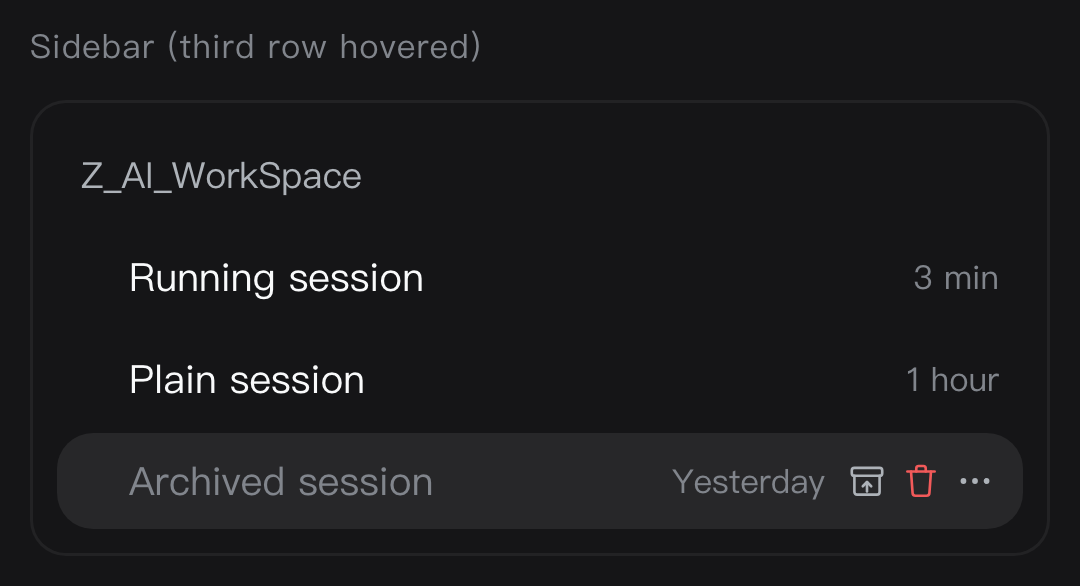
Adds mark-unread, copy session info, reveal in Finder or open with your IDE, and permanent delete to the DSH (DeepSeek Harness) sidebar session menu — plus status dots, hover-card details and one-click delete for archived rows.



UI · Install · Uninstall · Settings · Configuration
UI
| Session menu | Status dots |
|---|---|
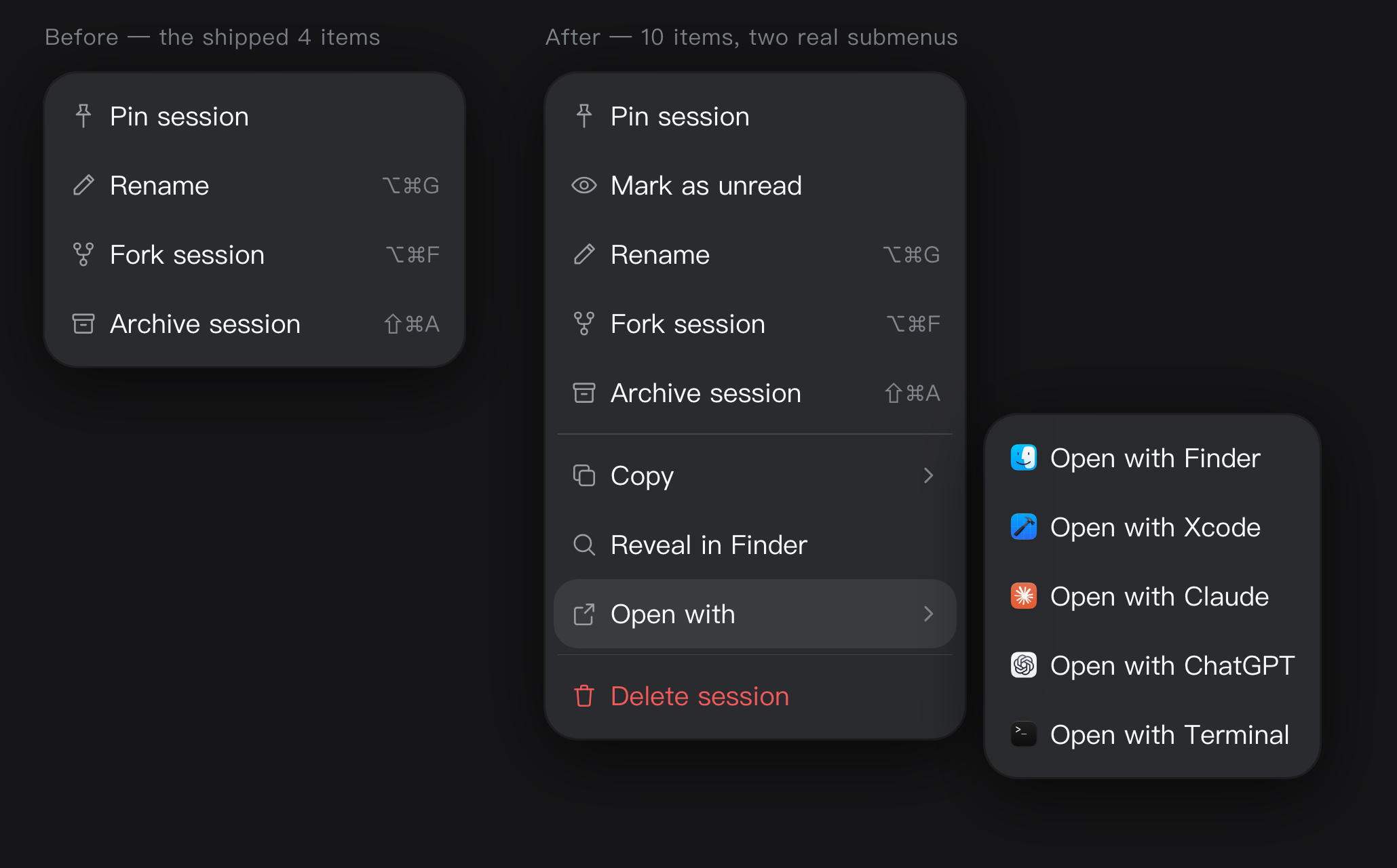 | 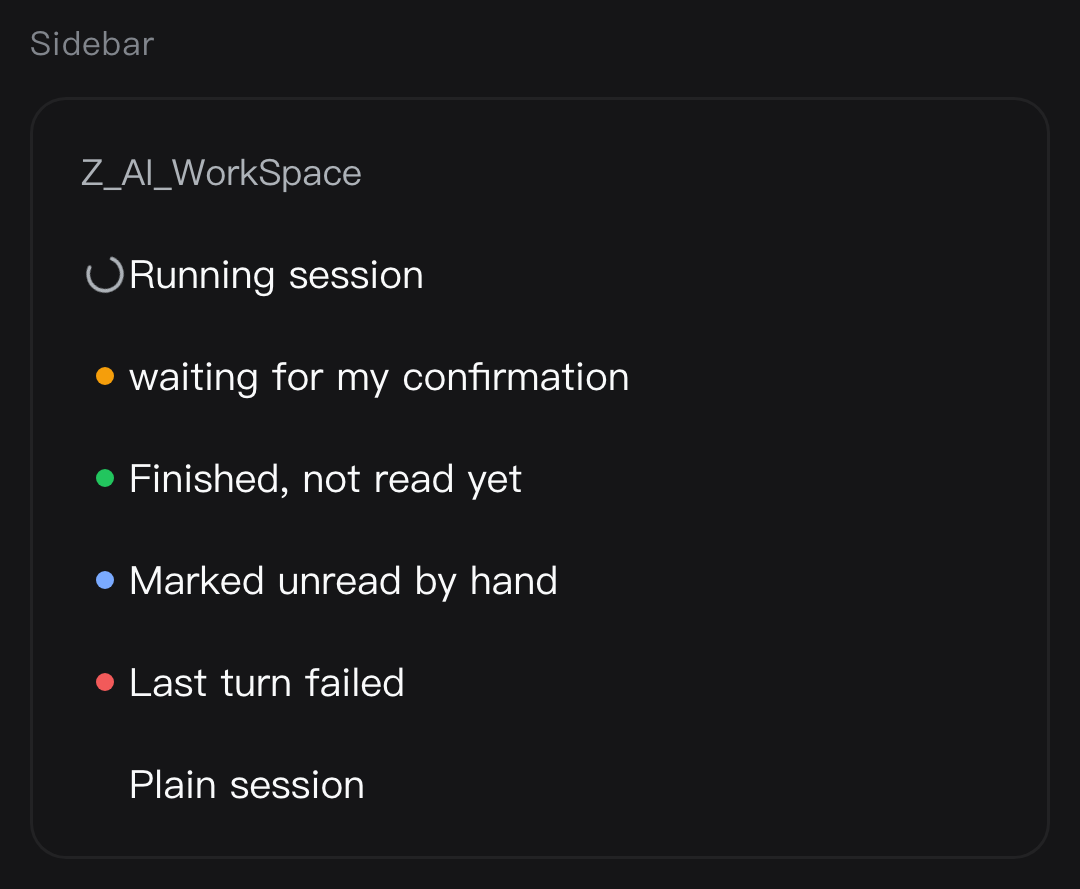 |
| Hover card | Archived rows: one-click delete + bulk entry |
|---|---|
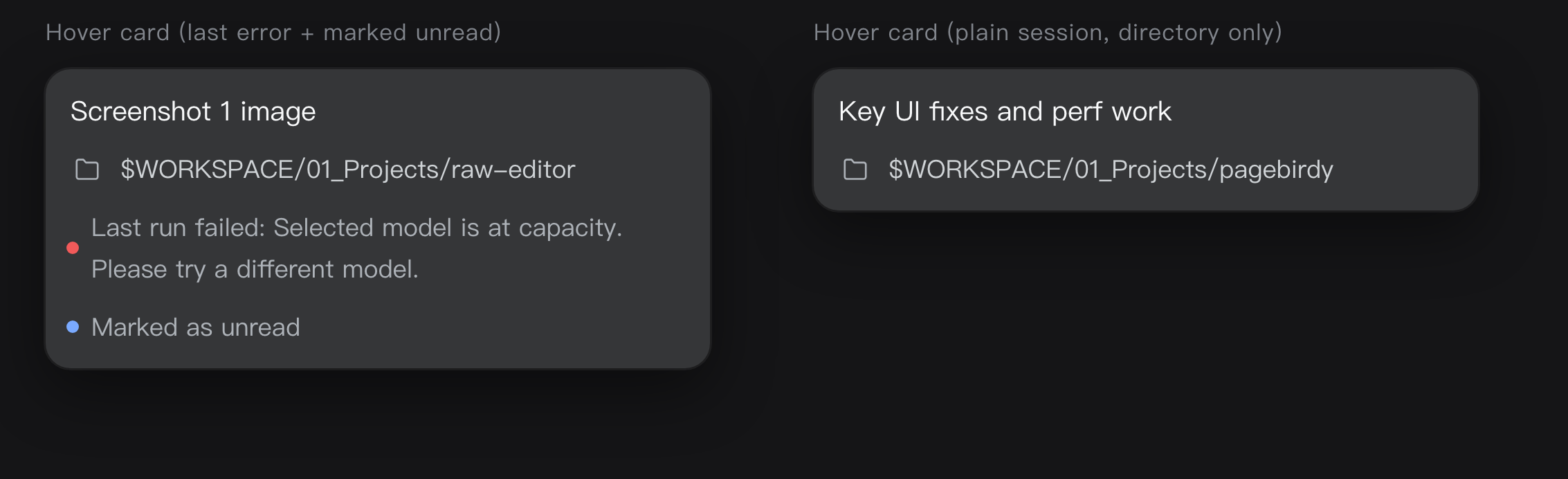 | 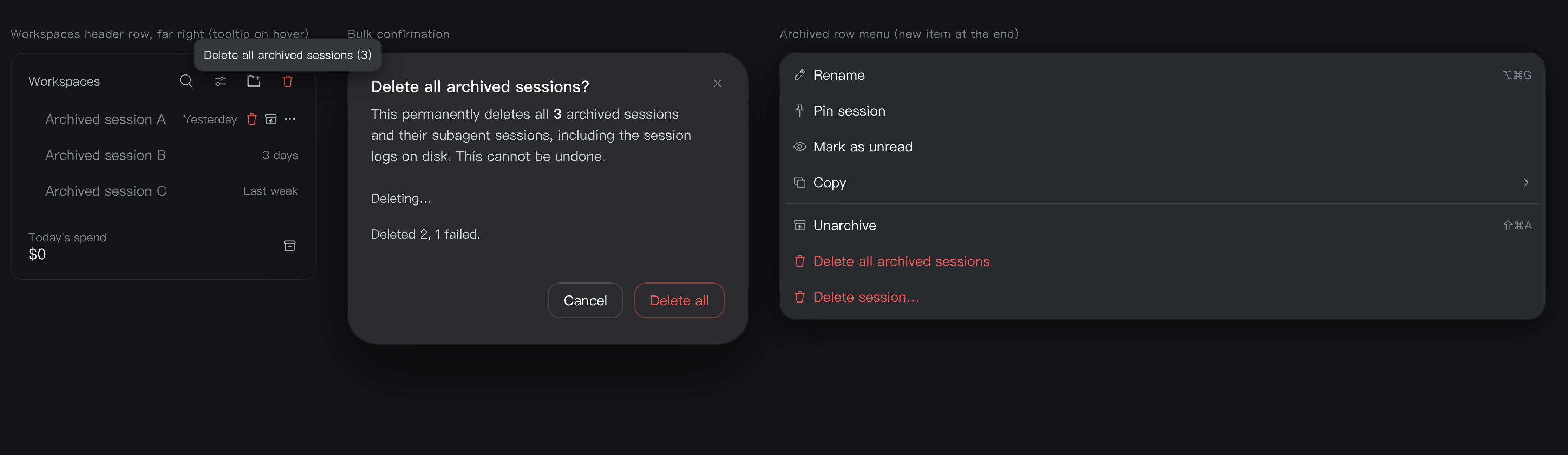 |
| Delete confirmation | Archived row menu |
|---|---|
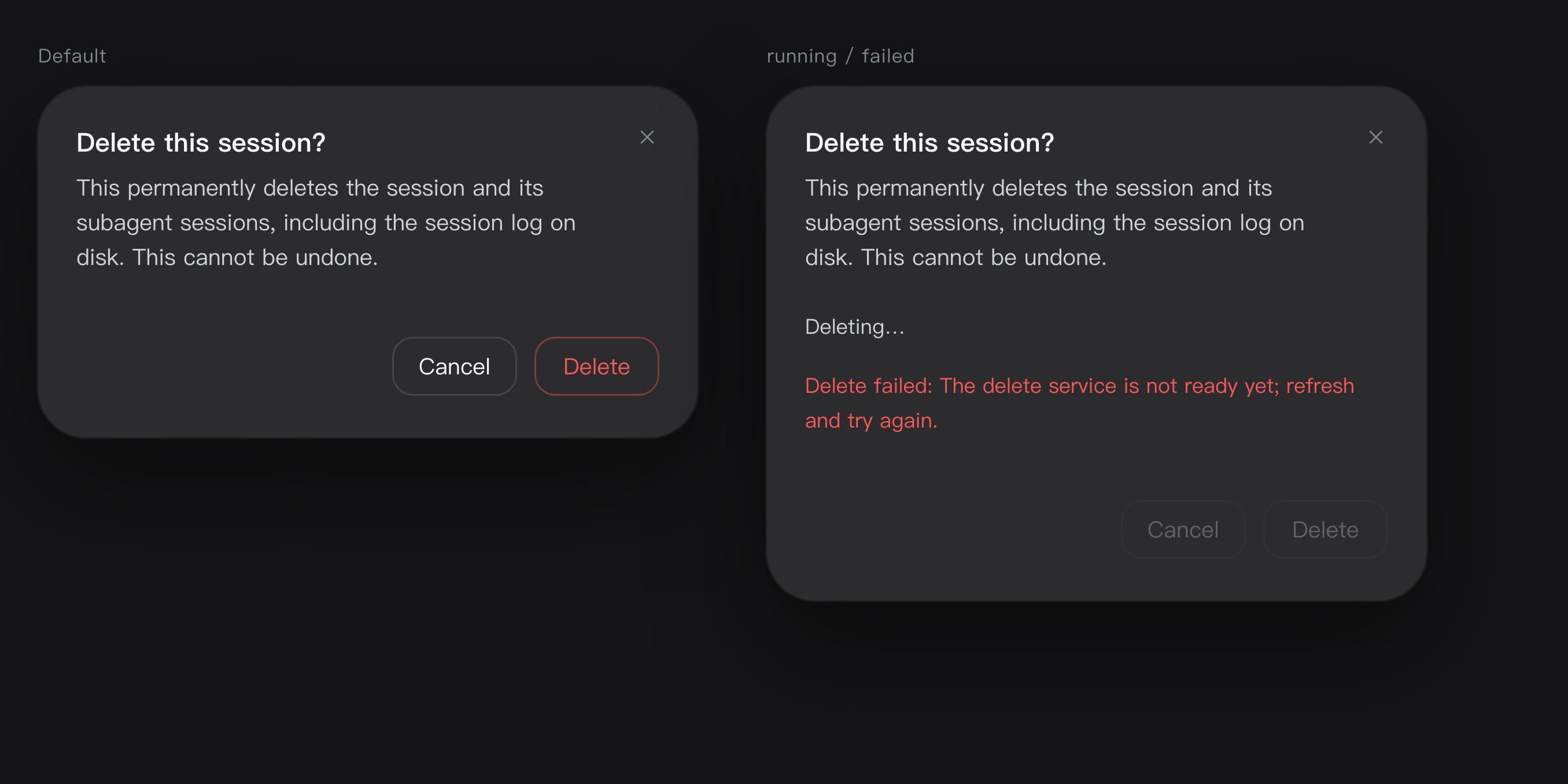 |  |
Once installed, it looks like this under Settings → Plugins → Installed:

Install
All three ways install the dsh-session-menu package from npm.
Option 1 — install it inside DSH (recommended)
- Open DSH and click Plugins in the left sidebar
- Click Add plugin in the top right
- Type
dsh-session-menuand click Install - Restart the DSH app
Option 2 — let the Agent install it
Send this to the Agent inside DSH:
Install the plugin dsh-session-menu with the plugin manager, then remind me to restart DSH.
Option 3 — install it from the terminal
If you are comfortable with a command line: open macOS's Terminal app (⌘ + Space, search
"Terminal"), paste this line and press Enter.
dsh plugin --profile desktop add dsh-session-menu
Replace desktop with your own profile name (ls ~/.dsh/profiles lists them; desktop and web
are the common ones). Either way, restart the DSH app afterwards.
Uninstall
Settings → Plugins → Installed, click the trash icon on the dsh-session-menu row and confirm.
Settings
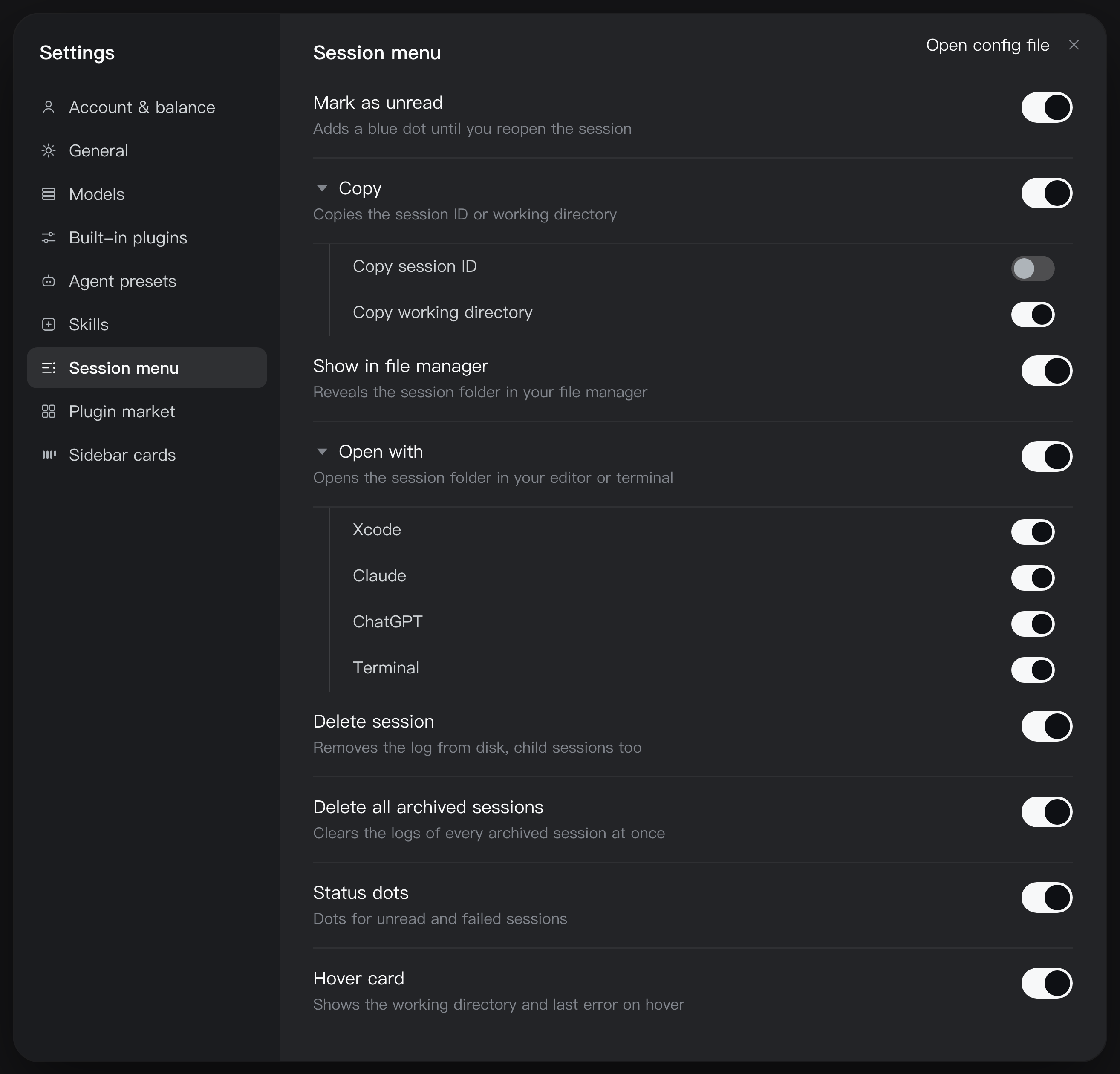
Once installed, the plugin adds a Session menu section under Settings with 8 switches:
Mark as unread · Copy · Show in file manager · Open with · Delete session · Delete all archived sessions · Status dots · Hover card
Turning one off hides it from the context menu and the session rows immediately — no restart. The switches live in this browser.
The triangle next to Copy and Open with expands them, so every sub-item can be switched on its own; turning a parent off greys its children out.
Copy Session ID is newer than this plugin in the kernel itself: when the kernel already ships that row, our identical sub-item starts switched off and Copy collapses into a single row. Switch it back on to keep both.
Running a community build that already ships some of these? Turn the duplicates off here.
Configuration
The apps inside the Open with › submenu are configurable. Add a block to your profile's
cordis.patch.yml:
config:
  applications:
    - kind: editor
      paths:
        - /Applications/Visual Studio Code.app
    - kind: terminal
      paths:
        - /System/Applications/Utilities/Terminal.app
Each entry takes the first path that exists, and only the matching one shows up in the menu.
config replaces the whole list, it does not append. Restart DSH after editing.