dsh-slide
jeremyguo/dsh-slide
会话内可视化幻灯片编辑器:把当前对话切换为 PowerPoint 式画布,保留同一会话与 AI 输入,支持 AI 批注与共享知识引导。
安装
dsh plugin --profile web add github:jeremyguo/dsh-slideREADME
dsh-slide
A per-Conversation visual slide editor for the DeepSeek Harness Web UI. A setting switches the current Conversation from the built-in chat surface to a PowerPoint-like canvas while preserving the same Session and AI input channel.
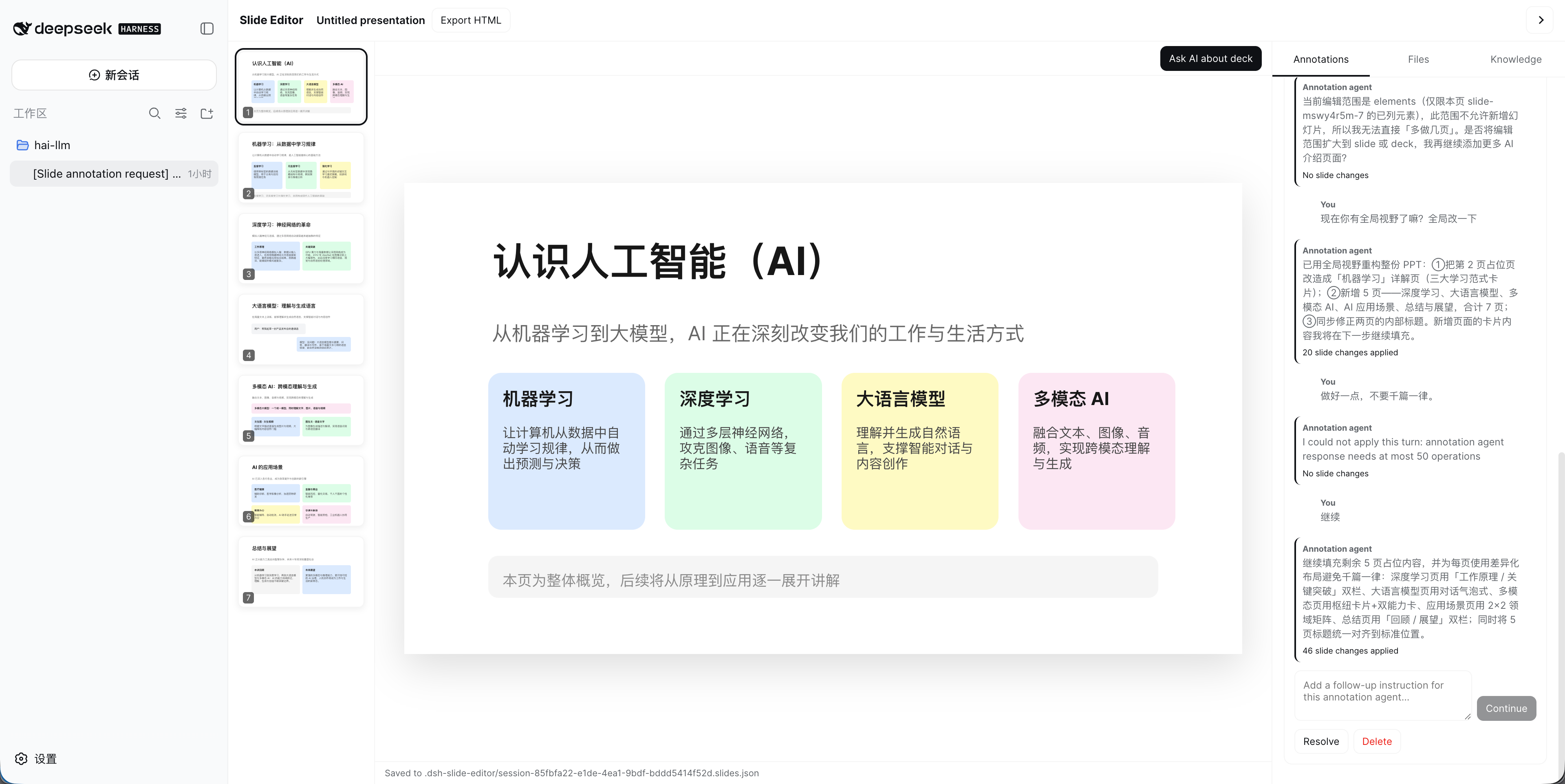
Features
- Enable or disable Slide Editor independently for the currently open Conversation.
- Multi-slide 16:9 canvas with live-content thumbnails, object and page selection, AI-only deck editing, and automatic Workspace persistence.
- Human interaction is limited to selecting objects, pages, or the whole deck and instructing an annotation agent; direct text editing, object movement, resizing, insertion, deletion, and page keyboard mutations are not exposed.
- Export the current deck to a standalone browser presentation with keyboard navigation, fullscreen mode, and print-to-PDF layout; Workspace images are embedded as data URIs.
- Give a dedicated annotation subagent an edit instruction with selected objects, a selected page, or the entire deck as its focus; every subagent retains full-deck modification authority and validated operations are applied directly.
- Continue the conversation below each annotation while preserving that annotation's own message thread and focus.
- Each annotation receives a title summarized from its first request, can be renamed manually, and preserves a custom title across later model turns.
- Watch visible assistant text and tool lifecycle in place of the annotation input while it runs; hidden model reasoning is not exposed.
- Collapse individual annotation threads, review applied-operation counts, resolve, reopen, or delete them from the right panel.
- Resize the right panel by dragging its left edge; the chosen width is preserved locally and can also be adjusted with arrow keys.
- Use the floating File menu to create, load, save, copy, export, or close a deck; New, Load, and Save As use a Workspace file picker instead of path prompts.
- Workspace file browser with single-click navigation/opening, text and image preview, drag-and-drop upload, folder creation, rename, and delete context actions.
- Render image elements from Workspace files, data URLs, or HTTPS URLs with contain, cover, and fill fitting.
- Render arbitrary polygons, Bézier curves, and elliptical arcs from standard SVG path data.
- Shared knowledge initialization prompt and Workspace-relative knowledge file list, editable from Settings or the editor panel.
- Host file routes are bound to the live Session's authoritative
cwd; lexical traversal and symlink escapes are rejected.
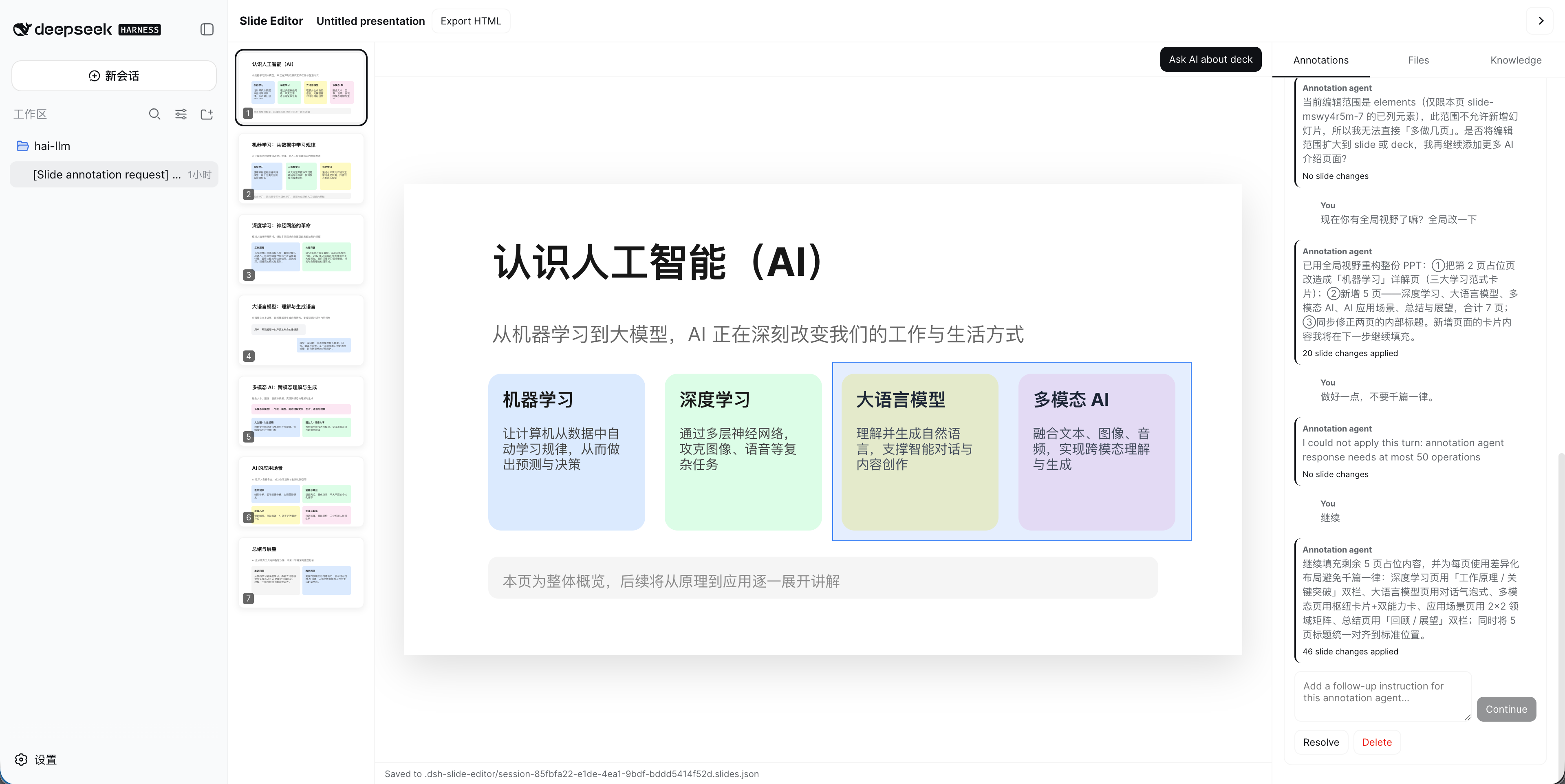
AI-guided selection
Select one or more slide objects to give the annotation agent a precise focus. The selection is context rather than a permission boundary, so the agent can still make the broader deck changes needed to fulfill the request.
Install
Install the published plugin:
dsh plugin --profile web add dsh-slide@dsh-plugin
dsh web
Or build this checkout:
pnpm install
pnpm run build
dsh plugin --profile web add /absolute/path/to/dsh-slide
dsh web
Switch the current Conversation mode
The setting is scoped to the Conversation that is currently open; it is not a global replacement for every chat.
- Open the Conversation you want to use as a slide deck.
- Open Settings from the lower-left corner.
- Select 幻灯片编辑器 (Slide Editor).
- In the 当前 Conversation card, turn on the switch labeled 开启幻灯片编辑模式.
- Return to the Conversation. Its normal chat surface is replaced by Slide Editor while retaining the same Session, Workspace, and model configuration.
To return to the standard chat interface, open the same setting while that Conversation is active and turn it off. Enabling or disabling Slide Editor for one Conversation does not affect other Conversations.
Storage
Each Conversation defaults to:
.dsh-slide/<session-id>.slides.json
Because the default path contains the Session id, different Sessions in the same Workspace do not share a file by default. A user or tool can deliberately associate multiple Sessions with the same existing *.slides.json file; those Sessions then share that file and concurrent saves may overwrite each other.
Open the floating File menu to manage the current deck. New and Save As show a Workspace folder picker and generate a readable, unused *.slides.json name automatically; no path entry is required. Load uses the same picker to choose an existing deck, Save writes immediately, and Close saves before returning the current Conversation to normal chat. Opening a deck from the Files panel has the same association behavior as Load. Documents contain the slide model and annotation review state. Global settings contain enabled Session ids, shared knowledge prompt, knowledge paths, and per-Session document paths.
Main Conversation tool
The top-level Conversation receives an open_slide_deck tool. It opens an existing Workspace-relative *.slides.json file and switches that Conversation into Slide Editor mode. The file must already exist and pass document validation; the agent may create it first with a filesystem tool and then call open_slide_deck.
Subagents cannot use open_slide_deck. Calls from a Session carrying parentSession or origin: "subagent" are rejected. Closing Slide Editor disables the mode for the current Session but retains its last document association.
AI annotation flow
Each annotation owns an isolated message thread and one focus: selected elements, selected pages, or the whole deck. Every turn starts a foreground one-shot spawn subagent under the current Conversation with that annotation's history, focused content, full deck JSON, shared guidance, and knowledge file paths. Selection guides the task but never limits authority: every annotation may update any object or page and add pages. The host streams visible text deltas and tool start/end events as NDJSON while withholding reasoning deltas. The final strict JSON response contains a short review message and slide operations; the browser validates and applies accepted operations immediately, updating both the canvas and live thumbnails. One-shot runs do not wake the parent Conversation, and annotations can progress independently.
Image and geometry syntax
An image is a positioned element. Use workspace:<relative-path> for a Workspace file, or provide a data or HTTPS URL:
All element coordinates and visual lengths, including x, y, width, height, fontSize, and radius, use the fixed 1280 × 720 slide design space. The editor scales them together when the rendered page or thumbnail changes size.
{
  "kind": "image",
  "x": 80,
  "y": 120,
  "width": 500,
  "height": 320,
  "src": "workspace:images/photo.png",
  "fit": "cover",
  "alt": "Product photo"
}
Arbitrary polygons and curves use one geometry element with standard SVG path data. The path uses a local viewBox and is scaled into the outer element rectangle:
{
  "kind": "geometry",
  "x": 600,
  "y": 180,
  "width": 400,
  "height": 240,
  "viewBoxWidth": 100,
  "viewBoxHeight": 100,
  "path": "M 5 90 L 50 5 L 95 90 Z",
  "fill": "#dbeafe",
  "stroke": "#2563eb",
  "strokeWidth": 2
}
Use M/L/H/V/Z for polygons, C/S for cubic Bézier curves, Q/T for quadratic Bézier curves, and A for elliptical arcs. Open curves normally use "fill":"none".
Subagents learn this syntax through the operation protocol appended to every annotation prompt. The prompt includes the supported add-image, add-geometry, and update-element JSON examples, SVG command guidance, the complete current deck JSON, the selected focus, annotation history, shared prompt, and knowledge paths. Model output is decoded and validated before any operation is applied.
Architecture
- Host entry: settings namespace, Workspace HTTP routes, annotation streaming, and the
open_slide_decktool. - Browser entry: one Settings section and a dynamic
conversationslot registration at priority-100only while the current Session is enabled. - Browser bundle: lazy CommonJS factory loaded through
window.__ModuleLoader__, so installing the package does not rebuild the DSH frontend.
Current limitations
- The native editable format is
*.slides.json; HTML export is included, while editable PPTX export is not. - The file API currently caps JSON uploads at 32 MB per request.
- The subagent response protocol supports text, rectangles, images, SVG-path geometry, page updates, and page insertion; image generation and arbitrary document rewrites are not accepted.
- Rich text runs, charts, tables, guides, and collaborative cursors are not implemented.