dsh-recorder
tyouter/dsh-recorder
按脚本操作另一个 DSH 插件的真实界面,并把真实窗口录成 GIF。仅限 Windows。它的 /recorder 路由没有 DSH 的访问检查,而 run 路由可以让已打开的 DSH 页面点击和输入,所以你打开的任何网页都可能驱动它;录制会用 Pillow 截取屏幕的一块区域。
安装
dsh plugin --profile web add github:tyouter/dsh-recorderREADME
dsh-recorder
Records a DSH plugin's real interface — the pixels of the running app, not a re-render — and turns that into a GIF or stills. It also drives that interface like a person: typing with real input events, clicking buttons, selecting a range of text, switching panels.
Two ways to use it:
- The panel: sidebar → 「录制器」, paste a script, press 「开始录制」. The page executes the script while the real window is recorded, then shows the GIF.
- Agent tools:
recorder_scan→recorder_demofor a one-shot recording from a conversation.
Status: v0.1, installed and verified on this machine. A real notes walk produced a 10.8 s,
65-frame, 2.0 MB GIF plus three stills (recordings/rec-20261103-142842/). The plugin is installed as
@tyouter/dsh-recorder in the desktop profile; the row is include:dsh-recorder.
The panel
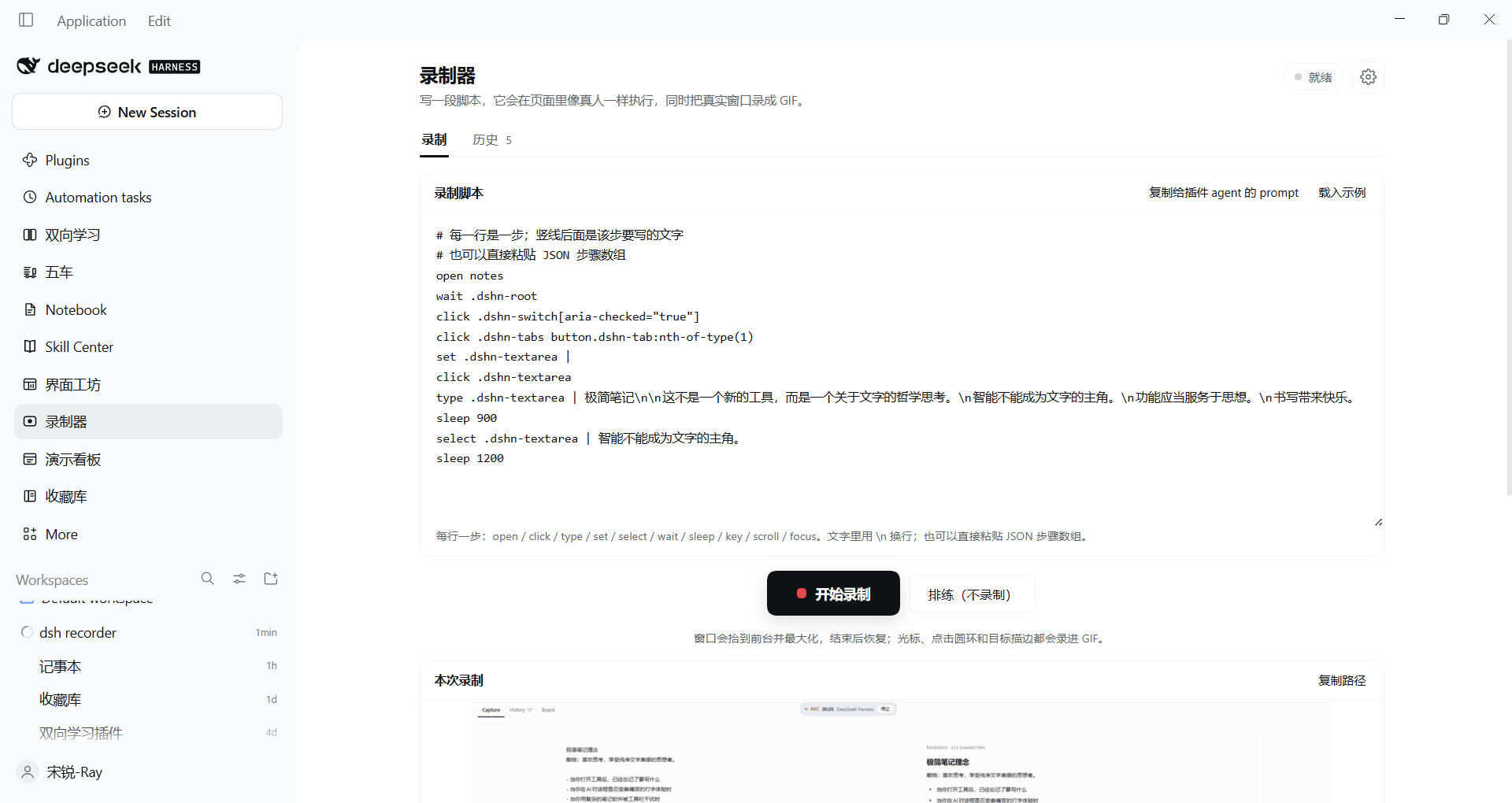
Sidebar → 「录制器」 opens a page with two tabs.
录制 — the whole workflow is one centred column:
| Part | What it does |
|---|---|
| 录制脚本 | The script, front and centre. JSON steps or one step per line (see below); kept in localStorage between visits. |
| 复制给插件 agent 的 prompt | One click copies a self-contained prompt (the full spec + what to output). Paste it into the agent that owns the plugin, describe the demo, and it returns a script you paste back. 载入示例 restores the notes walk that the verified GIF came from. |
| 开始录制 | The primary action, a large button under the editor. 排练(不录制) runs the same steps without recording (real clicks, no video); 停止 ends early. A rehearsal brings the window forward first — a background window throttles the page's timers and would freeze the walk. |
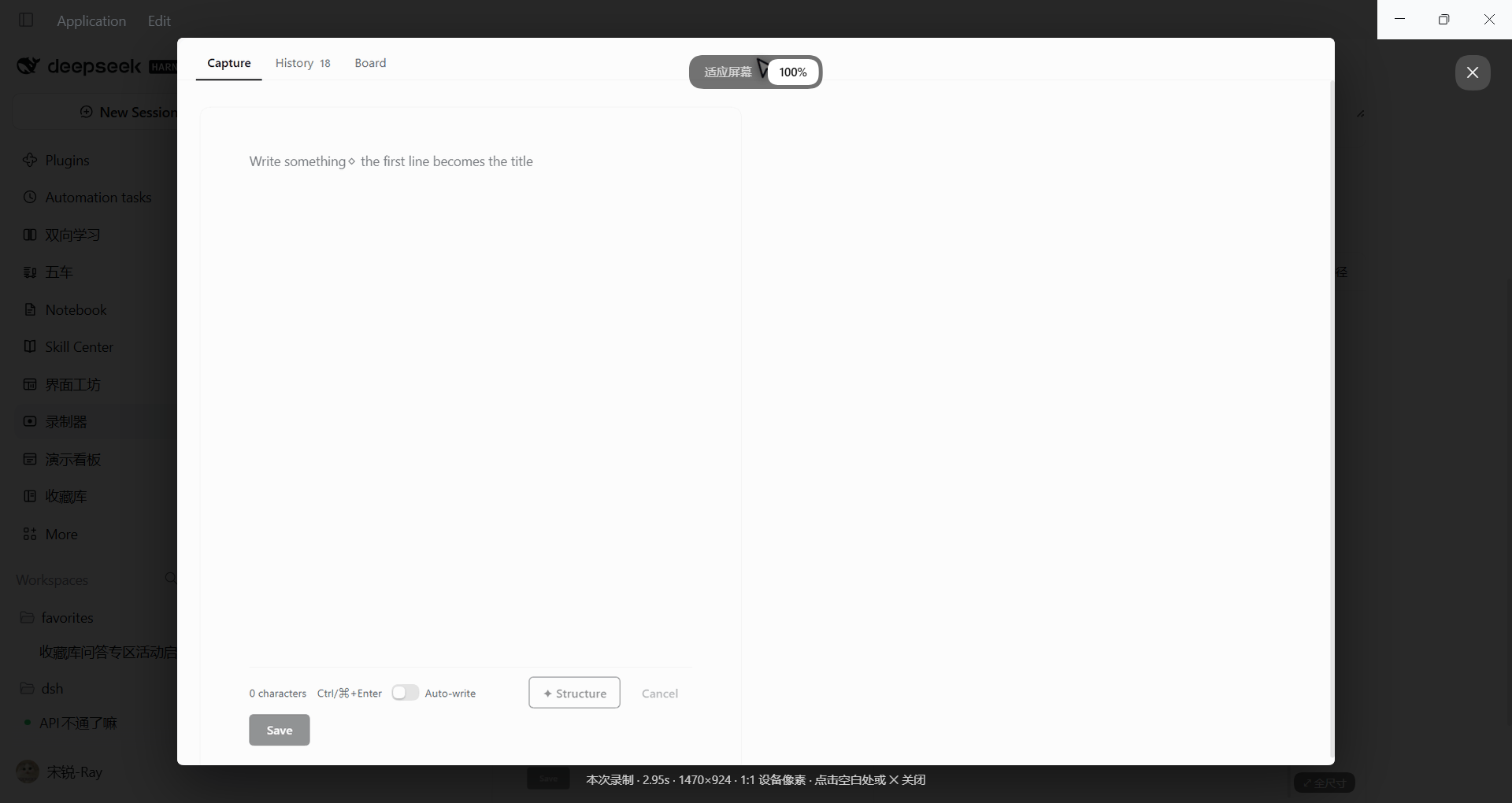
| 本次录制 | The result of this run: a large GIF preview (click it for a full-size lightbox), its length/frames/size, the path, and the per-step log. The lightbox opens at 100% — one GIF pixel per device pixel, so the text is exactly the physical size it had on screen; 适应屏幕 fits the whole frame instead (smaller text). |
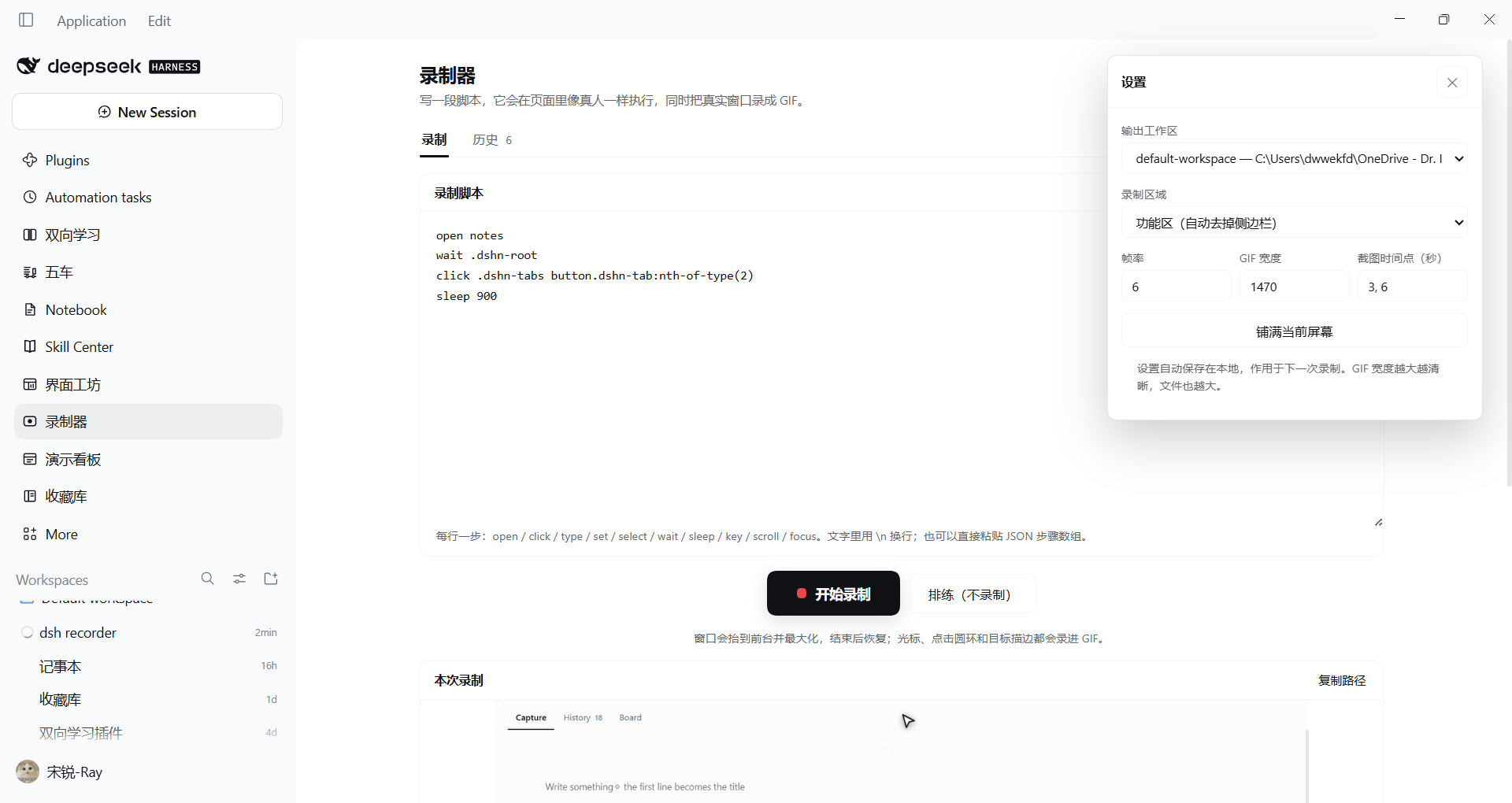
⚙ 设置 (top right) opens a popover with the parameters — they are no longer mixed into the main page:
- 输出工作区 — which registered workspace's
recordings/receives the output. - 录制区域 —
功能区(crop to the main panel),整个窗口,自定义区域+ a CSS selector. - 帧率 / GIF 宽度 / 截图时间点 — 6 fps. The GIF width defaults to the content's physical pixel width (≈1470 on a 125% display) so the preview is never upscaled; lower it to shrink files, and remember the encoder cannot add detail beyond the source. Stills are seconds.
- 铺满当前屏幕 — maximize on the monitor under the cursor.
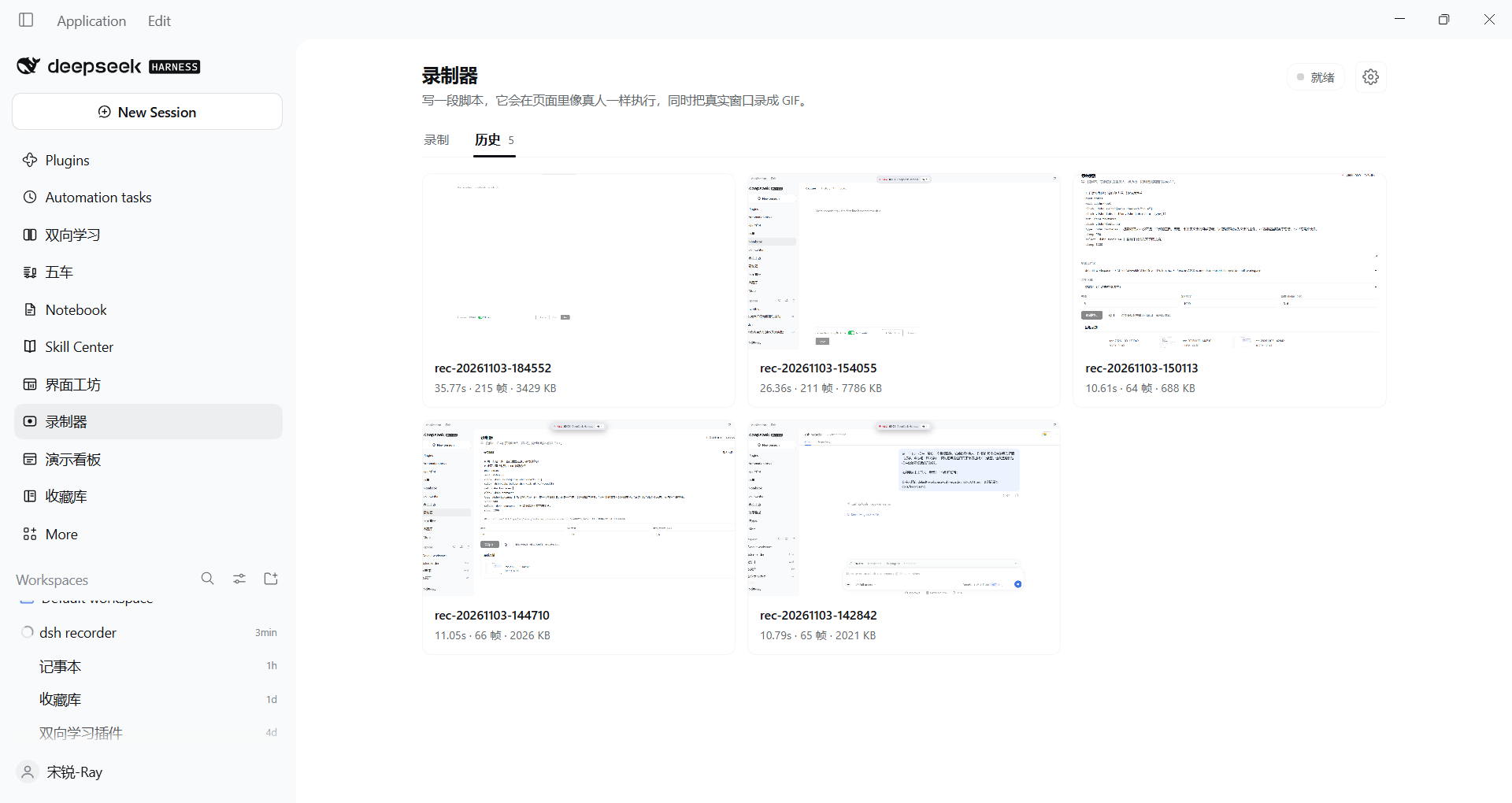
历史 — a grid of past recordings of the selected workspace (thumbnail, name, length, frames,
size). Click a card to open it with the GIF, meta, path and copy button. Click the preview (the
⤢ 全尺寸 badge) to open the full-size lightbox; click the backdrop or ✕ to close.
The detail view also has 删除这段录制: the first click arms the button, the second confirms and
removes the recording directory from disk. Only directories directly under a recordings root whose
name matches rec-YYYYMMDD-HHMMSS can be deleted (the route refuses anything else).
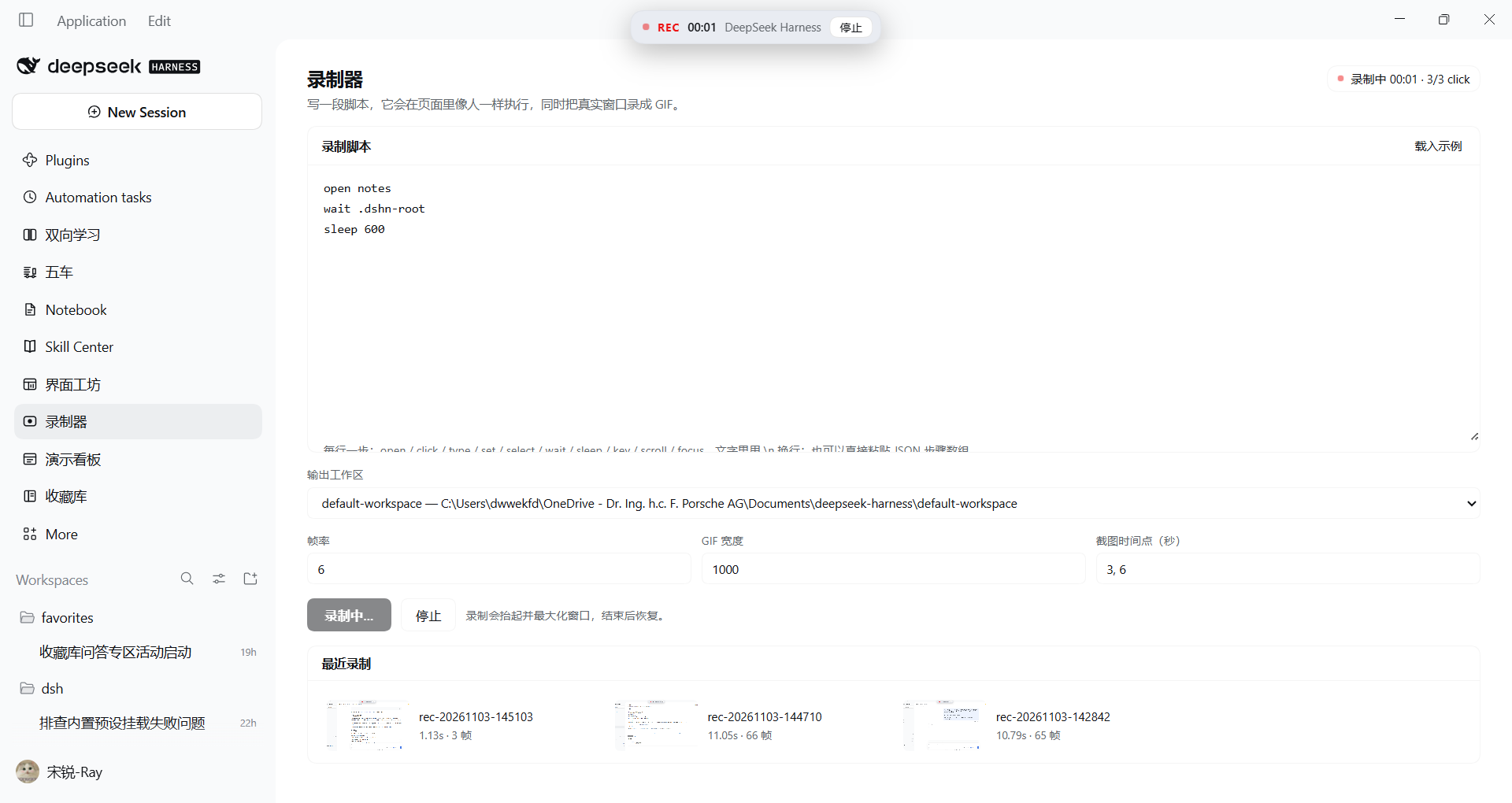
While a run is active the status pill counts steps (录制中 00:01 · 3/3 click) and the floating REC
pill below the title bar shows the clock and a stop button. A rehearsal gets the same pill in blue
(排练 2/10) with its own stop, so it can be ended even when the script has switched away from this
page. The panel is in the main area, so a script that opens another plugin's panel will hide it — the
pill stays available, and coming back to the recorder panel shows the finished result.
The pill is hidden while the pointer is away from the top strip and appears when the pointer enters
the top 84 px. That keeps it out of the recording (nothing is drawn over the page during a normal
walk), while moving the mouse to the top is the stop control when the panel is not visible. It sits at
top: 46px because the very top strip is the window's drag region; a click there belongs to the window
manager. Pressing 停止 hides the pill immediately while the GIF is assembled, so a long splice never
looks like an ignored click.
Window size
铺满屏幕 (and, when maximizeOnStart is true in the patch, a moment after the plugin activates)
moves the app window to the monitor under the cursor and maximizes it, so a freshly launched Harness
fills the current screen instead of opening at its remembered size. Focusing the window for a rehearsal
never changes its size: a maximized window stays maximized, at the same rect. Window geometry is the
plugin's business; UI scale is not — the interface still follows the Windows display scale of that
monitor (120 DPI = 125% here). For a 1:1 UI, set that monitor to 100% or launch the app with Chromium's
--force-device-scale-factor=1; a page plugin cannot change the process's DPI mode.
Keep the Harness window visible while a walk runs: Chromium throttles a background window's timers,
which freezes every sleep/wait in the script (and delays a stop). The rehearsal brings the window
forward before it starts; the capture does the same by design.
Cursor and click effects
The driver paints the pointer into the page, so the effects are part of the recording — no post-processing, the frames are the page:
- a short blue trail follows a move, including a jump across the screen (two breadcrumbs are laid on the straight line when the distance is large);
- two expanding blue rings plus a flash mark the click;
- the clicked element gets a temporary blue outline, so the target is obvious even when the pointer is small.
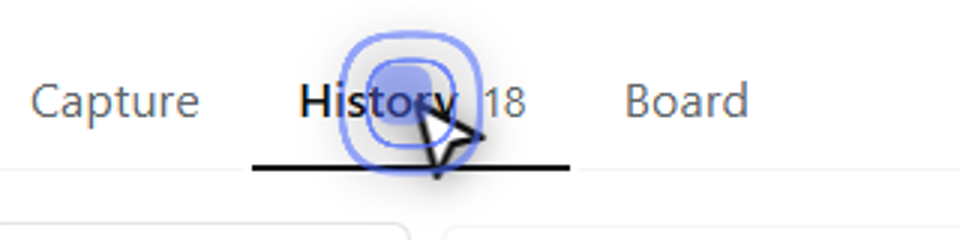
All of it is disabled under prefers-reduced-motion (the outline and the pointer are still drawn).
Recording area
功能区 is the default and is what most demos want: the page measures the main panel's box and sends
the insets in CSS pixels plus devicePixelRatio; the Host maps them through the window's real
client area (Win32 GetClientRect + ClientToScreen) and crops every frame. The window is still
maximized for the shoot — the crop is what removes the sidebar and the app title bar, and
it stays correct on a mixed-DPI desktop because the mapping is measured, not assumed.
Because the crop is the main panel, the GIF's aspect ratio is the panel's, not the window's
(e.g. 1544×970 for a 1920×1020 window). The image is still scaled proportionally; if the framing has
to match the full window, pick 整个窗口.
整个窗口records the maximized window as-is (sidebar included).自定义区域takes a CSS selector and crops to that element's box; the element must exist when you press start.- If another app takes the foreground mid-recording, those frames show that app; the result then
carries a
⚠warning rather than pretending the footage is clean.
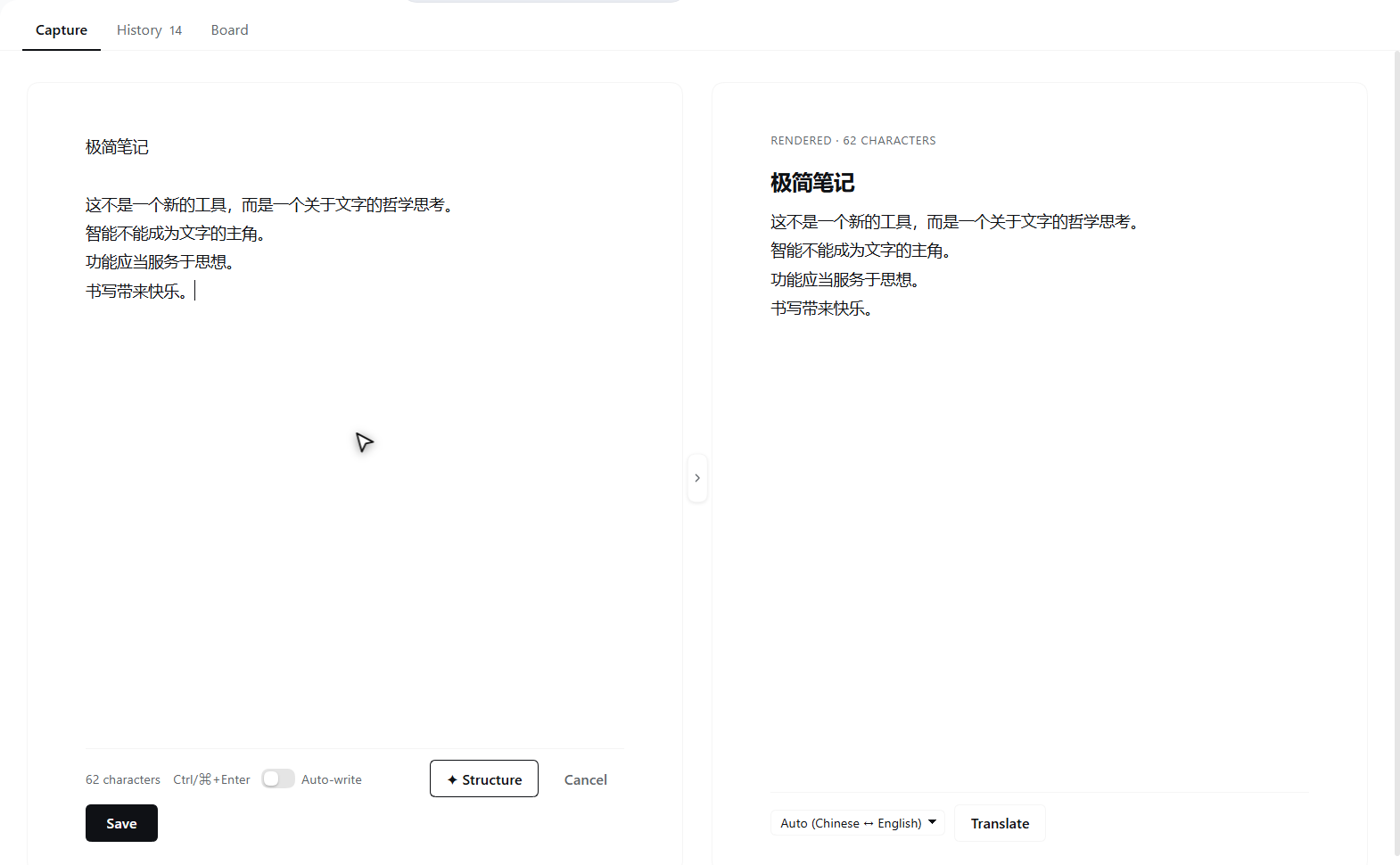
The same walk in 功能区 mode: 10.6 s / 64 frames / 705 KB, against 2.0 MB for the full-window cut —
the sidebar and app title bar are simply not in the frame.
Script syntax
One step per line; | introduces the text for that step. Lines starting with # are comments.
# 打开记事本,写一段笔记,选中一句
open notes
wait .dshn-root
click .dshn-switch[aria-checked="true"]
click .dshn-tabs button.dshn-tab:nth-of-type(1)
set .dshn-textarea |
click .dshn-textarea
type .dshn-textarea | 极简笔记\n\n这不是一个新的工具,而是一个关于文字的哲学思考。\n智能不能成为文字的主角。\n功能应当服务于思想。\n书写带来快乐。
sleep 900
select .dshn-textarea | 智能不能成为文字的主角。
sleep 1200
open <panel>— switch to another plugin's main panel (notes,wuche,conversation, …).click <selector> [| text]— click a button/tab;textpicks among matches.type <selector> | text— type character by character (60 ms each);\ninserts a newline.set <selector> | text— set the value in one go (good for clearing a draft).select <selector> | text— highlight that text.wait <selector> [timeoutMs]— wait for an element (default 8 s).sleep <ms>,key <selector> <Tab|Enter|Escape>,scroll <selector>,focus <selector>.
A JSON array of step objects works too — starting the box with [ switches the parser. Step objects
use the same op names the agent tools use, and can set ms on type.
A step whose element is missing is reported as failed and the walk continues (unless the JSON sets
strict: true). Selectors come from the plugin's real DOM; the agent tool recorder_scan prints them.
The full, versioned grammar is in docs/script-spec.md. Before spending a
recording, press 排练(不录制): it runs the same steps for real and lists ✓/✗ per step, so a
wrong selector shows up in a second instead of in a wasted GIF.
Writing a script with another agent
The plugin's own agent knows its components and class names, but not the recorder's grammar. Hand it the prompt:
- Press 复制给插件 agent 的 prompt.
- Paste it into that plugin's agent conversation, replace the last paragraph with what you want to
see (
打开记录页,点 Structure,输入一句话…), and send. - The agent answers with one code block. Paste it into 录制脚本, press 排练(不录制), then 开始录制.
The prompt carries the whole spec, so the other agent does not need this repository. If you also want
it to use real selectors, send it the output of recorder_scan (the agent tool) for the panel you
mean; the prompt tells it to prefer that list.
Agent tools
| Tool | What it does |
|---|---|
recorder_windows | Lists recordable windows (title, screen rect, size) and reports the capture backend. |
recorder_scan | Reads the live DOM and returns the visible interactive elements with real CSS selectors. |
recorder_start / recorder_stop | Manual start/stop; start returns a probe frame to check the target. |
recorder_drive | Runs steps against the live page without recording, or while a recording runs. |
recorder_demo | start → drive → settle → stop in one call. |
How it works
- Capturing pixels happens in the Host half: screen capture of the real window through
tools/record-window.py(Win32 + Pillow). It knows nothing about DSH plugins. - Driving happens in the page that owns the UI. The recorder's own client half lives in the same page as every other plugin, so it operates the target's real DOM. The plugin under test does not have to change at all — no dev flag, no injected script, no debug port.
- Agent-triggered runs use a job bridge: the page polls
/recorder/api/poll, runs the handed-out steps, and posts the report back. The panel does not use that bridge — it runs the same driver locally (POST /start→ steps →POST /stop), so a throttled background timer can never stop a demo from starting./progressstill feeds the pill's step counter on both paths.
run / recorder_demo (agent path)
   │  Host: resolve window → activate → maximize → start frames
   ├────────► /recorder/api/poll ──► page: run steps (type/click/select/openPanel)
   │  Host: wait for the report ◄── /recorder/api/report (and /progress)
   │  Host: settle → STOP → GIF assembly (Pillow) → restore window
   └── { gif, stills, frames, seconds, walk: [step results] }

panel: POST /start → runSteps() in the page → POST /stop   (no poll involved)
Because a screen grab cannot see through another app, a run raises the window (minimize + restore, which is the one activation Windows never refuses) and maximizes it for the length of the shoot; the previous placement is restored afterwards. The painted cursor and the REC pill are part of the page and are recorded in both modes.
Installing / updating
plugin_manager(install_bundle, target = <this directory>)
A newly installed bundle's client half appeared in the running page without a reload on this
build. Host-side JavaScript changes are not picked up by editing files: disable and re-enable the
row with plugin_manager(set_plugin), or restart the app.
Limits (v0.1)
- One recording at a time; output goes to
<workspace>/recordings/rec-<stamp>/. - Screen capture means the screen: if the window is moved or covered mid-recording, the footage shows
that.
recorder_startreturns aprobeframe for exactly this check. - The recorded window is maximized for the shoot and restored afterwards.
- No zoom, chapter cards, or post-processed cursor: the cursor is a DOM overlay recorded with the page.
- The panel's output workspace is a registered-workspace picker; the agent tools use the calling session's cwd.
- The plugin under test is untouched. The notes fixture clears its draft and never saves.
Files
index.js               Host half: engine wiring, tools, /recorder/api
lib/engine.js          one recording + one page operation at a time; the job bridge; workspaces
lib/capture.js         capture backends (Electron capturePage when available, else screen) + stills
lib/python.js          locating the bundled Python and running the helper
lib/tools.js           the six model-facing tools
client.js              page half: poll loop, step driver, DOM scan, REC pill, cursor, recorder panel
tools/record-window.py window/rect capture, stop-file protocol, probe frames, GIF assembly
examples/notes-demo.json  the verified walk as JSON steps
docs/panel.png          the recorder page
docs/panel-running.png  the page during a run (REC pill + step counter)
docs/crop-example.png   a 功能区-mode frame (no sidebar, no title bar)
docs/click-effect.png   the pointer, trail and double click ring over a clicked tab
docs/script-spec.md     the versioned script grammar (also the source of the copied prompt)
HANDOFF.md             the original brief (kept as the design record)
docs/findings.md       measurements: what was proved, what failed, and why