dsh-omni-workstation
huashenglian/dsh-omni-workstation
Estación de trabajo omnimodal para DSH: analyze_image sobre una cadena ordenada de conmutación por error VLM de varias tarjetas, un conjunto de seis herramientas de visión (zoom, muestreo de color, diferencia de píxeles, OCR, detección de elementos y visualización en línea) que comparten el mismo resolutor de imágenes, generate_image mediante los protocolos OpenAI/DashScope/ComfyUI, generate_video asíncrono con varias tarjetas y un constructor /build-video-tool, y speak/clone_voice TTS en siete proveedores, todo gobernado por una única página de ajustes con autoguardado.
Instalar
dsh plugin --profile web add github:huashenglian/dsh-omni-workstationREADME
dsh-omni-workstation



An omni-modal workstation plugin for DeepSeek Harness (dsh). It gives the AI eyes, a brush, a camera and a voice: image analysis backed by an ordered multi-card VLM failover chain, a 6-tool local vision toolkit, image generation (incl. ComfyUI workflows), multi-card async video generation with an AI tool builder, and TTS / voice cloning across 3 cloud + 4 local providers — all configured from one auto-saving settings page (English / 中文).
English | 中文
Install · Quick Start · Features · Docs · How it works
Install
The plugin is a bundle: it carries its own cordis.patch.yml and self-activates — one command, no manual patch editing.
# From a local directory
dsh plugin --profile web add ./dsh-omni-workstation

# From GitHub
dsh plugin --profile web add github:huashenglian/dsh-omni-workstation

# From a packed tarball (pnpm pack / npm pack)
dsh plugin --profile web add ./dsh-omni-workstation-0.2.0-beta.1.tgz
dsh plugin add installs the dependency and appends the bundle to dsh.profile.bundles automatically.
[!NOTE] Do not add a manual
- insert: - id: omni-workstationrow to the profilecordis.patch.yml— the bundle already inserts it. A second insert throwsduplicate loader entry id: omni-workstationat boot.Manual alternative: put the package under
$DSH_HOME/profiles/web/plugins/dsh-omni-workstation/, add"dsh-omni-workstation": "file:./plugins/dsh-omni-workstation"to the profilepackage.jsondependencies and"dsh-omni-workstation"to thedsh.profile.bundlesarray, runpnpm install, then restartdsh web.
Restart dsh web and open http://127.0.0.1:3080. If you don't have the dsh CLI yet, start the web server directly:
npx @deepseek-ai/dsh web
Requirements
dshCLI (DeepSeek Harness) with awebprofile — or any CLI/headless profile (see CLI / headless)pnpmonPATH(or usenpx --yes pnpm@<version>)
Quick Start
- Restart
dsh weband open Settings → Omni Workstation. - On the VLM tab, click Add Model (or edit the default card): pick a provider, paste your API key, fetch and pick a model.
- Send the AI an image (or a local path) and ask about it — the
analyze_imagetool is now live.
Configuration
All settings live in one JSON file, omni-vision.json. The settings page writes it, and in a terminal-only setup it is the only way to configure the plugin — there are no extra slash commands to memorize.
Where the file lives (highest priority first):
| # | Path | When it is used |
|---|---|---|
| 1 | $DSH_OMNI_WORKSTATION_CONFIG_DIR/omni-vision.json | test / advanced override only |
| 2 | ~/.dsh/omni-vision.json — or $DSH_HOME/omni-vision.json when DSH_HOME is set | recommended; used whenever it exists, and the default target for a new install |
| 3 | ~/.dsh/profiles/<profile>/node_modules/dsh-omni-workstation/omni-vision.json | legacy location (v2.5–v2.13); still honoured while no home file exists |
On Windows: C:\Users\<you>\.dsh\omni-vision.json. Everything the plugin persists lives next to that file: omni-vision.json.bak (recovery copy), omni-vision.schema.json (editor completion), voice-library/ (cloned voice samples) and transcripts/ (STT output).
[!TIP]
- Hand edits apply without a restart. The plugin re-reads the file on the next agent step and re-registers tools accordingly.
- The boot log prints the resolved path and which modules are live, e.g.
[dsh-omni-workstation] config: /home/you/.dsh/omni-vision.json (home) | vlm=on(2 cards) toolkit=on …. Check it if you are unsure which file is in use.- A JSON syntax error is reported with the path and never overwrites your file — the plugin keeps running on the last good
.bak(in memory) until you fix it.- The file holds real API keys: never commit it. The plugin writes
"$schema": "omni-vision.schema.json"on every save, which gives editor autocomplete + validation; add that single line yourself only if you created the file outside the plugin (see configuration reference).- Moving a legacy config to the stable location:
cp ~/.dsh/profiles/web/node_modules/dsh-omni-workstation/omni-vision.json ~/.dsh/(PowerShell:Copy-Item <src> ~/.dsh/omni-vision.json). The home file wins from then on.
Minimal hand-written config — one VLM card is enough to make analyze_image live:
{
  "retryCount": 3,
  "vlmEnabled": true,
  "apis": [
    {
      "id": "c_yyy",
      "name": "VLM API",
      "provider": "custom",
      "protocol": "openai-completions",
      "endpoint": "https://api.example.com/v1",
      "apiKey": "sk-...",
      "model": "gpt-4o",
      "timeoutMs": 120000
    }
  ]
}
CLI / headless (no browser)
The plugin loads in any composition that provides tools + llm — a web server is not required. Where there is no web surface, the /omni/* routes and the settings page simply do not exist, so configure it from the file:
# install into a CLI profile (any profile name works, e.g. headless)
dsh plugin --profile headless add github:huashenglian/dsh-omni-workstation

# add one valid VLM card to ~/.dsh/omni-vision.json (see above), then:
dsh --profile headless "describe ./screenshot.png"
analyze_image, the 6 vision tools,generate_image/generate_video,speak/clone_voice/transcribeall work — each gated by the same switches in the config file.- Browser-only extras: the settings page itself, the
/omni/*HTTP routes, the in-chat visual preview rendered byshow_image/show_video(the tools still work and return artifact paths) and the/build-video-toolslash command. - Web and CLI profiles read the same file, so you configure once and use it everywhere.
Feature Overview
| Module | Tool | Highlights |
|---|---|---|
| VLM | analyze_image | Ordered API card list, single-request failover, per-card timeout, JPEG→PNG fallback, 28 built-in providers, mirror models, dynamic multimodal adaptation |
| Vision Toolkit | zoom_image · sample_colors · image_diff · ocr_image · detect_elements · show_image | 4 tools are pure-local (zero tokens); shared image resolution + card chain; artifact paths only |
| Image Gen | generate_image | OpenAI / DashScope / ComfyUI protocols, multi-workflow management with role mapping, reference-image support, auto verify reminder |
| Video | generate_video (+ per-card names) | Multi-card (limit 10), 7 protocols, /build-video-tool AI builder with custom-adapter runtime |
| Voice | speak · clone_voice · transcribe | MiMo / MiniMax / Doubao + IndexTTS / GPT-SoVITS / VoxCPM / TTS-WebUI; zero-registration inline & persisted cloning; speech-to-text via one OpenAI-compatible protocol (local FunASR by default, no key needed) |
Every module has its own switch (on by default, except the STT sub-switch), but a switch alone is not enough: turning one off unregisters its tools completely, and an incomplete configuration never registers the tool at all (0 token cost) while keeping your configuration.
Why a plugin instead of a Skill or a fixed script
| Approach | Typical pain | What this plugin does |
|---|---|---|
| Long Skill text (official-API recipes) | A big instruction dump every turn — expensive tokens | Config lives only in the settings page / omni-vision.json; tool schemas inject only when a module is on |
| Fixed scripts (hand-written API calls) | Locked in a project folder; you must restate path and usage each time | Tools register into the harness — the AI finds and reuses them automatically |
| Changing config / switching models | Edit scripts or re-paste the Skill body | Change a field in Settings; it takes effect immediately |
In short: less context, ready to use, config without code.
Custom tools (video)
Today you can AI-build a custom video tool: type /build-video-tool in chat. The plugin injects a build guide (card limit, existing tools, hard constraints); the AI collects the platform details and writes a new card plus a callable tool — no hand-written script, no re-pasting API docs.
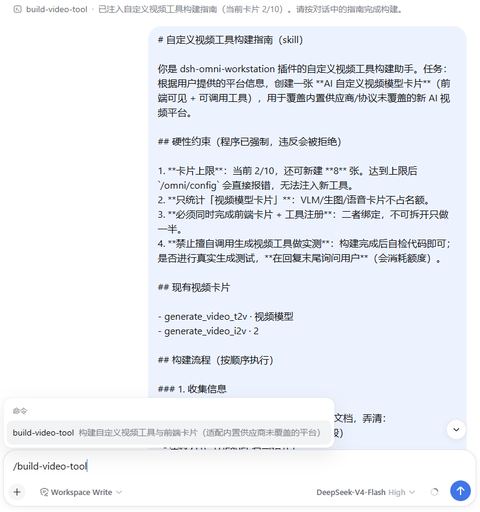
[!TIP] Card limit defaults to 10; the command errors out when the cap is hit. Custom tools run on the
custom-adapterruntime — see the video docs.
Settings Panel
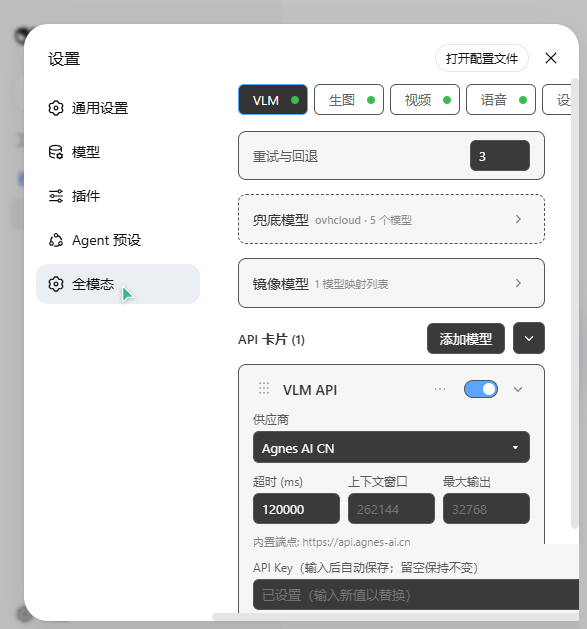
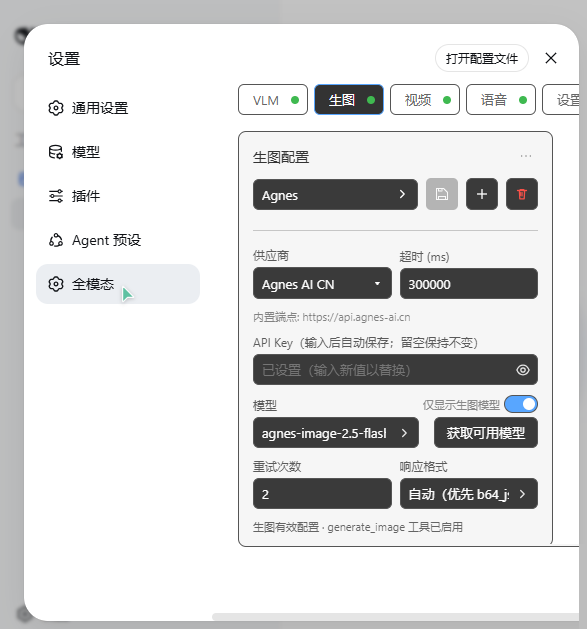
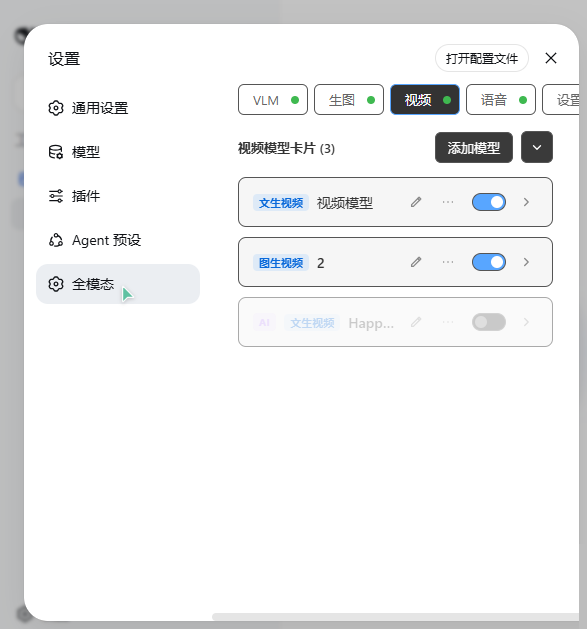
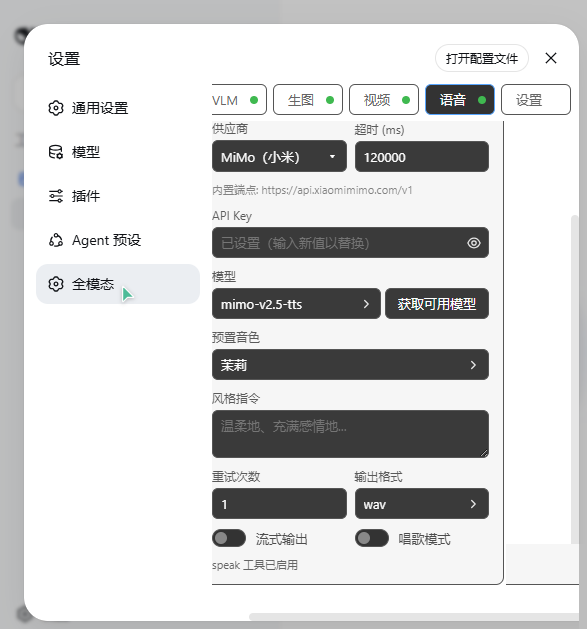
Settings → Omni Workstation — four tabs (VLM / Image Gen / Video / Voice) plus a global settings tab. Every edit auto-saves and takes effect immediately; no Save button.
How It Works
The package is dual-face:
- Host half (
lib/index.js) — a cordis plugin: registers tools on the global tools registry, loads and persistsomni-vision.json(see Configuration), and re-syncs registration on config changes — including changes made by hand while it runs. The/omni/*web routes are registered only where awebServerexists (web / desktop compositions); CLI and headless compositions get the tools without any HTTP surface. - Client half (
lib/client.js) — the browser module (loaded via thedsh.cliententry): registers the Settings → Omni Workstation section and its locale namespace (settings.omni-workstation).
Documentation
- docs/reference/configuration.md — every config file field, location precedence, minimal CLI setup (中文)
- docs/features/vlm.md — VLM analysis, card failover, mirror models, multimodal adaptation (中文)
- docs/features/vision-toolkit.md — the 6 vision tools (中文)
- docs/features/imggen.md — image generation & ComfyUI workflows (中文)
- docs/features/video.md — multi-card video generation &
/build-video-tool(中文) - docs/features/voice.md — TTS & voice cloning (中文)
- docs/reference/api.md —
/omni/*API contract - docs/changelog/changelog.md — changelog
Uninstall
dsh plugin --profile web remove dsh-omni-workstation
This removes the dependency and the bundle entry. A config at ~/.dsh/omni-vision.json survives (delete it manually if you want the API keys gone); a legacy config inside the plugin directory is removed together with the plugin.
License
MIT
Plugins relacionados
dsh-web-ui (dsh-tool-describe-image)
zhu1090093659/dsh-web-ui
modlens
liustack/modlens
ipollowork
devin-axis/ipollowork
dsh-vision-router
ysr666/dsh-vision-router