ds-bot
fei-craft/ds-bot
DS Bot : une équipe de Bots persistants pour DeepSeek Harness, avec Main Bots, messages entre Bots et discussions de groupe.
Installer
dsh plugin --profile web add github:fei-craft/ds-botREADME

DS Bot
English | 中文 · Docs · Vision · Known issues · Contributing



DS Bot is an open-source project built on DeepSeek Harness (DSH), available as a standalone desktop app or as a DSH plugin. It turns DSH into a team of long-lived bots that you create, talk to and work with.
Sponsors
 |
ModelGo is a reliable, high-performance, enterprise-grade AI API aggregation platform. Access leading AI models—including Claude, OpenAI, Gemini, and DeepSeek—with a single API key. Sign up now and get 40% off DeepSeek V4.1 Flash. Exclusive perks for DS-Bot users: get $0.50 in credits when you sign up, earn another $2 after your first API call, and receive up to $10 in bonus credits when you top up! Try it now: ModelGo Official Website |
Install
Desktop app (Windows, macOS, Linux)
The desktop app bundles a pinned DSH, so you do not need to install DSH first. Download the package for your system from Releases, open it, and configure a model in Settings (it can also copy your existing bot team from DSH).
If your OS warns about an unsigned app: on Windows select More info → Run anyway; on macOS open System Settings → Privacy & Security and select Open Anyway.
As a plugin in DSH
First install DSH and configure at least one model in it. DS Bot uses the models from DSH.
- DSH Desktop: In the sidebar, select Plugins → Add plugin, enter
ds-bot(in mainland China, set Registry to Mainland China mirror), then select Install and Enable now. - DSH Web (needs Node.js
22.19or later, and pnpm):
npx @deepseek-ai/dsh@0.2.2-rc.5 plugin --profile web add ds-bot
npx @deepseek-ai/dsh@0.2.2-rc.5 web
Docker (NAS, Linux server)
See docker/README.md.
Optional code-mode executor (experimental)
An opt-in code executor is available as ds-bot/code-mode (DSH 0.2.2-rc.1 or newer; off by default so older hosts and default Bots are unaffected). Enable config.codeMode.enabled: true on the active profile's bot (ds-bot) row, restart the engine, and optionally enable tool-fs's applyPatch: true in the agent preset for multi-file patches. See code-mode setup and limits.
Setup
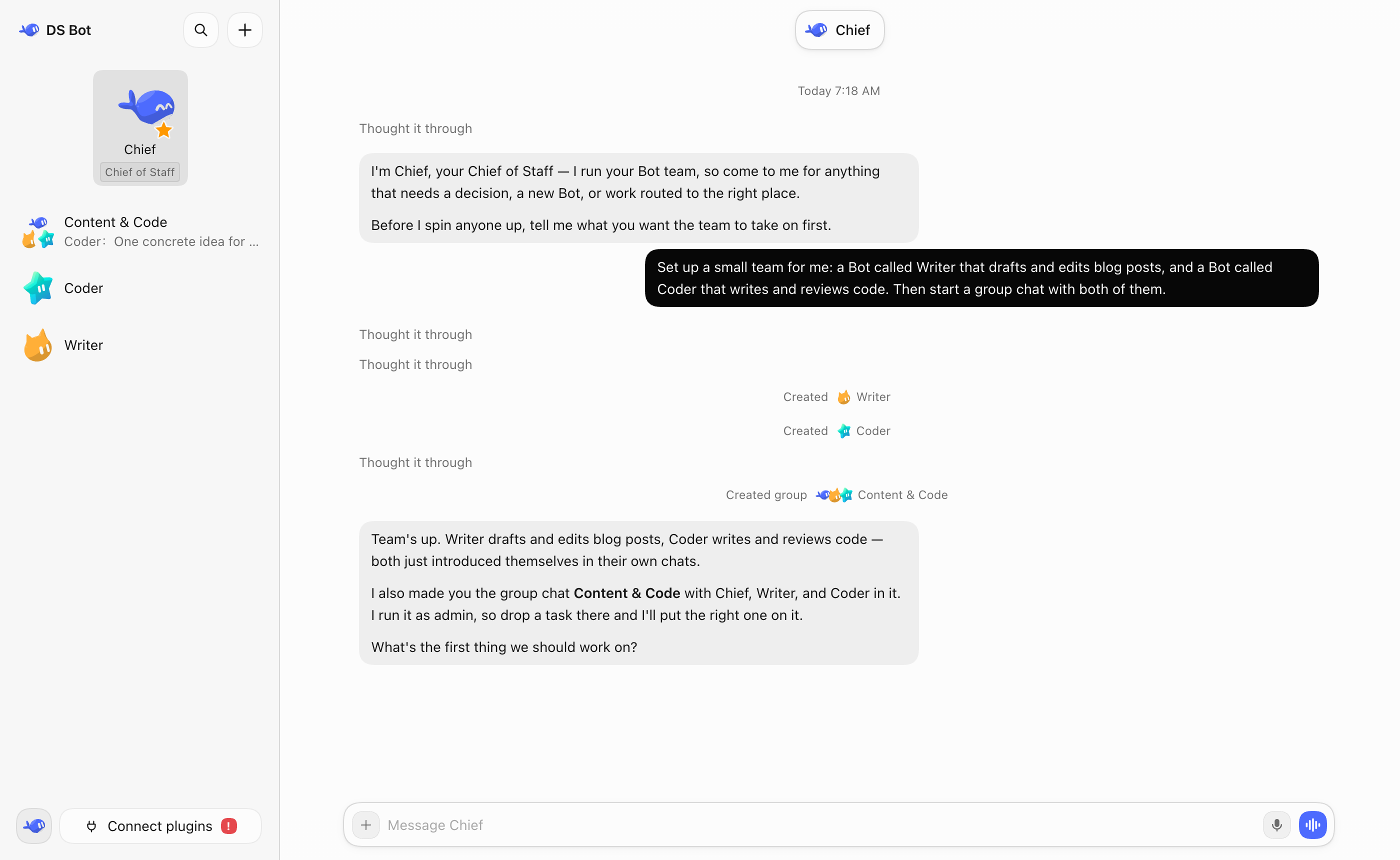
The easiest way to set up other bots and group chats is to just talk to your Main Bot.
Settings opens on an Overview console showing items that need attention, your team, recent usage, and quick cards for every area. Press ⌘K / Ctrl+K (or use the top search bar) to jump straight to any setting, bot, group chat, or model. Domains scroll as one page with top anchors:
- General & Appearance (live preview, 8 UI languages, themes, layout and motion)
- Models: Providers · Local agents · Bot models · DeepSeek services
- Team: Bots · Group chats · Scheduled tasks
- Connect: Connectors · IM · Phone · API
- Tools: Computer use · Browser · Capabilities · Secrets
- Usage & About DS Bot (includes Feedback)
In the standalone desktop app, you can use your ChatGPT plan for bot models without an OpenAI API key. Under Settings → Models → Providers, open OpenAI (or select it under Add a provider → Known provider) and choose Sign in with ChatGPT. This requires OS-backed secure storage. See Models for how to enable plan usage and choose a model.
Note on web search: DS Bot selects its
autosearch provider for the whole profile. If you disableweb-search-auto, select another registered search provider in that profile too. See Web search and the recovery steps.
Features
Browser remote (preview)
Use the phone app's interface in a browser without installing it. On the computer, open Settings → Connect → Phone, enable phone access, show a pairing code, then choose Open in a browser or Copy browser link. You can also paste the pairing link into the web app. The browser pairs as another device over the existing end-to-end encrypted link; remove it from the computer's paired-device list to revoke access.
The Relay Server must serve the web build: run npm ci && npm run export:web in mobile/, then set DSBOT_LINK_WEB_DIR to the absolute mobile/dist directory when starting the Relay Server. Use HTTPS/WSS outside localhost. relay.dsbot.app needs this deployment before its browser links work. Browser storage is AES-GCM encrypted with a non-extractable key in IndexedDB, but the browser still runs the Server's page: only use a trusted Server. Sensitive operations require the phone app or computer, and there are no background notifications. See the design and security limits.
Local API & MCP
Other agents on this computer (Claude Desktop, Cursor, Codex, Antigravity, or your own scripts) can call your Bots and group chats through the unified local API gateway. Open Settings → Connect → API, turn it on (off by default, bound to 127.0.0.1:17830), and create scoped, revocable Bearer tokens. Each token is shown once and stored as a salted hash; private Bots stay excluded unless explicitly confirmed per token.
The same local gateway serves versioned /v1/* REST + SSE endpoints, Streamable HTTP MCP (/mcp), an optional OpenAI-compatible adapter (/compat/openai/v1/*), and the ds-bot CLI (ds-bot mcp stdio bridge, ds-bot send, ds-bot event). Existing mcp.json setups and npx -p ds-bot ds-bot-mcp commands migrate automatically. See the design.
Bot
Each bot is a long-lived identity with one continuous conversation—no session lists or manual session switching. When context fills up, DS Bot condenses or moves to a fresh part automatically while earlier history stays readable and searchable. Each bot keeps its own saved profile (model, thinking level, instructions, working folder and permission preset), separate from the host's DSH installation profile.
Each bot can have its own working folder and permission preset — just tell the bot when you want to switch folders. A bot that looks after several projects can also get extra folders and work in all of them at once. Your foreground chat stays responsive while a bot works: slow shell commands move to background jobs automatically, and a bot can launch background tasks or hand an in-flight turn to the background when you send a new message. Track progress, answer approvals, send follow-ups or stop tasks from the header island, inspect task transcripts in the details Tasks tab, manage them on mobile, or type /side to ask a side question. Bots also maintain long-term memory, render interactive charts/tables/forms in replies, run scheduled tasks, and can be organized into collapsible sidebar sections.
Main bot
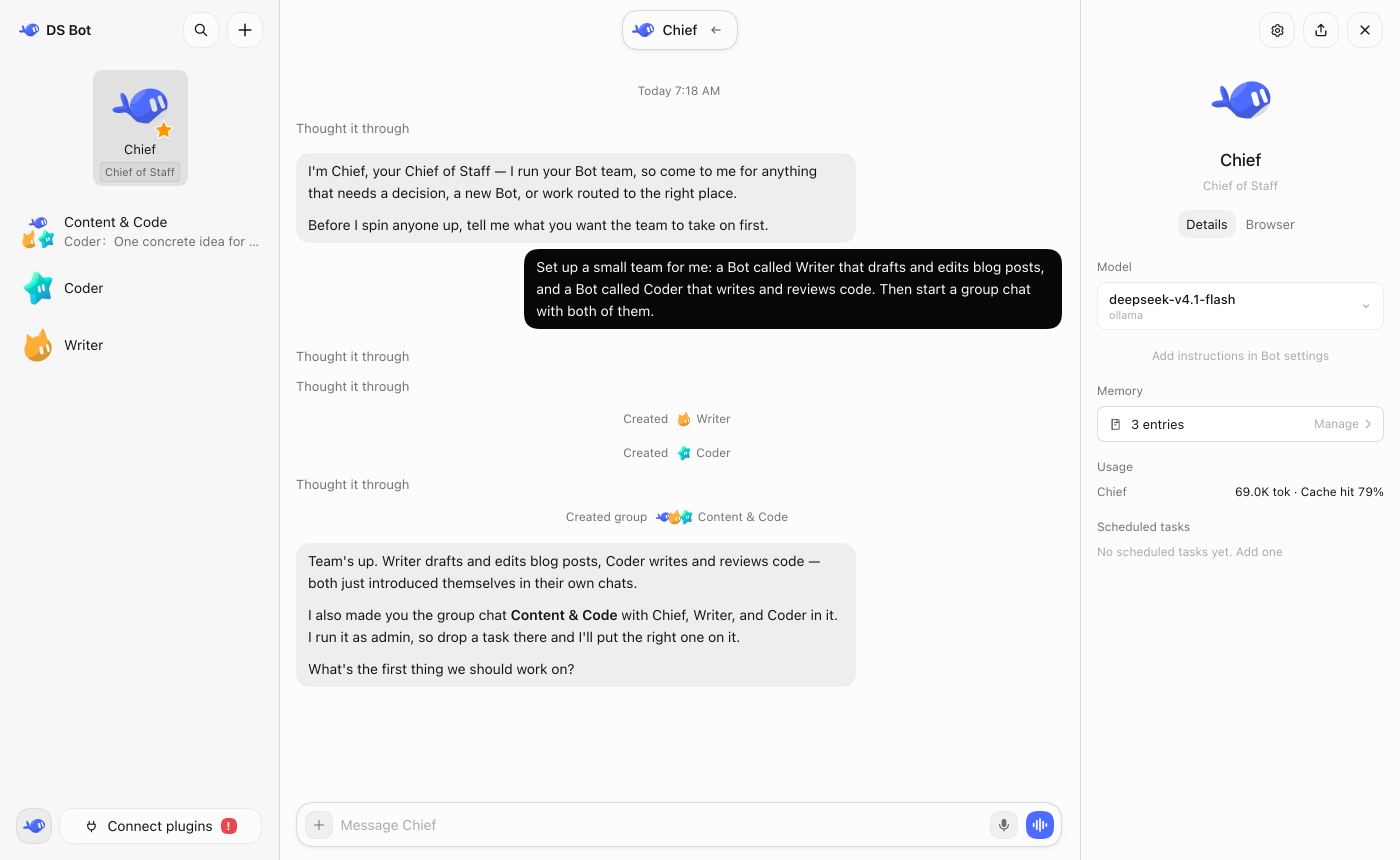
The Main Bot is your chief. It has elevated rights to create and manage other bots and group chats (only you delete bots or change Main Bot status). A new team starts with a Main Bot named Chief—talk to it whenever you want to build out your team or ask how something works.
You can rename Chief or change its avatar in Settings → Team → Bots without changing its Main Bot role.
Group chats
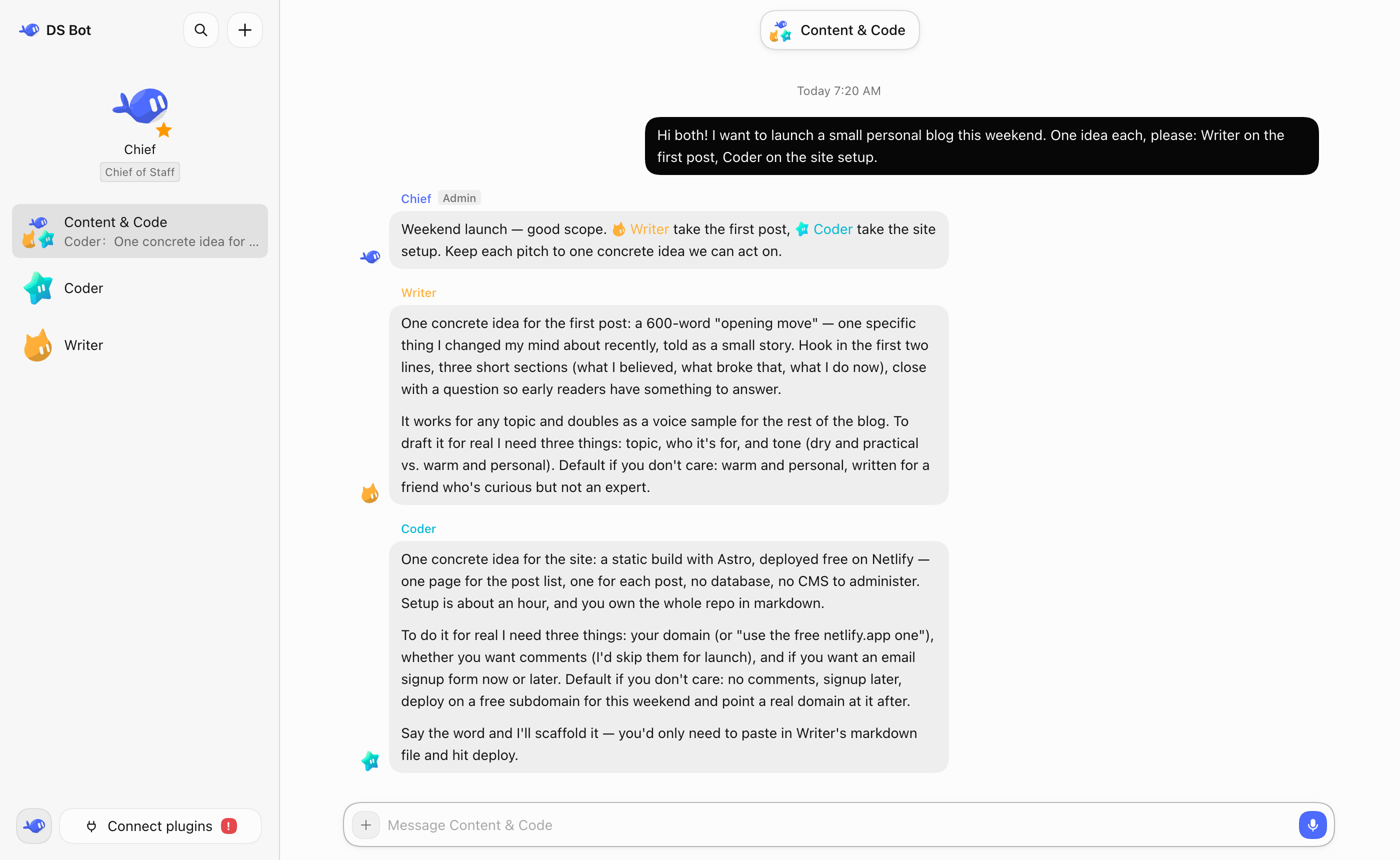
Every group chat has an admin that answers your messages by default and delegates to members with @Name, keeping multi-bot costs under control. You can also @ any member directly, or use + → Reference a chat to attach another chat as context.
Select a group in Settings → Team → Group chats to set or remove its avatar. Without a photo, the group shows its members’ avatars.
Members mentioned together run in parallel, report progress, and share a group memory, working folder, shared task board (group_task), and shared todo list (group_todo). For larger projects, a group can run a Goal (/goal): the admin aligns with you on completion criteria, splits the work into stages, and verifies evidence before moving on.
Private bot
Turn on Private in a bot's settings and assign it a separate working folder for sensitive work. Other bots cannot read its folder, memory or chat history, and sending messages out or writing outside its folder requires your approval. Even after deletion, its records and folder stay protected until you release them in Settings.
A private bot cannot be a Main Bot or join group chats. This isolates it from other bots in your team, not as an OS sandbox: shell and network access still apply, and its model provider receives the conversation.
Local agents
Connect coding-agent CLIs already installed on your computer (Claude Code, Codex CLI, Cursor CLI, GitHub Copilot, Devin CLI, OpenCode, Gemini CLI, Antigravity, Kimi CLI, Kilo CLI, and custom CLIs) directly as bots. A local-agent bot uses the CLI's own sign-in, plan, models, tools and context, while still participating in private chats, group chats, handoffs and memory.
Because it uses the CLI's own tools, shared capabilities and connectors in DS Bot are not passed into it, and switching between model and local-agent modes starts a fresh conversation part. Only CLIs that reject MCP servers altogether run without team tools. Note that Cursor CLI saves the last chosen model as its own global default (~/.cursor); keep CLI default if you do not want to change your terminal default.
Browser
Each bot has its own isolated browser with separate logins, and in the desktop app can import cookies and supported localStorage from files or local browsers (including Chrome/Edge, Safari, Brave, Arc, Firefox and Zen). For interactive browsing, set browserPlugin to refs, script or task in the DSH profile and restart DS Bot; Settings → Tools → Browser explains setup and manages per-site action grants. Posting, uploading, downloading and deleting require approval unless preauthorized; logins, CAPTCHAs and payments hand control back to you.
The embedded browser panel is available in the desktop app and DSH Desktop (not DSH Web); only the desktop app persists panel sign-ins across restarts and supports cookie import.
Computer use
Enable Settings → Tools → Computer use to let bots operate desktop apps within your limits. Set a per-bot access level (view only, background, or foreground) and allowed apps, with an on-screen indicator to pause or take over at any time; sensitive apps such as system settings and password managers are never granted.
All bots share your desktop, so only one bot can hold an app or the foreground pointer at a time. On Windows, Chrome/Electron apps often need foreground and elevated apps cannot be controlled; macOS requires macOS 14+ with Accessibility and Screen Recording permissions; Linux supports X11 (Wayland is limited).
Connectors, capabilities and feature packs
- Settings → Connect → Connectors: Connect GitHub, Gmail, QQ Mail, 163 and other mailboxes, and remote MCP servers (OAuth browser sign-in or static headers/keys), or import configs from Claude Desktop, Cursor and VS Code. Credentials stay in encrypted/protected secrets (
Settings → Tools → Secrets), and outbound emails require confirmation by default. - Settings → Tools → Capabilities: Manage shared MCP servers, skills and packs for the team. Each bot can set an item to Always (loaded every turn), Catalog (listed in a compact index and loaded on demand via
use_pack/drop_pack), or Off. Local commands added by a bot require your approval before they run.
Web search & DeepSeek services
- Web search: The
autoprovider uses the asking conversation's own model route and key (never borrowing another route's key), tries DeepSeek's official Search API on matching routes, and falls back to keyless search. To use DeepSeek's official Search and Fetch APIs across all models, turn on Use the new Web Search API under Plugins → Web search. - DeepSeek services (Settings → Models → DeepSeek services): With a DeepSeek API key in Settings → Models → Providers, you can independently opt into document/image OCR (
read_document), DeepSeek text-to-speech, and DeepSeek dictation for any model. Each switch is off by default and billed to your own API key.
Office files
Bots can create, inspect and edit Word (.docx), PowerPoint (.pptx) and Excel (.xlsx) files directly, and render pages to images to verify layout. The desktop app ships the full offline runtime; DSH Web can inspect and edit existing documents, while creating from scratch and page rendering require the desktop app or DSH Desktop.
Mobile app & browser remote
Control your running bot team from iOS, Android, or a browser over an end-to-end encrypted link (Noise IK)—your computer connects outbound only, with no public IP or open ports. Open Settings → Connect → Phone, enable phone access, and scan the QR code in the mobile app (Android APK in Releases; see mobile/README.md for iOS).
For browser remote (preview), pick Open in a browser or Copy browser link on the same pairing screen. Self-hosted relay instructions and security limits are in link/README.md and docs/plans/2026-11-17-web-remote.md.
IM
In Settings → Connect → IM, link any bot or group chat to WeChat, Feishu, DingTalk, WeCom, QQ, Telegram, Discord or Slack. Chat, @ bots in groups, and answer question/approval cards directly from your messaging app while your computer is running.
WeChat supports private chat with the QR-paired account only; WeChat and QQ enforce platform reply windows; WeChat, QQ and DingTalk use numbered replies instead of card buttons; secret cards cannot be submitted from IM apps.
Usage & appearance
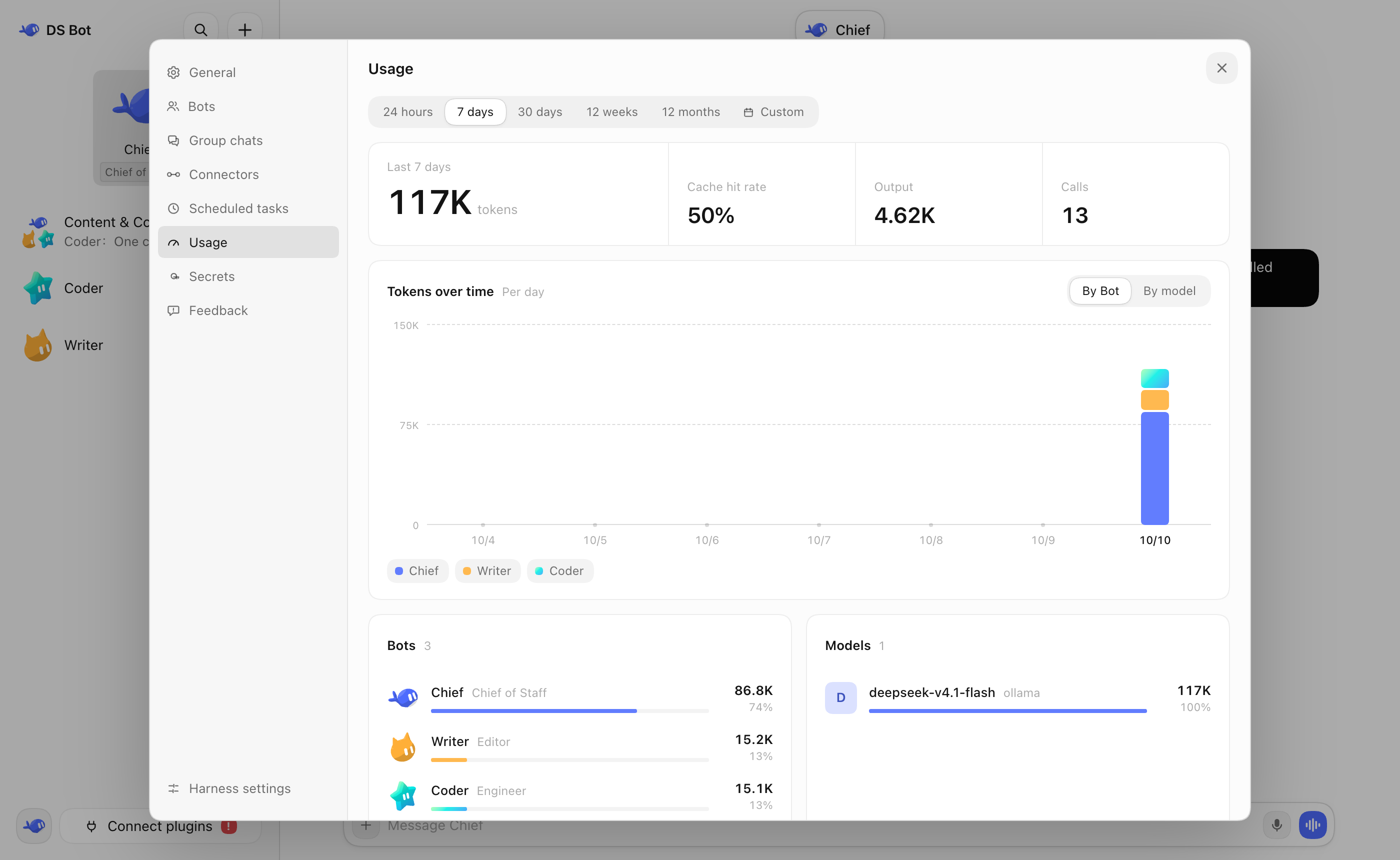
In Settings → Usage, track token usage by time range, bot and model. In Settings → Appearance, pick themes, accent colors, bubble or flat message layout with width sliders, interface motion tiers, and avatar animation levels—all with live preview across 8 supported languages.
Data & privacy
All data stays on your computer: in the data folder chosen for the desktop app (~/.ds-bot by default), or in bot/ and sessions/ inside your DSH home folder (~/.dsh by default) for the plugin. Uninstalling the app or plugin does not delete your data.
Optional anonymous telemetry is gated behind a one-time notice before anything is sent, and can be changed, inspected (raw JSON of the last 20 payloads), or disabled anytime in Settings → About DS Bot → Privacy (or via DS_BOT_TELEMETRY_DISABLED=1 / DO_NOT_TRACK=1). Chats, memories, secrets, file paths, Bot names, private Bots, error messages, and IP addresses are never collected. Upstream DSH official API session-log upload and feedback session upload are disabled by default in DS Bot, with private Bots permanently excluded. See docs/plans/2026-11-25-telemetry-and-privacy.md and telemetry/.
Documentation & development
- Documentation index and architecture map:
docs/README.md - Plugin internals and configuration:
ds-bot/README.md - Desktop app internals and packaging:
app/README.md - Development setup, tests and workflow:
CONTRIBUTING.md - Version history:
CHANGELOG.md
Acknowledgments
- DeepSeek Harness: DS Bot is built on the DSH plugin system and Sessions. Model Bots use its agent loop and model service; local-agent Bots use their CLI's tools and model access. Auxiliary model calls run outside the agent loop, while web search/fetch and DeepSeek OCR, TTS and ASR make direct service requests.
- esbuild: bundles the plugin's interface code.
- Thanks to these projects for the ideas they published. DS Bot learned from their designs and does not contain their code:
- AgentMemoryRepo: the Markdown format of Bot memory.
- OpenAI Codex: checkpoints that keep the user's messages next to the summary, and message anchors for chat search.
- OpenMausBot: group chat rounds and @mention relays.
- Hermes Agent and Hermes Bot Mode: one session per member per group chat, and handoffs that carry the earlier user messages.
- OpenCode, goose, pi and Gemini CLI: when to condense a long chat, and what a handoff note holds.
- obelisk: chat search with a SQLite full-text index.
- Everyone who tries DS Bot, asks questions and reports bugs.
License
Apache License 2.0. Provided "as is", without any warranty. Third-party code and its license are listed in NOTICE.
Disclaimer
DS Bot is an independent community project. It is not an official DeepSeek product, and it is not affiliated with, endorsed by or sponsored by DeepSeek. "DeepSeek", "DeepSeek Harness" and the other names are trademarks of their owners. They are used here only to say what this plugin works with.
Bots use your own model quota, and they read and write files and run commands when you ask them to. Check important actions yourself.
Plugins associés
webnovel-writer
lingfengqaq/webnovel-writer
loopx (dsh-loopx-plugin)
loopx-project/loopx
ouroboros (dsh-plugin)
q00/ouroboros
loopx (dsh-loopx-plugin)
huangruiteng/loopx