dsh-plugin-coaligne
dataelement/dsh-plugin-coaligne
Instala a skill coaligne-workflow para colaboração em equipe no CoAligne; requer o CoAligne Desktop (com sessão iniciada) para fornecer a conexão MCP — não utilizável sem o Desktop.
Instalar
dsh plugin --profile web add github:dataelement/dsh-plugin-coaligneREADME
dsh-plugin-coaligne
Bring your team's shared https://www.coaligne.com project context into DeepSeek Harness.
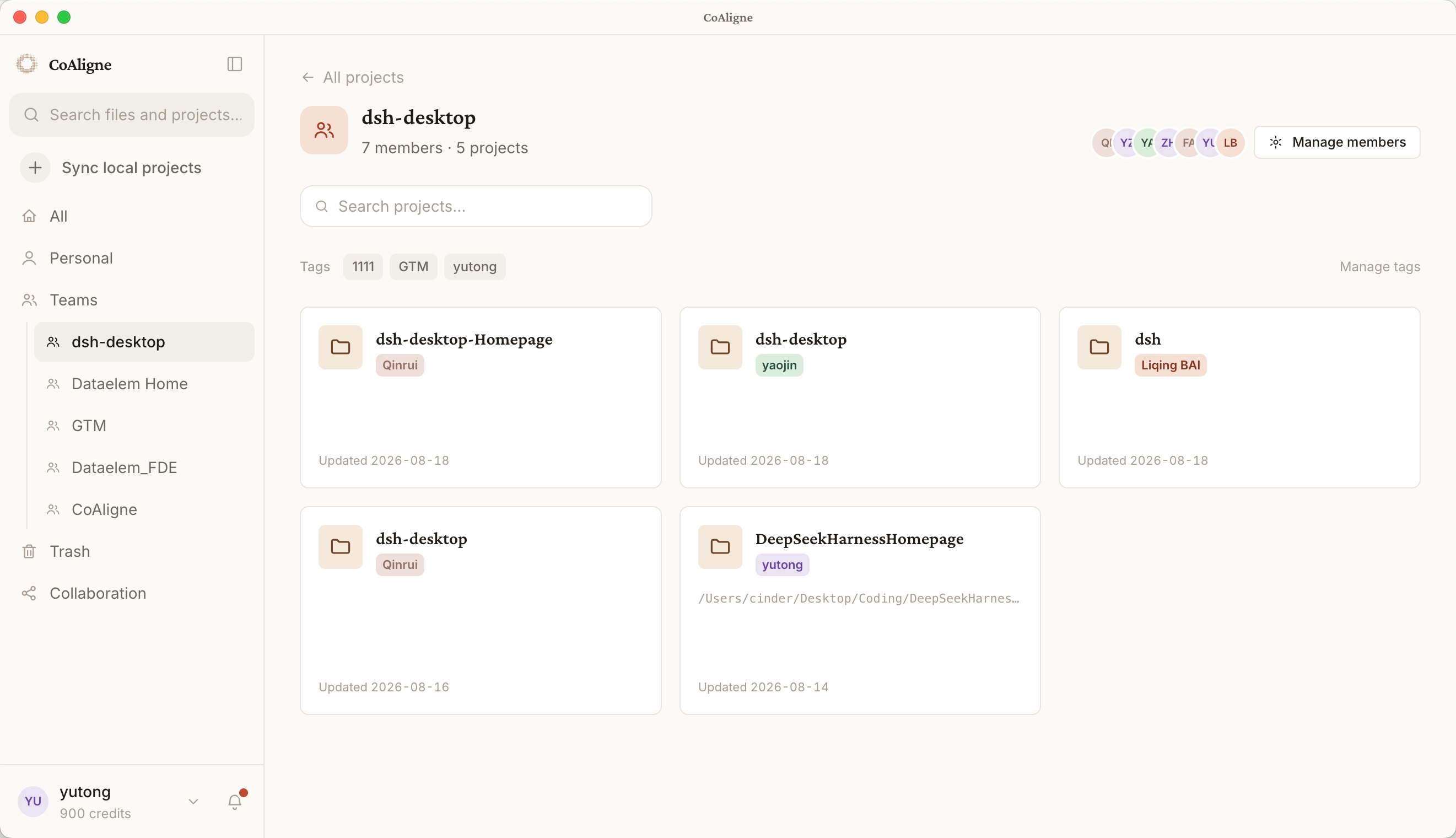
CoAligne is a collaboration platform where teammates and their Agents share project context. CoAligne Desktop syncs local project files and Agent conversations into a cloud project, and connects your local agents — including DSH — to that cloud context.
What you get
- The
coaligne-workflowskill, installed into your agents home at plugin activation (skills/under$DSH_AGENTS_HOME, default.agentsin your home directory): teaches the agent when and how to use the CoAligne tools — collaboration queries, long-content search strategy, comment replies, sharing flows, and a single-project AI usage report. - CoAligne MCP tools, once CoAligne Desktop is connected (see Setup below; tools appear as
mcp__coaligne__<tool>):list_projects,me,get_project_activity— project discovery and recent activitysearch— sandboxed read-only shell (grep,cat,find, …) over synced files and Agent session logsdownload_file,list_file_comments,reply_file_comment— file downloads and comment threadscreate_file_link,resolve_file_link,resolve_session_link— privateapp.coaligne.com/f/{code}andapp.coaligne.com/s/{code}locator linkslist_project_reviewers,create_review_request— send a file or Agent session to a teammate
Setup
-
Install this plugin (or one-click install from dsh-market):
npm install dsh-plugin-coaligne -
Sign up at https://www.coaligne.com.
-
Install CoAligne Desktop (macOS and Windows) from https://www.coaligne.com, sign in, and import your local project. Desktop then does two things for you:
- Sync: keeps your project files and Agent sessions flowing into the cloud project your team shares.
- Connect: automatically configures the CoAligne MCP connection for DSH (a
@deepseek-ai/dsh-mcp-clientrow with serverNamecoaligneand your account credentials). No manual token handling.
That's it — restart your DSH session and the mcp__coaligne__* tools are available, with the skill guiding when to use them.
Without CoAligne Desktop this plugin is not usable: it only installs the workflow skill, and the skill's tools all come from the Desktop-provisioned MCP connection. The plugin logs an explicit warning at activation when no Desktop connection is found.
What the bundle patch adds
The bundle patch (cordis.patch.yml) composes two rows into your profile:
| Row | Package | Purpose |
|---|---|---|
coaligne-skill | dsh-plugin-coaligne | Installs the bundled coaligne-workflow skill into $DSH_AGENTS_HOME (default: .agents in your home directory) |
coaligne-skill-invariant | dsh-plugin-coaligne/invariant | Package-owned invariant companion |
The MCP connection is deliberately not declared here — CoAligne Desktop provisions and maintains it, so this package never sees or stores credentials.
Configuration
The coaligne-skill row accepts:
| Option | Default | Description |
|---|---|---|
installSkill | true | Install/refresh the bundled skill at activation |
agentsHome | '' | Override the agents home; empty resolves $DSH_AGENTS_HOME, then .agents in the home directory |
How it works
- The skill install is an idempotent copy at plugin activation; disable it with
installSkill: falseif you manage skills yourself. - The MCP connection is owned by CoAligne Desktop: it signs in with your account, writes the connection for DSH, and keeps it valid. This plugin contains no credentials and makes no network calls.
Development
pnpm install
pnpm typecheck
pnpm test
pnpm build
License
BSD-3-Clause. Scaffolded from https://github.com/omdsh-dev/plugin-template.
Plugins relacionados
auto-claude-code-research-in-sleep
wanshuiyin/auto-claude-code-research-in-sleep
archify
tt-a1i/archify
dsh-web (dsh-skill-explorer)
zhu1090093659/dsh-web
dsh-web-ui (dsh-skill-explorer)
zhu1090093659/dsh-web-ui