dsh-vision-toolkit
anionex/dsh-vision-toolkit
Зрение для текстовых моделей: вставьте изображение, и модель переключится на вариант Vision Toolkit для вопросов-ответов по изображениям, сравнения нескольких изображений, OCR длинных скриншотов, воспроизведения UI по скриншоту, привязки элементов и пиксельной разницы. По умолчанию ключ API не требуется — изображения обрабатываются бесплатным сервисом автора, 100 на машину в день; можно настроить на собственного провайдера.
Установка
dsh plugin --profile web add github:anionex/dsh-vision-toolkitREADME
DSH Vision Toolkit






A more powerful vision toolkit—give text-only models in DeepSeek Harness eyes: image Q&A, long-screenshot OCR, UI restoration, and GUI visual tasks in one toolkit and Skill.
🚀 Paste an image and ask directly | Install with one command | Broad use cases
Highlights | Quick start | Toolbox | Configuration and limits | Troubleshooting | Community
🌐 English | 中文
🏆 This project is the first comprehensive vision-tool plugin in the DeepSeek Harness ecosystem: it was initiated before internal beta and built during the beta with reference to agent-vision-toolkit.
Original work: The system and division of responsibilities behind these visual tools, together with the
vision-skillsSkill, were personally created and continuously refined by the author through long-term real-world use and repeated iteration.
If this project helps you or gives you some inspiration, feel free to star 🌟 & fork.
Highlights
- Paste an image and ask directly. In DSH Web, pasting an image switches the text-only model to its
(Vision Toolkit)variant automatically — no manual path copying or model changes. Native thumbnails, session history, and workspace paths stay intact; Web can preview artifacts. - One command to install. After installation, configure a vision provider in Settings → Vision Toolkit and start using the tools.
- Not just a caption — the content that matters. The model does not produce a generic description; it extracts evidence around the current task, such as “Where is the error?” or “Where is the button?”.
- A battle-tested visual-task methodology. The bundled Skill tells the agent what to look at for different visual tasks, which tool to choose, how to proceed, and how to verify the result.
agent-vision-toolkit gives an agent more than image captions: it can read, locate, crop, trace, rebuild, and verify visual work. DSH Vision Toolkit is its native DeepSeek Harness integration, bringing that workflow into Web and Headless Profiles.
This project has two layers:
- Visual tools and a Skill: the agent learns when to inspect, ground, OCR, crop, trace, or compare pixels.
- Native DSH integration: those capabilities live inside Profiles, sessions, Settings, Artifacts, and the Web UI.
dsh plugin --profile web add @anionex/dsh-vision-toolkit
Upstream toolkit: Anionex/agent-vision-toolkit · Project website: agent-vision.anionex.me
❤️ Sponsor
Want to sponsor this project? See FUNDING.md or email davidyang042@gmail.com.
Click to collapse
 |
Thanks to AIHubMix for sponsoring this project! AIHubMix is a stable, high-concurrency AI model API gateway that connects Claude, GPT, Gemini, DeepSeek, and other mainstream models through a single API key, compatible with multiple protocols, with free model options available. To sign up, use the AIHubMix entry outside mainland China or the Inferera entry within mainland China. |
 |
Thanks to E-API for sponsoring this project! E-API aggregates mainstream AI models behind OpenAI-, Anthropic-, and Codex-compatible APIs, with selected Claude models up to 98% below official prices and DeepSeek V4 models about 25% below official prices. |
Contents
- Highlights
- Recent updates
- Who it is for
- See it in action
- Quick start: three steps
- Toolbox
- Configuration and limits
- Troubleshooting
- Donation
- Development and community
Recent updates
- 2026-08-20 · AIHubMix setup guide: Added a screenshot-based guide for getting an API key through the Inferera entry and configuring the Gemini 3.7 Flash vision model; Settings now links directly to this guide.
- 2026-08-19 · Transparent routing by default: The model selector keeps one entry per model with the original name, and image input (paste, history,
read_image) works without manually switching to a(Vision Toolkit)variant. Disable “Transparent variant routing” in advanced settings → image input to restore the explicit entries. - 2026-08-16 · Windows Python: Added Microsoft Store Python support, fixing first-time isolated-runtime setup failures for affected Windows users.
- 2026-08-17 · Vision upgrade: Switched the default model to Gemini 3.7 Flash and fixed Qwen/Gemini bounding-box coordinate order.
- 2026-08-16 · Image paste: Text-only routes now switch to a
(Vision Toolkit)variant and keep a workspace path, fixing blocked pastes and images that could not be reused later. - 2026-08-16 · Service stability: Expanded service capacity to reduce peak-time
429responses. - 2026-08-16 · Real model test: Added a full image-request test in Settings, fixing the false confidence caused by a successful
/modelsrequest to a model that still cannot process images.
Who it is for
- Want an interaction experience similar to a multimodal model: paste an image directly and ask a question or make a request.
- Want more than image Q&A — complete more complex, high-value visual tasks such as turning a sketch into a front-end page, converting an image into HTML, or extracting chat messages from long screenshots; more scenarios are added over time.
The bundled vision-skills Skill carries the complete upstream playbooks, explaining when to use each workflow, in what order to call the tools, and how to verify the result:
| Playbook | What the agent learns to do |
|---|---|
| Read long screenshots, chat histories, and scrolling pages | Find low-content cut bands, OCR each chunk in order, preserve chat speakers/timestamps/quotes, merge only duplicated overlap, and surface risky boundaries for verification |
| Rebuild a UI from a screenshot or design | Reuse project components and assets first, then combine code-native UI, extracted visuals, rendered screenshots, and visual comparison to align a page or component |
| Restore an icon, logo, illustration, or other graphic | Extract a transparent PNG from the source image, or rebuild an editable/scalable SVG when needed, then verify shape, color, and alpha edges |
| Turn a sketch, diagram, or whiteboard into structured code | Recover nodes, labels, connections, and directions as editable Mermaid, Graphviz, or another structured representation |
| Operate a GUI from screenshots | Locate a control, perform one action, capture the screen again, and verify the resulting state before continuing |
See it in action
Paste an image directly into DSH
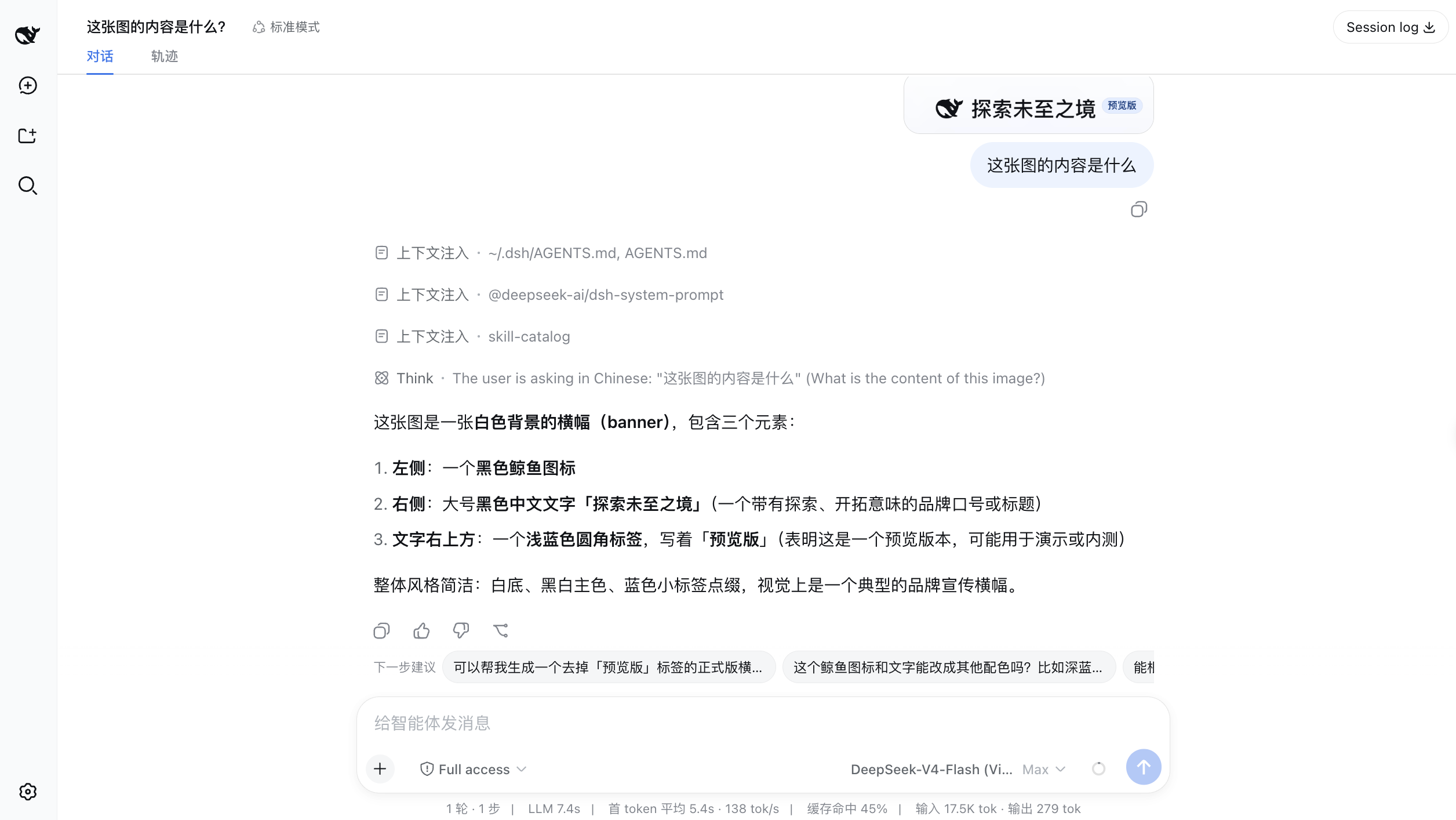
Paste an image into the conversation. A text-only model can switch to its Vision Toolkit variant and inspect the image in the context of the user's question.
Screenshot to editable page
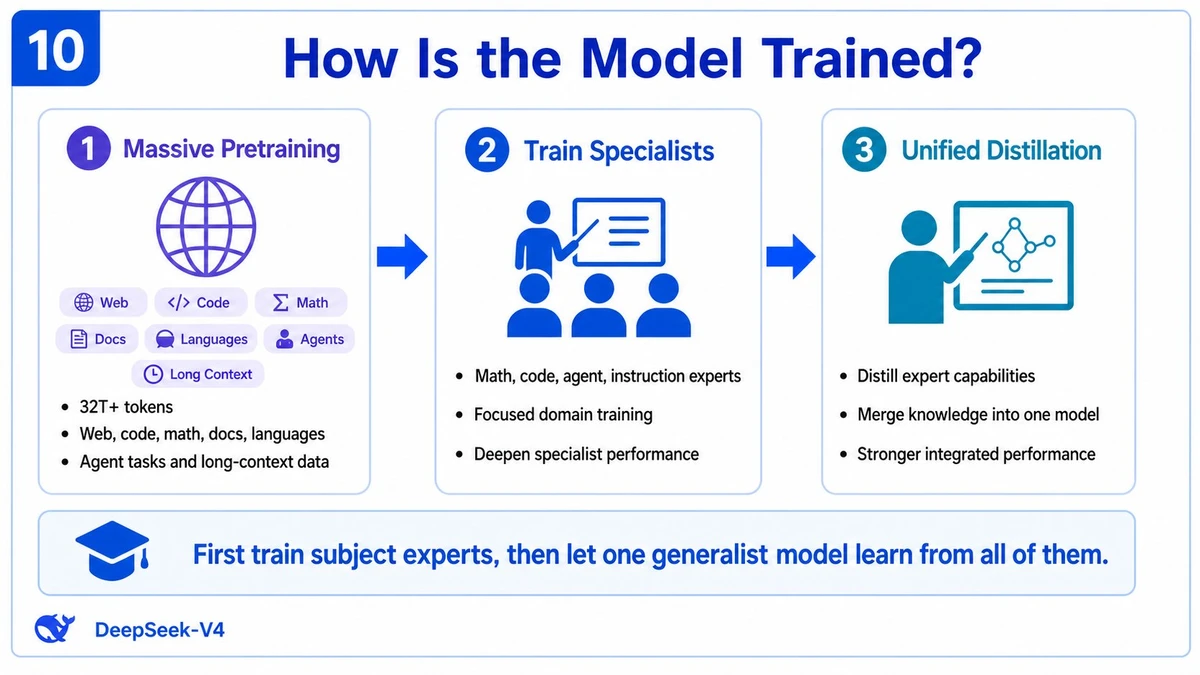
Prompt example: “(Use vision-skills) Rebuild this image into HTML.”
Left: the reference screenshot. Right: an editable HTML/CSS result. The result can continue into screenshot rendering and pixel comparison instead of ending as an image description.
Sketch to working interface
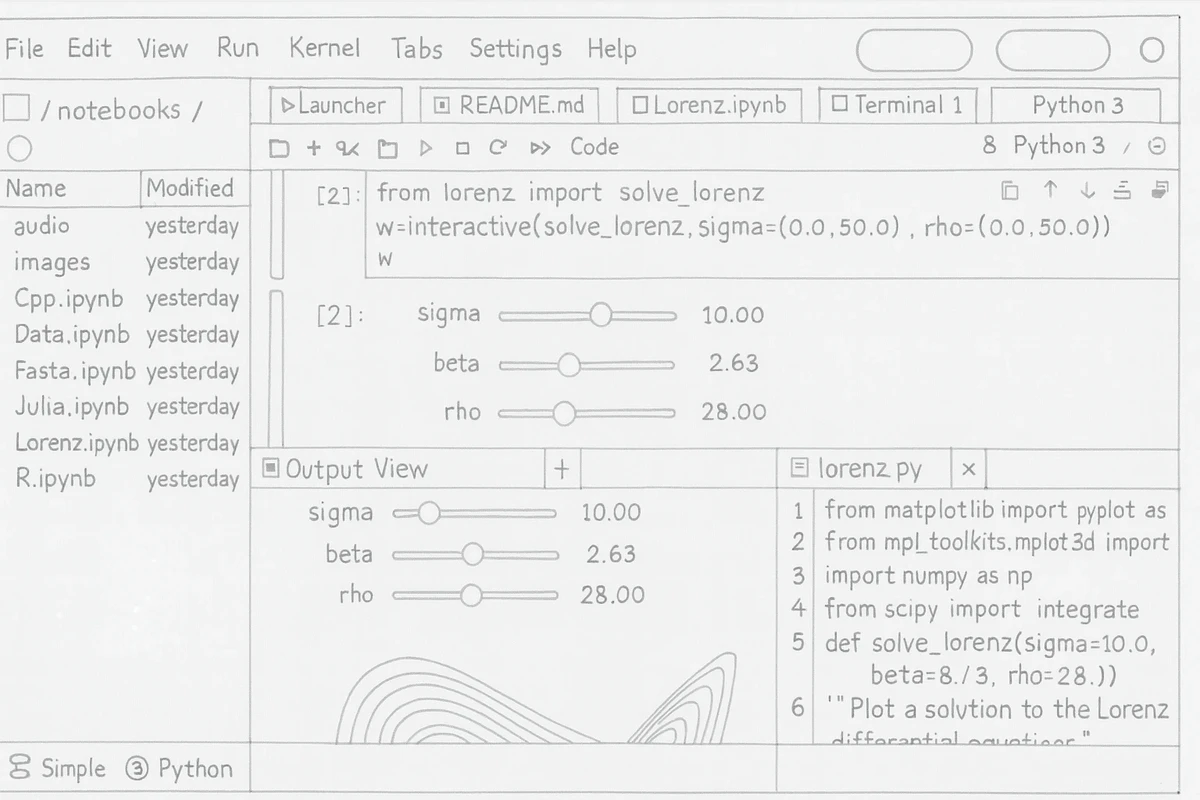
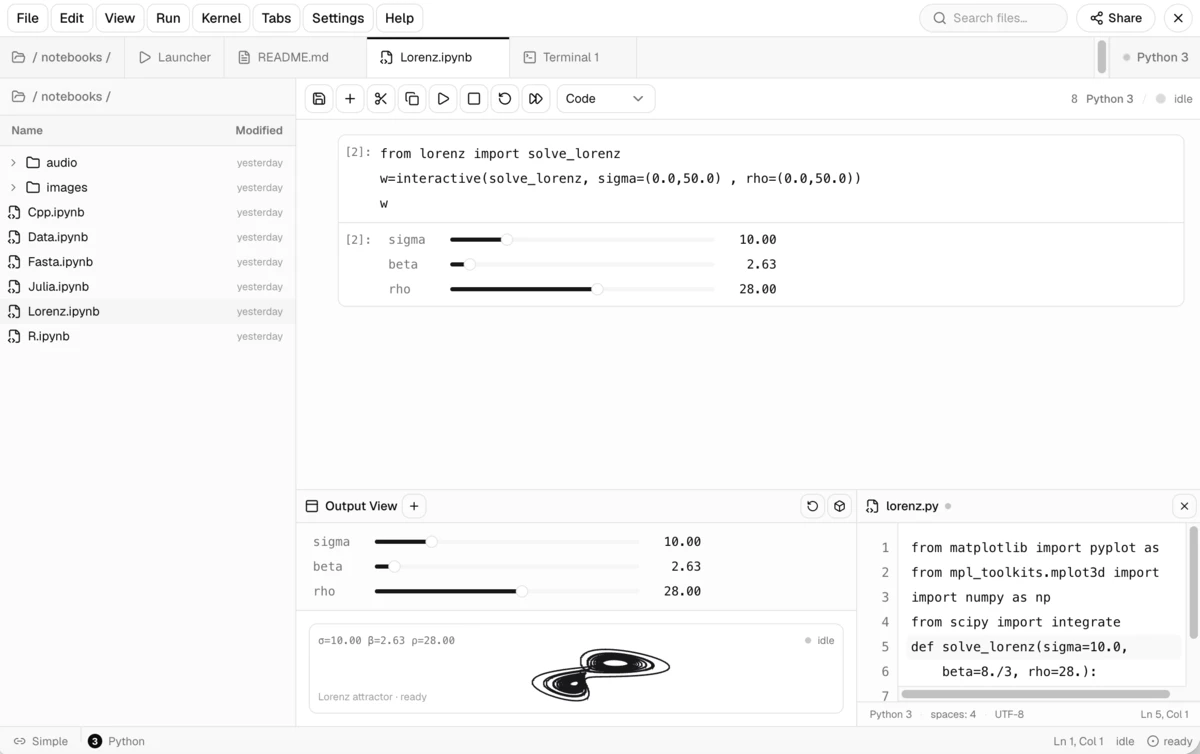
Left: a hand-drawn reference. Right: the working interface reconstructed from it.
Prompt example: “(Use vision-skills) Turn this sketch into a working front-end page.”
Fast UI restoration: an approximate first pass
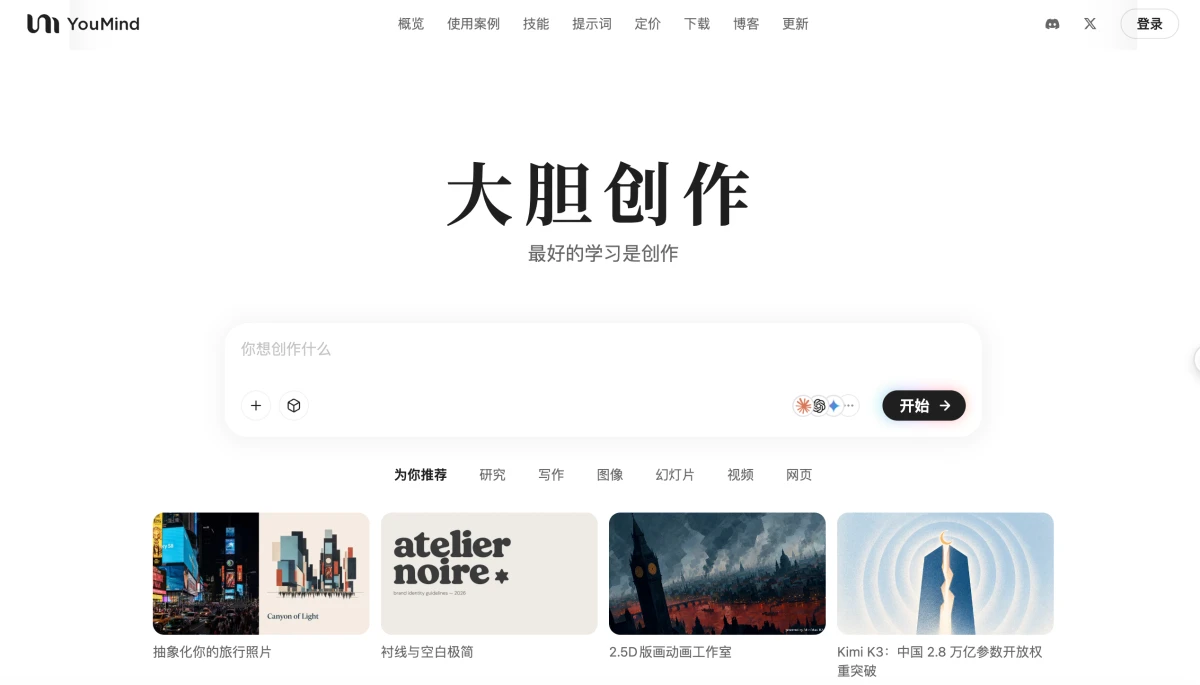
Prompt example: “(Use vision-skills) Quickly rebuild this image into HTML.”
Left: the original page. Right: a fast reconstruction that preserves the main layout, content, and visual hierarchy while allowing approximate colors and library icons. Fast mode targets a first screenshot in about three minutes.
Quick start: three steps
1. Install
dsh plugin --profile web add @anionex/dsh-vision-toolkit
You can install it into a Headless Profile too:
dsh plugin --profile headless add @anionex/dsh-vision-toolkit
Using DSH Desktop? It bundles its own dsh CLI and intentionally does not add it to your system PATH. Open DSH Terminal from the tray and run the command there, targeting the Desktop profile:
dsh plugin --profile desktop add @anionex/dsh-vision-toolkit
Then restart DSH Desktop. The built-in plugin marketplace in DSH Desktop 2.0.1 has known installation issues; the terminal command above is the reliable path until a fixed Desktop release is available.
For the full Desktop install, update, and troubleshooting walkthrough, see Installing and updating in DSH Desktop.
2. Restart and check it
Restart a running Web Profile, then open Settings → Vision Toolkit, configure a vision provider, and run Test vision model to confirm it is reachable.
The first start prepares an isolated runtime: the plugin prefers a system Python 3.11+; when none is found, it downloads a hash-verified standalone Python (about 35 MB) from the domestic mirror (dsh-vision-python-bootstrap-1317715800.cos.ap-guangzhou.myqcloud.com) on first use, falling back to the GitHub release when the mirror is unreachable. The locked runtime dependencies (Pillow, NumPy, vtracer) are installed from the Tencent Cloud PyPI mirror (mirrors.cloud.tencent.com/pypi/simple) first and fall back to the official PyPI index. A normal installation does not require an agent-vision-toolkit source checkout or a local path setting.
3. Paste an image and describe the outcome you want
Paste a screenshot into the conversation or place an image in the session workspace, then invoke /vision-skills. For example:
Inspect this screenshot. Explain the error and tell me what to fix first.
Find the login button in the top-right corner, return original pixel coordinates, and make a boxed preview.
Crop this icon and convert it to SVG.
Rebuild the page from reference.png. After each pass, render it and run a pixel diff until the major differences are gone.
Toolbox
The plugin provides 10 tools that can be called independently or composed into a workflow:
| Tool | Best question to ask | Main result |
|---|---|---|
vision_glance | “What is happening in this image?” | Focused answer, description, OCR, or multi-image comparison |
vision_ground | “Where is the thing I need?” | Original pixel coordinates and optional boxed preview |
vision_detect | “Which buttons, icons, or elements are present?” | Numbered element inventory, coordinates, and optional preview |
vision_crop | “Extract this region as its own image” | PNG or JPEG crop |
vision_trace | “Turn this shape into an editable vector” | SVG |
vision_pixel_diff | “Where does the implementation differ from the reference?” | Difference percentage, ranked regions, heatmap, and JSON |
vision_long_screenshot_ocr | “Read this entire long screenshot” | Markdown, chunks, manifest, and audit output |
vision_extract_foreground | “Remove the background from this subject” | Transparent PNG |
vision_dominant_colors | “Which colors dominate this area?” | Palette or ranked candidate colors |
vision_html_screenshot | “Render this local page at an exact viewport or capture the full page” | PNG and optional CSS pageHeight |
Coordinates always use original-image pixels in x1,y1,x2,y2 form, so grounding output can feed directly into cropping, tracing, or later automation.
For a long HTML document, pass fullPage=true. The requested width and height remain the layout viewport, while the resulting PNG covers the complete document and reports pageHeight in CSS pixels.
How it works
The plugin keeps image understanding and deterministic local image processing in one Agent workflow. The diagram below shows the implementation boundary.
Descriptions that keep the task in view
Most vision bridges for text-only models ask a multimodal model for a generic description and hand it to the text model, adding a semantic layer where information is lost. Vision Toolkit instead recovers why the agent wants to look at the image: the user message or the model's stated reason becomes a focus hint passed to the vision model. The result is a task-aware description that emphasizes what matters for the current step — with fewer tokens, higher accuracy, and faster responses.
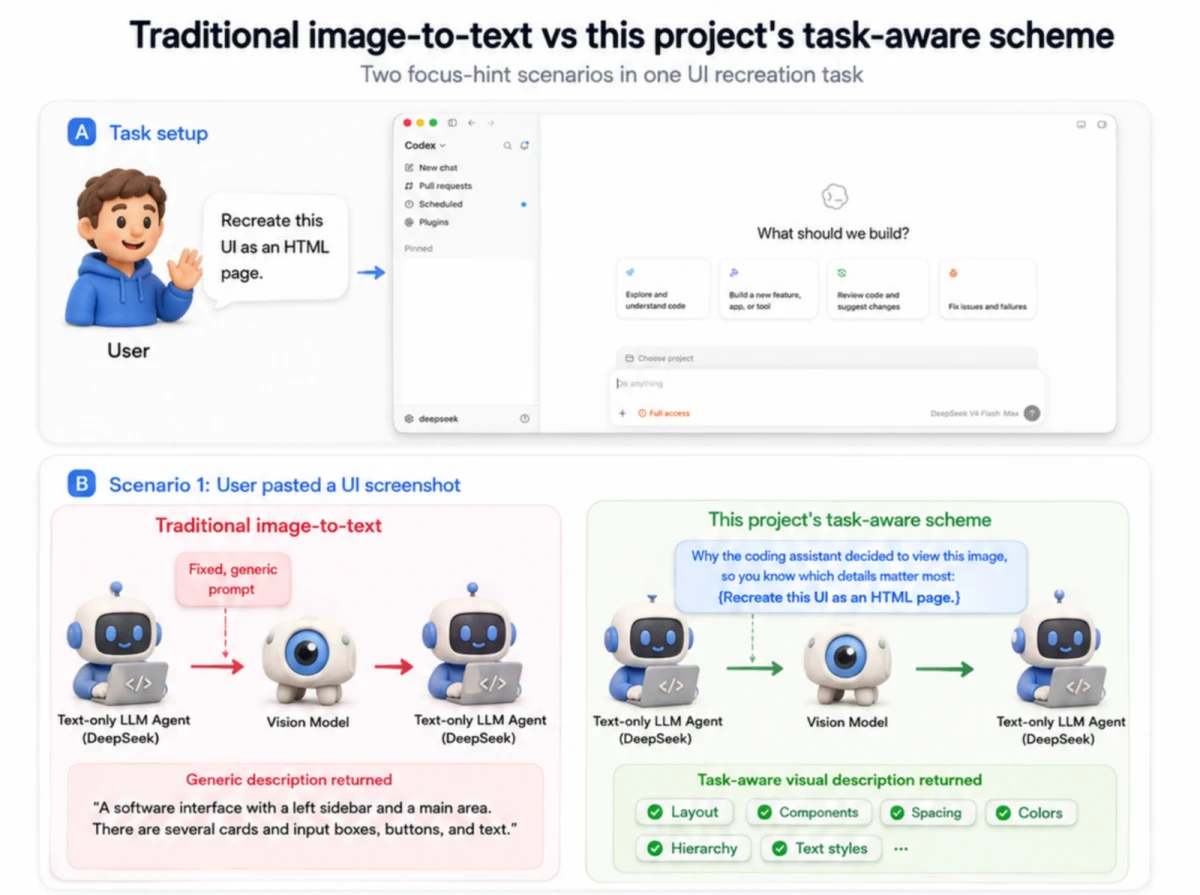
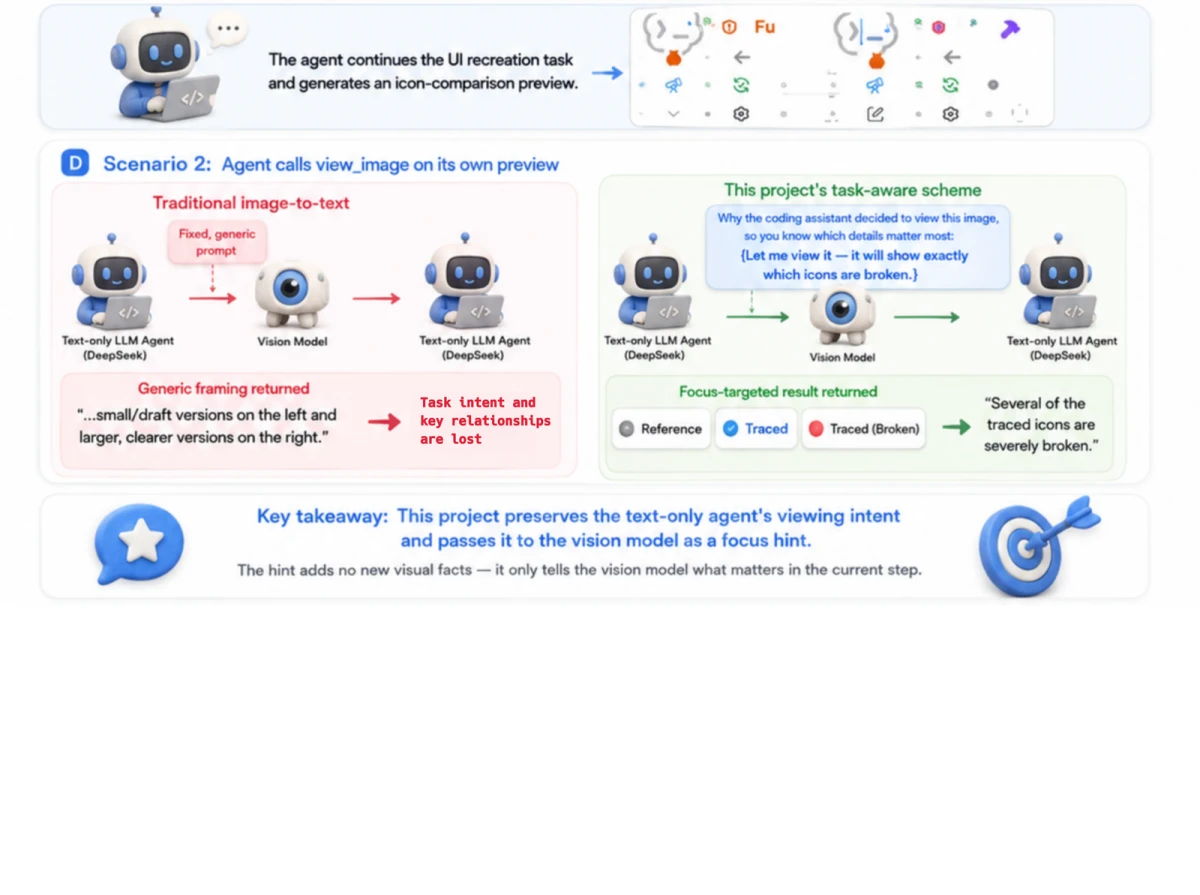
Architecture and image-input behavior
flowchart LR
    Image["Screenshot or local HTML"] --> Skill["vision-skills Skill"]
    Skill --> Agent["Text agent selects a task"]
    Agent --> Vision["Use a vision model when image understanding is needed"]
    Agent --> Local["Run crop, SVG, and pixel work locally"]
    Vision --> Result["Answer, OCR, coordinates"]
    Local --> Artifact["PNG, SVG, heatmap, JSON"]
    Result --> Session["Continue reasoning and acting"]
    Artifact --> Session
The visual capabilities come from a packaged, pinned agent-vision-toolkit snapshot. The DSH plugin handles installation, session-scoped tool exposure, Credentials, path checks, cancellation, timeouts, result files, and Web presentation. The runtime never fetches upstream main in the background.
The bundled vision-skills Skill is the DSH adapter of the upstream
vision-tools Skill: its SKILL.md plus all five upstream playbooks. Tool
names, argument syntax, Artifact delivery, progressive exposure, and DSH
path/lifecycle boundaries are adapted; the upstream tool-selection rules,
coarse-to-fine method, and task SOPs remain intact. The exact upstream Skill
commit, source hashes, adapted hashes, and reviewable adapter patch are
recorded in assets/skill/UPSTREAM.json and patches/vision-tools-dsh.patch.
For routes that DSH positively identifies as text-only, the plugin registers a sibling <model> (Vision Toolkit) variant. By default, pasting an image in DSH Web switches to that variant and gives the model both a reusable workspace path and a visual description focused on the current task.
Configuration and limits
Configure a vision model
Configure the vision provider in Settings → Vision Toolkit and store the API key as a DSH Credential. Settings stores the Credential reference and never reads the saved secret back into the browser.
Step-by-step AIHubMix tutorial: Get an AIHubMix API key and configure Gemini 3.7 Flash for vision. It includes screenshots for account/API-key setup, the exact Vision Toolkit settings, model selection, and troubleshooting.
You can also configure a Profile patch:
- id: vision-toolkit
  config:
    provider:
      baseUrl: https://api.example.com/v1
      credential: MY_VISION_KEY
      model: your-vision-model
      protocol: openai
OpenAI Chat Completions-compatible endpoints, OpenAI Responses, and Anthropic Messages are supported. Existing configurations continue to use Chat Completions. To use a Responses-compatible endpoint, set protocol: responses; the plugin appends /responses to the configured base URL. An optional reasoningEffort is sent only for Responses requests:
      protocol: responses
      reasoningEffort: medium
Leaving reasoningEffort blank uses the model or proxy default. Common values are none, minimal, low, medium, high, and xhigh, but the field intentionally accepts provider-specific values made from letters, digits, ., _, and - (up to 64 characters). Support and billing vary by model or proxy; higher effort may increase reasoning tokens, latency, and cost. The Responses request sets store: false, but that flag does not replace reviewing the provider's own data-retention policy. The Web Settings panel exposes the full provider, runtime, timeout, image-limit, and image-input-variant configuration.
Profile patches can also supply non-secret deployment metadata in provider.headers. A gateway that routes by conversation can name one or more generated headers in provider.sessionHeaders; OpenCode Zen, for example, requires x-opencode-session:
- id: vision-toolkit
  config:
    provider:
      headers:
        x-tenant: acme
      sessionHeaders:
        - x-opencode-session
Static header values are ordinary plaintext Settings, not Credentials. Do not put API keys, bearer tokens, cookies, or other secrets in provider.headers; continue to use provider.credential for the vision API key. The plugin rejects client-owned authentication headers and HTTP routing/framing headers, case-insensitive duplicates, conflicts between the two fields, invalid names or values, more than 32 combined entries, names over 128 bytes, values over 4096 bytes, or more than 16384 bytes in total.
Every session header receives the first 32 hexadecimal characters of an HMAC-SHA256 value keyed with fresh process randomness. The value is stable for the same operation identity while the DSH process is running and rotates after restart. Calls with a Session use its id as the private HMAC input; only calls without one fall back to workspace:<absolute path>, and neither the raw Session id nor workspace path is sent. One Settings health operation uses the same derived value for GET /models and its real model request. Headers are injected only into URLs on the configured provider origin and beneath its base path. With both fields empty, no extra-header environment value is created and provider wire-header behavior remains unchanged.
The advanced Default save directory setting can place artifacts, pasted images, and caches below an absolute POSIX shared root such as /tmp/dsh-vision-toolkit; the plugin creates a private mode-0700 child for the current user and workspace. Leaving it blank keeps the existing workspace-local .dsh-vision-toolkit directory. Configured shared roots are currently rejected on Windows because their ownership and access-control lists cannot yet be verified safely.
When the configured save directory changes, the plugin retains earlier validated roots as read-only input locations. Web Profiles persist that history in the plugin-owned vision_toolkit_storage storage-domain sidecar, including when the active Settings provider is read-only, so existing pasted-image paths remain usable after a Profile restart. Custom Profiles should compose @deepseek-ai/dsh-storage-domain when they use configured shared storage.
For a trusted internal endpoint that uses a self-signed certificate or MITM proxy, start the DSH process with VISION_SSL_VERIFY=0. The plugin forwards that value to the isolated Python runtime; certificate verification remains enabled when the variable is unset or has any other value. The false values false, off, no, none, and disabled are also accepted, case-insensitively.
Configure the Python runtime
Most users never need to configure the Python runtime: the plugin prefers a system Python 3.11+ and otherwise downloads a pinned standalone Python automatically from the domestic mirror, falling back to GitHub when the mirror is unreachable.
For advanced setups — overriding runtime.python, using runtime.mode: external, verifying the runtime, or allowing additional input directories — see Python runtime configuration.
Troubleshooting
| Problem | What to do |
|---|---|
The vision-model test fails with Vision API returned an incompatible response structure | The base URL usually needs a path prefix. Local OpenAI-compatible services such as LM Studio and Ollama should be entered as http://127.0.0.1:1234/v1 (include /v1); the plugin appends /chat/completions for OpenAI Chat Completions or /responses for OpenAI Responses, and a port-only address may hit an unknown endpoint |
| Pasting an image still says the model does not support image input | Restart the Web Profile, refresh the page, and confirm the selected route has the (Vision Toolkit) suffix. You can also place the image in the session workspace and invoke /vision-skills |
| The vision service returns 429 | Wait for the Retry-After interval, or switch to your own endpoint when you need stable higher volume |
| The image exceeds a size or pixel limit | Crop or resize it first; the error identifies whether bytes or decoded pixels caused the rejection |
| A custom Credential is missing | Enter the API key in Settings → Vision Toolkit and confirm the Credential name matches the provider configuration |
OpenCode Zen returns 400 MissingSessionID | Add x-opencode-session to provider.sessionHeaders in the Profile patch, then restart the Profile; do not put a Session id or API key in provider.headers |
| First-time runtime setup fails | The standalone-Python download needs network and disk access (domestic mirror first, GitHub fallback). Check connectivity or package-cache access, or install Python 3.11+ / configure runtime.python in Settings, then retry the model test |
| Chrome is not found | Install Chrome, Chromium, or Edge. Only HTML screenshot rendering is unavailable; the other tools still work |
DSH Desktop says dsh is not recognized, or its built-in marketplace install fails | Open DSH Terminal from the tray, run dsh plugin --profile desktop add @anionex/dsh-vision-toolkit, then restart DSH Desktop. The Desktop 2.0.1 marketplace has known install issues, so the terminal command is the reliable path for now |
| An artifact cannot be previewed | Use Open file or the workspace path in the result. Preview URLs exist only while the Web route is available |
FAQ
How does a vision model affect costs?
Each inspection is a separate multimodal request containing the necessary intent and image; context does not accumulate across calls. Actual cost depends on the provider, image, model, and — for Responses — reasoningEffort. Higher effort may consume more reasoning tokens and take longer. Leave effort blank to use the provider default, or use a locally deployed small multimodal side model (for example the Gemma 4 or Qwen 3.5/3.6 series) when predictable local cost matters.
Donation
If this project is valuable to you, you are welcome to buy the developer a coffee ☕️

Development and community
- Read CONTRIBUTING.md before contributing.
- Use GitHub Issues for bugs, focused feature requests, and usage questions; see SUPPORT.md for channel guidance.
- Report vulnerabilities privately through SECURITY.md.
- See CHANGELOG.md for releases and FUNDING.md for sponsorship details.
- Visit upstream agent-vision-toolkit for the general toolkit, cross-agent integrations, and visual-task playbooks.

I'm anionex, an AI-native developer who once ranked No. 3 on GitHub's global developer trending list, with more than 16k stars across my projects. If you would like to follow my future work, follow me on GitHub.
agent-vision-toolkit was created by Anionex. This repository maintains its native DeepSeek Harness integration.
License
The plugin is available under the MIT License. The packaged upstream snapshot retains its original MIT license in vendor/agent-vision-toolkit/LICENSE.
Похожие плагины
dsh-web-ui (dsh-tool-describe-image)
zhu1090093659/dsh-web-ui
ipollowork
devin-axis/ipollowork
modlens
liustack/modlens
dsh-vision-router
ysr666/dsh-vision-router